SMS लॉग
SMS लॉग, जो Messages पेज पर दिखता है, आपके वर्कस्पेस का संदेश रिकॉर्ड है। आउटबाउंड भेजे गए और इनबाउंड जवाब नवीनतम पहले दिखते हैं। इसका उपयोग किसी भेजे गए संदेश की पुष्टि करने, उसके डिलीवरी जीवनचक्र को ट्रैक करने, और उसके सेगमेंट काउंट, लागत और कैरियर विवरण की जाँच करने के लिए करें। सामूहिक Metrics पेज संदेशों की दरें दिखाता है; SMS लॉग आपको एक संदेश की जाँच करने देता है। इस पेज में एक बार के डैशबोर्ड भेजने के लिए Send SMS भी शामिल है।
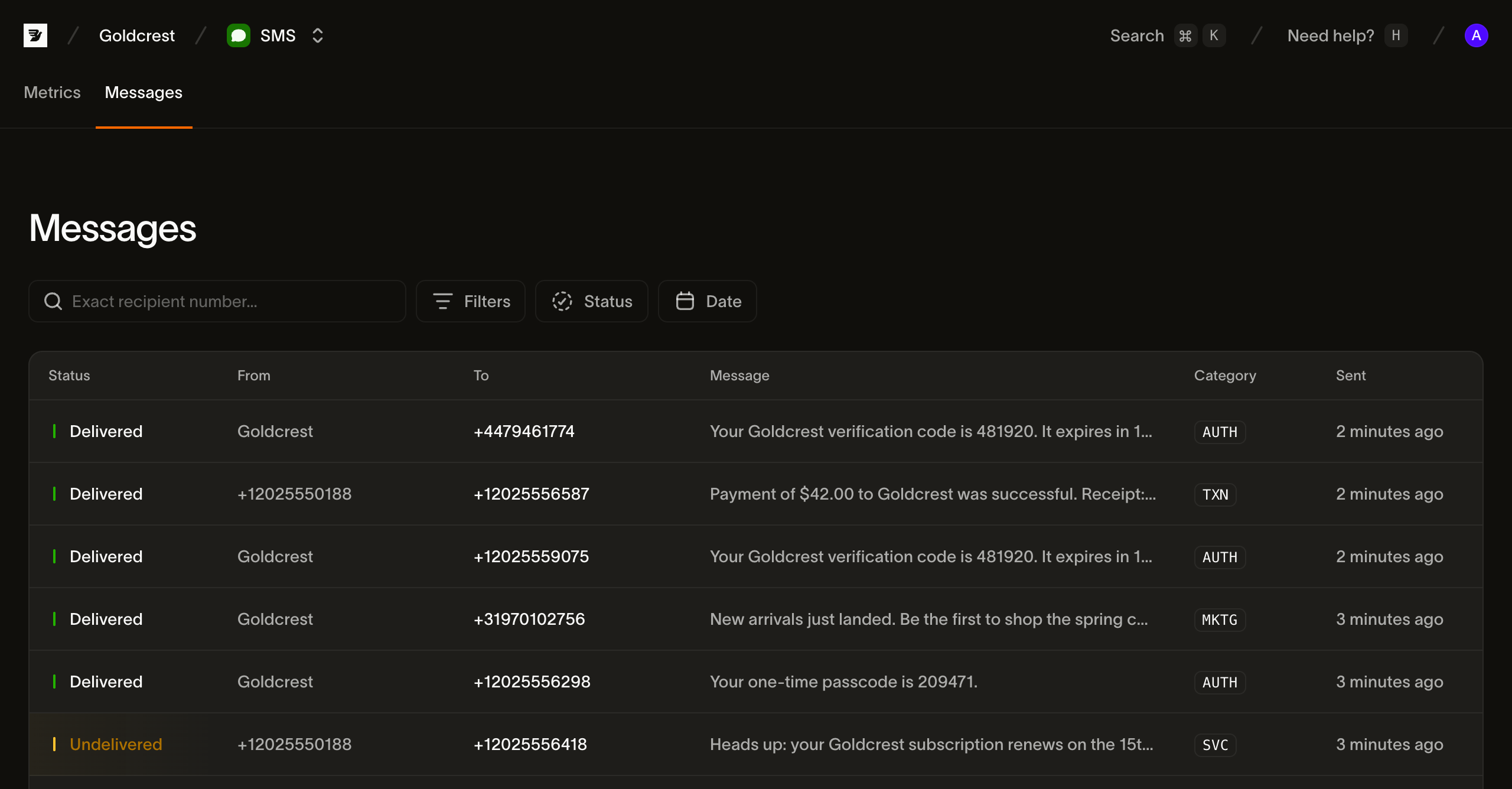
संदेश सूची
हर पंक्ति एक संदेश है। कॉलम ये हैं:
| कॉलम | क्या दिखाता है |
|---|---|
| Status | संदेश की वर्तमान डिलीवरी स्थिति (देखें Statuses) |
| From | भेजने वाला: वह नंबर, सेंडर ID, या शॉर्ट कोड जिससे संदेश भेजा गया |
| To | प्राप्तकर्ता का नंबर |
| Message | संदेश बॉडी की शुरुआत (इस पर या पंक्ति में कहीं भी क्लिक करें ताकि संदेश खुले) |
| Category | संदेश की श्रेणी, एक छोटे बैज के रूप में दिखती है (TXN, MKTG, AUTH, SVC) |
| Sent | भेजना कब स्वीकार किया गया, सापेक्ष समय के रूप में (सटीक टाइमस्टैम्प के लिए होवर करें) |
सूची पेजिनेट की गई है, प्रति पेज 25 संदेश; पेजों के बीच जाने के लिए Prev और Next का उपयोग करें।
खोज और फ़िल्टरिंग
संदेश लॉग तेज़ी से भरता है, इसलिए पेज सबसे पहले प्राप्तकर्ता खोज और चार फ़िल्टर दिखाता है। ये मिलकर काम करते हैं: एक स्टेटस फ़िल्टर और एक तारीख सीमा मिलकर केवल दोनों से मेल खाने वाले संदेश दिखाते हैं।
प्राप्तकर्ता से खोजें। सर्च बॉक्स E.164 प्रारूप में एक सटीक प्राप्तकर्ता नंबर से मैच करता है। पूरा नंबर टाइप करें, जैसे +31612345678, ताकि उस पर भेजे गए सभी संदेश मिलें। खोज सबस्ट्रिंग से मैच नहीं करती।
Status. एक या अधिक डिलीवरी स्टेटस पर फ़िल्टर करें। Status मल्टी-सेलेक्ट है, तो आप मिसाल के तौर पर Undelivered, Failed, और Expired एक साथ चुनकर वह सब दिखा सकते हैं जो पहुँचा नहीं। विकल्प Statuses में सूचीबद्ध स्टेटस हैं।
Category. संदेश श्रेणी के अनुसार फ़िल्टर करें: Transactional, Marketing, Authentication, या Service।
Direction. Outbound या Inbound के अनुसार फ़िल्टर करें। आपके नंबरों पर आने वाले जवाब आपके भेजे गए संदेशों के साथ संग्रहीत होते हैं, इसलिए Inbound वह दिखाता है जो आपने प्राप्त किया।
Date. संदेश कब भेजा गया इसके अनुसार फ़िल्टर करें; कोई प्रीसेट चुनें या कैलेंडर से कस्टम सीमा चुनें।
जब कोई फ़िल्टर संयोजन किसी से मेल नहीं खाता, तो पेज एक कोई-परिणाम-नहीं स्थिति दिखाता है और पूरी सूची पर वापस जाने के लिए Clear filters कार्रवाई देता है।
स्टेटस
किसी संदेश का स्टेटस वह है जहाँ वह डिलीवरी जीवनचक्र में वर्तमान में है। संदेश accepted से एक अंतिम रसीद की ओर बढ़ता है।
| स्टेटस | अर्थ |
|---|---|
| Accepted | Bird ने संदेश स्वीकार किया और उसे कैरियर को सौंपने की तैयारी कर रहा है |
| Sent | कैरियर को सौंपा गया; डिलीवरी रसीद की प्रतीक्षा में |
| Delivered | कैरियर ने हैंडसेट तक डिलीवरी की पुष्टि की |
| Undelivered | एक गैर-स्थायी अडिलीवरी: हैंडसेट बंद था, पहुँच से बाहर था, या सामग्री अवरुद्ध थी |
| Failed | एक स्थायी विफलता; संदेश डिलीवर नहीं किया जा सकता |
| Rejected | संदेश अस्वीकार किया गया (पॉलिसी जाँच, विफल चार्ज, या कैरियर ने इसे वापस कर दिया) |
| Expired | कैरियर ने प्रयास बंद कर दिया और संदेश को एक्सपायर्ड रिपोर्ट किया |
| Received | एक इनबाउंड संदेश |
स्टेटस लेबल बताता है कि संदेश ट्रांज़िट में है, डिलीवर हुआ, प्राप्त हुआ, या असफल रहा। परिणाम देखते समय केवल रंग पर निर्भर न रहें।
संदेश की जाँच करना
किसी भी पंक्ति पर क्लिक करें ताकि संदेश एक साइड पैनल में खुले। इसमें दो टैब हैं, Events और Details, और इसके हेडर में संदेश बॉडी, वर्तमान स्टेटस, प्राप्तकर्ता और श्रेणी दिखती है। जब तक संदेश ट्रांज़िट में है, पैनल हर कुछ सेकंड में अपने आप रिफ़्रेश होता है, इसलिए स्टेटस परिवर्तन या डिलीवरी रसीद बिना मैन्युअल रीलोड के दिखती है।
Events
डिफ़ॉल्ट टैब एक संदेश की टाइमस्टैम्प वाली टाइमलाइन है। यह SMS events में वर्णित स्ट्रीम प्रस्तुत करता है: Accepted, फिर Sent, फिर Delivered, या एक विफलता इवेंट (Undelivered, Failed, Rejected, Expired)। डिलीवरी इवेंट कैरियर और MCC/MNC (मोबाइल नेटवर्क) की पहचान करते हैं। विफलता इवेंट त्रुटि विवरण दिखाते हैं; Details टैब में त्रुटि कोड होता है।
Details
Details टैब संदेश का मेटाडेटा है:
- Message ID, Direction, From, To, और Category
- Segments: बिल योग्य सेगमेंट काउंट, एन्कोडिंग (
GSM_7BITयाUCS2), और कैरेक्टर काउंट (देखें सेगमेंट और एन्कोडिंग) - Cost: राशि और मुद्रा, संदेश की कीमत तय होने के बाद
- Carrier और MCC/MNC: डिलीवर करने वाला नेटवर्क, जब ज्ञात हो
- Sent, Handed to carrier, और Delivered टाइमस्टैम्प
- Error: विवरण और कोड, उस संदेश पर जो पहुँचा नहीं
- भेजते समय आपने जो भी Tags और Metadata सेट किए
अधिकांश फ़ील्ड एक क्लिक से कॉपी किए जा सकते हैं।
सार्वजनिक संदेश और इवेंट पढ़ने की सुविधा हाल के 30 दिनों को कवर करती है। इससे पुराना संदेश ID उस पढ़ने की विंडो से बाहर है; अपने एप्लिकेशन को जो रिकॉर्ड चाहिए उन्हें अपनी स्वयं की रिटेंशन और सहमति नीति के अंतर्गत रखें।
API पर वही लॉग
इस पेज के पीछे की सूची GET /v1/sms/messages है, जिसके फ़िल्टर स्टेटस, श्रेणी, टैग, सटीक प्राप्तकर्ता और समय विंडो को कवर करते हैं। किसी संदेश की टाइमलाइन GET /v1/sms/messages/{message_id}/events से प्राप्त करें। उसकी नवीनतम स्थिति GET /v1/sms/messages/{message_id} से पढ़ें, या webhook events को रियल-टाइम में उपभोग करें।
अगले कदम
व्यापक रिपोर्टिंग वर्कफ़्लो के लिए SMS analytics और आने वाले संदेशों को संभालने के लिए दो-तरफ़ा SMS देखें।
- SMS metrics: सामूहिक डिलीवरी दर, विफलता दर और स्वीकृत मात्रा की निगरानी करें।
- SMS events: टाइमलाइन के पीछे की इवेंट शब्दावली की समीक्षा करें।
- Sending SMS: श्रेणियों, टैग और मेटाडेटा के साथ एक सेंड पेलोड बनाएँ।
संबंधित संसाधन
इस विषय के लिए दस्तावेज़, गाइड और उदाहरणों के साथ आगे बढ़ें।