ऑडियंस
ऑडियंस संपर्कों की एक नामित सूची होती है। इसे एक बार बनाएँ और बार-बार उपयोग करें। इससे उसी समूह तक दोबारा पहुँचने के लिए पते इकट्ठा नहीं करने पड़ते, बस सूची का नाम देना होता है। एक संपर्क कई ऑडियंस में हो सकता है, और लोगों के जुड़ने या छोड़ने पर आप सदस्य जोड़ते या हटाते हैं।
ऑडियंस को डैशबोर्ड में Contacts > Audiences में, टर्मिनल से bird audiences के ज़रिए, ऑडियंस API के माध्यम से, या किसी भी SDK से प्रबंधित करें।
Audiences पेज
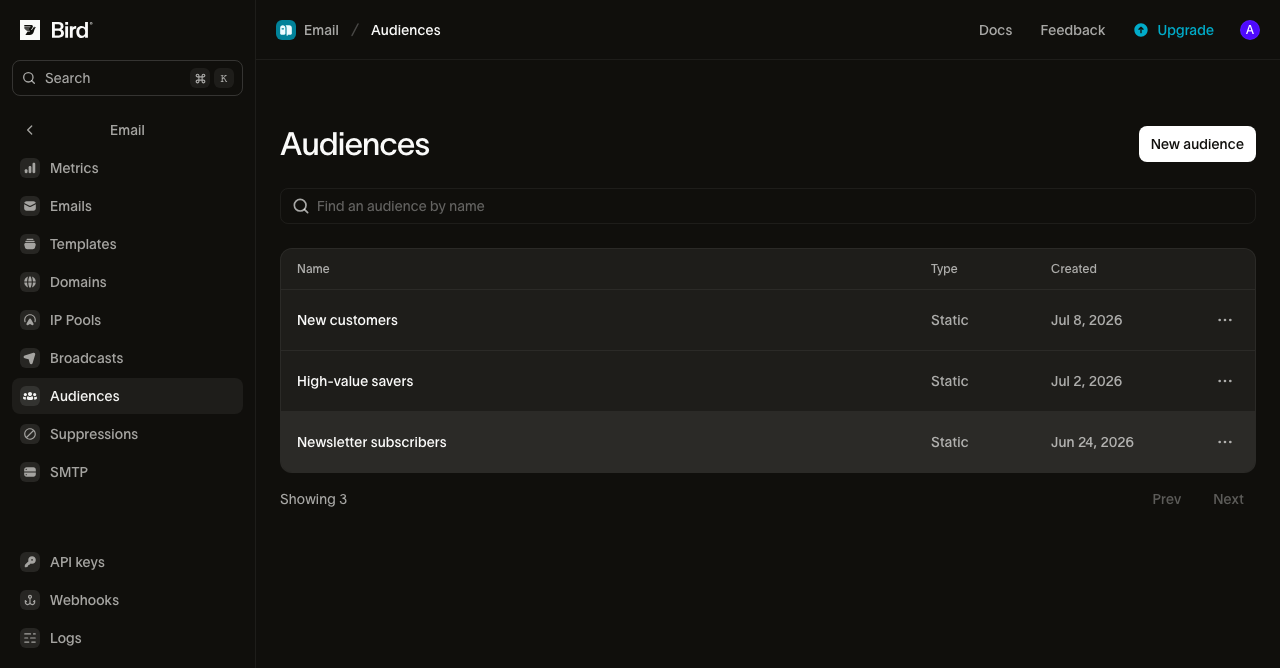
Audiences पेज आपकी ऑडियंस को नाम, बनाने की तारीख और प्रकार के साथ दिखाता है। जिस सूची के सदस्य आप स्वयं जोड़ते और हटाते हैं, उसका प्रकार Static दिखता है। पेज देखने के लिए email_marketing पढ़ने की अनुमति चाहिए, और ऑडियंस बनाने या संपादित करने के लिए लिखने की अनुमति चाहिए।
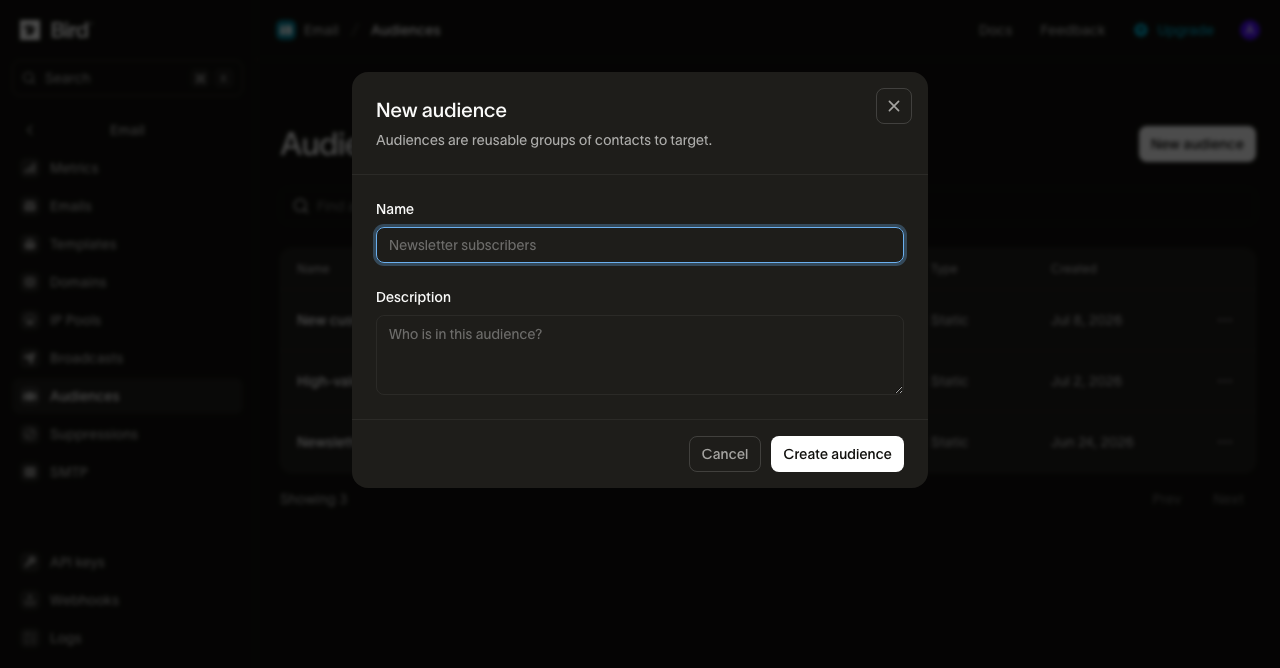
ऑडियंस बनाने के लिए एक नाम चाहिए, और वैकल्पिक रूप से यह विवरण कि इसमें कौन है। इसके बाद सदस्यों को प्रबंधित करने के लिए ऑडियंस खोलें।
सदस्य
किसी ऑडियंस के सदस्य देखने के लिए उसे खोलें। सबसे हाल में जोड़े गए सदस्य सबसे ऊपर दिखते हैं। हर पंक्ति में यह दिखता है:
- संपर्क का नाम और ईमेल पता।
- संपर्क के संग्रहीत पहचानकर्ताओं से बने ईमेल या SMS लेबल। ये इस बात का प्रमाण नहीं हैं कि संपर्क तक पहुँचा जा सकता है या उसने अनुमति दी है।
- वे सभी ऑडियंस जिनका संपर्क सदस्य है, इसमें यह ऑडियंस भी शामिल है।
- संपर्क इस ऑडियंस में कब जुड़ा।
सूची में ईमेल पते से खोजें, फिर संपर्क खोलने के लिए किसी पंक्ति को चुनें।
ऑडियंस सारांश में दो कार्ड होते हैं। Members ऑडियंस के सभी सदस्यों की गिनती करता है। Email उन संपर्कों की गिनती करता है जिनके पास पता है। लागू प्राथमिकताओं और सप्रेशन के बाद यह भेजे जा सकने वाले संपर्कों की अनुमानित संख्या भी दिखाता है। ब्रॉडकास्ट चलने से पहले यह अनुमान बदल सकता है, और यह डिलीवरी की गारंटी नहीं देता।
किसी इंटीग्रेशन से ऑडियंस के सदस्यों की जानकारी पढ़ने के लिए ऑडियंस के सदस्यों की जानकारी पाएं का उपयोग करें। संदर्भ में मौजूदा संख्या और उसकी गणना के समय की जानकारी दी गई है।
रोज़ाना के इतिहास के लिए ऑडियंस के सदस्यों के आंकड़े पाएं का उपयोग करें। तारीखों की तुलना करने से पहले डेटा रखने की अवधि और अनुपलब्ध अवलोकनों से जुड़े नियम पढ़ें।
यही जानकारी bird audiences और MCP टूल audiences_membership तथा audiences_membership_history से भी पढ़ी जा सकती है। अपने ऐप्लिकेशन में इनका उपयोग करने के लिए SDK गाइड देखें।
लोगों को दो में से किसी भी तरीके से जोड़ें:
- ईमेल पते पेस्ट करें: ऑडियंस में हर पंक्ति में एक पता डालें, एक बार में अधिकतम 1,000 पते। हम हर पते को किसी मौजूदा संपर्क से मिलाते हैं। कोई मेल न मिले तो हम नया संपर्क बनाते हैं। फिर हम सभी को एक ही चरण में ऑडियंस में जोड़ देते हैं।
- इंपोर्ट के समय असाइन करें: संपर्कों को इंपोर्ट या अपसर्ट करते समय ही उन्हें ऑडियंस में डालें। बैच एंडपॉइंट और
bird contacts batchसंपर्कों के साथ एकaudience_idsसूची लेते हैं, जिसमें हर अनुरोध में अधिकतम 10 ऑडियंस हो सकती हैं। आपके बताए गए हर ऑडियंस का मौजूद होना ज़रूरी है। ऐसा न होने पर पूरा अनुरोध विफल हो जाता है और कुछ भी नहीं लिखा जाता।
जोड़ने की प्रक्रिया आइडेम्पोटेंट है, इसलिए जो संपर्क पहले से सदस्य है वह वैसे ही बना रहता है और उसकी मूल जुड़ने की तारीख नहीं बदलती। सदस्यता हटाने से अनसब्सक्राइब दर्ज नहीं होता। प्राथमिकताएँ और सप्रेशन अलग रहते हैं। किसी सदस्य को हटाने से संपर्क केवल उसी एक ऑडियंस से निकलता है। संपर्क आपके वर्कस्पेस में और उन सभी अन्य ऑडियंस में बना रहता है जिनका वह सदस्य है। किसी एक सदस्य को उसकी पंक्ति से हटाएँ, या कई सदस्यों को चुनकर एक साथ हटाएँ।
CLI से संपर्क जोड़ने के लिए bird audiences add-contacts <audience-id> और उन्हें फिर से हटाने के लिए bird audiences remove-contacts <audience-id> का उपयोग करें। दोनों कमांड संपर्क ID लेते हैं, इसलिए आपको जोड़े या हटाए जाने वाले हर संपर्क की ID पता होनी चाहिए। अगर आपके पास केवल ईमेल पतों की सूची है, तो इसके बजाय audience_ids के साथ bird contacts batch का उपयोग करें। यह कमांड हर पता खोजता है और जिस पते को नहीं पहचानता उसके लिए संपर्क बनाता है। फिर यह एक ही कॉल में सभी को ऑडियंस में जोड़ देता है।
चुने गए समूह को अद्यतन रखना
सार्वजनिक ऑडियंस API स्पष्ट, स्थिर सदस्यता का उपयोग करता है। यदि कोई CRM या डेटा वेयरहाउस नियम-आधारित समूह का मूल्यांकन करता है, तो जोड़े गए और हटाए गए दोनों सदस्यों को सिंक्रनाइज़ करें और अंतिम पूर्ण रीफ़्रेश का समय दर्ज करें। ऑडियंस सदस्यता सिंक्रनाइज़ करें में दिए गए चरणों का पालन करें। केवल किसी संपर्क की प्रॉपर्टी अपडेट करने से स्थिर ऑडियंस का दोबारा मूल्यांकन नहीं होता।
किसी ऑडियंस को भेजना
पूरे ऑडियंस को एक संदेश भेजना ब्रॉडकास्ट कहलाता है। आप ऑडियंस चुनते हैं, और भेजना शुरू होते ही हम उसके सदस्यों को प्राप्तकर्ता सूची में बदल देते हैं। इसलिए ब्रॉडकास्ट उन्हीं लोगों तक पहुँचता है जो उस समय ऑडियंस के सदस्य हैं। ब्रॉडकास्ट डैशबोर्ड, API या bird email broadcasts कमांड से चलाए जा सकते हैं।
यदि प्राप्तकर्ता सूची केवल एक बार के लिए है और उसे ऑडियंस के रूप में सहेजना ज़रूरी नहीं है, तो इसके बजाय बैच भेजें।
अगले चरण
-
ऑडियंस सदस्यता सिंक्रनाइज़ करें: स्रोत सिस्टम में चुने गए समूह को स्पष्ट सदस्यता के साथ मेल में रखें
-
संपर्क: प्राप्तकर्ता रिकॉर्ड और टाइप की गई प्रॉपर्टी, जिनसे ऑडियंस बनता है
-
ब्रॉडकास्ट: इस ऑडियंस को एक संदेश भेजें
-
बैच में भेजना: एक बार की सूची के लिए ब्रॉडकास्ट का विकल्प, प्रति अनुरोध अधिकतम 100 संदेश
-
सप्रेशन: वर्कस्पेस के उन पतों की सूची, जिन पर हम डिलीवर नहीं करते
-
API संदर्भ: अनुरोध और प्रतिक्रिया के पूरे स्कीमा
-
अपने ग्राहकों को मैनेज करें: कॉन्टैक्ट्स और ऑडियंस: एक वीडियो, जिसमें संपर्क प्रॉपर्टी बनाई जाती हैं, संपर्क इम्पोर्ट किए जाते हैं और उन्हें एक ऑडियंस में समूहित किया जाता है
संबंधित संसाधन
इस विषय के लिए दस्तावेज़, गाइड और उदाहरणों के साथ आगे बढ़ें।