联系人
您可以在仪表板的联系人 > 所有联系人中管理联系人,也可以在终端使用 bird contacts、调用联系人 API,或选用 SDKs。
向联系人发送消息
要向一个人发送电子邮件,请通过发送 API向其地址发送;联系人记录会保存其身份信息,供后续重复使用。要一次联系多人,可以批量发送,也可以将他们分组为一个受众,然后发送广播。存储联系人本身不会发送任何消息。
联系人页面
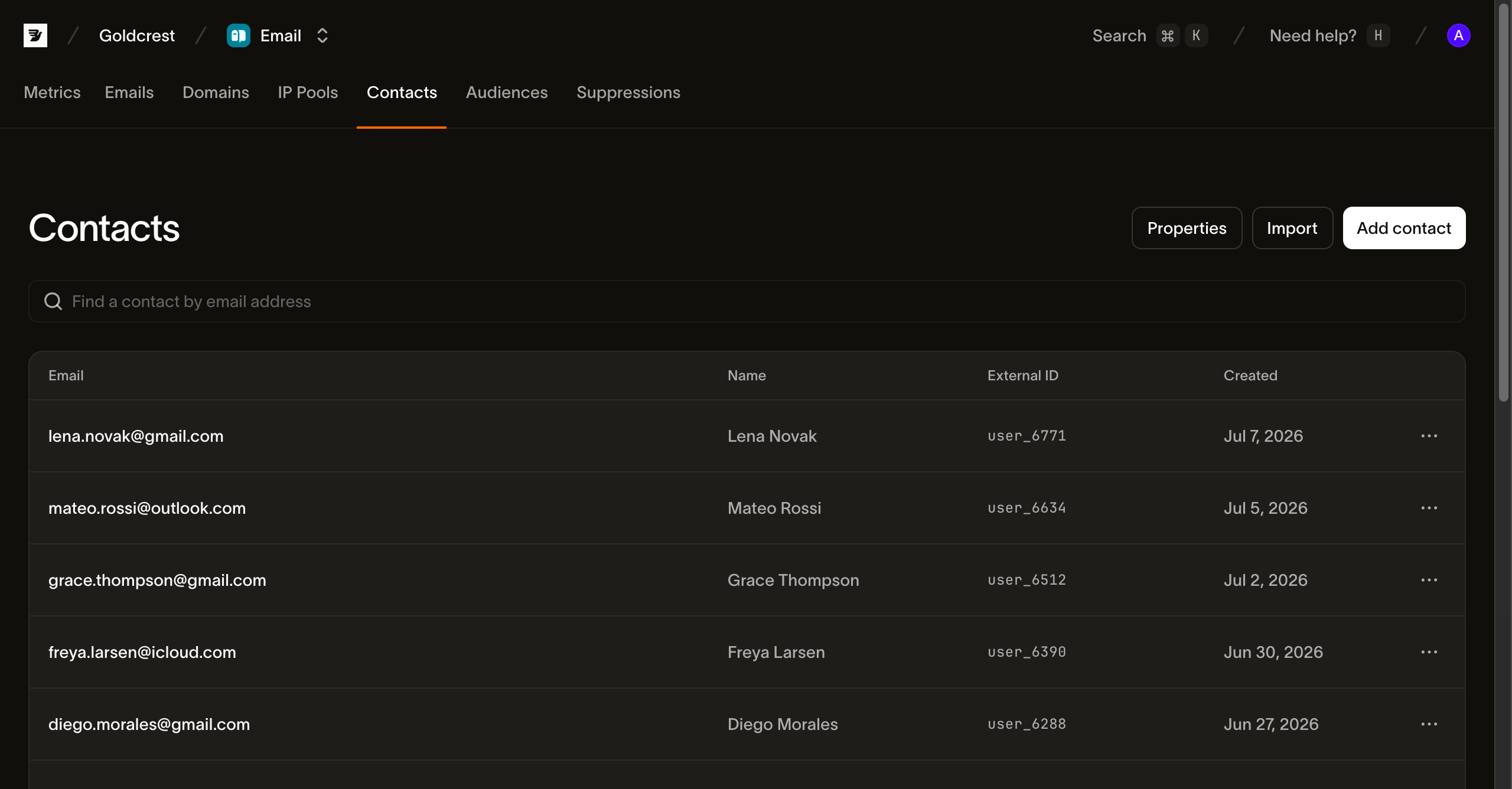
联系人页面显示联系人的姓名、标识符、受众成员关系和创建信息。按姓名、电子邮件或电话号码搜索,然后选择一行打开联系人。使用页面顶部的操作添加一个联系人或导入多个联系人。查看需要 email_marketing 读取权限。添加、编辑和删除需要写入权限。
联系人包含的信息
每个联系人都有电子邮件地址、电话号码或两者兼有,每个标识符在您的工作区中都是唯一的。您还可以填写姓名和自己的标识符:
| 字段 | 说明 |
|---|---|
email | 电子邮件地址,在您的工作区中唯一。我们会去除首尾空白并转换为小写后存储,因此 Sam@Acme.com 和 sam@acme.com 会规范化为同一个标识符。 |
phone_number | 电话号码,在您的工作区中唯一。格式会规范化为国际格式。存储号码不会验证号码规划元数据、归属权、可达性或同意状态。 |
first_name | 可选的名字,用于个性化发送内容。 |
last_name | 可选的姓氏。 |
external_id | 可选。您为此人设置的主键(来自您数据库的用户 ID),设置后在工作区中唯一。它用于将联系人匹配回您自己的记录,无需依赖电子邮件地址。 |
data | 自定义属性值,每个已注册的联系人属性对应一个值。 |
仪表板根据已有标识符生成电子邮件和 SMS 标签。API 返回 email 和 phone_number,不返回 channels 字段。这些标签不能证明您具有发送权限,也不能证明该渠道可达。
每个联系人还有一个以 con_ 为前缀的 ID,以及创建和更新时间戳。完整的字段约定请参阅 API 参考。
联系人属性
联系人属性为联系人的自定义字段定义类型。在工作区中注册一个属性后,每个联系人都可以在 data 下保存该属性的值。预先声明结构定义可以让个性化和分群更可靠:收到的值始终符合您声明的类型,因此模板或筛选器可以依赖这一点。
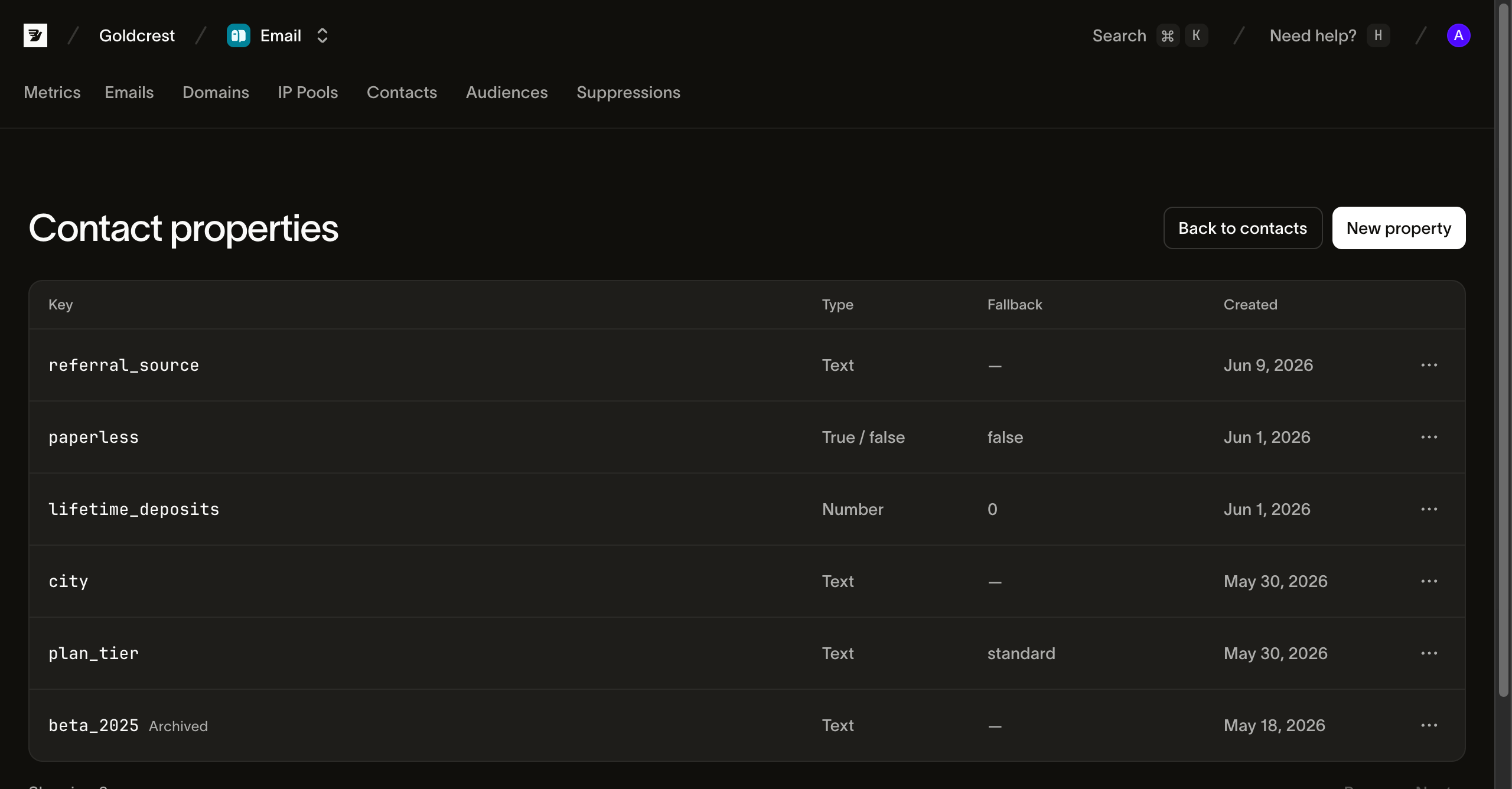
在联系人 > 联系人属性中管理属性。每个属性都有键、类型和可选的回退值:
- 键是引用值时使用的名称,例如
plan_tier。它必须使用小写字母并以字母开头(^[a-z][a-z0-9_]*$),创建后不可更改。 - 类型可以是
string、number、boolean或datetime,创建后同样不可更改。datetime接收带明确时区偏移量的 RFC 3339 时间戳,例如2026-01-15T11:30:00+02:00。我们会将其规范化为 UTC,精确到秒,因此该值会以2026-01-15T09:30:00Z的形式存储和返回。只有日期而没有时间的值会被拒绝。仪表板将这些类型标记为文本、数字、真 / 假和日期与时间。 - 回退值是联系人没有自己的属性值时读取到的值,因此缺少
plan_tier时,可以得到free,而不是空值。
您可以在编辑联系人的位置设置属性值。仪表板的联系人表单会为每个未归档的属性显示符合其类型的输入框,CLI 和 API 也在 data 下接收相同的键。
归档属性
归档是移除联系人属性的方式。Bird 会保留属性值,方便您通过取消归档恢复属性。属性没有永久删除选项。
归档后的属性会从属性选择器中消失,导入列映射时也无法选择该属性。读取该属性的新模板版本无法发布。发布错误会指出属性名称。已经发布的模板会继续发送,并使用联系人的值或属性的备用值填充内容。
联系人会保留已存储的值。您仍可通过 API 和导入操作读取及更新这些值。值必须符合属性的类型。
如果已发布的自动化(包括已暂停的自动化)在触发器或联系人数据写入中使用该属性,归档会返回 409 冲突。正在运行且会写入该属性的执行也会阻止归档。请从这些自动化中移除该属性,或归档这些自动化。等待正在运行的执行完成,或取消执行,然后再次归档该属性。如果您有权限读取自动化,错误会列出自动化名称。
取消归档即可恢复属性及其值。属性会重新出现在选择器中,并可用于新的模板版本。归档期间,属性键仍被保留,并计入工作区的 200 个属性上限。
导入和同步联系人
要从联系人页面导入列表,请选择导入并上传 CSV、TSV 或 Excel 文件。每行填写一个联系人,并包含一行用于命名各列的表头。一个文件最多可包含 50,000 个联系人。CSV 文件最大为 50 MB,电子表格文件最大为 10 MB。
表头行有助于识别每个联系人字段。名为 "Email Address"、"E-Mail" 或 "Correo electrónico" 的列都会映射到电子邮件字段。如果一列包含完整姓名,则会拆分为名字和姓氏。如果两列都可以填入同一个字段,会选择内容与列名相符的那一列。每列会显示几个自身的值,方便您查看其中的内容;拆分后的姓名也会与其原始值一起显示。您可以通过各列的下拉菜单更改映射。同一次导入也可以将文件中的所有人添加到一个或多个受众。
每行会根据其标识符匹配现有联系人并更新;如果是新联系人,则创建记录。因此,重新导入同一个文件会执行更新或插入,而不会堆积重复记录。在写入任何数据之前,仪表板会报告最初的行中有多少行无法按当前映射导入。运行后,每个跳过的行都会列出源文件行号和错误。
导入的重复计数指的是文件内的重复行。它优先使用邮箱地址匹配,没有邮箱时使用电话号码。与工作区中已有联系人的匹配在 API 确认后显示为更新。
“This row was not confirmed as saved” 表示仪表板未收到确认该行的结果。即使创建和更新计数为零,该行也可能已被保存。重试前请检查几个受影响的联系人。在导入完成前保持导入标签页打开;仪表板从该标签页运行导入。
要从自己的数据库同步,可以编写脚本调用 CLI,或调用批量端点。bird contacts create <email> 添加一个联系人。bird contacts batch 在一次调用中最多可 upsert 1,000 个。每次同步使用一个批量请求而非逐人请求,以保持联系人列表与你的系统同步。
const contact = await bird.contacts.create({
  email: "jane@acme.com",
  first_name: "Jane",
});
console.log(contact.id); // "con_…"
contact = client.contacts.create(email="jane@acme.com", first_name="Jane")
print(contact.id, contact.email)contact, err := client.Contacts.Create(context.Background(), bird.ContactCreateParams{
Email: bird.Ptr("jane@acme.com"),
FirstName: bird.Ptr("Jane"),
})
if err != nil {
log.Fatal(err)
}
fmt.Println(contact.Id)$contact = $bird->contacts->create(
(new ContactCreateRequest())
->setEmail('jane@acme.com')
->setFirstName('Jane'),
);
echo $contact->getId(); // "con_…"bird contacts create alice@acme.com \
--first-name Alice \
--last-name Anderson \
--phone-number +31612345678curl -X POST "https://{region}.platform.bird.com/v1/contacts" \
-H "Authorization: Bearer $TOKEN" \
-H "Content-Type: application/json" \
-d '{
"email": "alice@acme.com",
"phone_number": "+31612345678",
"first_name": "Alice",
"last_name": "Anderson"
}'每个批量条目会根据其提供的标识符(邮箱地址、电话号码或外部 ID)自动匹配,可选的 match_on 字段可强制仅使用其中一个进行匹配。条目还可以设置自定义属性值,并通过 audience_ids 将请求中的所有联系人直接加入受众。每个条目独立成功或失败,响应按提交顺序报告每个条目的结果:
{
  "data": [
    {
      "contact_id": "con_01ky7q5t51echr7mqj5c08423b",
      "entry": { "email": "alex@example.com", "phone_number": null, "external_id": null },
      "matched_on": "email",
      "status": "updated"
    },
    {
      "contact_id": "con_01ky7q6mxdfhe86c9dqyt866pz",
      "entry": { "email": "jamie@example.com", "phone_number": null, "external_id": null },
      "matched_on": null,
      "status": "created"
    },
    {
      "contact_id": "con_01ky7q7rv9e9pt4vkr0w0gxq5e",
      "entry": { "email": "casey@example.com", "phone_number": null, "external_id": "user_2214" },
      "matched_on": "external_id",
      "status": "updated"
    }
  ]
}
如果某条目的标识符指向不同的已有联系人,该条目会因冲突而失败,需人工审查。请先修正源记录再重试;批量操作不会合并这些联系人。
两个默认行为对同步很有用。批量操作会将 data 键合并到已有联系人数据上,因此只更新一个属性的导入不会清除其他属性。发送 null 值可清除某个键,或设置 data_mode: "replace" 以覆盖整个映射。为每个联系人设置你自己的 external_id,这样即使邮箱变更,后续同步仍能找到同一个人。在批量示例中,user_2214 已存在,因此该条目解析到该联系人并原地写入新邮箱。
删除联系人
删除联系人是永久操作:记录及其受众成员关系会被移除,且无法恢复。不过,抑制列表和偏好设置不受影响。硬退回的地址仍保留在你的抑制列表中,退订的地址在你删除联系人后仍保留其退出偏好,因此删除某人不会悄悄使其重新变为可发送状态。