WhatsApp 群组
WhatsApp 群组是一个由你的企业和少数人共享的单一聊天,所有人都能看到并回复每条消息。当对话涉及两方以上时适合使用群组:客户、工程师和安装人员都需要跟进的支持工单,面向指定客户的专属服务通道,一起完成课程的学员群,或者买家和快递员都需要联系你的配送场景。
注意: 创建群组需要一个拥有 Official Business Account 状态的企业号码,即 WhatsApp 在聊天中显示在企业名称旁的蓝色勾号。WhatsApp Official Business Account 介绍了 Meta 的要求以及申请方式。
群组与其他所有 WhatsApp 发送方式有两个关键区别,决定了它是否适用:
- 群组中每个人都能看到其他所有人。 一条消息会送达每位参与者,每条回复也会发给整个群组。如果你需要联系的多人之间不应相互可见,请分别单独发送。
- 人们通过链接自行加入。 WhatsApp 没有将他人添加到群组的操作,因此加入方式是你发给他们的邀请链接,加入与否由他们自己决定。群组因此是一种明确的主动加入机制,你无法从手头的号码列表直接组建群组。
群组保持小规模。WhatsApp 限制了单个群组的人数上限,因此群组适合单个工单或客户,而非广播。
创建群组之前
创建群组需要满足两个条件:你自己对工作区的访问权限,以及用于创建群组的号码。
Groups 页面位于 WhatsApp > Groups,打开它需要 whatsapp_management 权限的读取级别,同时 whatsapp 的读取级别会在导航中显示 WhatsApp 部分。创建群组需要 whatsapp_management 的写入级别,因此仅有读取权限的成员可以查看工作区的群组,但看不到 Create group 按钮。用户、团队和角色介绍了如何授予这两项权限。
WhatsApp 仅向拥有 Official Business Account 状态的企业号码开放群组功能,因此 Business number 字段只有在号码完成电话号码设置并在 Numbers 页面上带有已验证标记后,才会列出该号码。
Official Business Account 状态由 Meta 决定而非我们,我们无法批准或加速此流程。WhatsApp Official Business Account 介绍了 Meta 在授予该状态前审核的内容,包括你账户的企业验证、如何在 WhatsApp Manager 中申请该状态,以及如何在 Bird 中查看状态。
创建群组
- 打开 Groups 页面并选择 Create group。
- 选择管理该群组的 Business number。群组在整个生命周期内使用该号码,创建后无法更改。
- 输入最多 128 个字符的 Group name。该名称是受邀者在加入前看到的内容,因此应以群组用途命名,而非使用内部引用名。
- 如果用途说明超出名称所能承载的范围,可添加最多 2,048 个字符的描述。
- 选择 Join approval。默认值 Automatic approval 会接纳所有打开邀请链接的人;Approval required 则将每位新来者转为由你决定的加入请求。与企业号码一样,此设置在群组创建后不可更改,因此需要审核的群组必须在创建时就选择该模式。
- 选择 Create group。
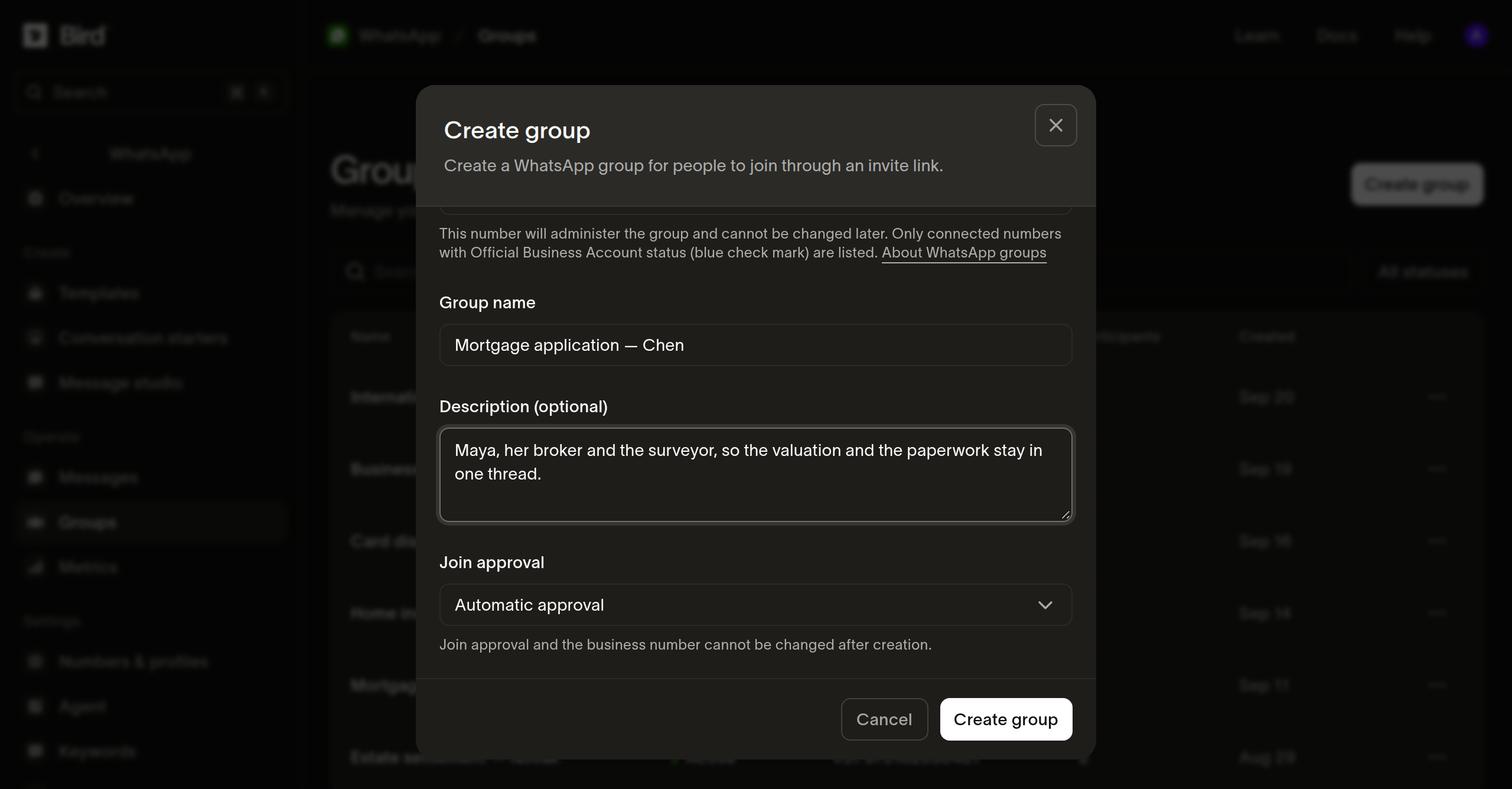
群组创建后显示状态为 Pending。创建是异步的:我们记录请求,WhatsApp 稍后确认群组,届时状态变为 Active 并填入邀请链接。如果 WhatsApp 拒绝了请求,群组状态变为 Failed,其详情页会显示原因。失败的群组无法恢复,请创建新群组而非重试。
邀请他人加入群组
从 Groups 页面打开群组,在 Details 标签页中复制 Invite link,然后通过任何已有的渠道将该链接发送给你想要加入群组的人。在 WhatsApp 确认群组之前,该字段显示 Not available,这是待处理状态而非错误。
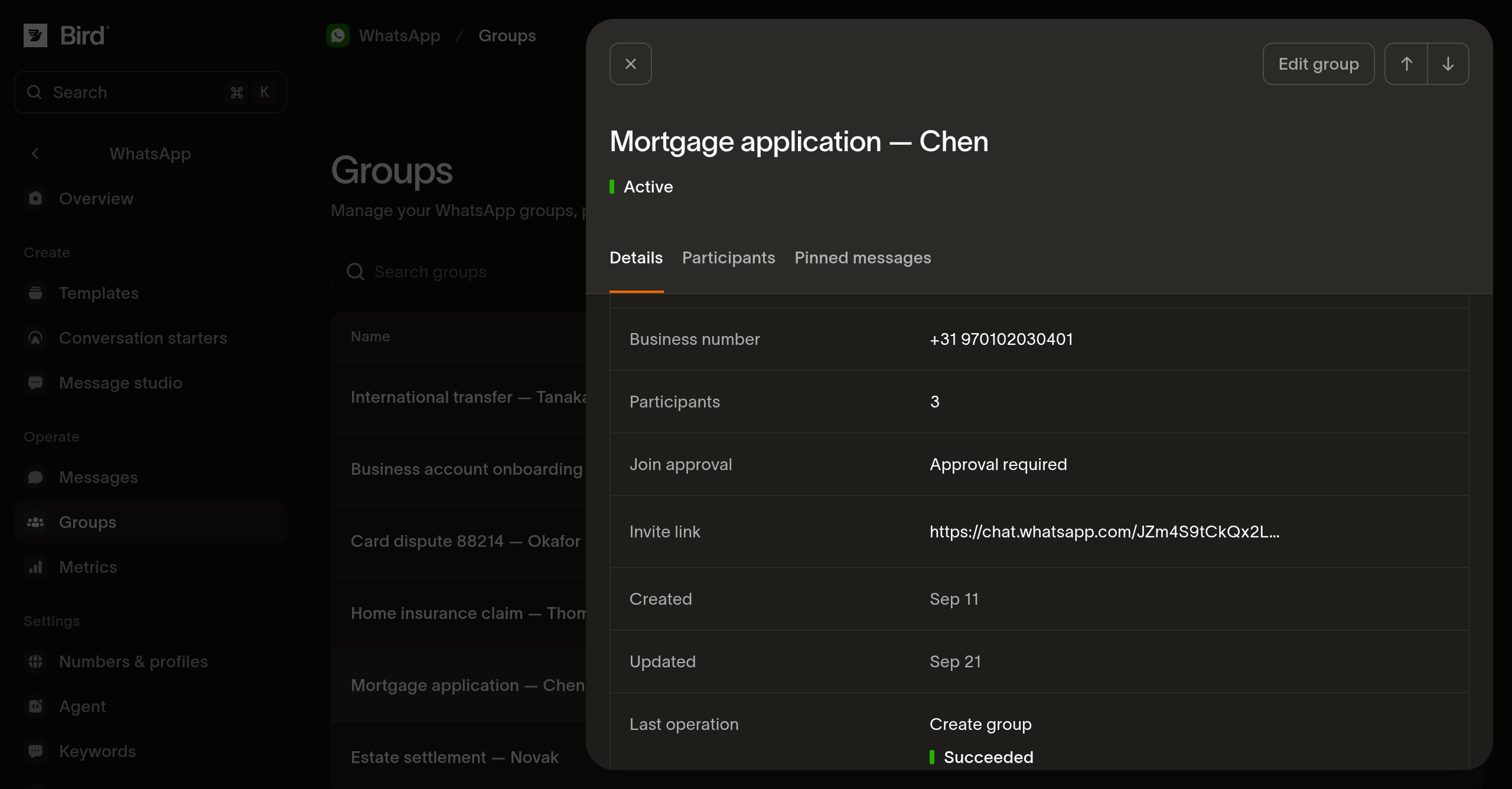
将邀请链接视为凭据。持有链接的任何人都可以按群组审批模式设定的条件加入,因此请将链接发送给指定人员而非公开发布,并为每个工单或客户创建单独的群组,而非广泛复用同一链接。群组上的 Rotate invite link 会生成新链接并使该群组之前的所有链接失效,这就是收回传播过广的链接的方式。
在使用 Approval required 创建的群组中,每个打开链接的人都会在群组 Participants 标签页顶部的 Join requests 中等待。选择要放行的人并点击 Approve selected,或点击 Reject selected 拒绝他们;Select page 可以一次选中整页。WhatsApp 会逐一处理每个请求,因此一个可能失败而其余通过。群组的参与者上限仍然适用:如果批准的人数超过剩余容量,能容纳的人会加入,其余的会被拒绝。
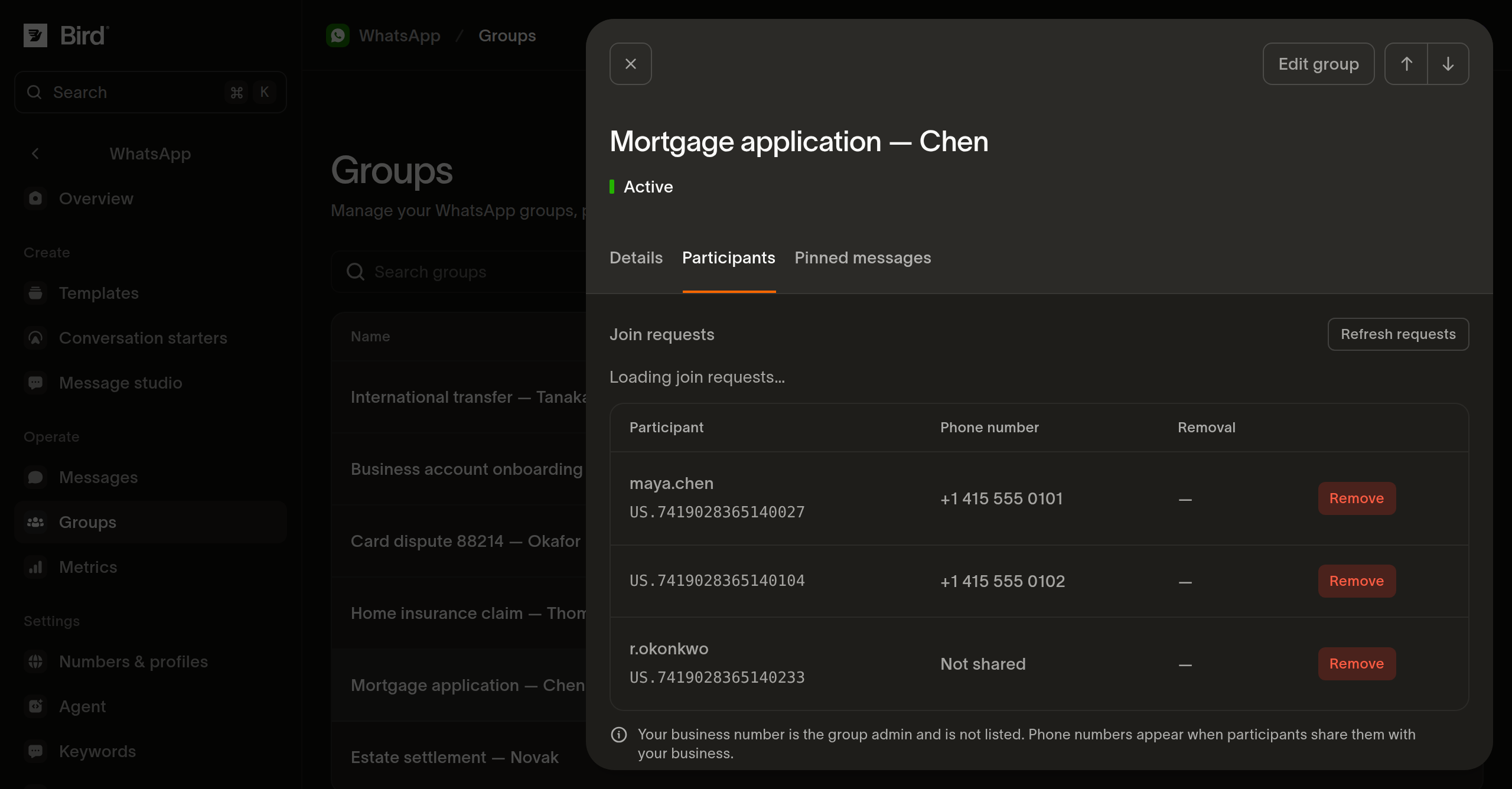
移除某人是永久性的,无法恢复:移除参与者介绍了该操作的具体效果。
查看群组
从列表中打开一个群组,查看其中的成员以及群组在 WhatsApp 上的呈现:
- Details:群组 ID、企业号码、参与者数量、加入审批模式、邀请链接,以及创建和更新时间。
- Participants:所有已加入的人,有 WhatsApp 用户名时按用户名列出,始终显示其 business-scoped user ID。电话号码仅在参与者与你的企业共享后才会显示。你自己的企业号码管理该群组,不会出现在列表中。
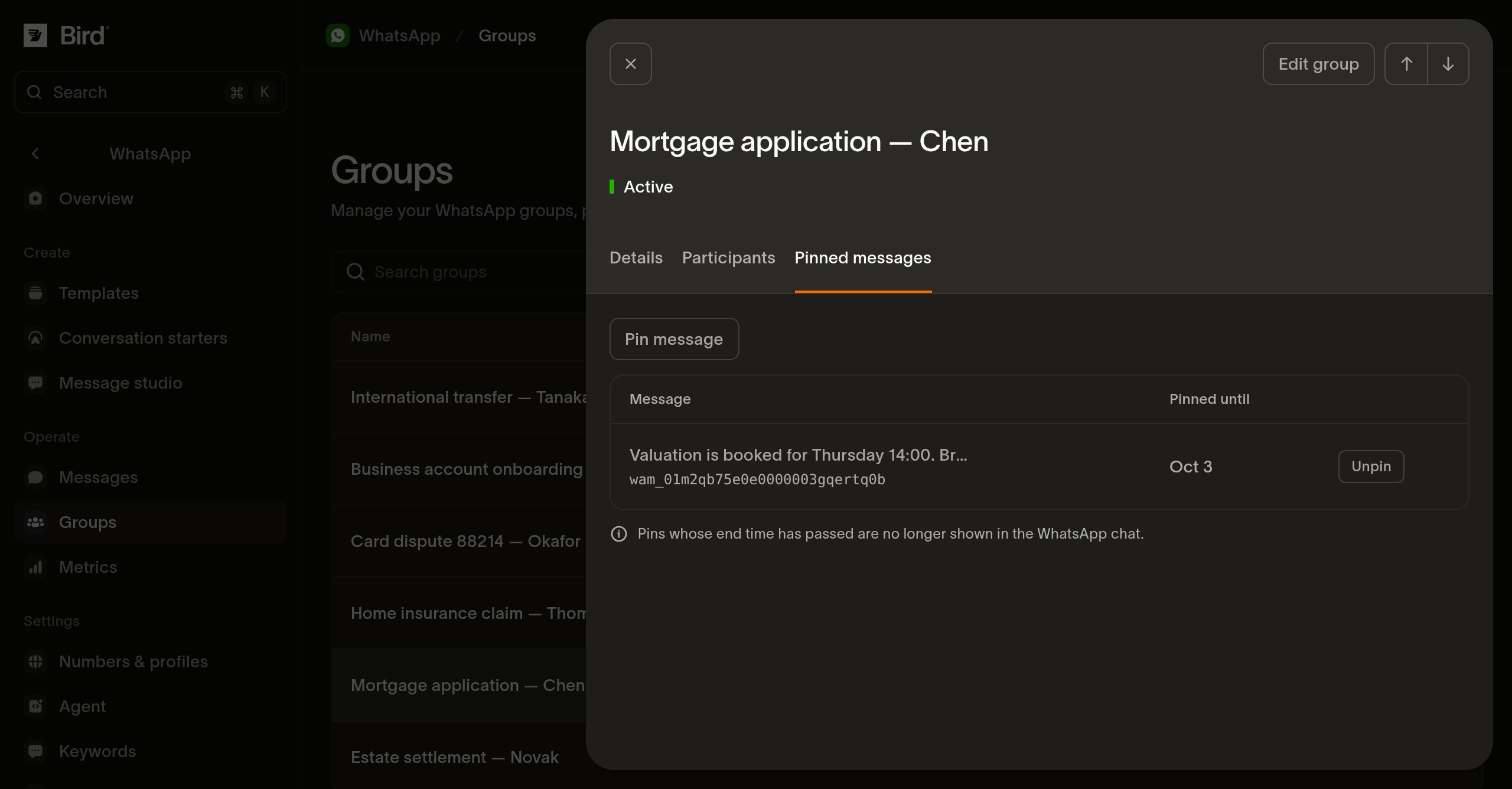
- Pins:群组中置顶的消息,以及每条置顶的过期时间。
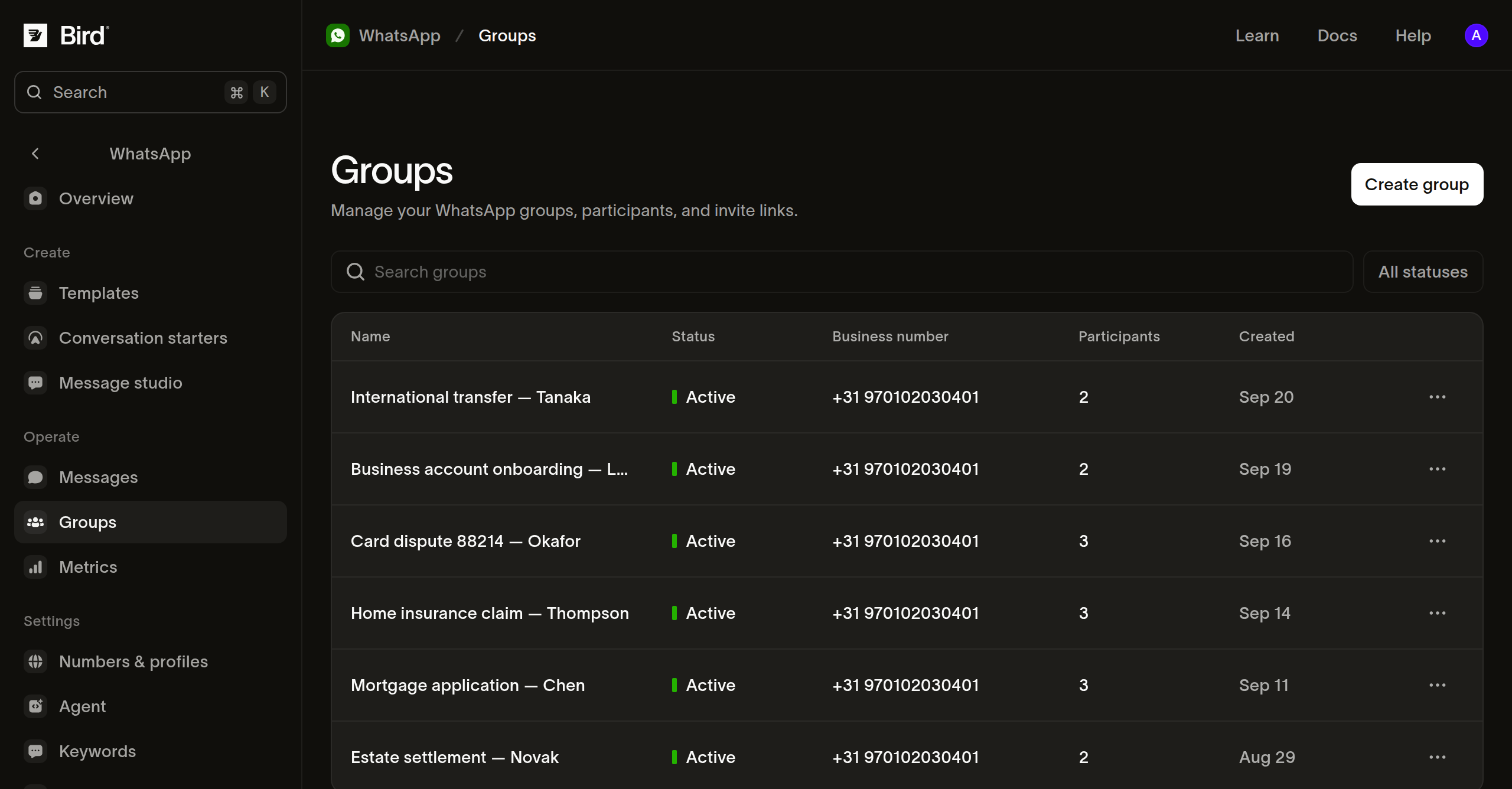
列表页面显示各群组的相同信息:名称、状态、企业号码、参与者数量和创建日期,支持按名称和描述搜索以及按状态筛选。群组仅在状态为 Active 时才能发送消息;五种状态介绍了其他各状态的含义。
通过 API 管理群组
上述仪表板页面背后是同样的十二个操作,因此你在仪表板中能做的,也可以通过 /v1/whatsapp/groups、bird whatsapp groups 命令或类型化的 SDK 方法完成。所有操作都需要 whatsapp_management 访问权限:读取操作需要读取级别,其余需要写入级别。
创建群组是异步的,更改群组、删除群组和移除参与者也是:响应表示请求已被接受,WhatsApp 随后报告结果。轮换邀请链接、置顶和取消置顶则在响应时即已生效。管理 WhatsApp 群组以代码演示完整生命周期,包含每个步骤的 cURL、CLI 和 SDK 示例及其可能的拒绝情况。
WhatsApp 的限制
群组运行所受的限制由 WhatsApp 掌控,并按其自身节奏调整。截至 2026 年 9 月,其群组文档将单个群组限制为 8 位参与者,单个企业号码限制为 10,000 个群组,单个群组限制为 3 条置顶消息,每条持续 1 至 30 天。一个群组由一个企业账户管理,因此其他企业无法加入你的群组。
群组还受到 WhatsApp 对群聊施加的限制。通话、交互式消息、身份验证模板、商务消息和阅后即焚消息无法发送到群组,且群组的消息历史无法回读。
向群组发送消息
向群组发送消息使用与发给其他对象相同的端点,只需在 to 中用群组 ID 代替电话号码。向 WhatsApp 群组发送消息介绍了发送流程、群聊支持和不支持的内容,以及一条消息在各参与者间的送达报告方式。接收 WhatsApp 群组消息介绍反方向:哪位参与者发送了入站消息、该消息开启的窗口,以及 whatsapp.received webhook 携带的内容。
后续步骤
- 管理 WhatsApp 群组:创建群组、管理参与者和邀请链接
- 向 WhatsApp 群组发送消息:发送消息并跟踪每位参与者的送达状态
- 接收群组消息:识别发送者并回复群组
- 连接你自己的号码:设置企业号码