接收邮件
已接收的邮件可在 Email > Emails > Receiving 中查看,也可通过 inbound-messages API 和 email.received webhook 获取。根据你希望接收邮件的地址,从两种配置方式中选择一种。
- 转发地址是我们为你生成的邮箱,例如
mfzxq2lom5uxi3lb@eu1.inbound.bird.com(美国区域为@us1.inbound.bird.com)。无需域名,无需 DNS:将现有收件箱的转发规则指向该地址,我们即可接收它转发的每一封邮件。 - 在自有域名上接收会为你控制的子域名(例如
inbound.acme.com)发布 MX 记录,之后发送到该子域名任意地址的邮件都会作为入站消息送达。
如果你想试用接收功能,或转发现有客服收件箱的邮件,请先使用转发地址。如果你需要邮件直接发送到自有域名,请配置域名接收。
转发地址
在 Email > Domains > Forwarding 中,选择 Add forwarding address 并输入名称,例如 Support inbox。我们会生成一个固定的随机地址。你可以稍后重命名其标签。删除某个转发地址仅停止该地址的邮件接收,不影响其他转发地址。
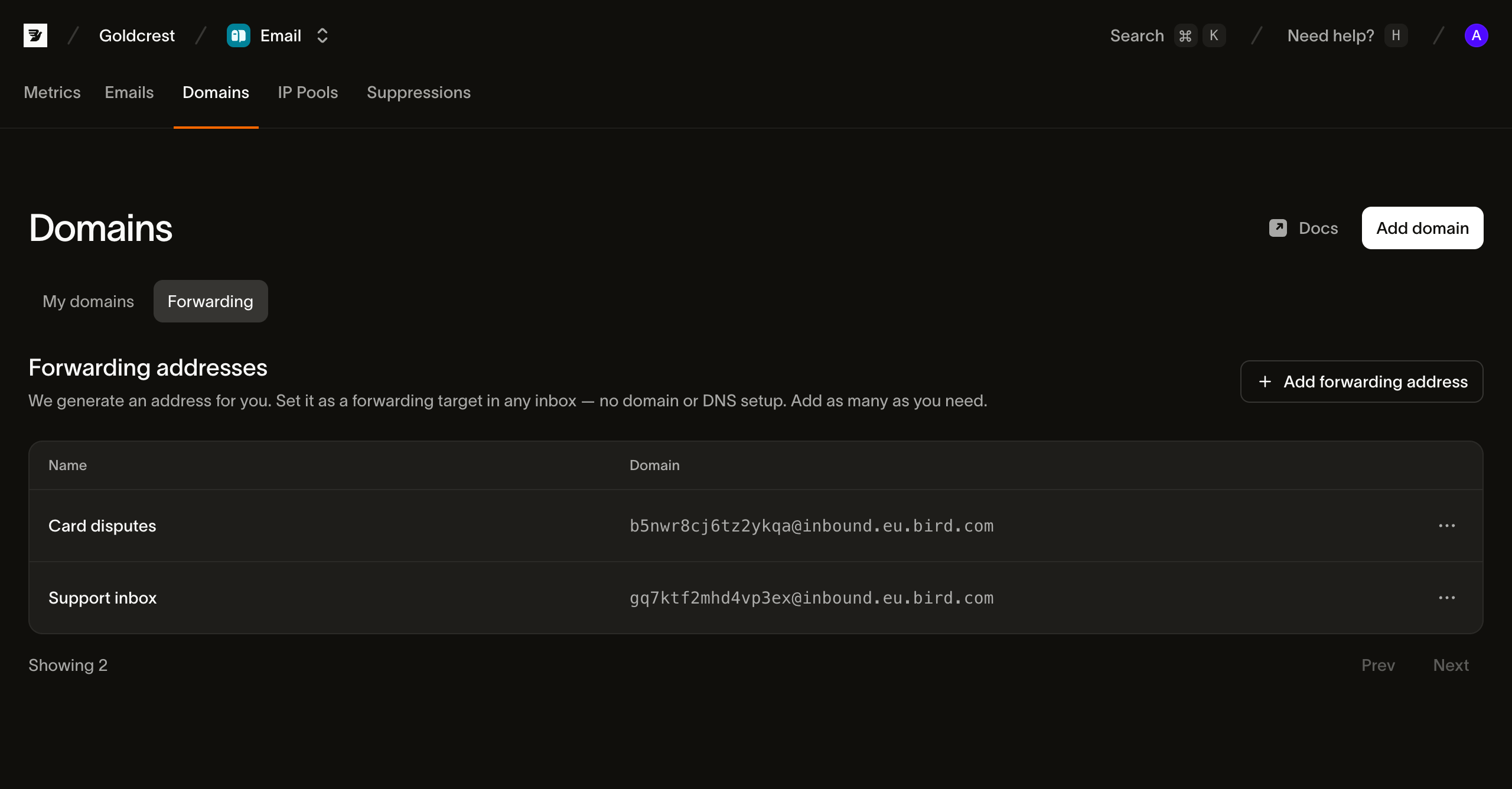
通过编程方式,POST /v1/email/inbound-addresses 可完成相同操作(CLI: bird email inbound-addresses create)。响应包含生成的 address、其 id 以及你的标签。
然后在邮件当前所在位置将该地址设为转发目标:Gmail 或 Google Workspace 转发规则、Outlook 规则,或你的工单系统的转发设置。我们接收转发的邮件,解析并将其存储为入站消息。
在自有域名上接收
域名接收是发送域名的一项功能,因此域名必须先完成注册和 DKIM 验证。请使用专用子域名(inbound.acme.com),切勿使用主域名:接收功能启用在域名自身的注册上,主域名的 MX 记录会拦截你的企业邮件。
打开 Email > Domains,然后选择你的域名。在 Receiving (Optional) 中,开启接收并发布列出的 MX 记录。在 DKIM 验证通过之前,你无法启用接收。已为其他组织接收邮件的域名也不可用。
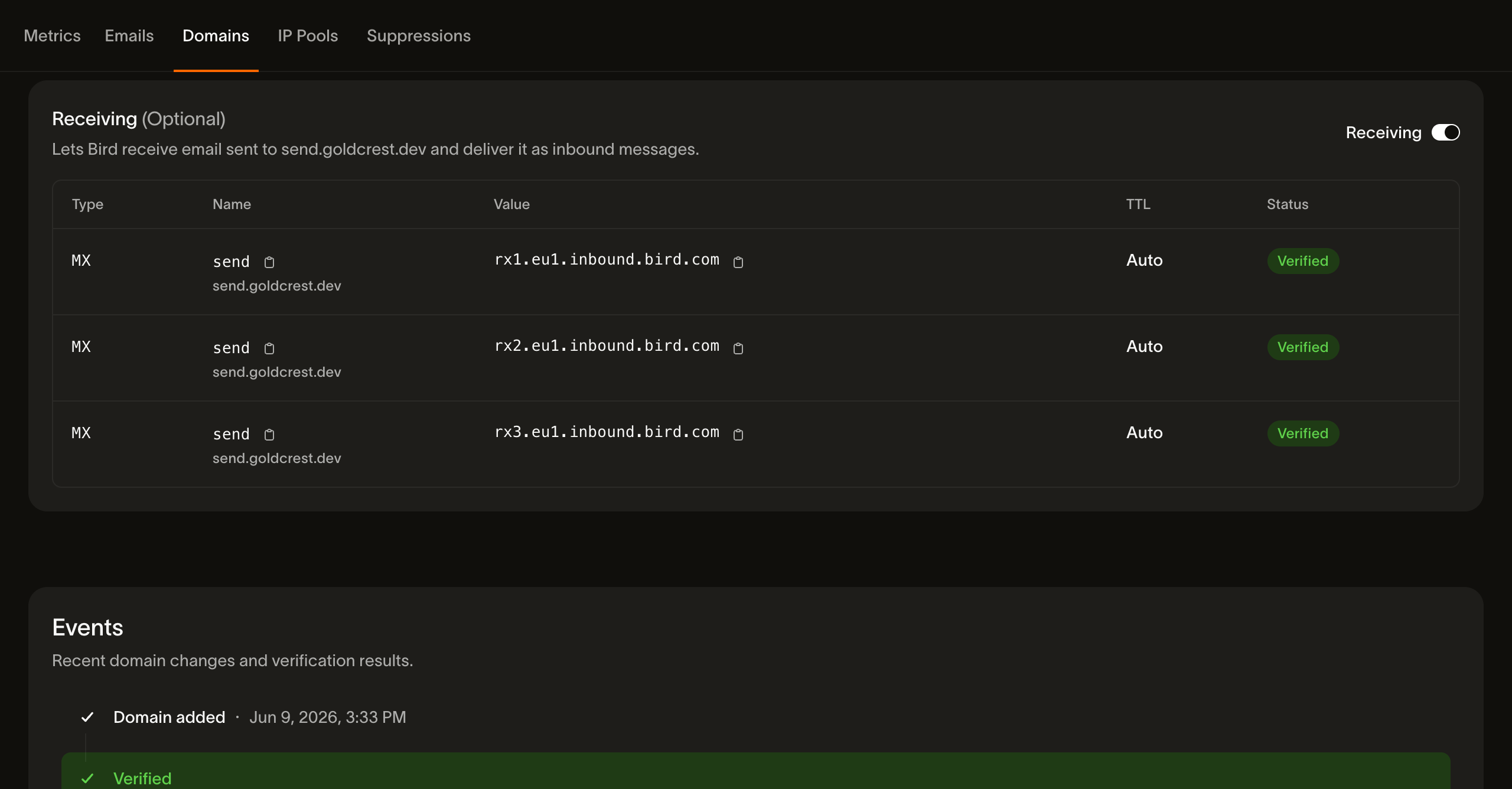
启用后,接收状态会经历与发送记录相同的生命周期:在我们检查 MX 记录的 DNS 期间显示 pending,记录正确解析后变为 verified。此后,发送到该域名任意 local-part 的邮件(support@、orders@ 等)都会作为入站消息送达。关闭开关即停止入站邮件的投递。MX 记录仍会列在域名下供参考,状态恢复为 pending。
入站消息大小
Bird 在所有区域的每个接收域名上均支持最大 20 MB 的入站消息(含附件)。超出此限制的消息不在支持范围内,即使发送服务器收到 SMTP 接受响应也是如此。请勿依赖其送达。
超大消息可能在 SMTP 事务期间被 552 5.3.4 message size limit exceeded 拒绝。发送服务器会收到此拒绝通知,并可告知其发件人。Bird 不会截断消息以适应大小限制。
查看接收到的邮件
Receiving 标签页按最新优先列出已接收的消息,显示发件人、收件人、主题和接收时间。可按精确发件人地址搜索或按日期筛选。选择一行可打开 Rendered、Text、Details 和 Raw 视图。页眉显示消息到达时记录的 SPF、DKIM 和 DMARC 结果。
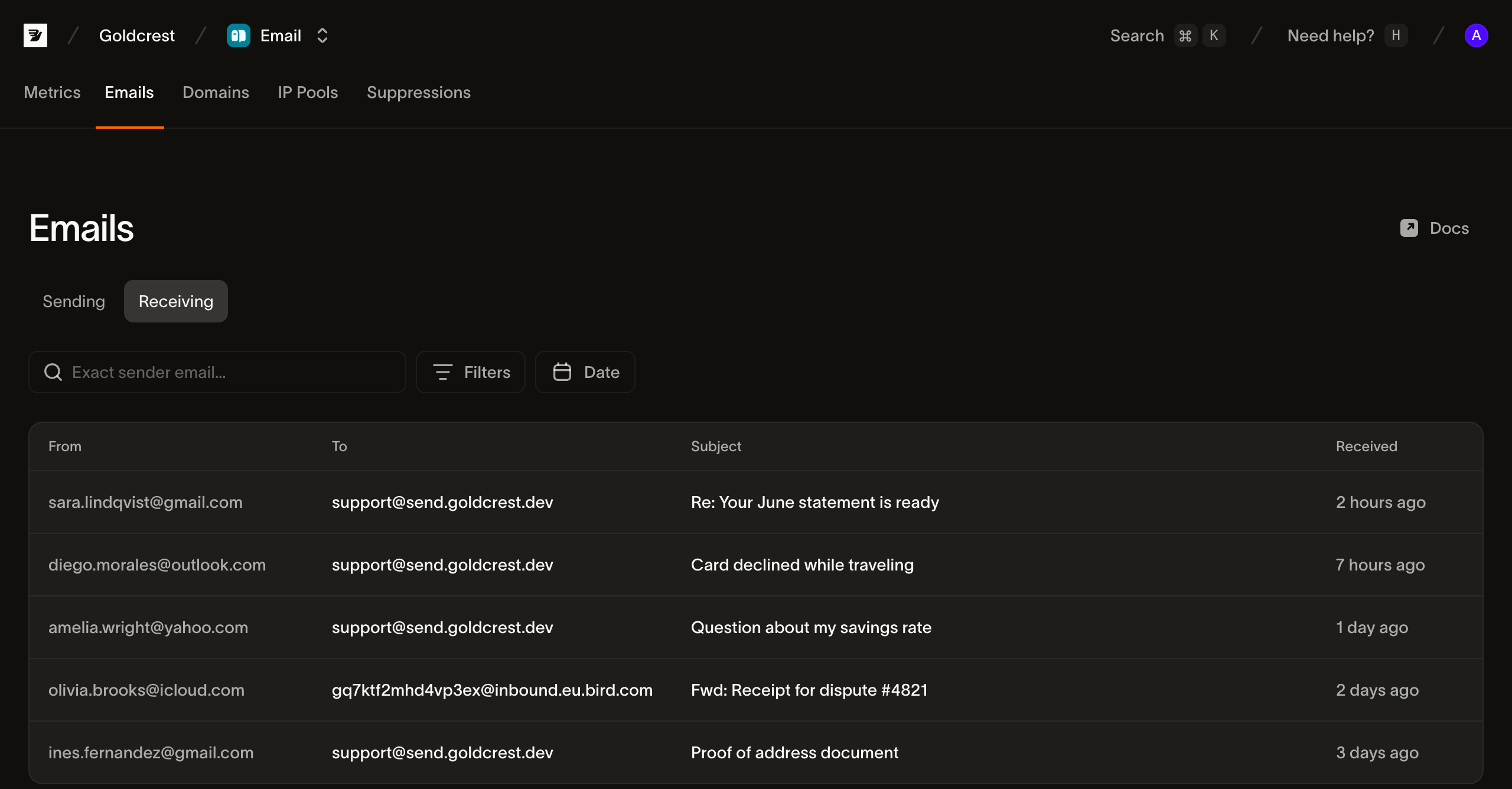
已接收的邮件保留 30 天。
同样的数据也可通过 API 获取(CLI: bird email inbound-messages):
GET /v1/email/inbound-messages列出消息,可按发件人、入站地址和接收时间筛选。GET /v1/email/inbound-messages/{id}返回单条消息的解析后元数据:地址信息、主题、线程引用、认证结果和附件元数据。GET /v1/email/inbound-messages/{id}/body返回 HTML 和纯文本正文。GET /v1/email/inbound-messages/{id}/attachments列出附件;每个附件均可单独下载。GET /v1/email/inbound-messages/{id}/raw返回接收时的原始消息,格式为 RFC 5322 (MIME)。
响应接收到的邮件:email.received webhook
要在邮件到达时进行处理(路由支持请求、接收回复、触发代理),请将 webhook 端点订阅到 email.received 事件。我们在接收并解析每封邮件后触发该事件。载荷包含 inbound_message_id、来自邮件 From 请求头的发件人、收件人、主题以及 in_reply_to 引用。载荷还包含一个总体 authentication 判定(pass、fail 或 unknown)以及单项 SPF、DKIM 和 DMARC 结果;使用身份验证结果说明了当前哪些字段有值。这些信息支持路由和分类,无需额外调用。当你需要正文或附件时,使用事件中的 inbound_message_id 通过入站消息 API 获取。消息在事件发送前已存储,因此该 id 在事件到达时即可解析:直接在处理程序中获取 /raw 或 /body,无需等待或轮询。
使用身份验证结果
邮件到达 Bird 时会检查 SPF 和 DKIM。发件人添加的请求头(例如其自身的 Authentication-Results)不会改变这些结果。
spf_pass 和 dkim_pass 字段的值分别为 true、false 或 null。null 表示未记录到结果,包括检查无法完成的情况。一个通过的 DKIM 签名会使 dkim_pass 为 true,即使邮件上的另一个签名失败。这些字段不会暴露详细的结果令牌、签名域或选择器。
DMARC 结果目前尚不可用。在可用之前,dmarc_pass 和 spam_score 始终为 null,而遵循 dmarc_pass 的 authentication 始终为 unknown。不要根据 dmarc_pass === true 或 authentication === "pass" 进行路由:当前没有邮件满足任一条件。
要立即对自动路由设置门控,请要求 dkim_pass === true 或 spf_pass === true,并将 false、null 及缺失值视为未验证。SPF 和 DKIM 通过并不能确认签名域或发送域与可见 From 请求头中的域匹配。使用它们来过滤未经身份验证的邮件,而非作为发件人身份的证明。
DMARC 检查与邮件 From 请求头中域的对齐情况。email.received 中的 from 字段包含该请求头地址,当该请求头无法读取时,依次使用中继解析的发件人和信封发件人作为回退。在 email_mailbox.message_received 中,from 包含信封发件人,可能是不同的退信地址。对于使用可见发件人的邮箱路由,请使用事件的 message_id 获取已接收邮件的元数据。DMARC 通过验证的是域,而非确认某个特定的人发送了该邮件。
后续步骤
- 发送域名:注册并验证你要用于接收的域名。
- Webhooks:
email.received的端点、签名和重试。 - Superagent:在代理处理之前对接收到的邮件进行评分。
- 邮件日志:Emails 页面的发送侧。
相关资源
继续查看此主题的文档、指南和示例。