连接您的 WhatsApp 号码
将您的 WhatsApp 号码连接到 Bird。这些简短示例使用预先验证的美国号码和新的 WhatsApp 企业账户。
从Numbers页面开始。您需要工作区在 Bird 持有的号码,以及有权管理企业的 Meta 登录账户。
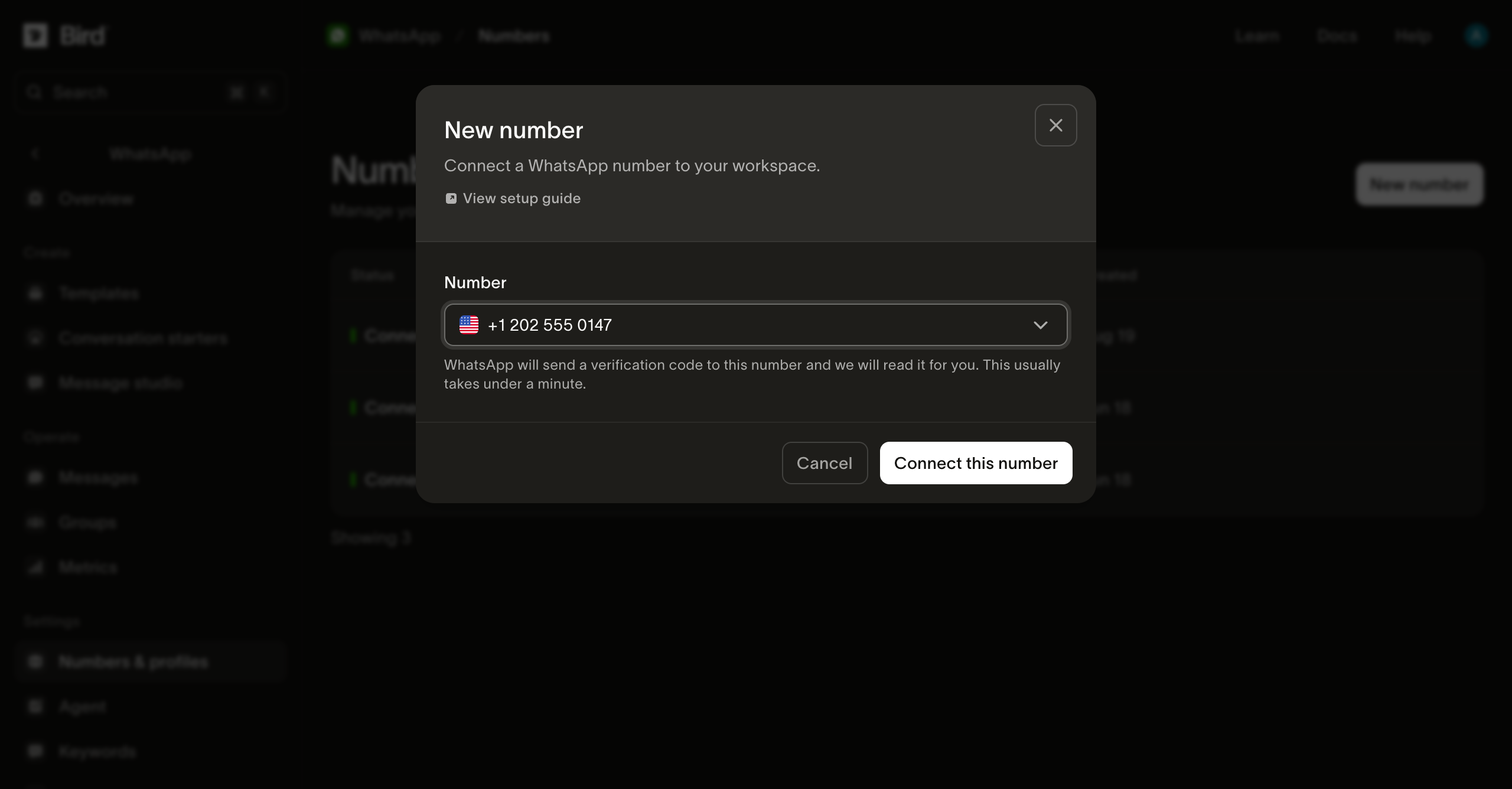
在 Bird 中选择您的号码
选择New number,从Number列表中选择您的号码,然后选择Connect this number。
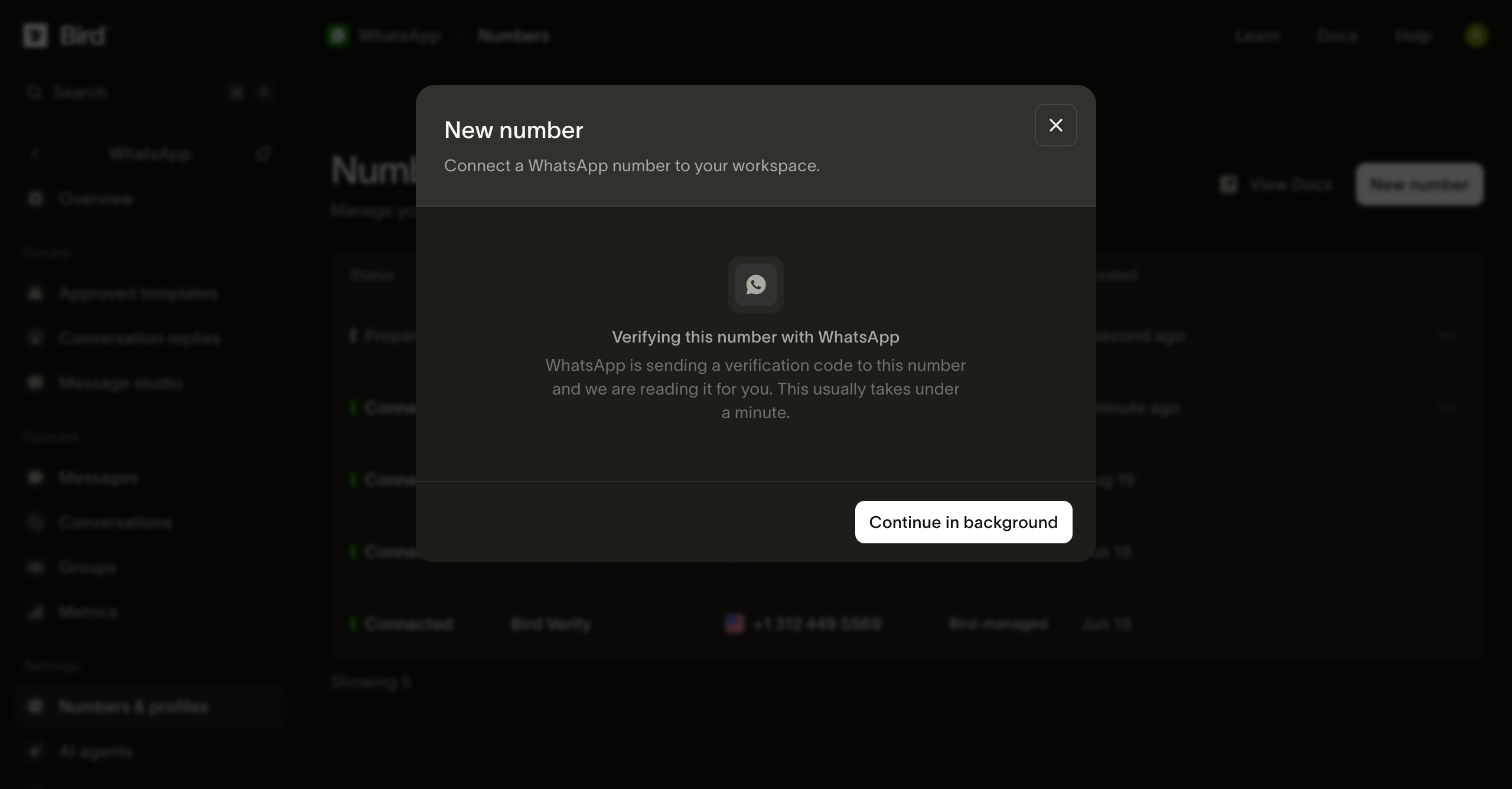
等待验证
Bird 会为您接收 Meta 的验证码。您可以选择Continue in background,并在号码列表中查看进度。
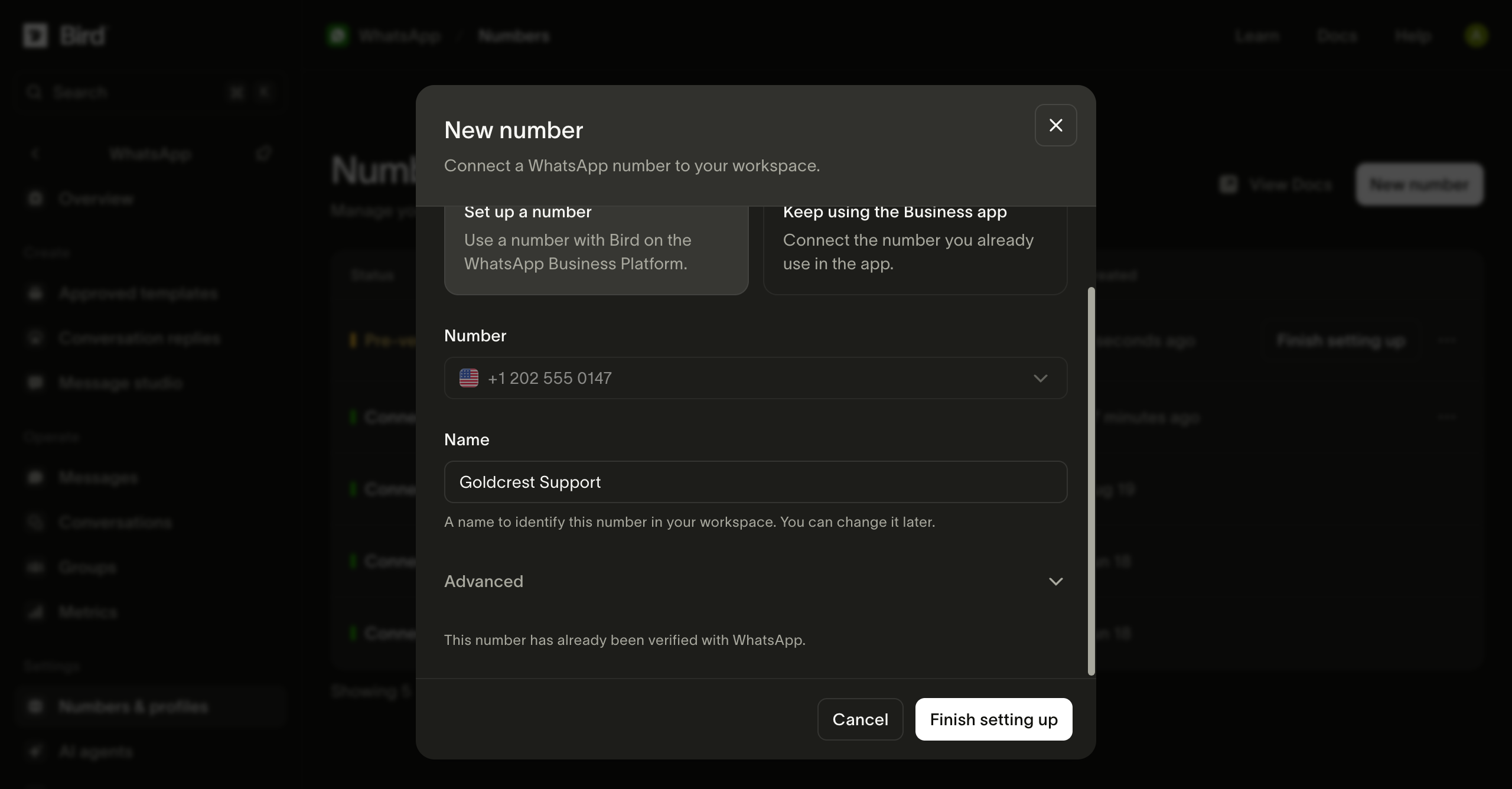
打开 Meta 设置
当号码处于Pre-verified状态时,为其命名并选择Finish setting up。出现提示时登录 Meta。
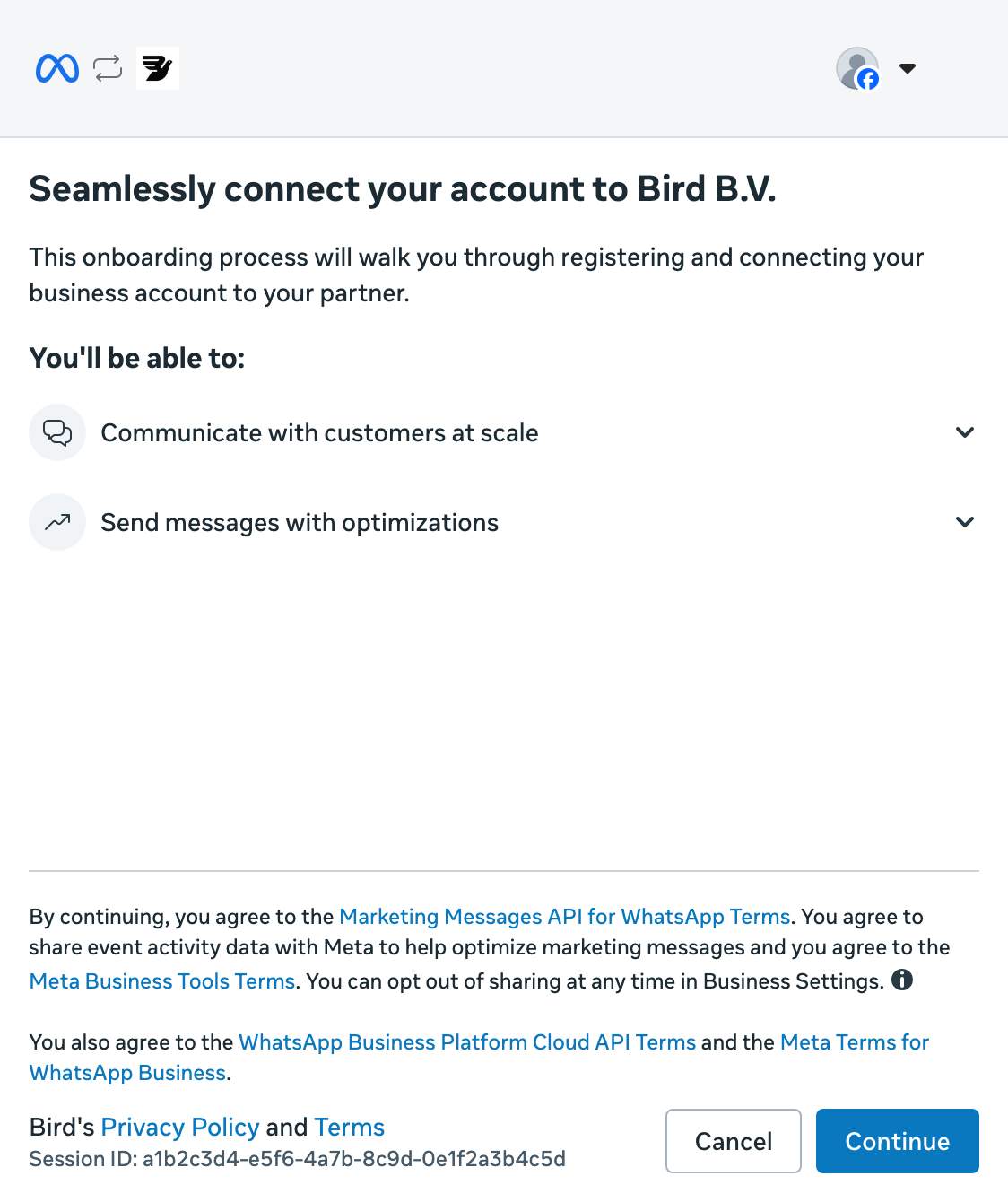
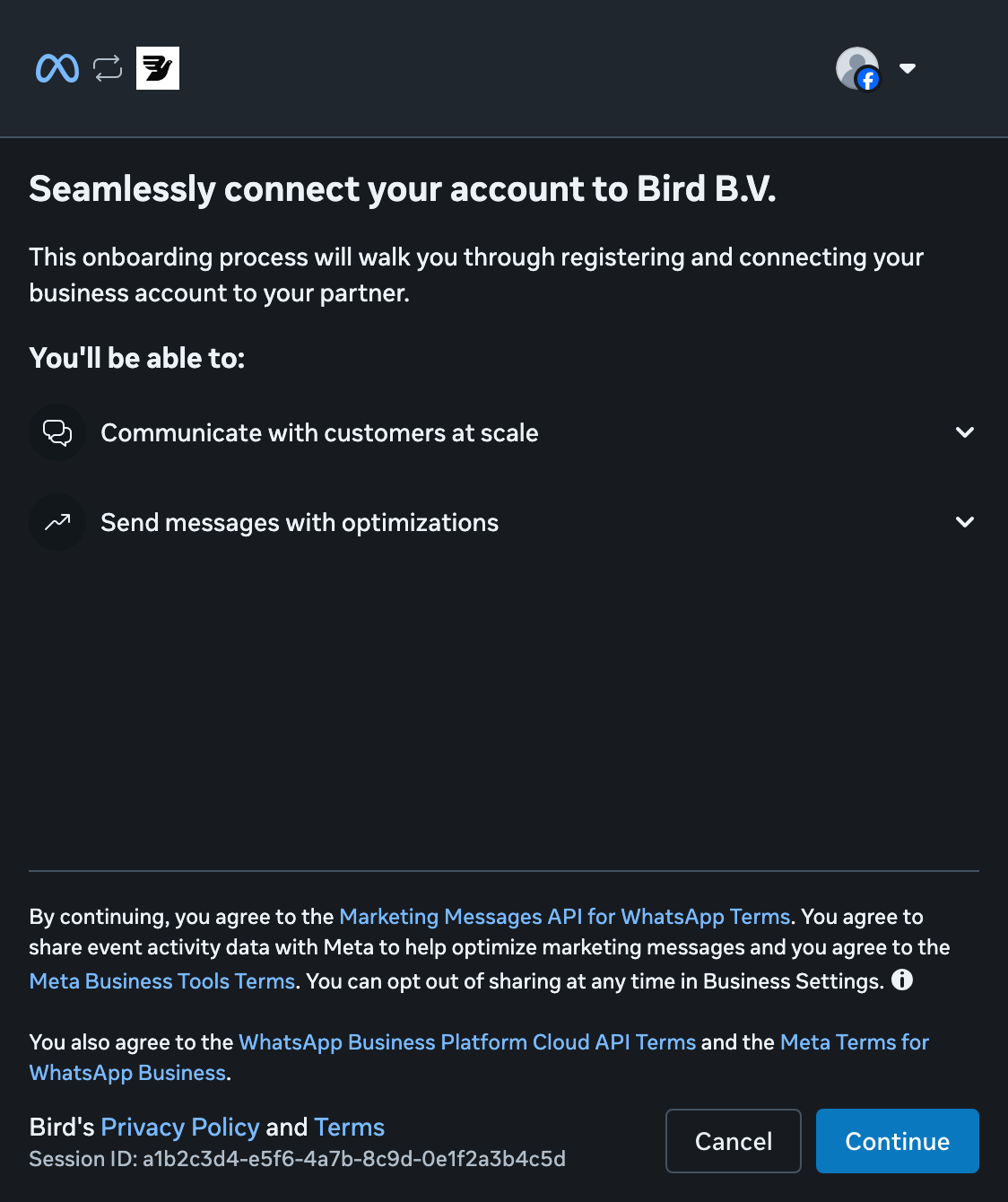
继续使用 Meta
选择Continue,开始将您的企业连接到 Bird。
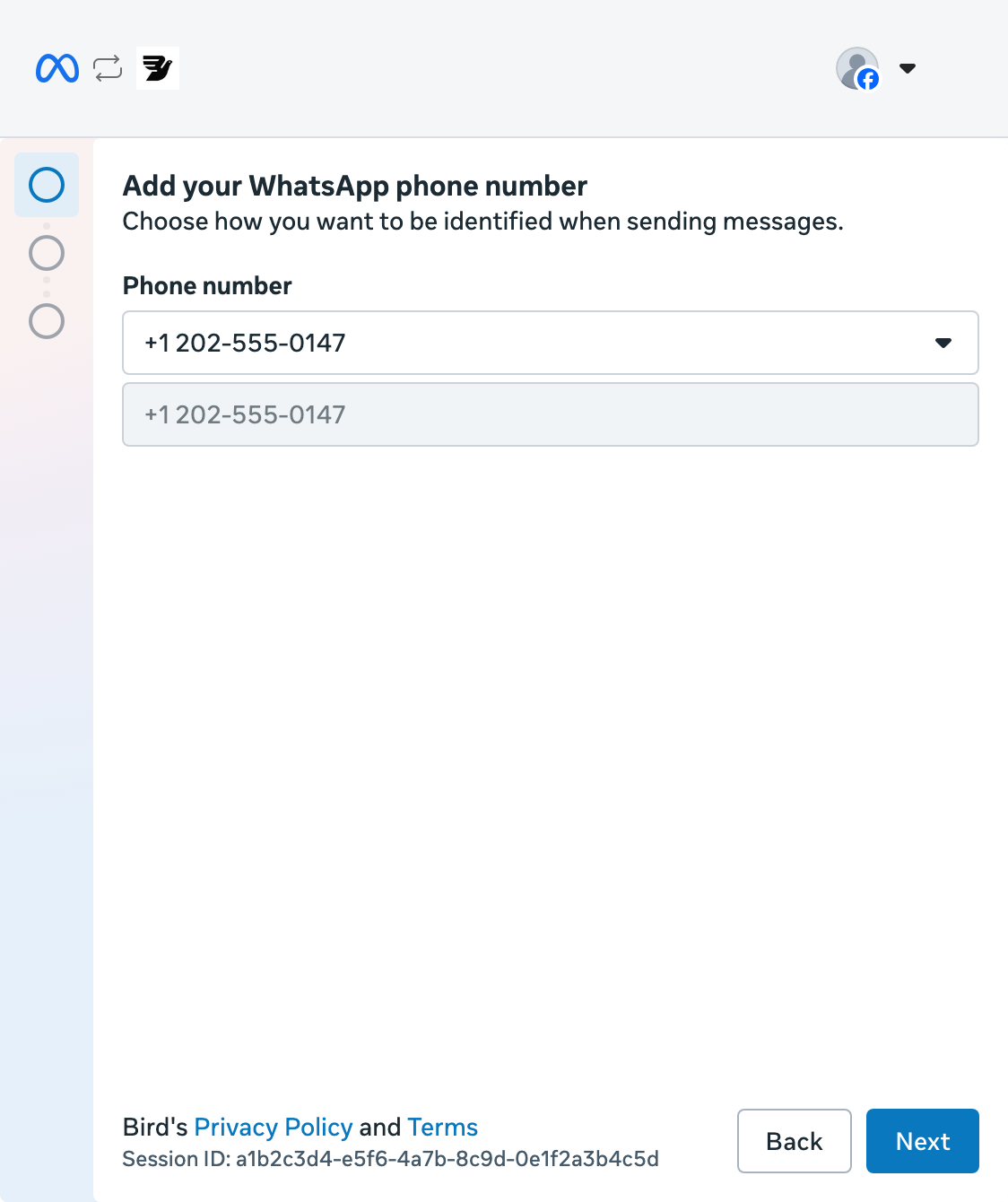
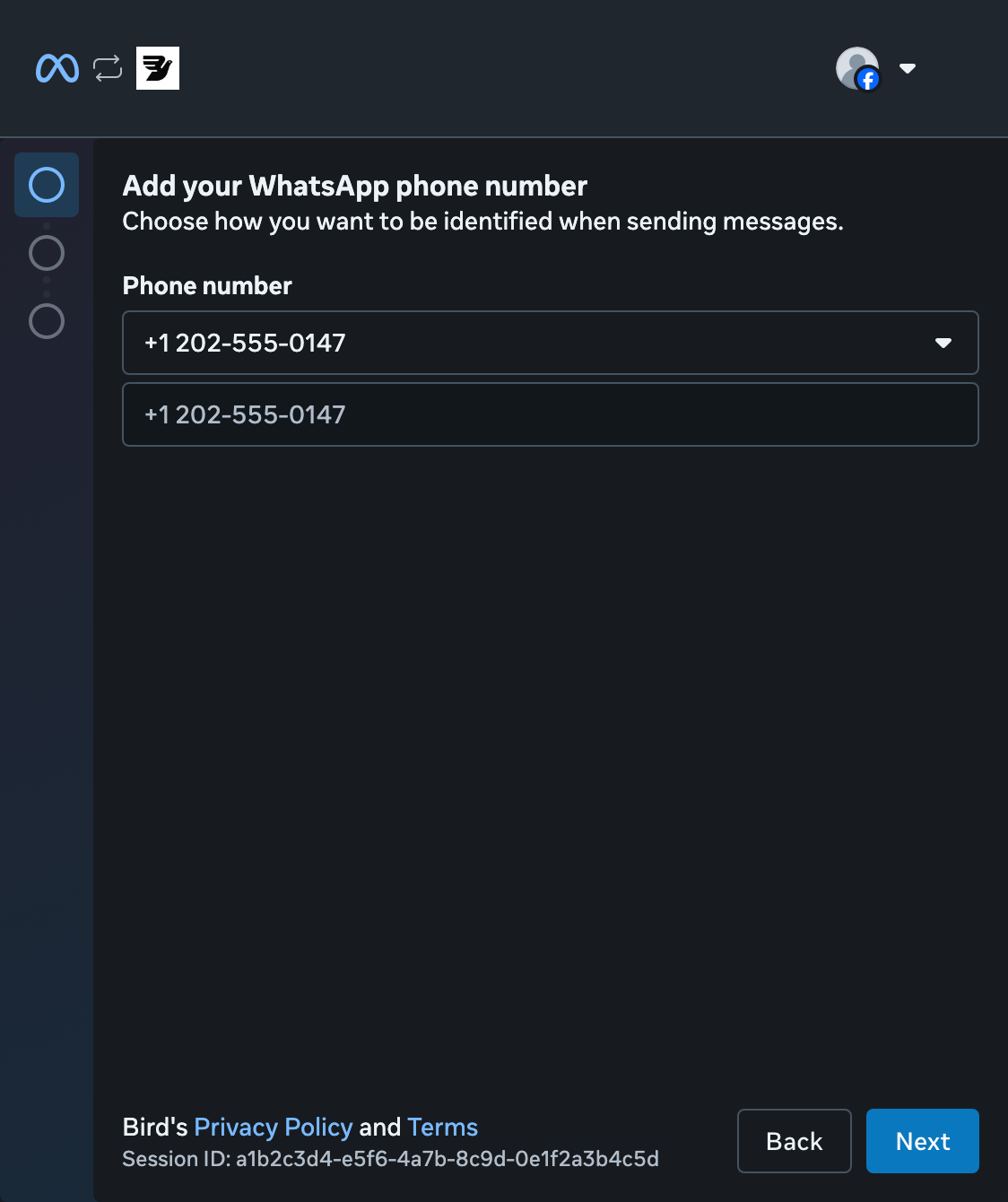
选择您的号码
打开号码列表,选择您预先验证的号码,然后选择Next。您无需再接收 SMS 验证码。
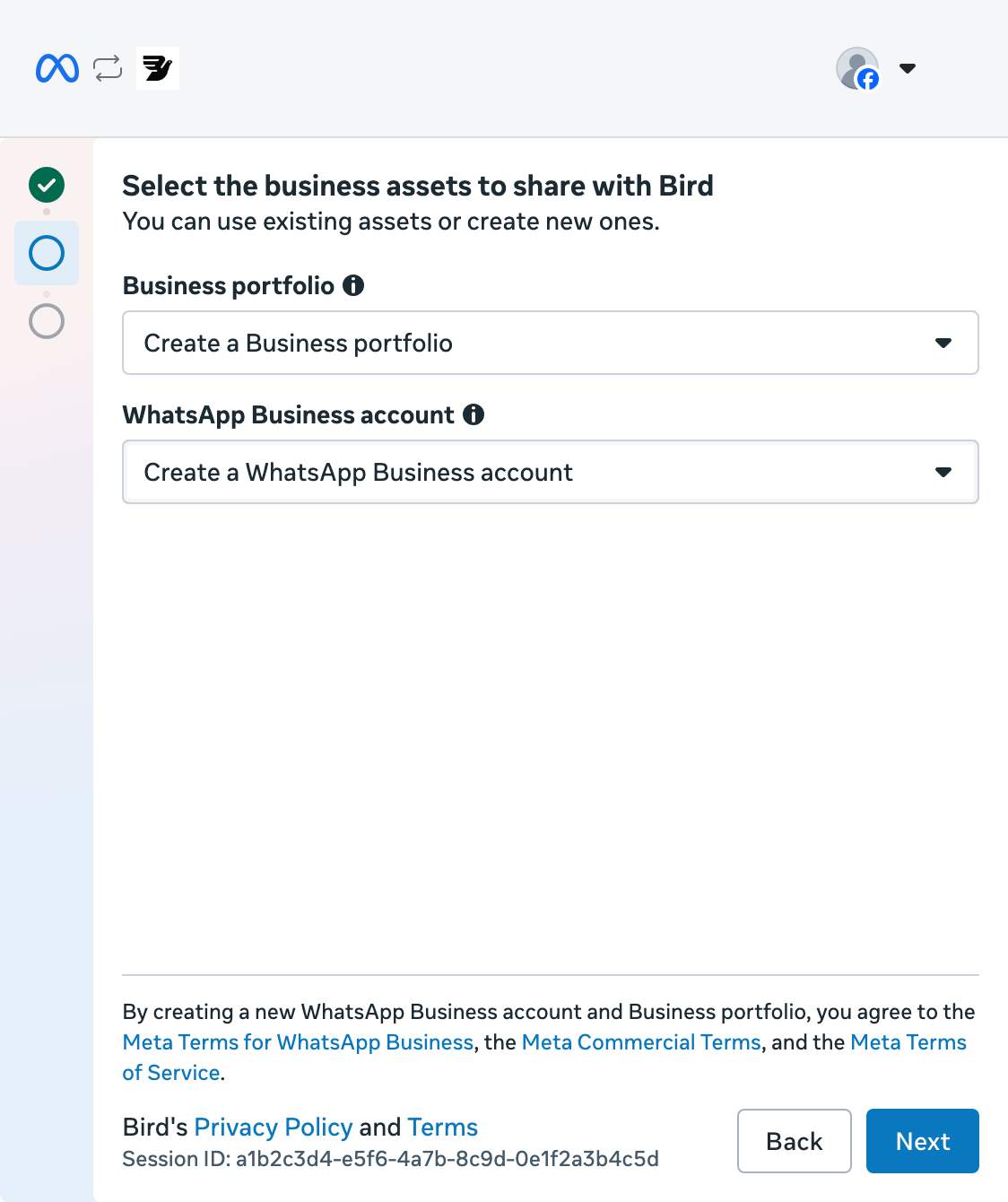
创建业务资产组合
选择Create a Business portfolio。保持选中Create a WhatsApp Business account,然后选择Next。如果您已有业务资产组合,也可以选择它。
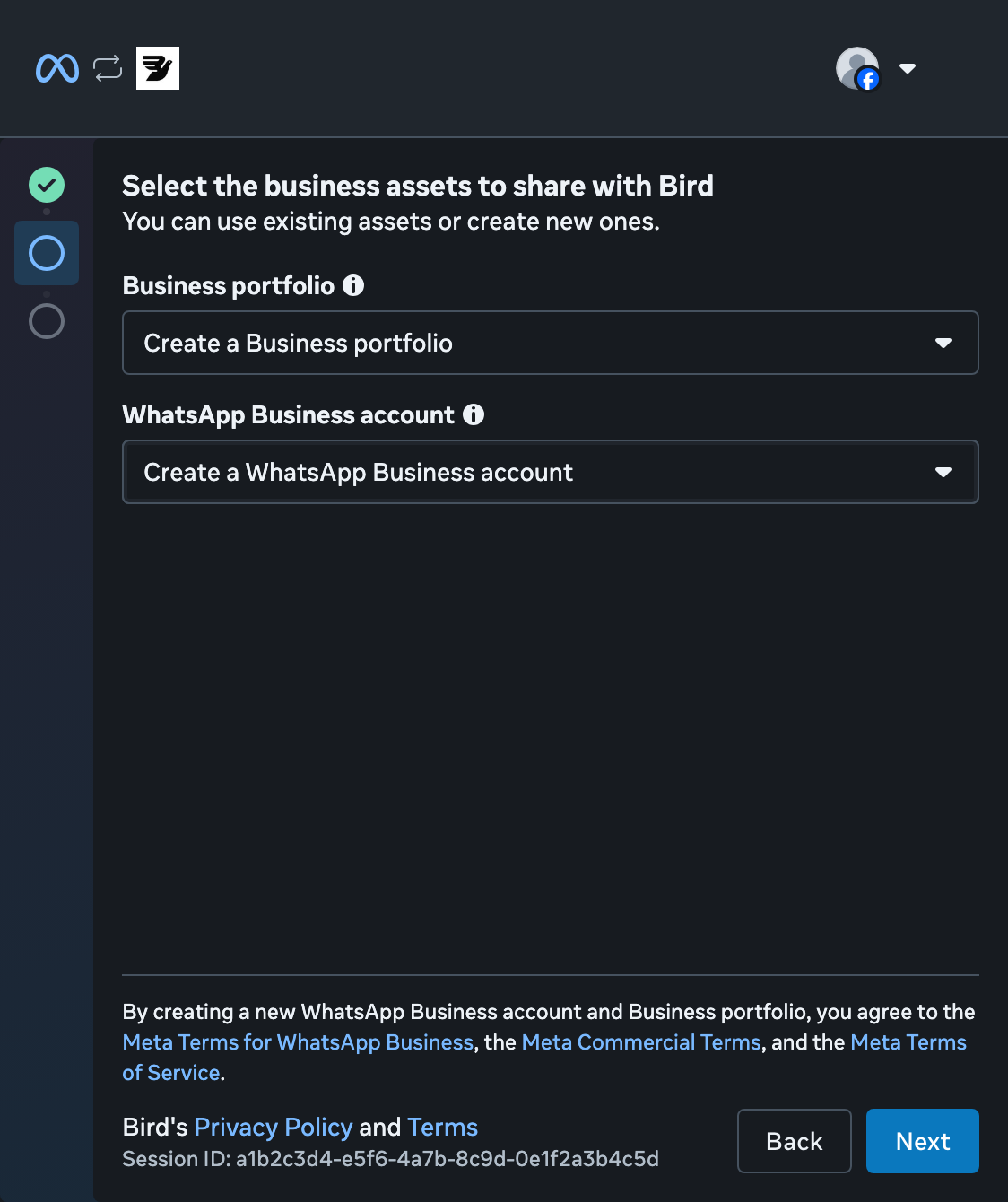
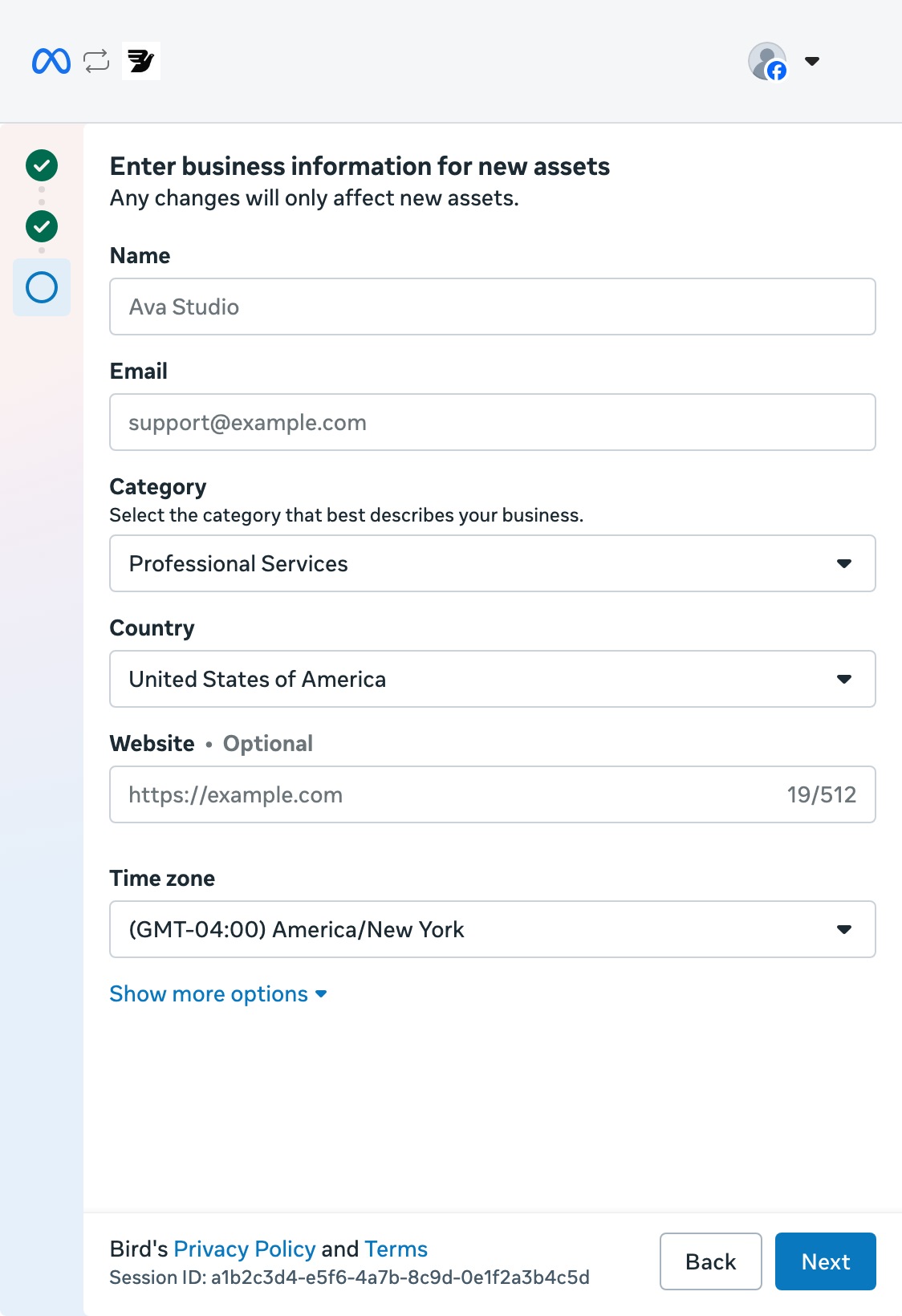
添加企业详细信息
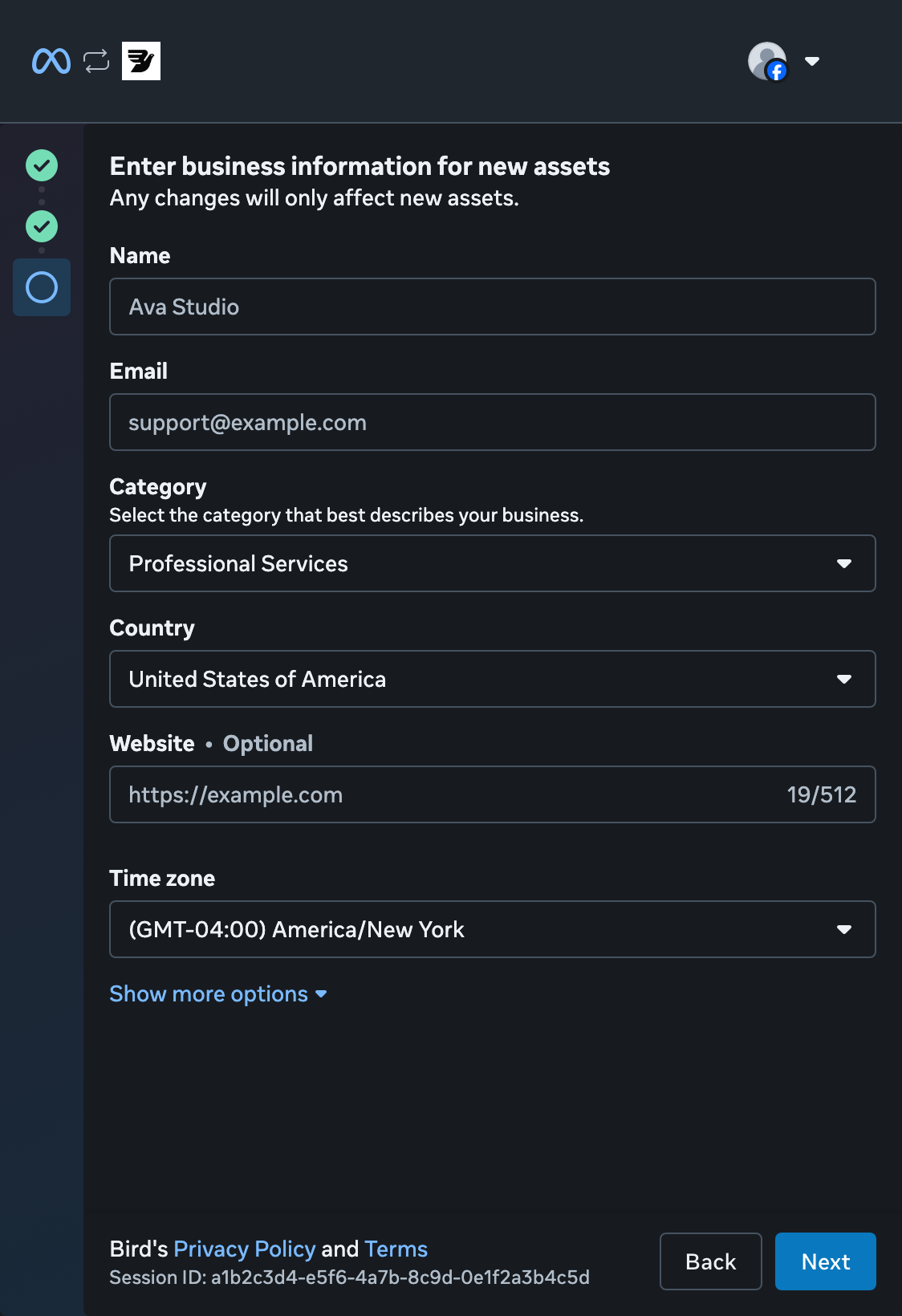
输入企业名称和电子邮箱,然后选择类别和国家。添加网站,或注明您没有网站。检查时区,然后选择Next。
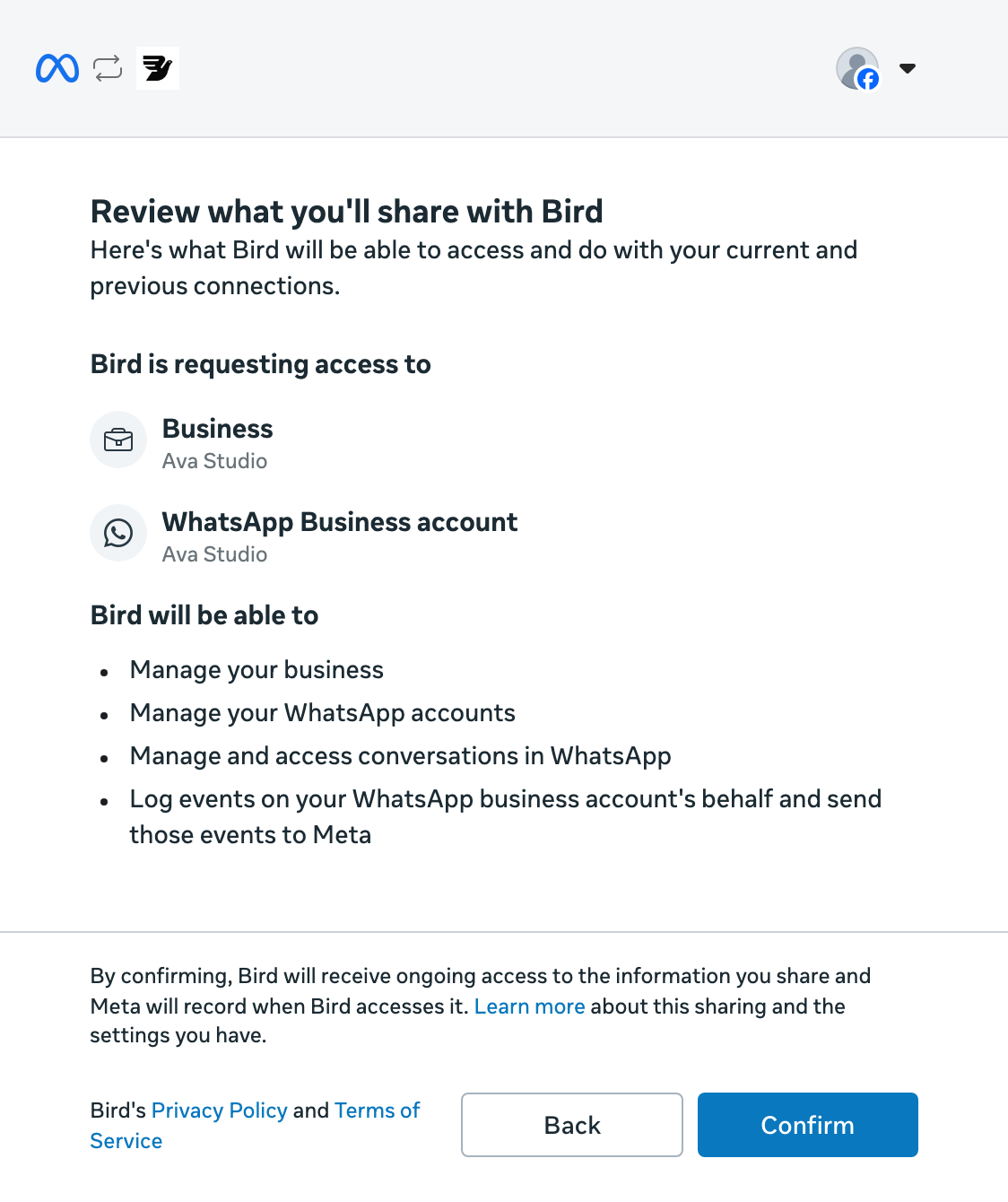
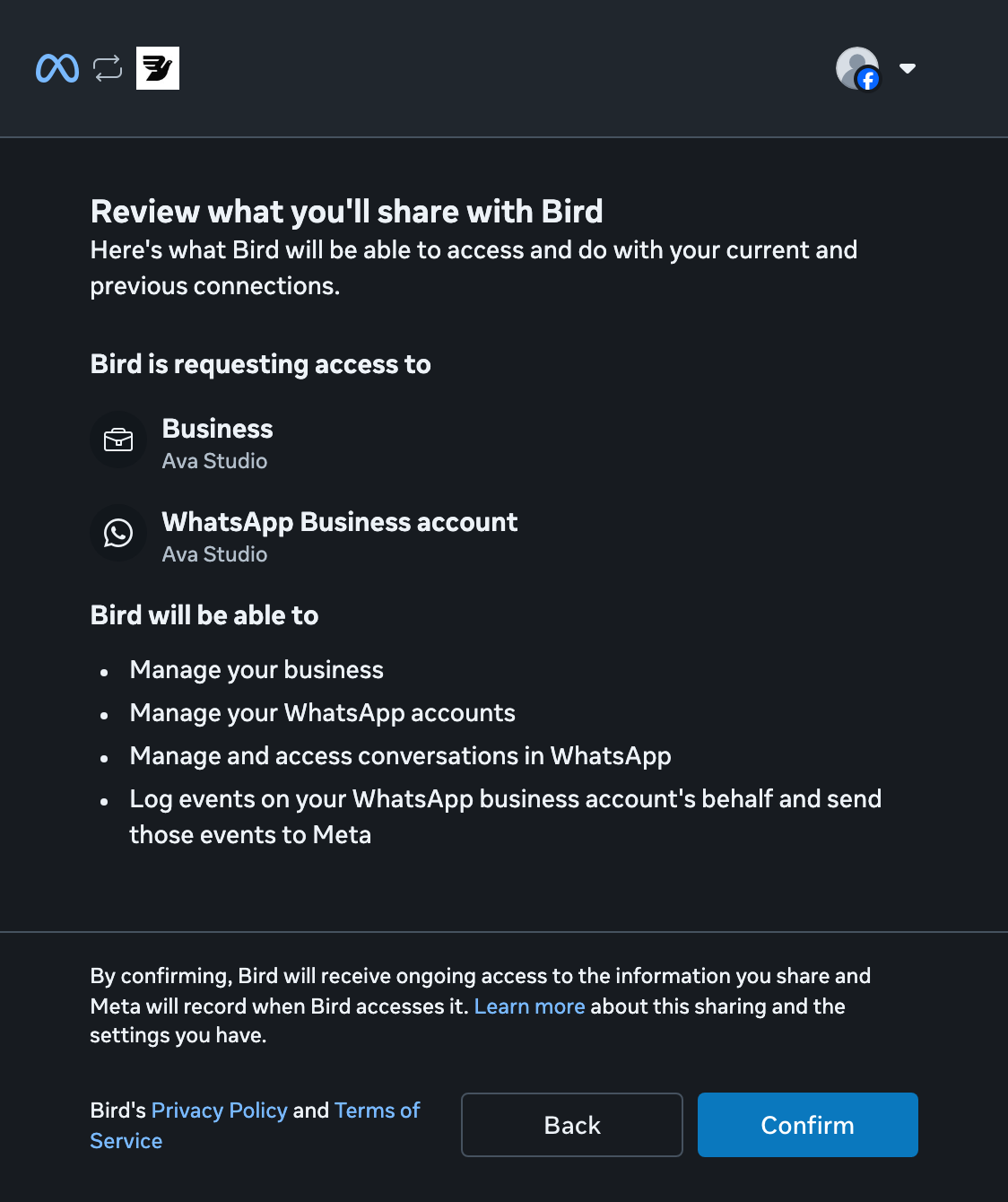
检查访问权限
检查 Bird 请求的权限,然后选择Confirm。
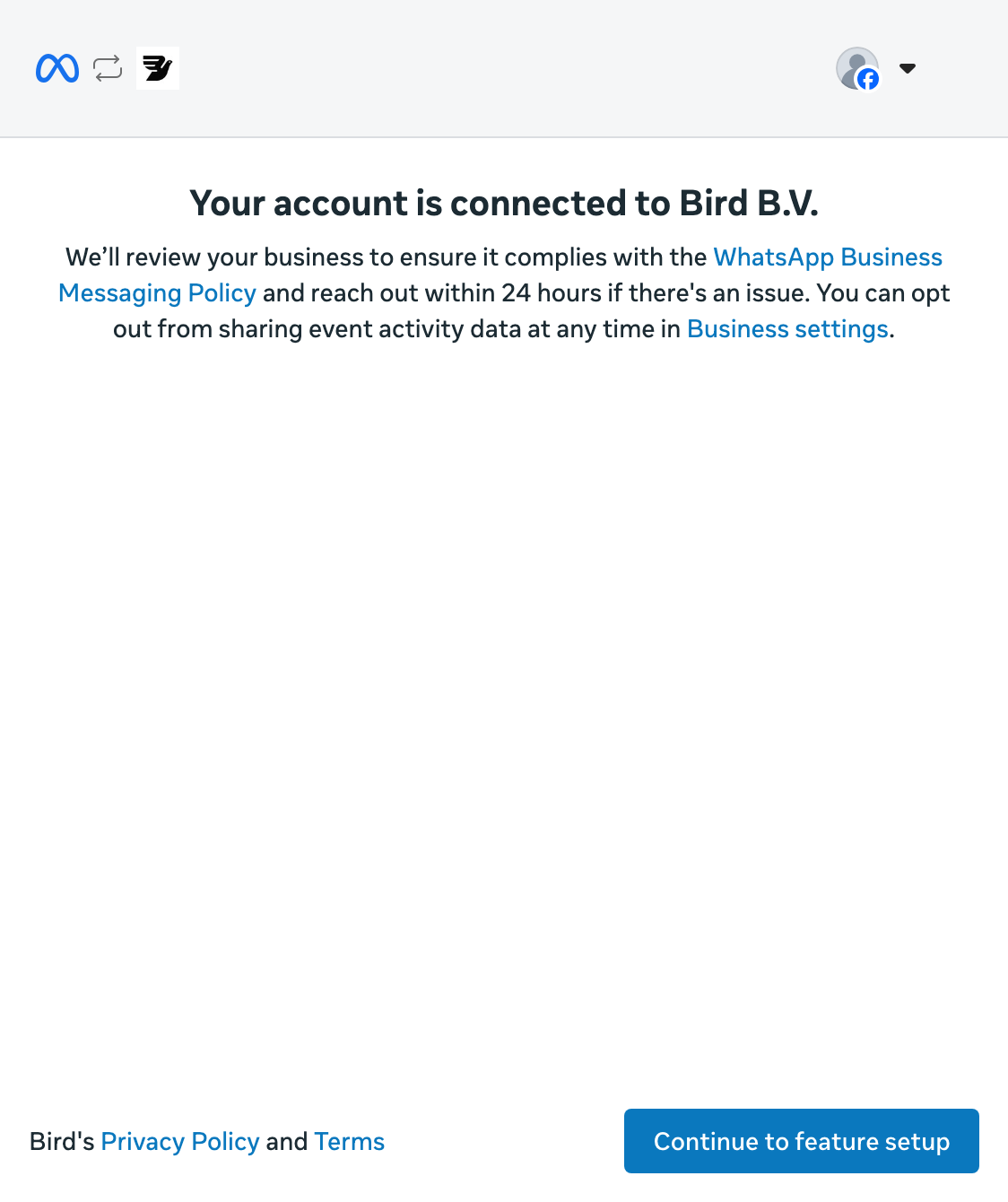
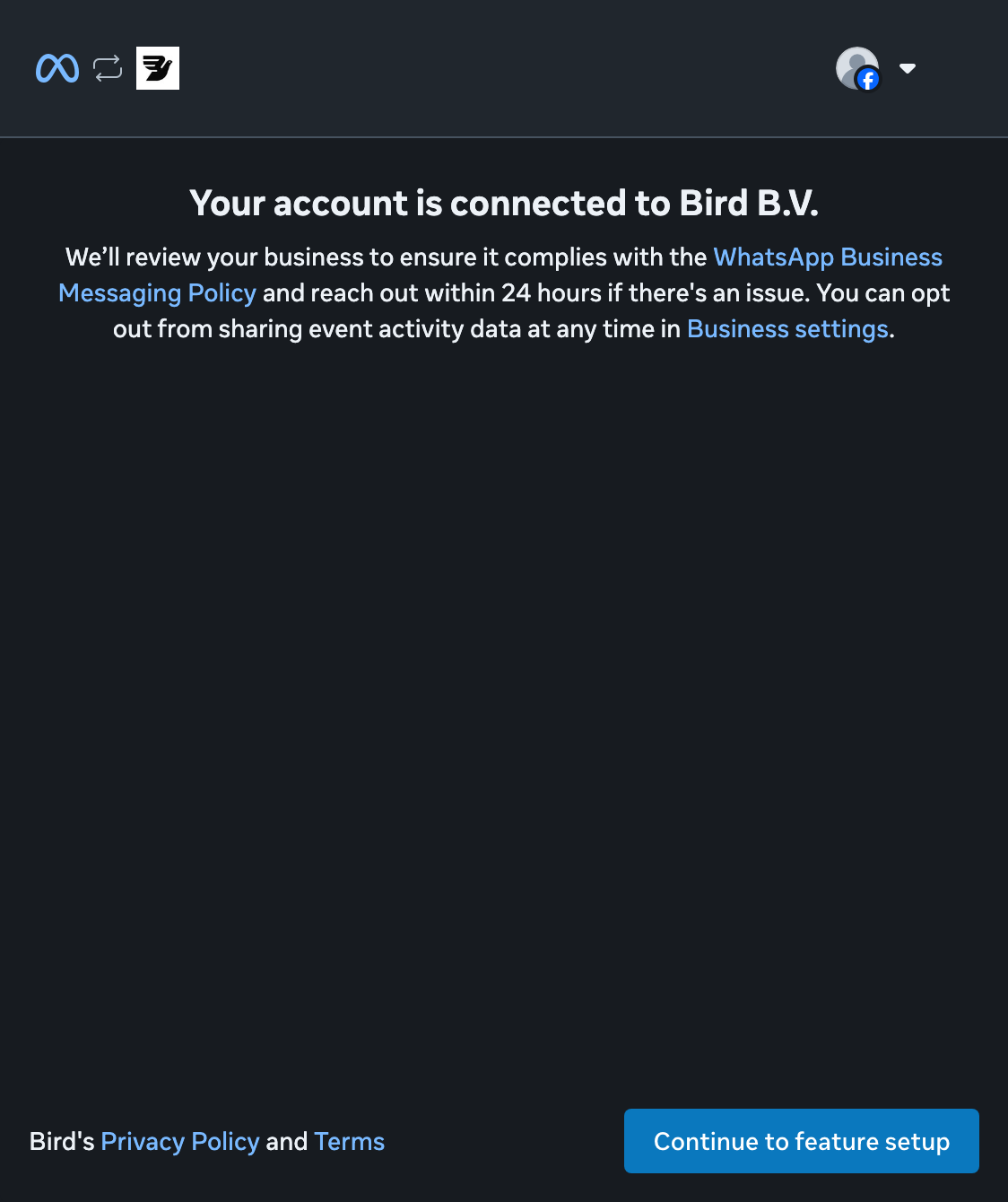
返回 Bird
选择Continue to feature setup,完成 Meta 设置并返回 Bird。
等待 Connected 状态
返回Numbers页面后,等待状态变为Connected再发送消息。Pending表示 Bird 仍在向 Meta 注册该号码。
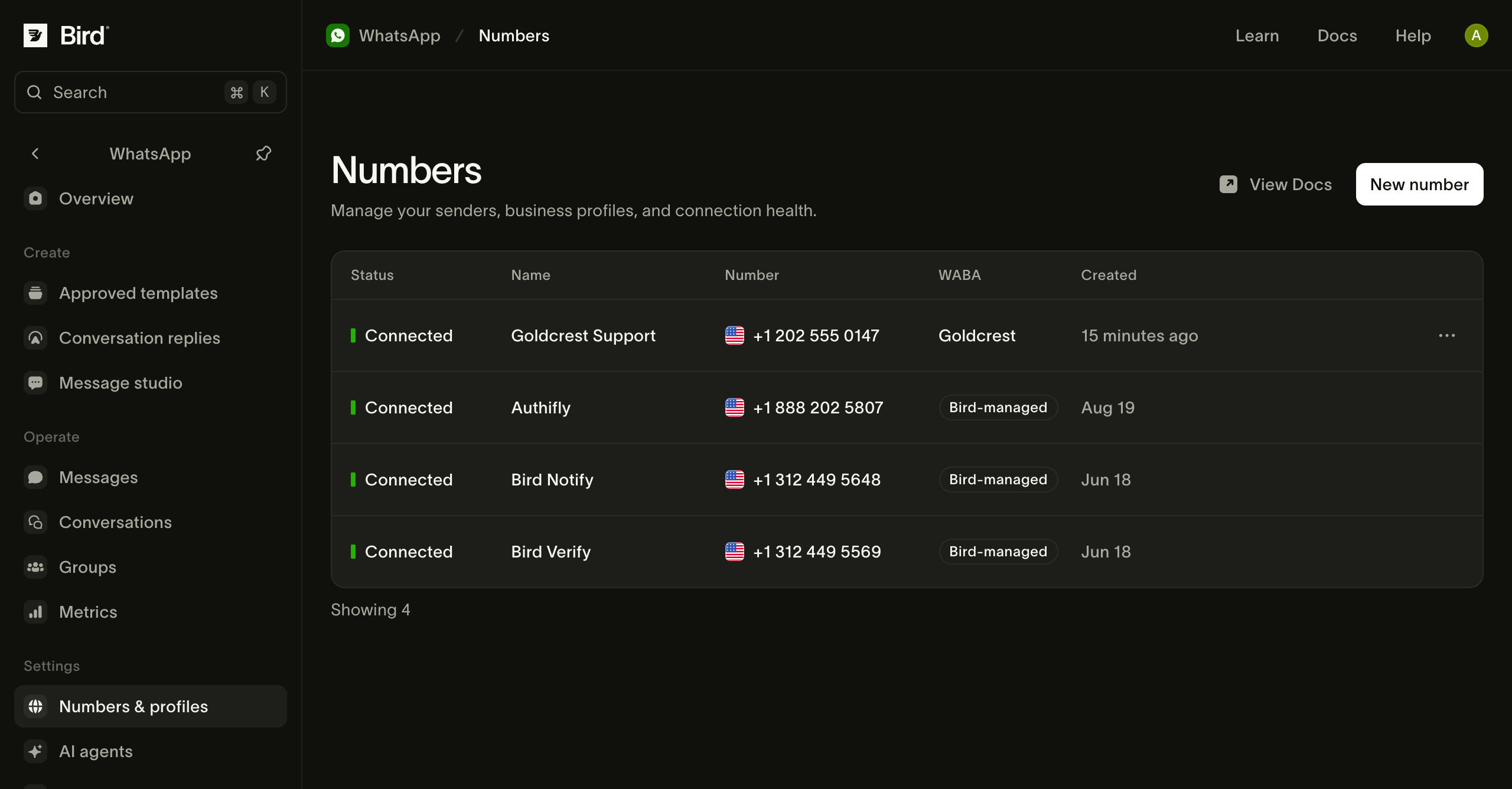
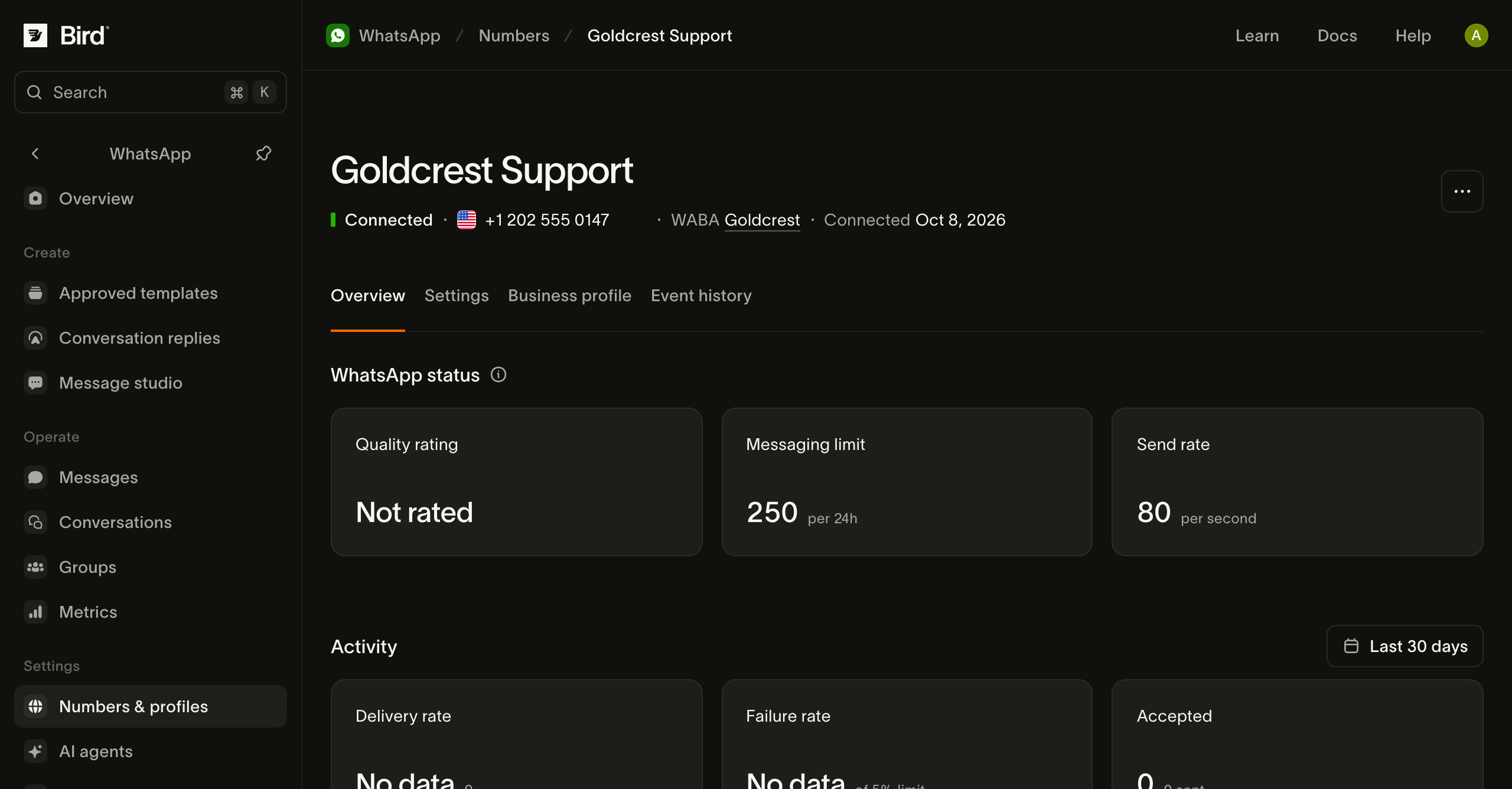
检查您的号码
打开已连接的号码,检查其状态和发送限制。使用Business profile查看收件人看到的信息。
如果设置中断,请检查号码状态及重试方法。
管理号码涵盖企业资料、企业账户、API 读取操作和入站消息。准备好发送了吗?发送 WhatsApp 消息。