邮件模板
模板是一个主题行和一个邮件正文,保存一次即可多次发送。将需要变化的部分写成 {{ variable }} 占位符,发布模板,然后通过 slug 发送,无需在每次 API 调用中粘贴相同的 HTML。模板属于您的工作区。
在 Email > Templates 中创建和管理模板,也可以通过 /v1/email/templates、bird CLI 或 MCP server 操作。TypeScript、Python、PHP 和 Go SDK 在 email.templates 下提供类型化方法。完整的请求和响应结构定义见 API 参考文档。通过常规的发送端点发送已发布的模板。
模板包含什么
每个模板有两个名称,用途各不相同:
slug是发送模板时使用的名称,例如welcome-email。创建模板时选定,之后无法更改。slug 可包含小写字母、数字、连字符和下划线,必须以字母或数字开头和结尾,最长 63 个字符。有两个前缀不可使用:bird_,保留给内置模板;emt_,用于模板 ID 的格式。控制面板中此字段名为 Alias。name是自由文本的显示标签。默认值为 slug,可随时更改。没有任何内容通过 name 解析,因此重命名模板的显示名称不会影响发送。
除此之外,模板还有一个永久 emt_ ID,在其整个生命周期内固定不变。它还有一个 category,值为 marketing 或 transactional,以及一个创作 source:html,即您提供的完整标记,可选择使用 Liquid 进行个性化。类别和来源在创建模板时均已固定。
我们提供了一组内置模板,其 slug 均以 bird_ 开头。内置模板不属于任何工作区,不可编辑,始终可直接发送。将其复制到您的工作区即可变为您自己的模板,成为可编辑的普通模板。副本以未发布的草稿形式到达,继承原始模板的类别、来源和语言设置,因此在发送前需要先发布。
草稿与已发布版本
每个模板有且仅有一个草稿,即你编辑的工作副本。它还可以有任意数量的已发布版本,每个版本按编号递增(1、2、3,以此类推),一旦创建便不再更改。编辑只修改草稿本身。发布会对当前草稿做一次快照,将其变为下一个编号版本,并让发送使用该版本。草稿本身仍然可编辑,你可以继续准备下一次更改。
对发送来说关键的规则是:发送始终使用模板的已发布版本,草稿永远不会被直接发送。你可以在稳定版本持续发出的同时继续编辑草稿,等更改就绪后再发布。发布新版本会改变后续发送渲染的内容。已被接受的发送不会受到此后发布操作的影响。
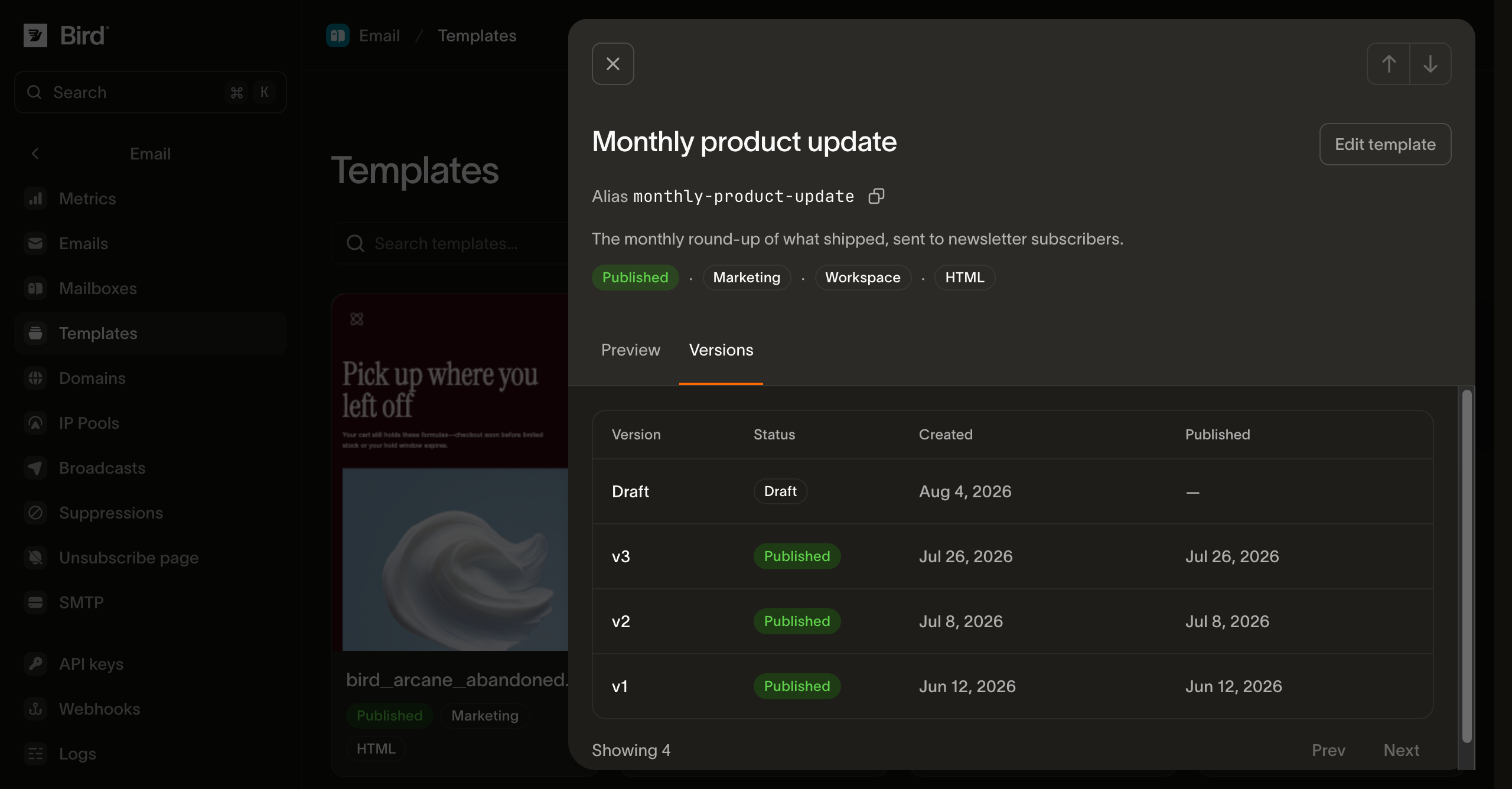
版本还支持两个操作。丢弃草稿的更改可将草稿重置为当前已发布的内容。或者回滚,使先前的某个已发布版本重新成为发送所使用的版本。你只能回滚到已发布的版本,不能回滚到草稿本身。回滚会用该版本的内容替换草稿,因此草稿中未保存的内容将丢失,后续编辑将从你回滚到的版本开始。回滚不会创建新版本。
要选择已有的图片,你需要对工作区媒体库的读取权限。要上传、粘贴或拖放新图片,你需要写入权限。如果 Insert image 处于禁用状态,或者你无法浏览或上传,请联系工作区管理员获取相应的媒体库权限。仅有模板编辑权限并不包含媒体库访问权限。
在控制台中,选择 Visual > Insert image 来搜索媒体库,或上传符合媒体库上传限制的 PNG、JPEG、GIF 或静态 WebP 图片。静态 WebP 上传后会被转换为 PNG 或 JPEG。选中图片后可设置其 Image description、显示宽度、对齐方式和链接。仅当图片不传递任何信息时才将其标记为 Decorative image;带链接的图片需要说明其链接目标的描述。每种语言各自保留其图片描述和布局。
使用 Replace image 可在保留描述、链接、宽度和对齐方式的同时替换选中的图片。你也可以将一个图片文件直接粘贴或拖放到可视化编辑器中。在保存或发送测试之前,请等待上传完成或取消上传。检查预览后,打开 More actions > Test email 将当前内容发送给自己。Code 仍然可用于编辑 HTML。
从媒体库中移除图片不会将其从已发送的邮件中移除。替换图片使用的是新 URL,因此早先的邮件仍会显示原始图片。
保存操作受修订号保护。保存时请发送你上次读取该语言所得到的 revision。如果其他人在此期间修改了该语言,保存将以冲突被拒绝,而不是覆盖他们的工作。省略 revision 则无条件保存。发布和回滚以同样的方式使用草稿自身的 revision。
多语言内容
一个模板可包含最多 25 种语言的内容,每种语言拥有各自的主题和正文,并以 BCP-47 代码标记,例如 en 或 pt-BR。其中一种语言是模板的默认语言。发布模板时会同时发布其包含的所有语言,不能单独发布某一种语言,因此所有语言都必须先完成。每种语言都需要主题和正文,并且模板的默认语言必须是你已填写内容的语言之一。如果有任何缺失,则不会发布任何内容,错误信息会告诉你每种语言中缺少什么,以便你一次性修复。你不必一开始就完成所有语言:先发布已就绪的语言,之后再添加其余的。
每种语言都需要一个 HTML 正文。你可以不提供其 text:发布时会自动从 HTML 生成纯文本替代版本,这样你无需手动编写第二个版本即可同时获得两种格式。
每种语言还可以附带预览文本,有时也叫 preheader:收件箱在邮件列表中显示在主题行之后的那行文字。预览文本是可选的,最多 255 个字符,支持与主题行相同的 {{ variable }} 占位符。如果不设置,收件箱会回退到正文开头的第一行,而那通常不是你想展示的内容。如果某语言的正文没有 HTML 部分,发布时会拒绝其预览文本,因为邮件客户端只能从隐藏的 HTML 标记中读取预览行;预览文本中也不允许包含 {{ bird.unsubscribe_url }},原因与主题行不能包含它一样:两者都不是可以放置链接的位置。
有两个设置用于处理发送时指定的语言在模板中不存在的情况,它们分别防范不同的问题:
| 设置 | 控制内容 |
|---|---|
on_missing_language | 当发送请求指定了模板中不存在的语言时的行为。fallback 是默认值,会提供最接近的匹配。它首先尝试同一语言的更宽泛形式,因此已存储的 pt 可以响应对 pt-BR 的请求,然后回退到模板的默认语言。fail 则直接拒绝发送,适用于发送错误语言比不发送更糟糕的内容。 |
language_source_required | 发送时是否必须指定语言。默认关闭,因此未指定语言的发送会使用默认语言。开启后,这类发送会被拒绝。群发会为整个受众指定一种语言,因此开启了此设置的模板需要在群发前选好语言。 |
这两个设置可以独立配置。单独使用时,fail 仅在发送指定了我们没有的语言时生效,未指定语言的发送仍可通过。同时开启两个设置,则要求每次发送都必须明确指定语言。
使用变量进行个性化
单次、批量和定时模板发送可以使用联系人值。当模板读取 bird.contact.* 时,每个 To 地址都必须匹配一个联系人。
在主题行、预览文本和正文中编写 {{ variable }} 占位符。我们会自动识别这些占位符,并汇总所有语言中的占位符,因此你无需单独声明。占位符前缀区分两种类型:以 bird. 开头的路径从我们的数据中读取,包括联系人记录或退订链接。其他所有占位符都是参数,需要你在发送时提供值。
参数名是一个单独的词,如 {{ animal }}。带点号的名称试图访问参数不具备的嵌套结构,因此发布时会被拒绝:请将值写成独立的参数,或者使用 bird.contact.<attribute> 来读取联系人数据。
在单次发送或批量发送中,参数的值来自发送的 template.parameters 对象,以参数名称为键。一组值覆盖该次发送的所有收件人。bird 是唯一不能在此使用的名称:template.parameters 中名为 bird 的键会被拒绝并返回 422。
使用 bird.contact.<attribute> 读取收件人的联系人属性,包括内置的 first_name、last_name 和 email 字段。单次发送和批量发送会把每个 To 地址与同一工作区中的联系人匹配。Cc 和 Bcc 收件人会收到每位 To 收件人个性化邮件的副本,无需匹配的联系人。群发读取其受众联系人,同时也接受调用方在模板参数中提供的值。
Hi {{ bird.contact.first_name }},请提供解析后的语言所用到的必填调用方参数。缺少必填参数会返回 422。必填值为 null 时同样返回 422;有意传入的空字符串仍然有效。版本的 variables 列表涵盖其所有语言,因此仅在其他语言中使用的参数无需在本次发送中提供值。
发布时会记录每种语言用到的联系人属性。发送时只获取所选语言和发送字段用到的属性。不引用联系人的发送会跳过联系人查询。
如果模板读取 bird.contact.*,每位 To 收件人都必须在工作区中有匹配的联系人。如果某位 To 收件人没有联系人,请求会在接受任何邮件之前返回 422 和 E04099,批量发送和定时发送也一样。请先创建或更新联系人,或改用调用方参数。Liquid 的 default 过滤器或条件语句不会免除这一要求。仅使用调用方参数或 bird.unsubscribe_url、不使用联系人属性的模板不需要匹配的联系人。
例如,将 Hello {{ bird.contact.first_name }} 发送给 Alice 和 Bob,并将 Charlie 设为 Cc:
| 投递 | 问候语 | 可见的 To |
|---|---|---|
| Alice | Hello Alice | Alice |
| Charlie,抄送 Alice 的邮件 | Hello Alice | Alice |
| Bob | Hello Bob | Bob |
| Charlie,收到 Bob 邮件的抄送 | Hello Bob | Bob |
Charlie 会收到两份副本,因此该请求共产生四次投递。Bcc 的工作方式相同,只是 Bcc 地址被隐藏。仅当模板使用联系人属性时,才会生成这些单独的个性化邮件;普通发送保持现有的寻址行为。批量发送 API 中的每封邮件也适用同一规则。
现有联系人的名字或姓氏可以为空。缺失的姓名部分会显示为空,问候语由你在模板中选择。只使用名字问候时,可用 Hello {{ bird.contact.first_name | default: "there" }}!。使用全名时,先合并两部分并去掉首尾空格,再选择默认值:
{% assign full_name = bird.contact.first_name | append: " " | append: bird.contact.last_name | strip %}
Hello {{ full_name | default: "there" }}!
相应的姓名部分存在时,结果为 Hello Jane Doe!、Hello Jane! 或 Hello Doe!;两部分都缺失时,结果为 Hello there!。无需为整个工作区设置替代姓名。
你创建的联系人属性保留已配置的回退值。存储的 null 视为缺失;显式空字符串、false 或零仍视为有效值。缺失且没有回退值的属性显示为空。未知属性和无效的存储值会导致请求被拒绝。查询失败后可以重试,不会改用回退值。
bird.contact.* 占位符必须引用内置属性或已注册的自定义属性。调用方参数名与这些平台路径相互独立。单次和批量模板发送(包括定时发送)会在接受时保存收件人的值,并在投递重试和读取消息时复用这些值。群发保持其自身的准备时机。单次和批量发送会在接受之前拒绝敏感输入。
归档属性会将其从编辑器的属性选择器中移除。读取该属性的新模板版本无法发布,错误信息会列出该属性。已发布的模板继续正常发送。取消归档该属性即可在新版本中再次使用。
占位符使用 Liquid,因此过滤器和控制流可以与简单替换一起使用。{% if %} 条件语句和对数组值的 {% for %} 循环都可以正常工作。发布时会拒绝少数构造,错误信息会准确说明需要更改的内容:
- 使用
{% include %}或{% render %}的局部包含。 increment、decrement和ifchanged标签。money、format_date、format_time、json、inspect和type过滤器。- 与
empty或blank进行比较。请改用.size == 0。 - 嵌套层级远超实际邮件标记所需的块。
群发的模板参数接受标量值,不支持数组和对象。不使用调用方参数时,{% for %} 和 {% tablerow %} 均支持 (1..3) 这样的字面量范围,以及在 Liquid 中使用 split 创建的列表。使用调用方参数的群发支持通过 {% for %} 遍历 split 创建的列表,但不支持范围和 {% tablerow %}。无论哪种情况,如果循环标签直接读取调用方参数或联系人属性,请求都会被拒绝;范围端点读取这些值时也会被拒绝。
每个模板都使用 Liquid,即使只包含 {{ variable }} 占位符的模板也不例外。发布之前,我们会将主题、预览文本、HTML 和纯文本内容作为 Liquid 进行验证。我们还会为每个尚未以 escape 或 escape_once 结尾的 HTML 输出添加 escape 过滤器,这样包含 & 或 < 的值就无法篡改周围的标记。保留的退订输出保持不变,以便发送时进行替换。主题行和纯文本正文保持原样。由于发布会添加这些过滤器,从已发布版本读取的 HTML 可能与你提交的内容不完全一致。
将完整的 URL 直接放在 href 中,例如 <a href="{{ sign_in_url }}">Sign in</a>。不要对整个值添加 url_encode。它会对 https://、/、? 和 & 进行百分号编码,导致结果无法作为绝对链接使用。我们会在保留 URL 结构的同时添加 HTML 转义。当参数只提供一个 URL 组件时,请显式编码该组件:<a href="https://example.com/search?q={{ query | url_encode }}">Search</a>。
发布前预览
使用示例值渲染模板,获取发送时会投递的主题行以及 HTML 和纯文本正文。预览使用我们的本地 Liquid 渲染器,默认渲染草稿,让您在上线前检查更改。也可以改为渲染已发布的版本。它适用于您自己的模板和我们的内置模板,且不会实际发送任何内容。
您也可以直接传入内容,而不是让它读取草稿。传入主题和正文,它们会被渲染,处理方式与草稿完全相同。这让编辑器可以在输入时实时展示更改效果,无需先保存。
个性化内容会自动填充,因此返回的结果是完成的正文,而不是 {{ }} 占位符。指定一个 contact,每个 bird.contact.<attribute> 都会根据该联系人自身的属性进行解析,让你在任何人收到邮件之前,用真实记录检查措辞。这些值来自群发填充占位符时使用的同一投影,因此预览的结果与发送的结果一致。
不指定 contact 时,会替换为占位值:Bird 和 Test 分别用于名和姓,bird.test@example.com 用于邮箱,其他属性使用各自注册的回退值。没有回退值的被引用属性会以方括号包裹的键名形式渲染,例如 [loyalty_tier],既告诉您该值是占位符,也告诉您哪个属性还需要设置回退值。
联系人按其当前状态读取。因此预览适合检查即将发送的内容,但不适合查看之前某次发送的内容。要查看某次发送实际投递的内容,请在邮件日志中打开该消息,日志会根据该次发送携带的值进行渲染。
添加 language 可渲染某种特定语言,不添加则使用模板的默认语言。响应会告诉您渲染了哪种语言,当您请求的语言不存在且模板的 on_missing_language 提供了近似匹配时,这一点尤为重要。
如果草稿中的个性化内容在发布时会被拒绝,预览会返回同样的错误,因此它也可以用来提前发现问题。
在控制台的模板构建器中,左侧栏底部的 Preview with contact data 会在您编辑的内容旁边显示渲染后的邮件,可视化编辑器和代码编辑器中均可使用。下方的选择器用于选择谁的数据来填充占位符,Sample data 即上述占位值。
使用模板发送
将发送请求的 template 字段设置为一个指定模板的对象,通过 id(emt_...)或 slug 来指定,二者只能选其一。将变量值放在 template.parameters 中。添加 language 来选择特定语言,或者省略它以使用模板的默认语言,除非模板要求每次发送都必须指定语言。不要传入 subject、html 和 text,因为模板已经提供了它们。
{
  "from": "hello@yourdomain.com",
  "to": ["delivered@messagebird.dev"],
  "category": "transactional",
  "template": {
    "slug": "welcome-email",
    "parameters": { "first_name": "Jane" }
  }
}
有一个值得注意的行为:模板的类别是默认值,发送请求自身的 category 会覆盖它。不设置 category,发送就会继承模板的类别,因此一个运营类模板会以事务性邮件发送,无需在每次调用时重复指定。设置了 category,则以你指定的值为准。发送侧的其余约定见使用模板发送。
在控制台之外创作
整个生命周期都可以在控制台之外完成:通过 API、email.templates 下的 SDK、bird CLI,以及 email_templates_* MCP 工具。在 SDK 中,版本和语言操作位于 email.templates.versions 和 email.templates.versions.languages 下。发布步骤在那里命名为 submit,它将草稿转为下一个已发布版本。
你可以将模板保存在自己的代码仓库中,并通过构建步骤同步它们。草稿和已发布版本读取到的 HTML 不同,因此请选择与你的工具需求相匹配的读取方式:
- 草稿读取到的内容与你保存时完全一致。 你保存到草稿语言中的 HTML,可以从该语言的读取(
GET /v1/email/templates/{id}/versions/{draft_version_id}/languages/{language})和版本读取中逐字节地取回,包括 doctype、<style>块、注释、空白、换行符和非 ASCII 文本。保存操作不返回内容,因此需要确认存储了什么时,请回读该语言。 - 已发布版本读取到的内容可直接用于发送。 发布会以三种方式改写 HTML:每个尚未以
escape或escape_once结尾的{{ }}输出会被添加escape过滤器,但{{ bird.unsubscribe_url }}保持原样;预览文本会被折叠为紧跟在<body>开标签之后的隐藏块,如果 HTML 中没有该标签则放在最开头;空的text会被填入从 HTML 生成的纯文本替代内容。读取该版本返回的是改写后的内容,因此与你的源文件不同。
要导出你创作的源内容,请读取草稿。读取模板或列出模板会返回元数据和每种语言的状态,但不包含 HTML。
下面的示例使用 {{ first_name }},这是在 template.parameters 中提供的调用方参数,如 "parameters": {"first_name": "Jane"}。如果模板应读取收件人在工作区中的联系人,请改用 {{ bird.contact.first_name }}。在单次发送和批量发送中,都通过邮箱地址指定收件人。保存在已发布模板中的样式属于该版本的一部分。不存在运行时的 bird.brandkit.* 命名空间。
创建模板及其第一种语言。响应会携带模板 id 和 draft_version_id,版本和语言操作需要用到它们。示例还设置了 preview_text,即收件箱在邮件列表中显示在主题之后的预览文本。发布时会将其折叠为 HTML 中的隐藏块,这也是已发布版本读取到的 HTML 与草稿不同的原因之一:
const template = await bird.email.templates.create({
  slug: "welcome-email",
  category: "transactional",
  source: "html",
  languages: {
    en: {
      subject: "Welcome, {{ first_name }}",
      preview_text: "Your account is ready",
      html: "<!DOCTYPE html>\n<html>\n<body>\n<p>Hi {{ first_name }}, thanks for signing up.</p>\n</body>\n</html>\n",
    },
  },
});
console.log(template.id, template.draft_version_id);
template = client.email.templates.create(
slug="welcome-email",
category="transactional",
source="html",
languages={
"en": {
"subject": "Welcome, {{ first_name }}",
"preview_text": "Your account is ready",
"html": "<!DOCTYPE html>\n<html>\n<body>\n<p>Hi {{ first_name }}, thanks for signing up.</p>\n</body>\n</html>\n",
},
},
)
print(template.id, template.draft_version_id)template, err := client.Email.Templates.Create(context.Background(), bird.EmailTemplatesCreateParams{
Slug: "welcome-email",
Category: "transactional",
Source: "html",
Languages: map[string]bird.EmailTemplateLanguageContent{
"en": {
Subject: bird.String("Welcome, {{ first_name }}"),
PreviewText: bird.String("Your account is ready"),
Html: bird.String("<!DOCTYPE html>\n<html>\n<body>\n<p>Hi {{ first_name }}, thanks for signing up.</p>\n</body>\n</html>\n"),
},
},
})
if err != nil {
log.Fatal(err)
}
fmt.Println(template.Id, *template.DraftVersionId)$template = $bird->email->templates->create(
slug: 'welcome-email',
category: 'transactional',
source: 'html',
languages: [
'en' => [
'subject' => 'Welcome, {{ first_name }}',
'preview_text' => 'Your account is ready',
'html' => "<!DOCTYPE html>\n<html>\n<body>\n<p>Hi {{ first_name }}, thanks for signing up.</p>\n</body>\n</html>\n",
],
],
);
echo $template->getId(), ' ', $template->getDraftVersionId();bird email templates create --body-file - <<'EOF'
{
"slug": "welcome-email",
"category": "transactional",
"source": "html",
"languages": {
"en": {
"subject": "Welcome, {{ first_name }}",
"preview_text": "Your account is ready",
"html": "<!DOCTYPE html>\n<html>\n<body>\n<p>Hi {{ first_name }}, thanks for signing up.</p>\n</body>\n</html>\n"
}
}
}
EOFcurl -X POST https://us1.platform.bird.com/v1/email/templates \
-H "Authorization: Bearer bk_us1_..." \
-H "Content-Type: application/json" \
-d '{
"slug": "welcome-email",
"category": "transactional",
"source": "html",
"languages": {
"en": {
"subject": "Welcome, {{ first_name }}",
"preview_text": "Your account is ready",
"html": "<!DOCTYPE html>\n<html>\n<body>\n<p>Hi {{ first_name }}, thanks for signing up.</p>\n</body>\n</html>\n"
}
}
}'要稍后更改某种语言,请通过 bird email templates versions languages set 或 PUT 向同一语言路径再次保存。请求体是扁平的:subject(必填),加上 preview_text、html 和 text。省略的字段会被清除。添加你上次读取到的 revision,以便在他人在此期间修改了该语言时拒绝保存。
控制台可视化编辑器的布局就是以这种方式被清除的字段之一,因为 API、SDK 和 CLI 无法发送它。保存你在可视化编辑器中构建的语言会保留其 HTML 但移除布局,因此控制台会以代码编辑器重新打开该语言。
以下步骤使用 TEMPLATE_ID 和 DRAFT_VERSION_ID 分别代表创建调用返回的 id 和 draft_version_id。读取草稿语言以获取与存储完全一致的 HTML:
const language = await bird.email.templates.versions.languages.get(
  "TEMPLATE_ID",
  "DRAFT_VERSION_ID",
  "en",
);
console.log(language.content?.html);
language = client.email.templates.versions.languages.get(
"TEMPLATE_ID",
"DRAFT_VERSION_ID",
"en",
)
if language.content is not None:
print(language.content.html)language, err := client.Email.Templates.Versions.Languages.Get(context.Background(),
"TEMPLATE_ID", "DRAFT_VERSION_ID", "en")
if err != nil {
log.Fatal(err)
}
if language.Content != nil && language.Content.Html != nil {
fmt.Println(*language.Content.Html)
}$language = $bird->email->templates->versions->languages->get(
'TEMPLATE_ID',
'DRAFT_VERSION_ID',
'en',
);
echo $language->getContent()?->getHtml();bird email templates versions languages get "$TEMPLATE_ID" "$DRAFT_VERSION_ID" en \
| jq -j .content.html > welcome-email.htmlcurl "https://us1.platform.bird.com/v1/email/templates/$TEMPLATE_ID/versions/$DRAFT_VERSION_ID/languages/en" \
-H "Authorization: Bearer bk_us1_..." \
| jq -j .content.html > welcome-email.htmljq -j 写入字符串时不会添加尾部换行符,因此文件保存的字节与 API 存储的完全相同。
先使用 validate_only 提交草稿。它会对每种语言执行与正式提交相同的检查,并在一次响应中报告发现的所有问题,但不会实际发布。然后不带 validate_only 提交以发布下一个版本,后续发送将使用该版本:
const templateId = "TEMPLATE_ID";
const draftVersionId = "DRAFT_VERSION_ID";
const check = await bird.email.templates.versions.submit(templateId, draftVersionId, {
  validate_only: true,
});
for (const problem of check.errors) {
  console.log(problem.language, problem.field, problem.message);
}
if (check.valid) {
  const result = await bird.email.templates.versions.submit(templateId, draftVersionId);
  console.log(result.version?.version_number);
}
template_id = "TEMPLATE_ID"
draft_version_id = "DRAFT_VERSION_ID"
check = client.email.templates.versions.submit(template_id, draft_version_id, validate_only=True)
for problem in check.errors:
print(problem.language, problem.field, problem.message)
if check.valid:
result = client.email.templates.versions.submit(template_id, draft_version_id)
if result.version is not None:
print(result.version.version_number)ctx := context.Background()
templateID := "TEMPLATE_ID"
draftVersionID := "DRAFT_VERSION_ID"
check, err := client.Email.Templates.Versions.Submit(ctx, templateID, draftVersionID,
bird.EmailTemplatesVersionsSubmitParams{ValidateOnly: bird.Bool(true)})
if err != nil {
log.Fatal(err)
}
if check.Errors != nil {
for _, problem := range *check.Errors {
fmt.Println(*problem.Message)
}
}
if check.Valid != nil && *check.Valid {
result, err := client.Email.Templates.Versions.Submit(ctx, templateID, draftVersionID,
bird.EmailTemplatesVersionsSubmitParams{})
if err != nil {
log.Fatal(err)
}
fmt.Println(*result.Version.VersionNumber)
}$templateId = 'TEMPLATE_ID';
$draftVersionId = 'DRAFT_VERSION_ID';
$check = $bird->email->templates->versions->submit(
$templateId,
$draftVersionId,
(new EmailTemplateSubmit())->setValidateOnly(true),
);
foreach ($check->getErrors() ?? [] as $problem) {
echo $problem->getLanguage(), ' ', $problem->getField(), ' ', $problem->getMessage(), "\n";
}
if ($check->getValid() === true) {
$result = $bird->email->templates->versions->submit($templateId, $draftVersionId, new EmailTemplateSubmit());
echo $result->getVersion()?->getVersionNumber();
}bird email templates versions submit "$TEMPLATE_ID" "$DRAFT_VERSION_ID" --validate-only
bird email templates versions submit "$TEMPLATE_ID" "$DRAFT_VERSION_ID"curl -X POST "https://us1.platform.bird.com/v1/email/templates/$TEMPLATE_ID/versions/$DRAFT_VERSION_ID/submit" \
-H "Authorization: Bearer bk_us1_..." \
-H "Content-Type: application/json" \
-d '{"validate_only": true}'
curl -X POST "https://us1.platform.bird.com/v1/email/templates/$TEMPLATE_ID/versions/$DRAFT_VERSION_ID/submit" \
-H "Authorization: Bearer bk_us1_..." \
-H "Content-Type: application/json" \
-d '{}'提交请求体接受 validate_only 和 expected_revision。将模板的 revision 作为 expected_revision 传入,以便在草稿自上次读取后发生变更时拒绝发布。
列出工作区中的模板,找到发送时指定的 slug:
for await (const tpl of bird.email.templates.list({ scope: "workspace" })) {
  console.log(tpl.slug, tpl.name);
}
for template in client.email.templates.list(scope="workspace"):
print(template.slug, template.name)for tpl, err := range client.Email.Templates.List(context.Background(), bird.EmailTemplatesListParams{Scope: "workspace"}) {
if err != nil {
log.Fatal(err)
}
fmt.Println(*tpl.Slug, tpl.Name)
}foreach ($bird->email->templates->list(['scope' => 'workspace']) as $template) {
echo $template->getSlug(), ' ', $template->getName(), "\n";
}bird email templates list --scope workspacecurl "https://us1.platform.bird.com/v1/email/templates?scope=workspace" \
-H "Authorization: Bearer bk_us1_..."通过 slug 发送已发布的模板,在 template.parameters 中为模板使用的每个参数提供值,此处为 first_name:
const msg = await bird.email.send({
  from: { email: "onboarding@messagebird.dev", name: "Bird" },
  to: ["delivered@messagebird.dev"],
  category: "transactional",
  template: {
    slug: "welcome-email",
    parameters: { first_name: "Jane" },
  },
});
console.log(msg.id, msg.status);
msg = client.email.send(
from_={"email": "onboarding@messagebird.dev", "name": "Bird"},
to=["delivered@messagebird.dev"],
category="transactional",
template="welcome-email",
parameters={"first_name": "Jane"},
)
print(msg.id, msg.status)msg, err := client.Email.Send(context.Background(), bird.EmailSendParams{
From: "onboarding@messagebird.dev",
To: []string{"delivered@messagebird.dev"},
Category: "transactional",
Template: "welcome-email",
Parameters: map[string]any{"first_name": "Jane"},
})
if err != nil {
log.Fatal(err)
}
fmt.Println(msg.Id, *msg.Status)$message = $bird->email->send(
from: 'Bird <onboarding@messagebird.dev>',
to: ['delivered@messagebird.dev'],
category: 'transactional',
template: (new EmailMessageSendRequestTemplate())
->setSlug('welcome-email')
->setParameters(['first_name' => 'Jane']),
);
echo $message->getId(), ' ', $message->getStatus();bird email send \
--category transactional \
--from hello@yourdomain.com \
--parameters '{"first_name":"Jane"}' \
--template welcome-email \
--to delivered@messagebird.devcurl -X POST https://us1.platform.bird.com/v1/email/messages \
-H "Authorization: Bearer bk_us1_..." \
-H "Content-Type: application/json" \
-d '{
"from": "hello@yourdomain.com",
"to": ["delivered@messagebird.dev"],
"category": "transactional",
"template": {
"slug": "welcome-email",
"parameters": { "first_name": "Jane" }
}
}'后续步骤
- 发送邮件:完整的发送载荷,以及模板化发送如何适配其中
- 类别:在每次发送中选择
marketing还是transactional bird email templates:从终端管理模板- API 参考文档:全部十八个模板操作的完整请求和响应结构定义
- SDK:TypeScript、Python、PHP 和 Go 中的类型化
email.templates方法 - MCP server:让代理创作和发布模板
- 如何构建邮件模板:一段在控制台中构建模板、然后让代理构建另一个模板的视频