Szablony WhatsApp
Wiadomości WhatsApp inicjowane przez firmę wymagają wstępnie zatwierdzonego szablonu. Szablon zawiera stały tekst i zmienne, więc wysyłka dostarcza tylko wartości, takie jak kod OTP lub numer zamówienia.
Bird dostarcza zarządzany katalog, rejestruje jego zawartość w WhatsApp i wysyła z własnych numerów Bird; slugi tych szablonów zaczynają się od bird_. Obszar roboczy, który podłączył własny numer, może też tworzyć szablony na własnym koncie WhatsApp Business Account. Strona Templates pokazuje wszystkie szablony, które obszar roboczy może wysłać, oraz sposób renderowania każdego z nich.
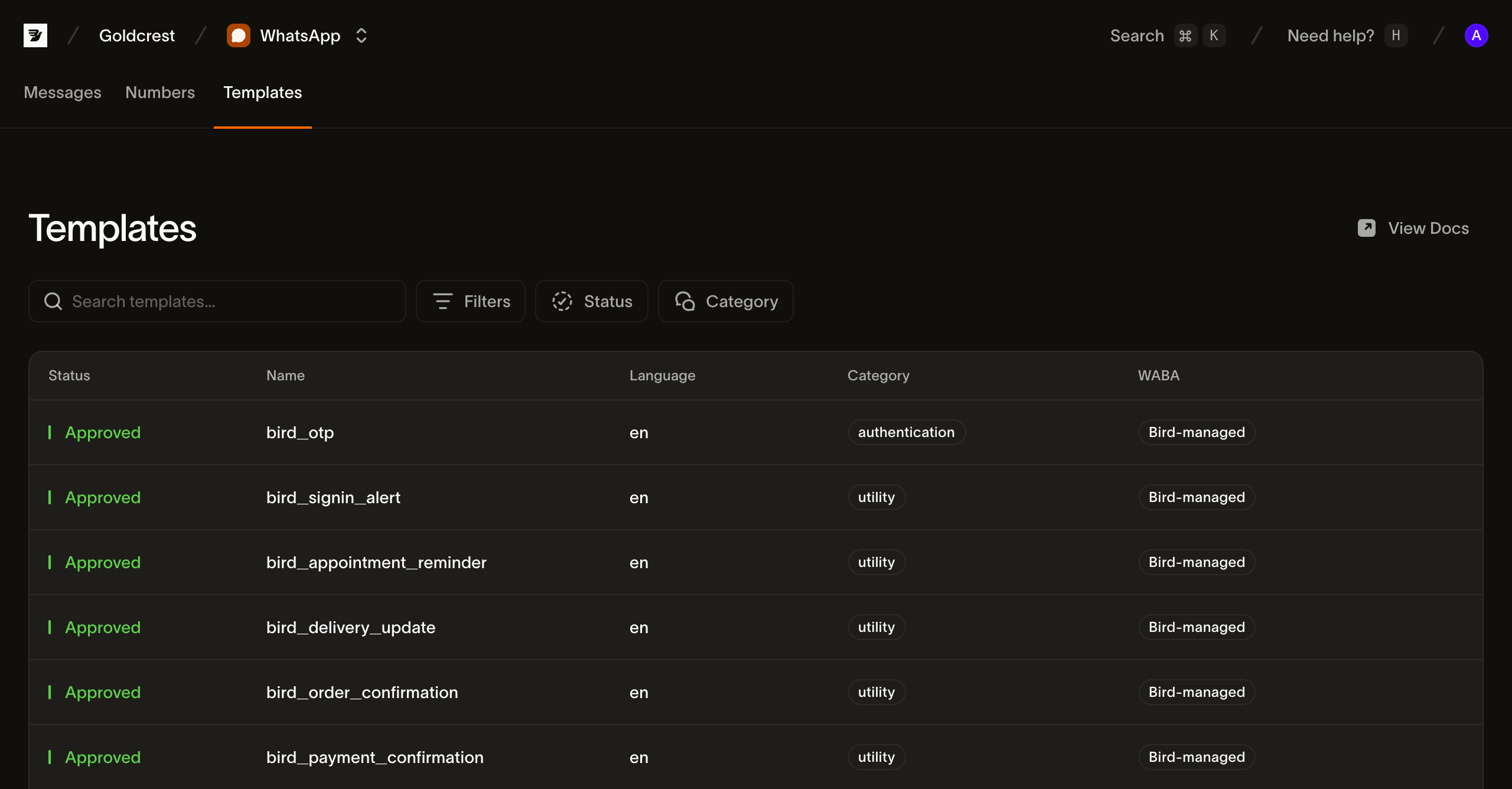
Przeglądanie szablonów w panelu
Otwórz Templates w WhatsApp > Templates. Your templates zawiera szablony utworzone w tym obszarze roboczym; All templates dodaje katalog zarządzany przez Bird. Szukaj po nazwie lub filtruj według statusu i kategorii, a między widokiem kart i widokiem listy przełączaj się przyciskiem obok filtrów.
W widoku listy każdy wiersz pokazuje pola potrzebne do wybrania i wysłania szablonu:
- Status: czy szablon można wysłać. Szablony z zarządzanego katalogu wyświetlają
active; własny szablon pokazuje aktualny stan zatwierdzenia. Sprawdź listę języków, aby potwierdzić, że wymagany język jest dostępny. - Name: etykieta wyświetlana, a pod nią
slugszablonu. Wysyłaj, używającslug. - Languages: języki, w których szablon jest zarejestrowany, na przykład angielski i niderlandzki.
- Category:
authentication,utilitylubmarketing. Kategoria określa, jak WhatsApp traktuje wiadomość, z którego numeru Bird wysyłany jest zarządzany szablon, a w połączeniu z krajem docelowym także cenę. - WABA: Bird-managed w przypadku szablonów katalogowych. Własny szablon pokazuje konto WhatsApp Business Account, na którym się znajduje, i wysyła tylko z numeru przypisanego do tego samego konta.
- Updated: data ostatniej zmiany szablonu.
Kliknij wiersz, aby otworzyć szczegóły szablonu.
Co zawiera szablon
Widok szczegółów renderuje treść wiadomości, zmienne i przyciski w podglądzie w stylu WhatsApp.
Szczegóły zawierają też przykład cURL dla POST /v1/whatsapp/messages, korzystający z regionalnego hosta i przykładowych wartości szablonu. Przed wysłaniem zastąp klucz API, odbiorcę i wartości zmiennych.
Przykład to najszybszy sposób, żeby zobaczyć strukturę, jakiej wymaga wysyłka. Przez API tę samą treść pobierzesz z wersji szablonu (Odczytywanie treści szablonu).
Wyświetlanie szablonów z API
GET /v1/whatsapp/templates zwraca katalog z paginacją kursorową. Żądanie wymaga dostępu do odczytu whatsapp_management. Użyj HTTP lub metody raw-request z SDK.
type Templates = { data: Array<{ slug: string; status: string }> };

const templates = await bird.request<Templates>({
  method: "GET",
  path: "/v1/whatsapp/templates",
});
templates = client.get("/v1/whatsapp/templates")var out struct {
Data []struct {
Slug string `json:"slug"`
Status string `json:"status"`
} `json:"data"`
}
if err := client.Get(context.Background(), "/v1/whatsapp/templates", &out); err != nil {
log.Fatal(err)
}$templates = $bird->get('/v1/whatsapp/templates');curl https://us1.platform.bird.com/v1/whatsapp/templates \
-H "Authorization: Bearer $BIRD_API_KEY"Każdy wpis identyfikuje szablon, jego kategorię i dostępne języki. Treść wiadomości odczytuj osobno z aktywnej wersji.
{
  "available_languages": ["en", "es", "pt-BR", "..."],
  "category": "authentication",
  "default_language": "en",
  "description": "One-time passcode",
  "id": "wat_01ky4x8e4genzb7way45txfkm1",
  "languages": {
    "en": { "status": "approved" },
    "es": { "status": "approved" },
    "pt-BR": { "status": "approved" },
    "...": "..."
  },
  "name": "bird_otp",
  "on_missing_language": "fail",
  "scope": "system",
  "slug": "bird_otp",
  "status": "active"
}
Przykładowa odpowiedź skraca listy języków bird_otp.
Pola, od których zależy wysyłka:
slug: identyfikator używany przy wysyłce. Slugi zarządzanych szablonów zaczynają się odbird_, prefiksu zarezerwowanego dla nich.waba: konto WhatsApp Business Account przechowujące języki szablonu w Meta oraz konto, do którego musi należeć numer nadawcy. Nie występuje w szablonach zarządzanych, ponieważ Bird zarządza ich kontem.available_languages: języki dostępne do wysyłki. Wstrzymany, wyłączony, zarchiwizowany lub ograniczony język nie pojawia się na tej liście.on_missing_language: co się dzieje, gdy żądany język jest niedostępny. Szablony WhatsApp zarządzane przez Bird używająfail, co powoduje odrzucenie wysyłki zamiast podmiany na inny język.
Status i status języka
Szablony zarządzane przez Bird wyświetlają status: active. languages.<tag>.status pokazuje stan WhatsApp dla jednego języka, na przykład approved, paused lub disabled.
Aktywny szablon może mimo to mieć niedostępny język. Użyj available_languages, aby sprawdzić, czy dany język można wysłać.
Odczytywanie treści szablonu
Treść wiadomości należy do języka w aktywnej wersji. Odczytaj live_version_id z szablonu, a następnie pobierz wymagany język:
const language = await bird.request({
  method: "GET",
  path: "/v1/whatsapp/templates/bird_order_confirmation/versions/{version_id}/languages/en",
});
language = client.get(
"/v1/whatsapp/templates/bird_order_confirmation/versions/{version_id}/languages/en"
)var language map[string]any
if err := client.Get(context.Background(),
"/v1/whatsapp/templates/bird_order_confirmation/versions/{version_id}/languages/en",
&language); err != nil {
log.Fatal(err)
}$language = $bird->get('/v1/whatsapp/templates/bird_order_confirmation/versions/{version_id}/languages/en');curl https://us1.platform.bird.com/v1/whatsapp/templates/bird_order_confirmation/versions/{version_id}/languages/en \
-H "Authorization: Bearer $BIRD_API_KEY"Referencja szablonu przyjmuje slug lub identyfikator wat_. GET …/versions/{version_id}/languages wyświetla języki wersji bez ich treści.
{
  "category": "utility",
  "components": [
    {
      "example_parameters": [
        { "name": "ref", "text": "A1B2C3D4", "type": "text" },
        { "name": "amount", "text": "USD 49.99", "type": "text" }
      ],
      "text": "Your order {{ref}} has been confirmed for a total of {{amount}}. Thanks for shopping with us.",
      "type": "body"
    }
  ],
  "language": "en",
  "status": "approved"
}
components wysyłki muszą odpowiadać szablonowi. example_parameters identyfikuje każdy placeholder. W tym przykładzie parametry body używają name: "ref" i name: "amount". Szablon pozycyjny pomija name i przyjmuje wartości w kolejności {{n}}. Sparametryzowane przyciski mają własne example_parameters.
Pole category języka to kategoria Meta używana do wyceny. Może się różnić od zarejestrowanej kategorii szablonu, jeśli Meta przeklasyfikuje język.
Lista variables wersji podsumowuje każdy placeholder, podając jego klucz, typ, flagę wymagalności i ograniczenie. Placeholdery nazwane używają swoich nazw jako kluczy. Placeholdery pozycyjne używają swojego numeru.
Wysyłanie za pomocą szablonu
Podaj szablon w obiekcie template wysyłki i wypełnij jego zmienne przez components; pełny payload znajdziesz w Wysyłanie wiadomości WhatsApp:
const msg = await bird.whatsapp.send({
  to: "+15551234567",
  template: {
    slug: "bird_otp",
    components: [{ type: "body", parameters: [{ type: "text", text: "123456" }] }],
  },
});
console.log(msg.id, msg.status);
msg = client.whatsapp.send(
to="+31612345678",
template="bird_otp",
language="en",
components=[{"type": "body", "parameters": [{"type": "text", "text": "123456"}]}],
)
print(msg.id, msg.status)code := "123456"
msg, err := client.Whatsapp.Send(context.Background(), bird.WhatsappSendParams{
To: "+15551234567",
Template: "bird_otp",
Language: "en",
Components: []bird.WhatsAppMessageTemplateComponent{{
Type: "body",
Parameters: &[]bird.WhatsAppMessageTemplateComponentParameter{{Type: "text", Text: &code}},
}},
})
if err != nil {
log.Fatal(err)
}
fmt.Println(msg.Id, *msg.Status)$message = $bird->whatsapp->send(
to: '+15551234567',
template: 'bird_otp',
language: 'en',
components: [
(new WhatsAppMessageTemplateComponent())
->setType('body')
->setParameters([
(new WhatsAppMessageTemplateComponentParameter())->setType('text')->setText('123456'),
]),
],
);
echo $message->getId(), ' ', $message->getStatus();bird whatsapp send \
--components '[{"parameters":[{"text":"1234","type":"text"}],"type":"body"},{"parameters":[{"text":"1234","type":"text"}],"type":"button"}]' \
--language en \
--template bird_otp \
--to +31612345678curl -X POST https://us1.platform.bird.com/v1/whatsapp/messages \
-H "Authorization: Bearer $BIRD_API_KEY" \
-H "Content-Type: application/json" \
-d '{
"to": "+14155550100",
"template": {
"slug": "bird_otp",
"language": "en",
"components": [
{ "type": "body", "parameters": [{ "type": "text", "text": "481920" }] },
{ "type": "button", "parameters": [{ "type": "text", "text": "481920" }] }
]
}
}'Wysyłanie według kategorii
Każdy szablon należy do jednej z trzech kategorii Meta, a kategoria wpływa na to, co musisz zrobić przed udaną wysyłką, i na jej koszt. Tworzenie lub kopiowanie własnego szablonu uwierzytelniania wymaga zweryfikowanej firmy, ale samo wysyłanie już nie: zarządzany bird_otp od Bird znajduje się na własnym koncie WhatsApp Business Account Bird i nie wymaga Twojej weryfikacji. Szablony marketingowe zawsze wysyłasz z własnego konta WhatsApp Business Account, przez drugie konto Meta API, na które Bird automatycznie przekierowuje. Szablony narzędziowe mają najmniej wymagań wstępnych z tych trzech kategorii.
- Szablony uwierzytelniania: jednorazowe kody weryfikacyjne, przycisk kopiowania kodu i wymóg weryfikacji przy tworzeniu szablonu
- Szablony narzędziowe: aktualizacje zamówień, przypomnienia o wizytach i powiadomienia o koncie
- Szablony marketingowe: wysyłki promocyjne, wymagane konto firmowe i oczekiwanie rezygnacji z subskrypcji
Następne kroki
- Wysyłanie wiadomości WhatsApp: pełny payload wysyłki, do którego wstawia się obiekt
template - Wytyczne dla szablonów WhatsApp: zasady, według których Meta ocenia szablon
- Szablony uwierzytelniania: jednorazowe kody weryfikacyjne i wymóg weryfikacji firmy przy tworzeniu szablonu
- Cennik WhatsApp: jak kategoria i miejsce docelowe wpływają na cenę
Powiązane zasoby
Przejdź do dokumentacji, przewodników i przykładów dotyczących tego tematu.