Odbieranie e-maili
Odebrane e-maile są dostępne w Email > Emails > Receiving, przez API inbound-messages oraz w webhookach email.received. Wybierz jedną z dwóch metod konfiguracji w zależności od adresu, na który chcesz odbierać pocztę.
- Adres przekierowania to skrzynka, którą generujemy dla Ciebie, np.
mfzxq2lom5uxi3lb@eu1.inbound.bird.com(@us1.inbound.bird.comw regionie US). Bez domeny, bez DNS: wskaż regułę przekierowania istniejącej skrzynki na ten adres, a my odbierzemy każdą przekazaną wiadomość. - Odbieranie we własnej domenie publikuje rekordy MX dla subdomeny, którą kontrolujesz (np.
inbound.acme.com), po czym poczta wysłana na dowolny adres w tej subdomenie trafia jako wiadomość przychodząca.
Zacznij od adresu przekierowania, jeśli chcesz wypróbować odbieranie lub przekazać pocztę z istniejącej skrzynki wsparcia. Skonfiguruj odbieranie na domenie, gdy chcesz otrzymywać pocztę bezpośrednio na własną domenę.
Adresy przekierowania
W Email > Domains > Forwarding wybierz Add forwarding address i wpisz nazwę, np. Support inbox. Wygenerujemy stały, losowy adres. Później możesz zmienić jego etykietę. Usunięcie jednego adresu przekierowania zatrzymuje pocztę na ten adres, nie wpływając na pozostałe.
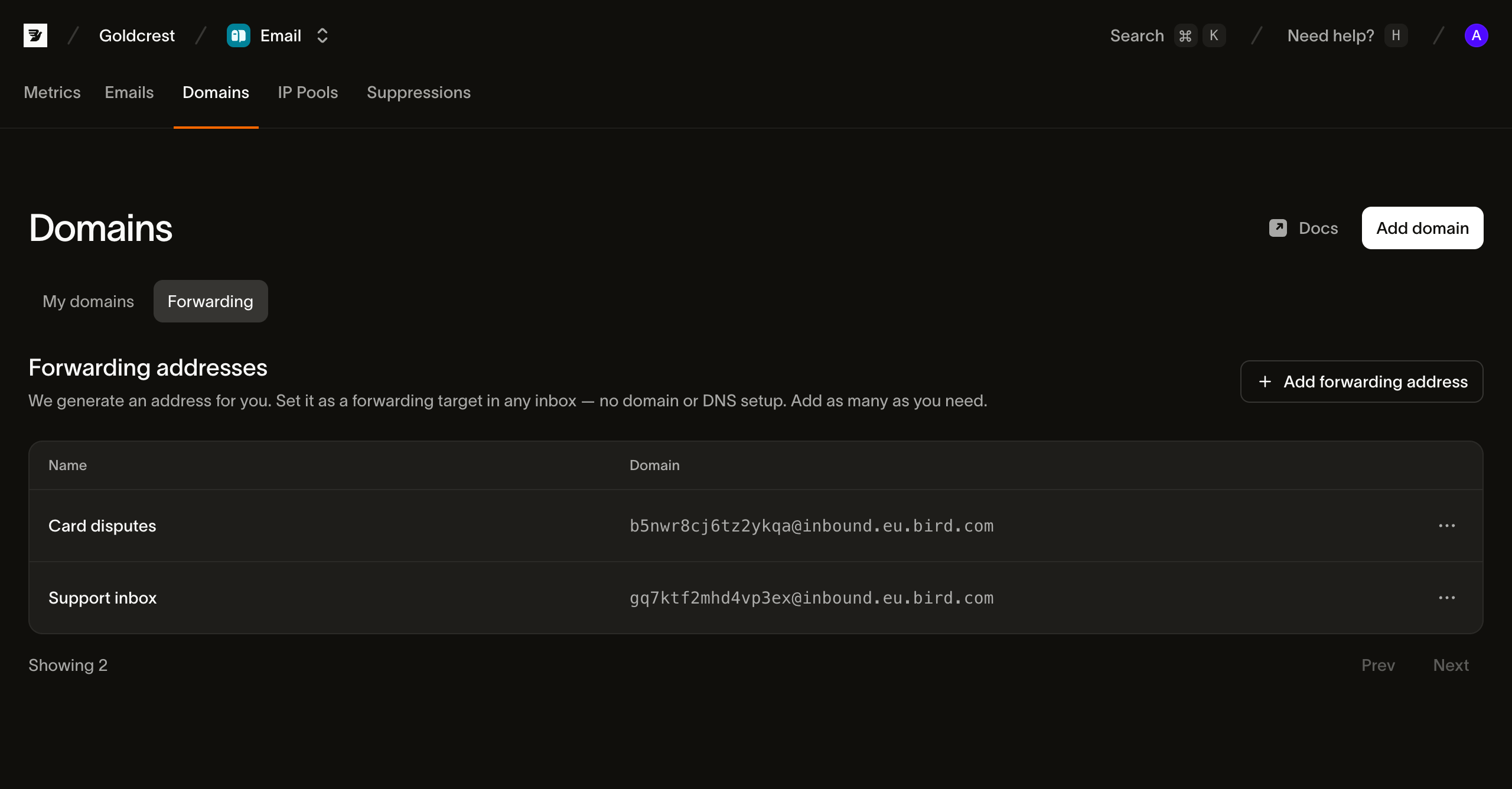
Programowo POST /v1/email/inbound-addresses robi to samo (CLI: bird email inbound-addresses create). Odpowiedź zawiera wygenerowany address, jego id oraz Twoją etykietę.
Następnie ustaw ten adres jako cel przekierowania tam, gdzie obecnie znajduje się poczta: reguła przekierowania Gmaila lub Google Workspace, reguła Outlooka albo ustawienie przekierowania w Twoim helpdesku. Odbieramy wszystko, co zostanie przekazane, parsujemy to i zapisujemy jako wiadomość przychodzącą.
Odbieranie we własnej domenie
Odbieranie na domenie to funkcja domeny wysyłającej, więc domena musi być najpierw zarejestrowana i zweryfikowana przez DKIM. Używaj dedykowanej subdomeny (inbound.acme.com), nigdy domeny głównej: odbieranie jest włączane na poziomie rejestracji domeny, a rekordy MX domeny głównej przechwytywałyby Twoją pocztę firmową.
Otwórz Email > Domains, a następnie wybierz swoją domenę. W sekcji Receiving (Optional) włącz odbieranie i opublikuj wymienione rekordy MX. Nie możesz włączyć odbierania, dopóki DKIM nie zostanie zweryfikowany. Domena, która już odbiera pocztę dla innej organizacji, jest również niedostępna.
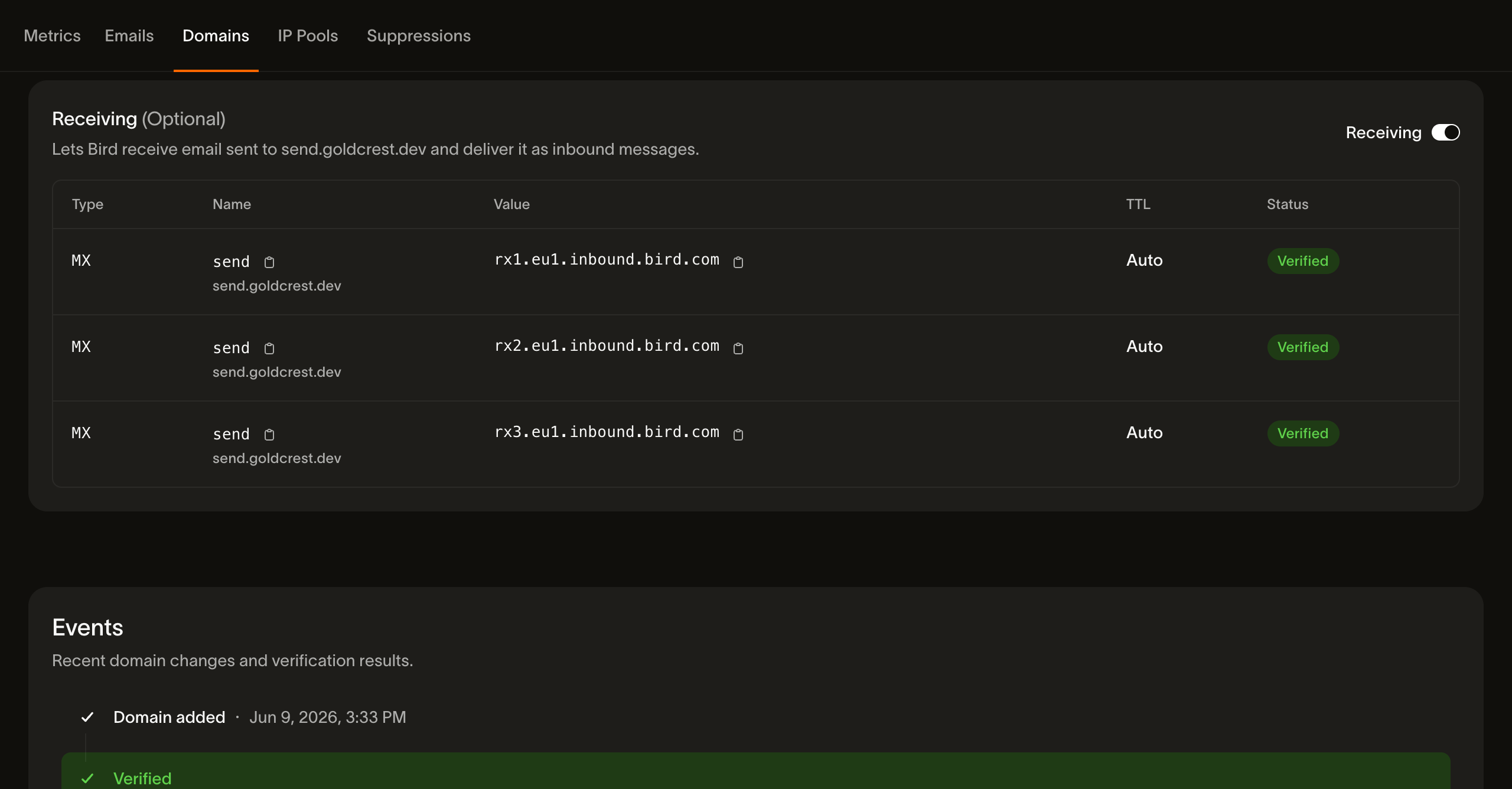
Po włączeniu status odbierania przechodzi przez ten sam cykl życia co rekordy wysyłania: pending podczas sprawdzania DNS pod kątem rekordów MX, następnie verified po ich poprawnym rozwiązaniu. Od tego momentu poczta wysłana na dowolną część lokalną domeny (support@, orders@, cokolwiek) jest dostarczana jako wiadomość przychodząca. Wyłączenie przełącznika zatrzymuje dostarczanie poczty przychodzącej. Rekordy MX pozostają widoczne na domenie jako odniesienie, ze statusem z powrotem na pending.
Rozmiar wiadomości przychodzącej
Bird obsługuje wiadomości przychodzące do 20 MB, łącznie z załącznikami, na każdej domenie odbiorczej w każdym regionie. Większe wiadomości wykraczają poza obsługiwany limit, nawet jeśli serwer wysyłający otrzyma odpowiedź akceptującą SMTP. Nie polegaj na ich dostarczeniu.
Zbyt duża wiadomość może zostać odrzucona podczas transakcji SMTP z kodem 552 5.3.4 message size limit exceeded. Serwer wysyłający otrzymuje to odrzucenie i może powiadomić nadawcę. Bird nigdy nie obcina wiadomości, aby zmieścić ją w limicie rozmiaru.
Odczytywanie odebranych wiadomości
Zakładka Receiving wyświetla odebrane wiadomości od najnowszych, z nadawcą, odbiorcą, tematem i czasem odbioru. Szukaj po dokładnym adresie nadawcy lub filtruj po dacie. Wybierz wiersz, aby otworzyć widoki Rendered, Text, Details i Raw. Nagłówek pokazuje wyniki SPF, DKIM i DMARC zarejestrowane w momencie nadejścia wiadomości.
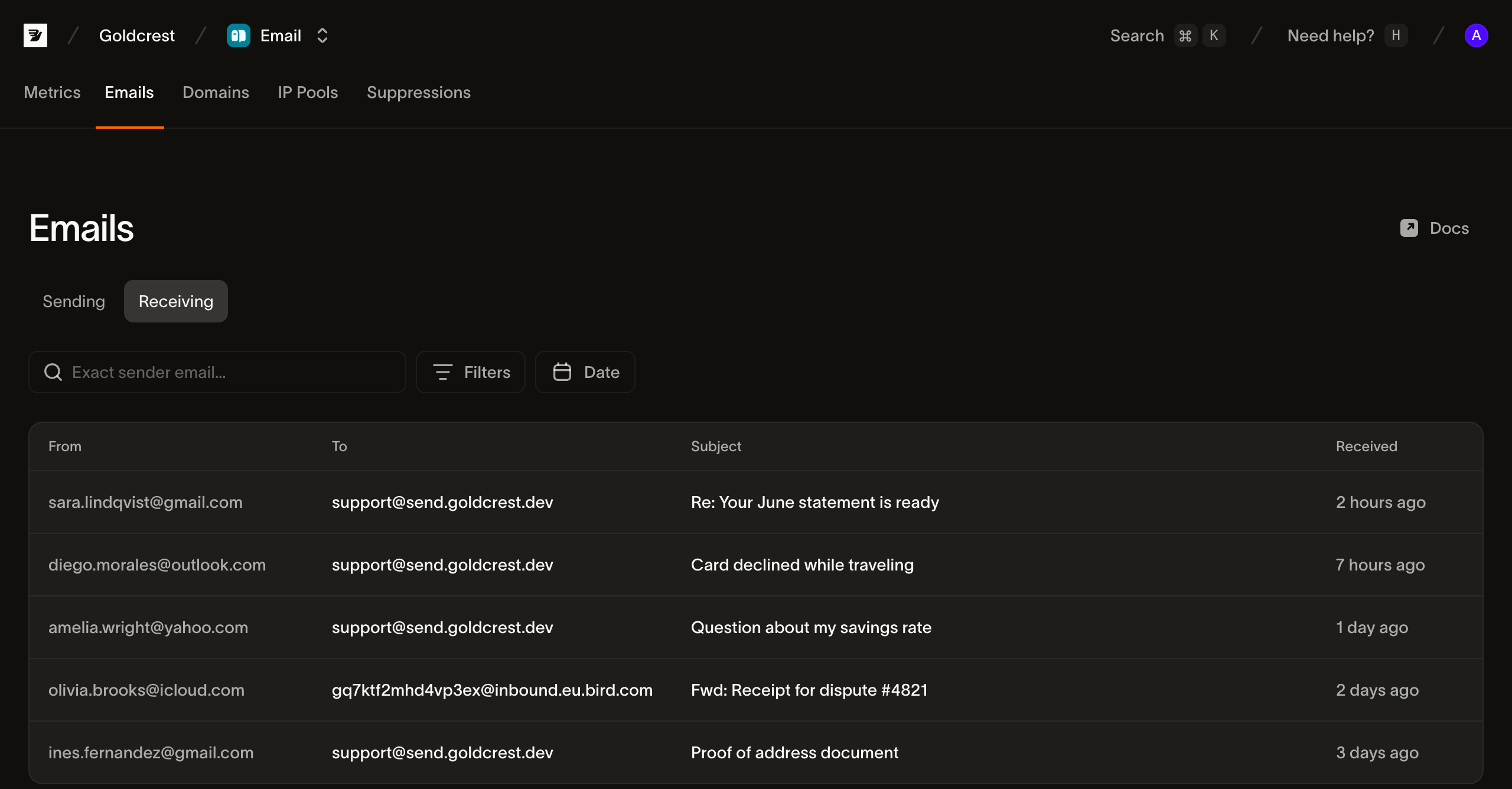
Odebrane e-maile są przechowywane przez 30 dni.
Te same dane są dostępne przez API (CLI: bird email inbound-messages):
GET /v1/email/inbound-messageswyświetla listę wiadomości z możliwością filtrowania po nadawcy, adresie przychodzącym i czasie odbioru.GET /v1/email/inbound-messages/{id}zwraca sparsowane metadane jednej wiadomości: adresowanie, temat, referencje wątku, wyniki uwierzytelniania i metadane załączników.GET /v1/email/inbound-messages/{id}/bodyzwraca treści HTML i plain-text.GET /v1/email/inbound-messages/{id}/attachmentswyświetla listę załączników; każdy można pobrać osobno.GET /v1/email/inbound-messages/{id}/rawzwraca oryginalną wiadomość dokładnie w takiej postaci, w jakiej została odebrana, w formacie RFC 5322 (MIME).
Reagowanie na odebraną pocztę: webhook email.received
Aby przetwarzać pocztę w momencie jej nadejścia (kierować zgłoszenia do supportu, pobierać odpowiedzi, uruchamiać agenta), zasubskrybuj endpoint webhooka na zdarzenie email.received. Wysyłamy je po odebraniu i sparsowaniu każdej wiadomości. Ładunek zawiera inbound_message_id, nadawcę z nagłówka From wiadomości, odbiorców, temat i referencję in_reply_to. Zawiera też ogólny werdykt authentication (pass, fail lub unknown) oraz poszczególne wyniki SPF, DKIM i DMARC; Korzystanie z wyników uwierzytelniania wyjaśnia, które z nich są obecnie wypełniane. Te informacje wystarczają do routingu i triażu bez dodatkowego wywołania. Gdy potrzebujesz treści lub załączników, pobierz je za pomocą API inbound-messages, używając inbound_message_id ze zdarzenia. Wiadomość jest zapisywana przed wysłaniem zdarzenia, więc to id jest dostępne natychmiast po dotarciu zdarzenia: pobierz /raw lub /body bezpośrednio z handlera, bez czekania i bez odpytywania.
Korzystanie z wyników uwierzytelniania
SPF i DKIM są sprawdzane w momencie dotarcia wiadomości do Bird. Nagłówki dodane przez nadawcę, takie jak jego własny Authentication-Results, nie zmieniają tych wyników.
Pola spf_pass i dkim_pass przyjmują wartości true, false lub null. null oznacza, że nie zarejestrowano wyniku, w tym gdy sprawdzenie nie mogło zostać ukończone. Pozytywna sygnatura DKIM ustawia dkim_pass na true, nawet jeśli inna sygnatura w wiadomości nie przechodzi weryfikacji. Pola nie udostępniają szczegółowych tokenów wynikowych, domen podpisujących ani selektorów.
Wyniki DMARC nie są jeszcze dostępne. Dopóki nie będą, dmarc_pass i spam_score mają zawsze wartość null, a authentication, które zależy od dmarc_pass, ma zawsze wartość unknown. Nie kieruj routingu na podstawie dmarc_pass === true ani authentication === "pass": żadna wiadomość nie spełnia obecnie żadnego z tych warunków.
Aby ograniczyć automatyczny routing już teraz, wymagaj dkim_pass === true lub spf_pass === true i traktuj false, null oraz brakujące wartości jako niezweryfikowane. Pozytywne wyniki SPF i DKIM nie potwierdzają, że domena podpisująca lub wysyłająca odpowiada domenie w widocznym nagłówku From. Używaj ich do filtrowania nieuwierzytelnionej poczty, a nie jako dowodu tożsamości nadawcy.
DMARC sprawdza zgodność z domeną w nagłówku From wiadomości. Pole from w email.received zawiera adres z tego nagłówka, a jako wartości zapasowe używa sparsowanego nadawcy z relay, a następnie nadawcy kopertowego, gdy nagłówek nie może zostać odczytany. W email_mailbox.message_received pole from zawiera nadawcę kopertowego, który może być innym adresem zwrotnym. Aby routować na podstawie widocznego nadawcy, pobierz metadane odebranej wiadomości, używając message_id ze zdarzenia. Pozytywny wynik DMARC uwierzytelnia domenę, ale nie potwierdza, że wiadomość wysłała konkretna osoba.
Następne kroki
- Domeny wysyłające: zarejestruj i zweryfikuj domenę, na której chcesz odbierać pocztę.
- Webhooki: endpointy, sygnatury i ponawianie dla
email.received. - Superagent: oceń odebraną pocztę, zanim agent podejmie działanie.
- Dziennik e-maili: strona wysyłkowa na stronie Emails.
Powiązane zasoby
Przejdź do dokumentacji, przewodników i przykładów dotyczących tego tematu.