Konwersacje WhatsApp
Otwórz Conversations, aby czytać wiadomości WhatsApp i odpowiadać na nie razem ze swoim zespołem. Każda konwersacja zbiera wymianę z klientem w jeden wątek, łącznie z odpowiedziami agenta WhatsApp.
Zanim zaczniesz, podłącz numer WhatsApp. Potrzebujesz uprawnień do zarządzania WhatsApp, aby włączyć konwersacje lub przejąć kontrolę od agenta AI. Odpowiadanie oraz zmiana przypisań lub etykiet wymagają uprawnień do wysyłania wiadomości WhatsApp.
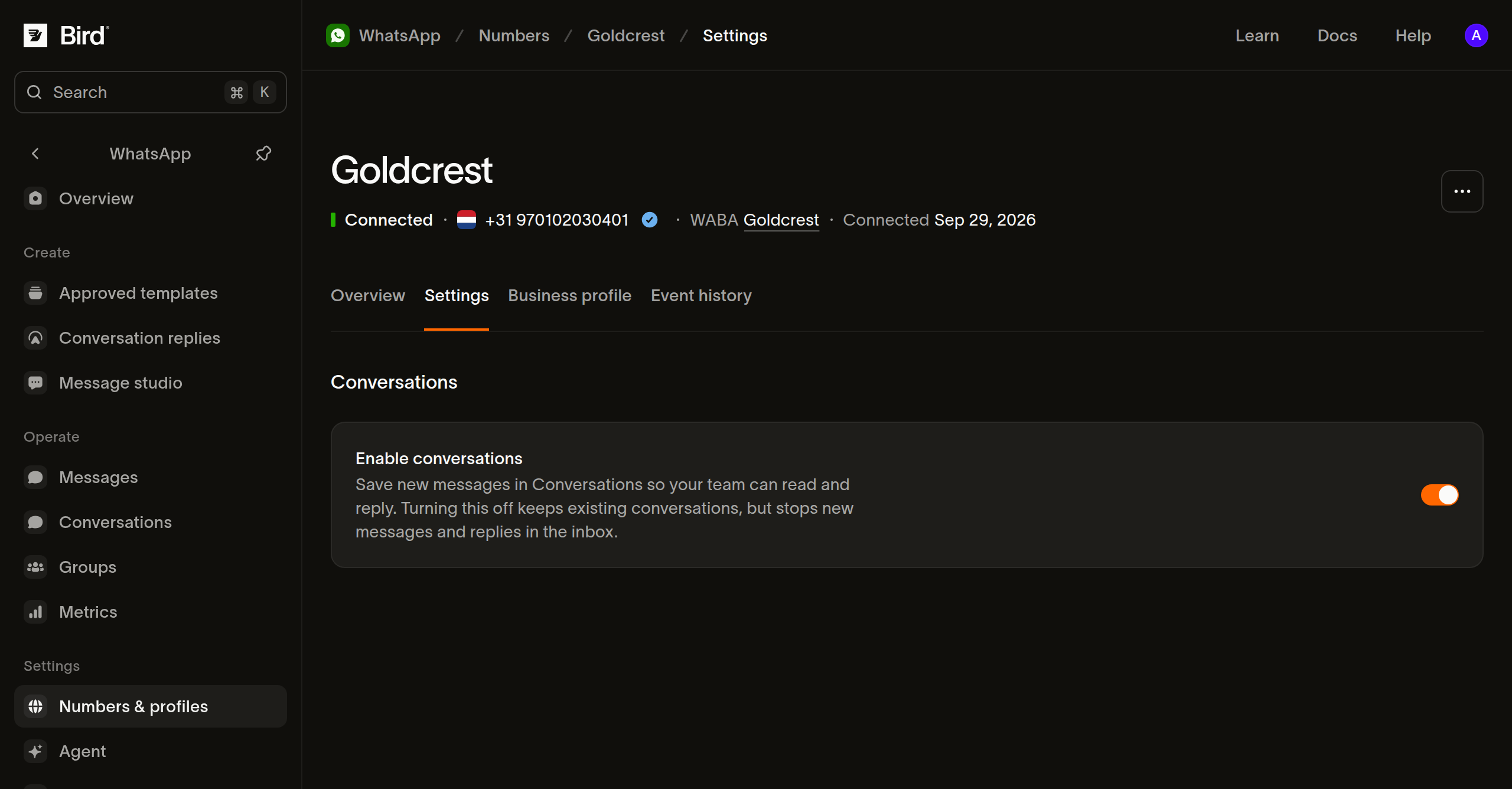
Włącz konwersacje dla swojego numeru
- Otwórz WhatsApp > Numbers & profiles i wybierz swój numer.
- Otwórz Settings i włącz Enable conversations. Zmiana zapisuje się automatycznie.
- Poproś klienta o wysłanie wiadomości na ten numer, a następnie otwórz Conversations, aby znaleźć wymianę.
Od momentu włączenia tego ustawienia nowe wiadomości są zapisywane w skrzynce. Wcześniejsze wiadomości nie są dodawane. Włączenie agenta WhatsApp również włącza konwersacje dla jego numeru.
Wyłączenie Enable conversations sprawia, że nowe wiadomości przestają pojawiać się w skrzynce i nie można z niej odpowiadać. Istniejące konwersacje pozostają dostępne do odczytu, dopóki ich wiadomości nie wygasną.
Każda wiadomość pozostaje w skrzynce przez 30 dni od jej wysłania lub odebrania. Gdy wygaśnie ostatnia wiadomość w konwersacji, konwersacja również znika z listy. Wcześniej skopiuj do własnego systemu wszystko, czego potrzebujesz na dłużej.
Znajdź konwersację
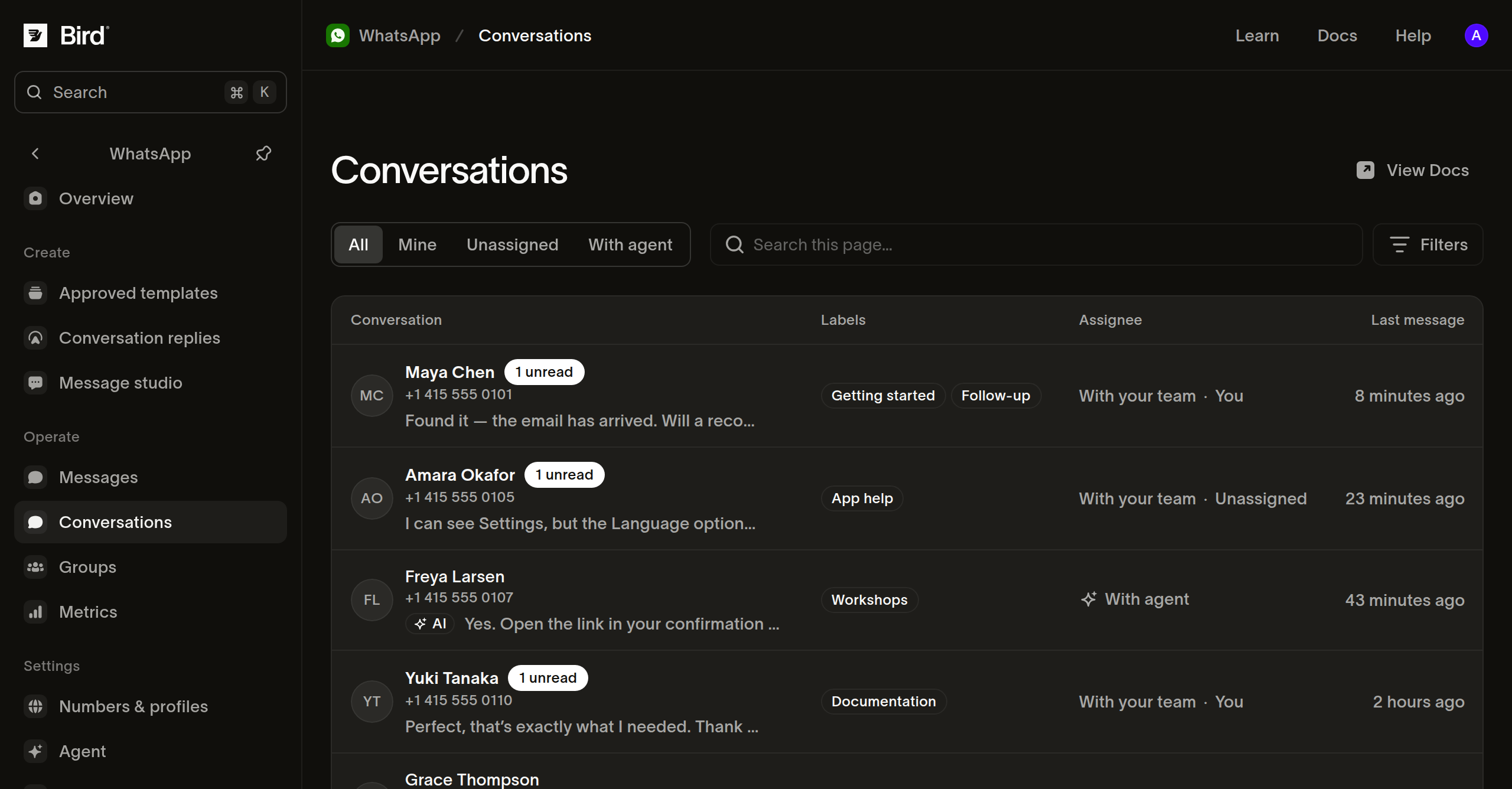
- Otwórz WhatsApp > Conversations w pulpicie.
- Wybierz widok: Mine pokazuje konwersacje przypisane do Ciebie, Unassigned pokazuje konwersacje czekające na członka zespołu, a With agent pokazuje te, którymi steruje agent AI. Użyj All, aby przeglądać konwersacje niezależnie od przypisania.
- Zawęź listę za pomocą filtrów Number, Assignee lub Label. Na przykład wybierz swój numer wsparcia i etykietę
booking, aby znaleźć pytania dotyczące rezerwacji. - Wybierz konwersację, aby otworzyć jej wiadomości i szczegóły.
Search this page… wyszukuje pasujące nazwy kontaktów, numery telefonów, nazwy użytkowników, identyfikatory w zakresie firmy i etykiety na bieżącej stronie. Użyj filtrów i paginacji, aby znaleźć konwersacje poza tą stroną; wyszukiwanie nie przeszukuje treści wiadomości.
Odpowiedz klientowi
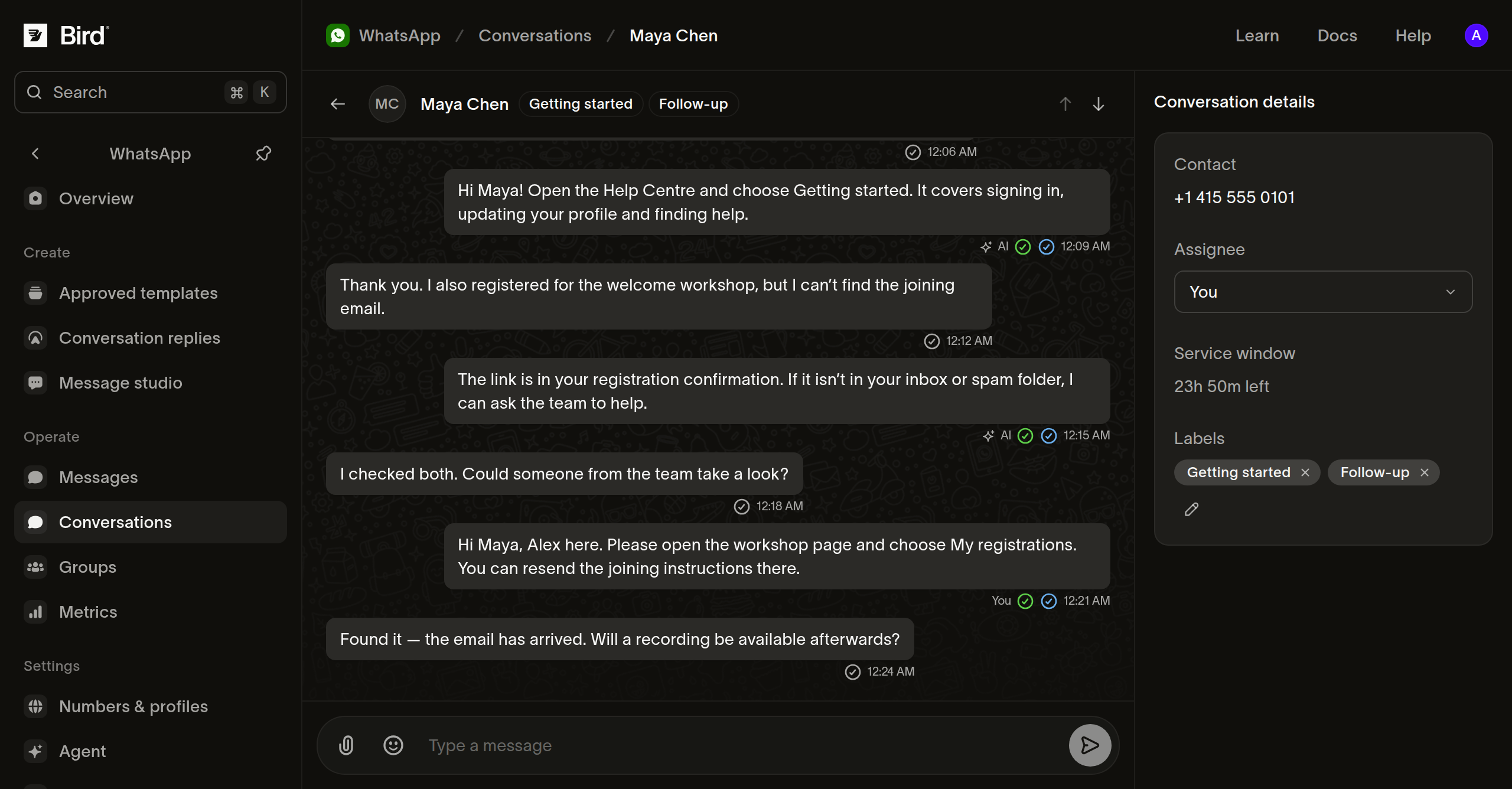
Przeczytaj wątek przed odpowiedzią, zwłaszcza gdy inny członek zespołu lub agent AI już udzielił pomocy. W Conversation details sprawdź Assignee i Service window. Na mniejszym ekranie kliknij przycisk Conversation details, aby zobaczyć te pola.
- W sekcji Assignee wybierz You, aby przejąć odpowiedzialność, lub wybierz członka zespołu. Jeśli zaznaczony jest AI agent, wybranie osoby jednocześnie przejmuje kontrolę od agenta.
- Wpisz odpowiedź w polu Type a message. Aby dołączyć zdjęcie, wideo, dokument lub plik audio, wybierz Attach i wskaż typ multimediów.
- Aby odpowiedzieć na konkretną wiadomość, otwórz jej menu Message actions i wybierz Quote. Cytowana wiadomość pojawi się nad Twoim szkicem; Cancel quote usuwa odwołanie.
- Wybierz Send lub naciśnij Enter. Użyj Shift+Enter, aby przejść do nowej linii. Twoja odpowiedź pojawi się w wątku, gdzie możesz śledzić status jej dostarczenia.
Okno obsługi pokazuje, czy możesz wysłać odpowiedź w dowolnej formie i ile czasu pozostało. Gdy się zamknie, edytor wiadomości wyświetli Reply when the contact sends a new message. Poczekaj na nową wiadomość od klienta lub użyj zatwierdzonego szablonu, aby wznowić kwalifikującą się wymianę. Edytor konwersacji wysyła wiadomości serwisowe; szablony wysyłaj przez proces wysyłania szablonów.
Utrzymuj porządek w pracy zespołu
Użyj Labels w Conversation details, aby opisać pracę, na przykład booking, accessibility lub follow-up. Wpisz etykietę w Add label, aby ją zapisać, i usuwaj etykiety, gdy przestaną być aktualne. Etykiety są widoczne na liście konwersacji i można ich używać jako filtra.
Wybierz członka zespołu w sekcji Assignee, gdy potrzebna jest jego pomoc. Wybierz Unassigned, aby zwrócić konwersację do kolejki zespołu. Przypisanie rejestruje, kto odpowiada za konwersację; nie wysyła wiadomości do klienta.
Jeśli na numerze włączony jest agent AI, wybierz AI agent, aby przekazać mu konwersację z powrotem, gdy zakończysz swoją część. Agent może wtedy znowu odpowiadać. Ta opcja wymaga uprawnienia do zarządzania WhatsApp i jest dostępna dla indywidualnych konwersacji z klientami.
Rozwiązywanie problemów z konwersacją
- Brakuje konwersacji: przełącz na All, wyczyść filtry i wyszukiwanie, a następnie sprawdź, czy Enable conversations było włączone, gdy numer odebrał wiadomość. Konwersacja zostaje usunięta, gdy wszystkie jej wiadomości są starsze niż 30 dni.
- Nie możesz odpowiedzieć: sprawdź okno obsługi i swoje uprawnienia WhatsApp. Jeśli wysyłanie się nie powiedzie, przeczytaj błąd pod edytorem, zanim spróbujesz ponownie.
- Nie możesz wybrać agenta AI: upewnij się, że numer ma włączonego agenta i że masz uprawnienie do zarządzania WhatsApp.
- Agent przestał odpowiadać po odpowiedzi członka zespołu: wybierz AI agent w sekcji Assignee, aby oddać mu kontrolę, gdy uznasz to za stosowne. Zakończenie odpowiedzi nie oddaje kontroli automatycznie.
Następne kroki
Powiązane zasoby
Przejdź do dokumentacji, przewodników i przykładów dotyczących tego tematu.