Log SMS
Log SMS, yang ditampilkan di halaman Messages, adalah catatan pesan workspace Anda. Pesan keluar dan balasan masuk ditampilkan dari yang terbaru. Gunakan log ini untuk mengonfirmasi pengiriman, mengikuti siklus pengiriman pesan, dan memeriksa jumlah segmen, biaya, serta detail operator. Halaman agregat Metrics menampilkan rasio lintas pesan; log SMS memungkinkan Anda memeriksa satu pesan. Halaman ini juga menyertakan Send SMS untuk pengiriman satu kali melalui dashboard.
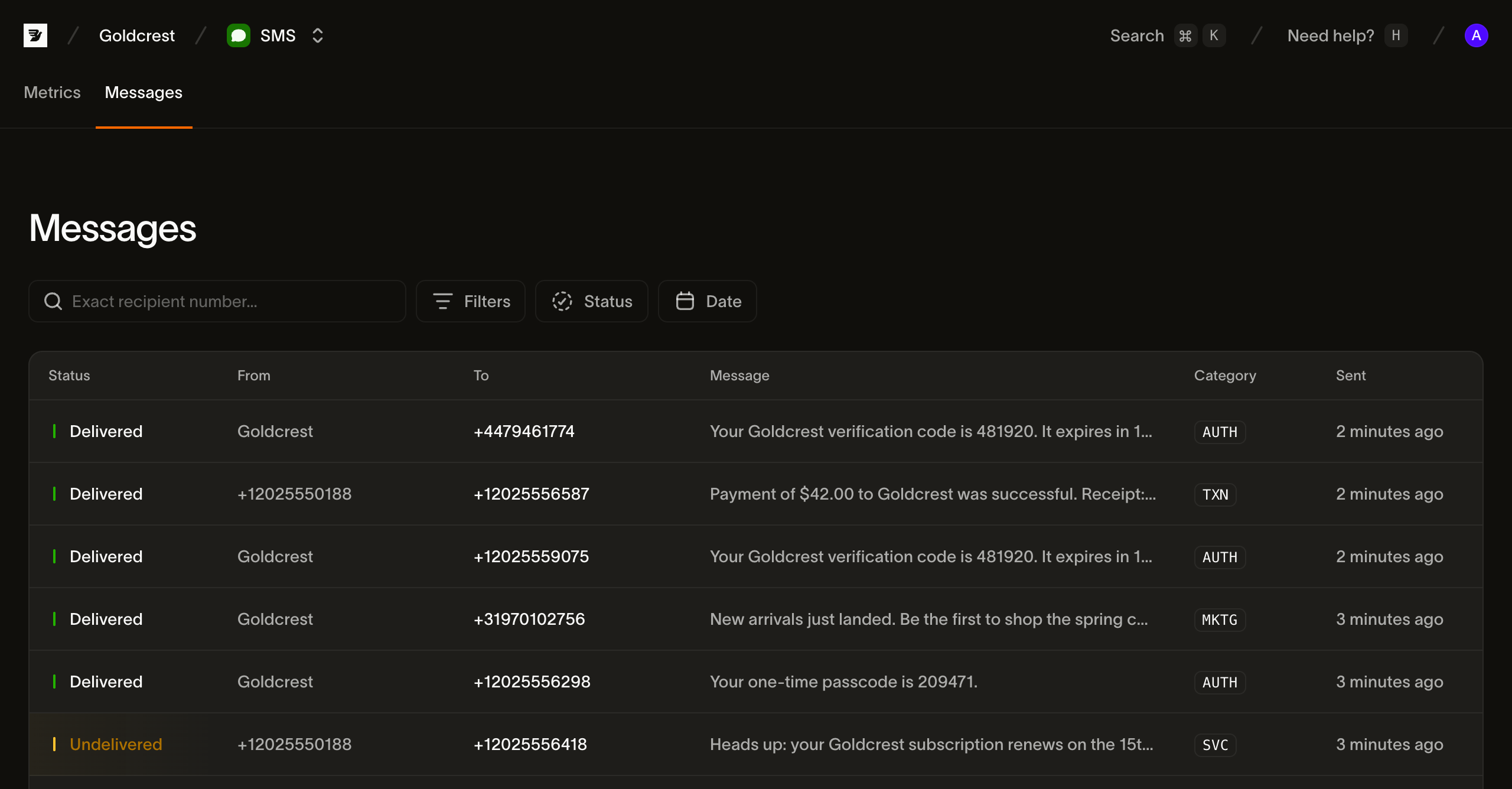
Daftar pesan
Setiap baris adalah satu pesan. Kolom-kolomnya:
| Kolom | Isi kolom |
|---|---|
| Status | Status pengiriman pesan saat ini (lihat Status) |
| From | Pengirim: nomor, sender ID, atau short code yang digunakan untuk mengirim pesan |
| To | Nomor penerima |
| Message | Awal isi pesan (klik teks ini, atau di mana saja pada baris, untuk membuka pesan) |
| Category | Kategori pesan, ditampilkan sebagai badge singkat (TXN, MKTG, AUTH, SVC) |
| Sent | Waktu pengiriman diterima, dalam format waktu relatif (arahkan kursor untuk melihat timestamp persis) |
Daftar ini dipaginasi, 25 pesan per halaman; gunakan Prev dan Next untuk berpindah halaman.
Pencarian dan filter
Log pesan cepat terisi, sehingga halaman ini diawali dengan pencarian penerima dan empat filter. Filter dapat dikombinasikan: filter status ditambah rentang tanggal akan mempersempit hasil ke pesan yang cocok dengan keduanya.
Cari berdasarkan penerima. Kotak pencarian mencocokkan nomor penerima persis dalam format E.164. Ketik nomor lengkap, misalnya +31612345678, untuk menemukan semua pesan yang ditujukan kepadanya. Pencarian ini tidak mencocokkan substring.
Status. Filter ke satu atau beberapa status pengiriman. Status bersifat multi-select, sehingga Anda bisa, misalnya, menampilkan semua yang tidak sampai dengan memilih Undelivered, Failed, dan Expired sekaligus. Pilihannya adalah status yang tercantum di Status.
Category. Filter berdasarkan kategori pesan: Transactional, Marketing, Authentication, atau Service.
Direction. Filter berdasarkan Outbound atau Inbound. Balasan ke nomor Anda disimpan bersama pesan keluar, sehingga Inbound menampilkan pesan yang Anda terima.
Date. Filter berdasarkan waktu pengiriman pesan; pilih preset atau tentukan rentang kustom dari kalender.
Jika kombinasi filter tidak menghasilkan apa pun, halaman menampilkan keadaan tanpa hasil dengan aksi Clear filters untuk kembali ke daftar lengkap.
Status
Status pesan menunjukkan posisinya saat ini dalam siklus pengiriman. Pesan bergerak dari accepted menuju tanda terima akhir.
| Status | Arti |
|---|---|
| Accepted | Bird menerima pesan dan sedang mempersiapkan penyerahan ke operator |
| Sent | Diserahkan ke operator; menunggu tanda terima pengiriman |
| Delivered | Operator mengonfirmasi pengiriman ke perangkat |
| Undelivered | Kegagalan pengiriman tidak permanen: perangkat mati, tidak terjangkau, atau konten diblokir |
| Failed | Kegagalan permanen; pesan tidak dapat dikirimkan |
| Rejected | Pesan ditolak (pemeriksaan kebijakan, tagihan gagal, atau operator menolaknya) |
| Expired | Operator berhenti mencoba dan melaporkan pesan sebagai kedaluwarsa |
| Received | Pesan masuk |
Label status mengidentifikasi apakah pesan sedang dalam proses, terkirim, diterima, atau gagal. Jangan mengandalkan warna saja saat memindai hasil.
Memeriksa pesan
Klik baris mana pun untuk membuka pesan di panel samping. Panel ini memiliki dua tab, Events dan Details, dan headernya menampilkan isi pesan, status saat ini, penerima, dan kategori. Selama pesan masih dalam proses, panel diperbarui otomatis setiap beberapa detik, sehingga perubahan status atau tanda terima pengiriman muncul tanpa perlu memuat ulang secara manual.
Events
Tab default adalah timeline bertimestamp untuk satu pesan. Tab ini merender aliran yang dijelaskan di event SMS: Accepted, lalu Sent, lalu Delivered, atau event kegagalan (Undelivered, Failed, Rejected, Expired). Event pengiriman mengidentifikasi operator dan MCC/MNC (jaringan seluler). Event kegagalan menampilkan deskripsi error; tab Details berisi kode error.
Details
Tab Details berisi metadata pesan:
- Message ID, Direction, From, To, dan Category
- Segments: jumlah segmen yang ditagih, encoding (
GSM_7BITatauUCS2), dan jumlah karakter (lihat segmen dan encoding) - Cost: jumlah dan mata uang, setelah pesan diberi harga
- Carrier dan MCC/MNC: jaringan pengirim, jika diketahui
- Timestamp Sent, Handed to carrier, dan Delivered
- Error: deskripsi dan kode, pada pesan yang tidak sampai
- Tags dan Metadata yang Anda tetapkan saat pengiriman
Sebagian besar field dapat disalin dengan satu klik.
Pembacaan pesan dan event publik mencakup 30 hari terakhir. ID pesan yang lebih lama berada di luar jendela baca tersebut; simpan catatan yang dibutuhkan aplikasi Anda sesuai kebijakan retensi dan persetujuan Anda sendiri.
Log yang sama melalui API
Daftar di balik halaman ini adalah GET /v1/sms/messages, yang filternya mencakup status, kategori, tag, penerima persis, dan jendela waktu. Ambil timeline pesan dengan GET /v1/sms/messages/{message_id}/events. Baca status terakhirnya dengan GET /v1/sms/messages/{message_id}, atau konsumsi webhook events secara real-time.
Langkah berikutnya
Jelajahi analitik SMS untuk alur pelaporan yang lebih luas dan SMS dua arah untuk menangani pesan masuk.
- Metrik SMS: pantau rasio pengiriman agregat, rasio kegagalan, dan volume yang diterima.
- Event SMS: tinjau kosakata event di balik timeline.
- Mengirim SMS: buat payload pengiriman dengan kategori, tag, dan metadata.
Sumber daya terkait
Lanjutkan dengan dokumentasi, panduan, dan contoh untuk topik ini.