Templates WhatsApp
Envios WhatsApp iniciados pela empresa usam um template pré-aprovado. Um template contém texto fixo e variáveis, então um envio fornece apenas valores como um código OTP ou número de pedido.
Bird disponibiliza um catálogo gerenciado, registra seu conteúdo com WhatsApp e envia a partir dos próprios números da Bird; seus slugs começam com bird_. Um espaço de trabalho que conectou um número próprio também pode criar templates na sua própria WhatsApp Business Account. A página Templates mostra todos os templates que o espaço de trabalho pode enviar e como cada um é renderizado.
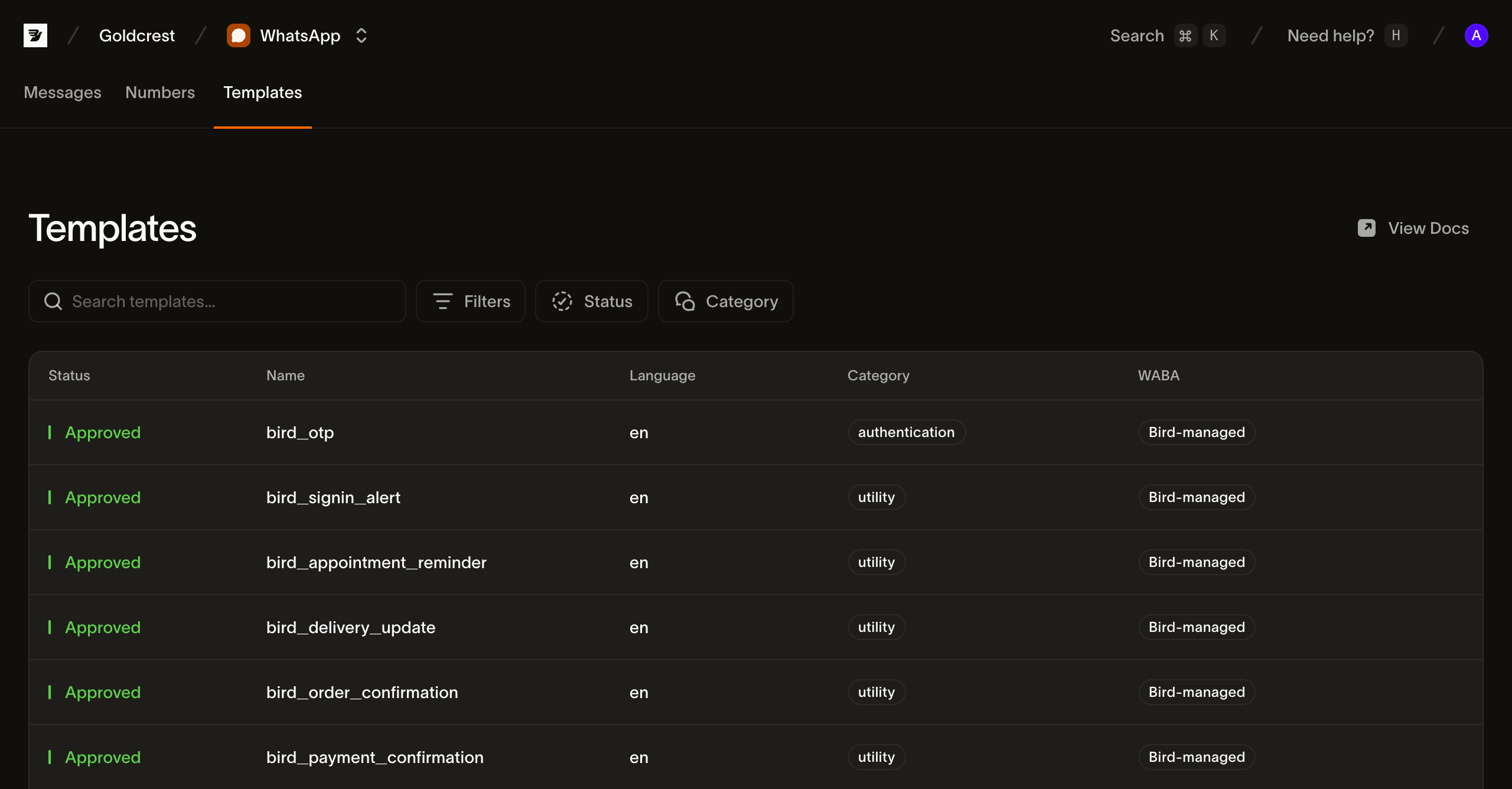
Navegando pelos templates no painel
Abra Templates em WhatsApp > Templates. Your templates contém os templates que este espaço de trabalho criou; All templates adiciona o catálogo gerenciado pela Bird. Pesquise por nome ou filtre por status e categoria, e alterne entre a grade de cards e a visualização de lista com o botão ao lado dos filtros.
Na visualização de lista, cada linha mostra os campos necessários para escolher e enviar um template:
- Status: se o template pode ser enviado de forma geral. Templates do catálogo gerenciado exibem
active; um template seu exibe em que ponto está a aprovação dele. Verifique a lista de idiomas para confirmar que o idioma necessário está disponível. - Name: o rótulo de exibição, com o
slugdo template abaixo. Envie usando oslug. - Languages: os idiomas em que o template está registrado, como inglês e holandês.
- Category:
authentication,utilityoumarketing. A categoria determina como o WhatsApp trata a mensagem, de qual número Bird um template gerenciado envia e, junto com o país de destino, o preço. - WABA: Bird-managed para templates do catálogo. Um template seu mostra a WhatsApp Business Account que o contém e envia apenas a partir de um número dessa mesma conta.
- Updated: quando o template foi alterado pela última vez.
Clique em uma linha para abrir os detalhes do template.
O que contém um template
A visualização de detalhes renderiza o corpo da mensagem, as variáveis e os botões em uma prévia no estilo WhatsApp.
Os detalhes também fornecem um exemplo cURL para POST /v1/whatsapp/messages, usando o host regional e os valores de exemplo do template. Substitua a chave API, o destinatário e os valores das variáveis antes de enviar.
O exemplo é a maneira mais rápida de ver a estrutura que um envio precisa seguir. Pela API, o mesmo conteúdo vem da versão do template (Lendo o conteúdo de um template).
Listando templates pela API
GET /v1/whatsapp/templates retorna um catálogo paginado por cursor. A solicitação requer acesso de leitura a whatsapp_management. Use HTTP ou um método de solicitação direta de um SDK.
type Templates = { data: Array<{ slug: string; status: string }> };

const templates = await bird.request<Templates>({
  method: "GET",
  path: "/v1/whatsapp/templates",
});
templates = client.get("/v1/whatsapp/templates")var out struct {
Data []struct {
Slug string `json:"slug"`
Status string `json:"status"`
} `json:"data"`
}
if err := client.Get(context.Background(), "/v1/whatsapp/templates", &out); err != nil {
log.Fatal(err)
}$templates = $bird->get('/v1/whatsapp/templates');curl https://us1.platform.bird.com/v1/whatsapp/templates \
-H "Authorization: Bearer $BIRD_API_KEY"Cada entrada identifica o template, sua categoria e seus idiomas disponíveis. Leia a versão ativa separadamente para obter o conteúdo da mensagem.
{
  "available_languages": ["en", "es", "pt-BR", "..."],
  "category": "authentication",
  "default_language": "en",
  "description": "One-time passcode",
  "id": "wat_01ky4x8e4genzb7way45txfkm1",
  "languages": {
    "en": { "status": "approved" },
    "es": { "status": "approved" },
    "pt-BR": { "status": "approved" },
    "...": "..."
  },
  "name": "bird_otp",
  "on_missing_language": "fail",
  "scope": "system",
  "slug": "bird_otp",
  "status": "active"
}
A resposta de exemplo abrevia as listas de idiomas bird_otp.
Os campos dos quais um envio depende:
slug: o identificador usado em um envio. Slugs de templates gerenciados começam combird_, um prefixo reservado para eles.waba: a WhatsApp Business Account que contém os idiomas do template na Meta, e a conta à qual um número remetente precisa pertencer. Ausente em um template gerenciado porque Bird gerencia sua conta.available_languages: idiomas que podem ser enviados. Um idioma pausado, desabilitado, arquivado ou limitado sai desta lista.on_missing_language: o que acontece quando o idioma solicitado não está disponível. Templates WhatsApp gerenciados pela Bird usamfail, que rejeita o envio em vez de substituir por outro idioma.
Status e status do idioma
Templates gerenciados pela Bird exibem status: active. languages.<tag>.status indica o estado de WhatsApp para um idioma, como approved, paused ou disabled.
Um template ativo ainda pode ter um idioma indisponível. Use available_languages para decidir se um idioma pode ser enviado.
Lendo o conteúdo de um template
O conteúdo da mensagem pertence a um idioma na versão ativa. Leia live_version_id do template e então solicite o idioma necessário:
const language = await bird.request({
  method: "GET",
  path: "/v1/whatsapp/templates/bird_order_confirmation/versions/{version_id}/languages/en",
});
language = client.get(
"/v1/whatsapp/templates/bird_order_confirmation/versions/{version_id}/languages/en"
)var language map[string]any
if err := client.Get(context.Background(),
"/v1/whatsapp/templates/bird_order_confirmation/versions/{version_id}/languages/en",
&language); err != nil {
log.Fatal(err)
}$language = $bird->get('/v1/whatsapp/templates/bird_order_confirmation/versions/{version_id}/languages/en');curl https://us1.platform.bird.com/v1/whatsapp/templates/bird_order_confirmation/versions/{version_id}/languages/en \
-H "Authorization: Bearer $BIRD_API_KEY"A referência do template aceita um slug ou um ID wat_. GET …/versions/{version_id}/languages lista os idiomas da versão sem o conteúdo deles.
{
  "category": "utility",
  "components": [
    {
      "example_parameters": [
        { "name": "ref", "text": "A1B2C3D4", "type": "text" },
        { "name": "amount", "text": "USD 49.99", "type": "text" }
      ],
      "text": "Your order {{ref}} has been confirmed for a total of {{amount}}. Thanks for shopping with us.",
      "type": "body"
    }
  ],
  "language": "en",
  "status": "approved"
}
O components do envio deve corresponder ao template. example_parameters identifica cada placeholder. Neste exemplo, os parâmetros do corpo usam name: "ref" e name: "amount". Um template posicional omite name e recebe valores na ordem {{n}}. Botões parametrizados têm seu próprio example_parameters.
O category do idioma é a categoria da Meta usada para precificação. Ele pode diferir da categoria registrada do template se a Meta reclassificar o idioma.
A lista variables da versão resume cada placeholder com sua chave, tipo, flag de obrigatoriedade e restrição. Placeholders nomeados usam seus nomes como chaves. Placeholders posicionais usam seu número.
Enviando com um template
Nomeie o template no objeto template do envio e preencha suas variáveis por meio de components; veja Enviando mensagens WhatsApp para o payload completo:
const msg = await bird.whatsapp.send({
  to: "+15551234567",
  template: {
    slug: "bird_otp",
    components: [{ type: "body", parameters: [{ type: "text", text: "123456" }] }],
  },
});
console.log(msg.id, msg.status);
msg = client.whatsapp.send(
to="+31612345678",
template="bird_otp",
language="en",
components=[{"type": "body", "parameters": [{"type": "text", "text": "123456"}]}],
)
print(msg.id, msg.status)code := "123456"
msg, err := client.Whatsapp.Send(context.Background(), bird.WhatsappSendParams{
To: "+15551234567",
Template: "bird_otp",
Language: "en",
Components: []bird.WhatsAppMessageTemplateComponent{{
Type: "body",
Parameters: &[]bird.WhatsAppMessageTemplateComponentParameter{{Type: "text", Text: &code}},
}},
})
if err != nil {
log.Fatal(err)
}
fmt.Println(msg.Id, *msg.Status)$message = $bird->whatsapp->send(
to: '+15551234567',
template: 'bird_otp',
language: 'en',
components: [
(new WhatsAppMessageTemplateComponent())
->setType('body')
->setParameters([
(new WhatsAppMessageTemplateComponentParameter())->setType('text')->setText('123456'),
]),
],
);
echo $message->getId(), ' ', $message->getStatus();bird whatsapp send \
--components '[{"parameters":[{"text":"1234","type":"text"}],"type":"body"},{"parameters":[{"text":"1234","type":"text"}],"type":"button"}]' \
--language en \
--template bird_otp \
--to +31612345678curl -X POST https://us1.platform.bird.com/v1/whatsapp/messages \
-H "Authorization: Bearer $BIRD_API_KEY" \
-H "Content-Type: application/json" \
-d '{
"to": "+14155550100",
"template": {
"slug": "bird_otp",
"language": "en",
"components": [
{ "type": "body", "parameters": [{ "type": "text", "text": "481920" }] },
{ "type": "button", "parameters": [{ "type": "text", "text": "481920" }] }
]
}
}'Enviando por categoria
Todo template pertence a uma das três categorias da Meta, e a categoria altera o que você precisa fazer antes de um envio ser bem-sucedido e também o quanto custa. Criar ou copiar um template de autenticação seu exige um negócio verificado, mas enviar um não exige: o bird_otp gerenciado da Bird está na WhatsApp Business Account própria da Bird e envia sem verificação da sua parte. Templates de marketing sempre enviam a partir de uma WhatsApp Business Account sua, por uma segunda API da Meta para a qual Bird roteia automaticamente. Templates de utilidade têm os menores pré-requisitos dos três.
- Templates de autenticação: códigos de verificação de uso único, o botão de copiar código e a exigência de verificação do negócio para criar um
- Templates de utilidade: atualizações de pedido, lembretes de agendamento e avisos de conta
- Templates de marketing: envios promocionais, a conta de negócio necessária e a expectativa de opt-out
Próximos passos
- Enviando mensagens WhatsApp: o payload completo de envio no qual o objeto
templatese encaixa - Diretrizes de templates WhatsApp: as regras que a Meta avalia em um template
- Templates de autenticação: códigos de verificação de uso único e a exigência de verificação do negócio para criar um
- Preços WhatsApp: como a categoria e o destino definem o preço
Recursos relacionados
Continue com a documentação, guias e exemplos sobre este tópico.