Log de SMS
O log de SMS, exibido na página Messages, é o registro de mensagens do seu espaço de trabalho. Envios de saída e respostas de entrada aparecem do mais recente ao mais antigo. Use-o para confirmar um envio, acompanhar o ciclo de vida de entrega e inspecionar a contagem de segmentos, o custo e os detalhes da operadora. A página agregada Metrics mostra taxas entre mensagens; o log de SMS permite inspecionar uma mensagem individual. A página também inclui Send SMS para envios avulsos pelo painel.
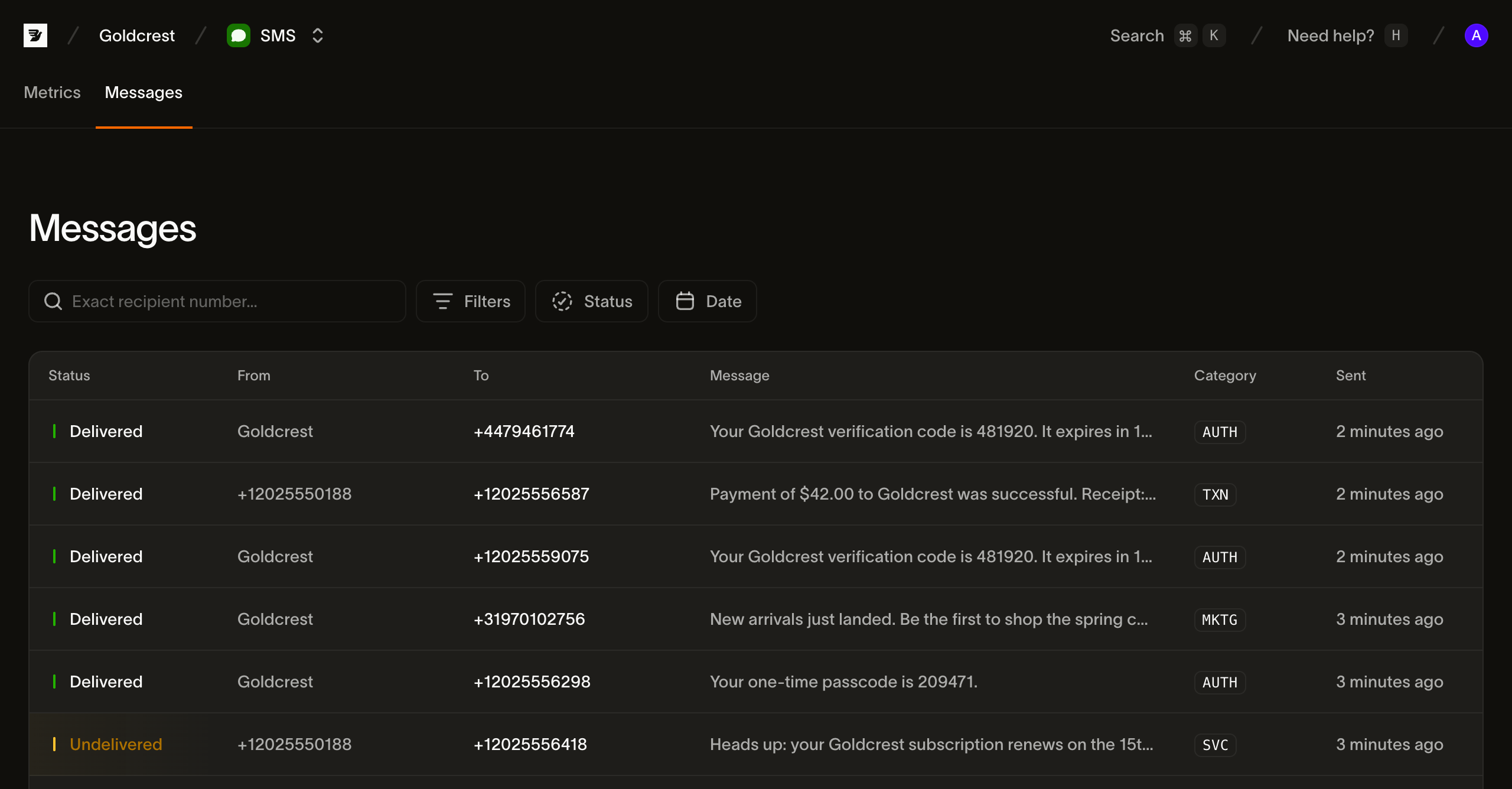
A lista de mensagens
Cada linha é uma mensagem. As colunas são:
| Coluna | O que exibe |
|---|---|
| Status | O status de entrega atual da mensagem (veja Status) |
| From | O remetente: o número, sender ID ou short code de onde a mensagem foi enviada |
| To | O número do destinatário |
| Message | O início do corpo da mensagem (clique nele, ou em qualquer lugar da linha, para abrir a mensagem) |
| Category | A categoria da mensagem, exibida como um badge curto (TXN, MKTG, AUTH, SVC) |
| Sent | Quando o envio foi aceito, como tempo relativo (passe o cursor para ver o timestamp exato) |
A lista é paginada, com 25 mensagens por página; use Prev e Next para navegar entre as páginas.
Busca e filtragem
Um log de mensagens cresce rápido, então a página começa com uma busca por destinatário e quatro filtros. Eles se combinam: um filtro de status mais um intervalo de datas restringe apenas às mensagens que correspondem a ambos.
Busca por destinatário. A caixa de busca corresponde a um número exato do destinatário no formato E.164. Digite o número completo, como +31612345678, para encontrar todas as mensagens endereçadas a ele. A busca não corresponde a substrings.
Status. Filtre por um ou mais status de entrega. Status é seleção múltipla, então você pode, por exemplo, mostrar tudo que não chegou selecionando Undelivered, Failed e Expired juntos. As opções são os status listados em Status.
Category. Filtre por categoria de mensagem: Transactional, Marketing, Authentication ou Service.
Direction. Filtre por Outbound ou Inbound. As respostas aos seus números são armazenadas junto com seus envios, então Inbound mostra o que você recebeu.
Date. Filtre por quando a mensagem foi enviada; escolha um período predefinido ou selecione um intervalo personalizado no calendário.
Quando uma combinação de filtros não encontra resultados, a página exibe um estado sem resultados com uma ação Clear filters para voltar à lista completa.
Status
O status de uma mensagem indica onde ela se encontra no ciclo de vida de entrega. Uma mensagem avança a partir de accepted em direção a um recibo terminal.
| Status | Significado |
|---|---|
| Accepted | Bird aceitou a mensagem e está se preparando para entregá-la a uma operadora |
| Sent | Entregue à operadora; aguardando recibo de entrega |
| Delivered | A operadora confirmou a entrega ao aparelho |
| Undelivered | Uma não entrega não permanente: o aparelho estava desligado, inacessível ou o conteúdo foi bloqueado |
| Failed | Uma falha permanente; a mensagem não pode ser entregue |
| Rejected | A mensagem foi recusada (verificação de política, cobrança falha ou operadora que a rejeitou) |
| Expired | A operadora parou de tentar e reportou a mensagem como expirada |
| Received | Uma mensagem de entrada |
O rótulo de status identifica se uma mensagem está em trânsito, entregue, recebida ou malsucedida. Não dependa apenas da cor ao examinar os resultados.
Inspecionando uma mensagem
Clique em qualquer linha para abrir a mensagem em um painel lateral. Ele tem duas abas, Events e Details, e o cabeçalho exibe o corpo da mensagem, o status atual, o destinatário e a categoria. Enquanto uma mensagem ainda está em trânsito, o painel se atualiza automaticamente a cada poucos segundos, então uma mudança de status ou um recibo de entrega aparece sem necessidade de recarregar manualmente.
Events
A aba padrão é uma linha do tempo com timestamps para uma mensagem. Ela renderiza o fluxo descrito em eventos de SMS: Accepted, depois Sent, depois Delivered, ou um evento de falha (Undelivered, Failed, Rejected, Expired). Eventos de entrega identificam a operadora e o MCC/MNC (a rede móvel). Eventos de falha mostram a descrição do erro; a aba Details contém o código de erro.
Details
A aba Details contém os metadados da mensagem:
- Message ID, Direction, From, To e Category
- Segments: a contagem de segmentos faturáveis, a codificação (
GSM_7BITouUCS2) e a contagem de caracteres (veja segmentos e codificação) - Cost: o valor e a moeda, após a mensagem ter sido precificada
- Carrier e MCC/MNC: a rede que entregou, quando conhecida
- Timestamps de Sent, Handed to carrier e Delivered
- Error: a descrição e o código, em uma mensagem que não chegou
- Quaisquer Tags e Metadata que você definiu no envio
A maioria dos campos pode ser copiada com um clique.
As leituras públicas de mensagens e eventos cobrem os 30 dias mais recentes. Um ID de mensagem mais antigo está fora dessa janela de leitura; mantenha os registros de que sua aplicação precisa dentro da sua própria política de retenção e consentimento.
O mesmo log pela API
A lista por trás desta página é GET /v1/sms/messages, cujos filtros cobrem status, categoria, tag, destinatário exato e janela de tempo. Recupere a linha do tempo de uma mensagem com GET /v1/sms/messages/{message_id}/events. Leia o estado mais recente com GET /v1/sms/messages/{message_id}, ou consuma eventos de webhook em tempo real.
Próximos passos
Explore analytics de SMS para o fluxo de relatórios mais amplo e SMS bidirecional para lidar com mensagens de entrada.
- Métricas de SMS: monitore taxa de entrega agregada, taxa de falha e volume aceito.
- Eventos de SMS: revise o vocabulário de eventos por trás da linha do tempo.
- Enviando SMS: construa um payload de envio com categorias, tags e metadados.
Recursos relacionados
Continue com a documentação, guias e exemplos sobre este tópico.