WhatsApp-templates
Door bedrijven geïnitieerde WhatsApp-berichten gebruiken een vooraf goedgekeurde template. Een template bevat vaste tekst en variabelen, zodat je bij het versturen alleen waarden zoals een OTP-code of ordernummer meegeeft.
Bird levert een beheerde catalogus, registreert de inhoud bij WhatsApp en verstuurt deze vanaf Bird's eigen nummers; de slugs beginnen met bird_. Een werkruimte die een eigen nummer heeft gekoppeld, kan ook templates maken op een eigen WhatsApp Business Account. De pagina Templates toont elke template die de werkruimte kan versturen en hoe elk template eruitziet.
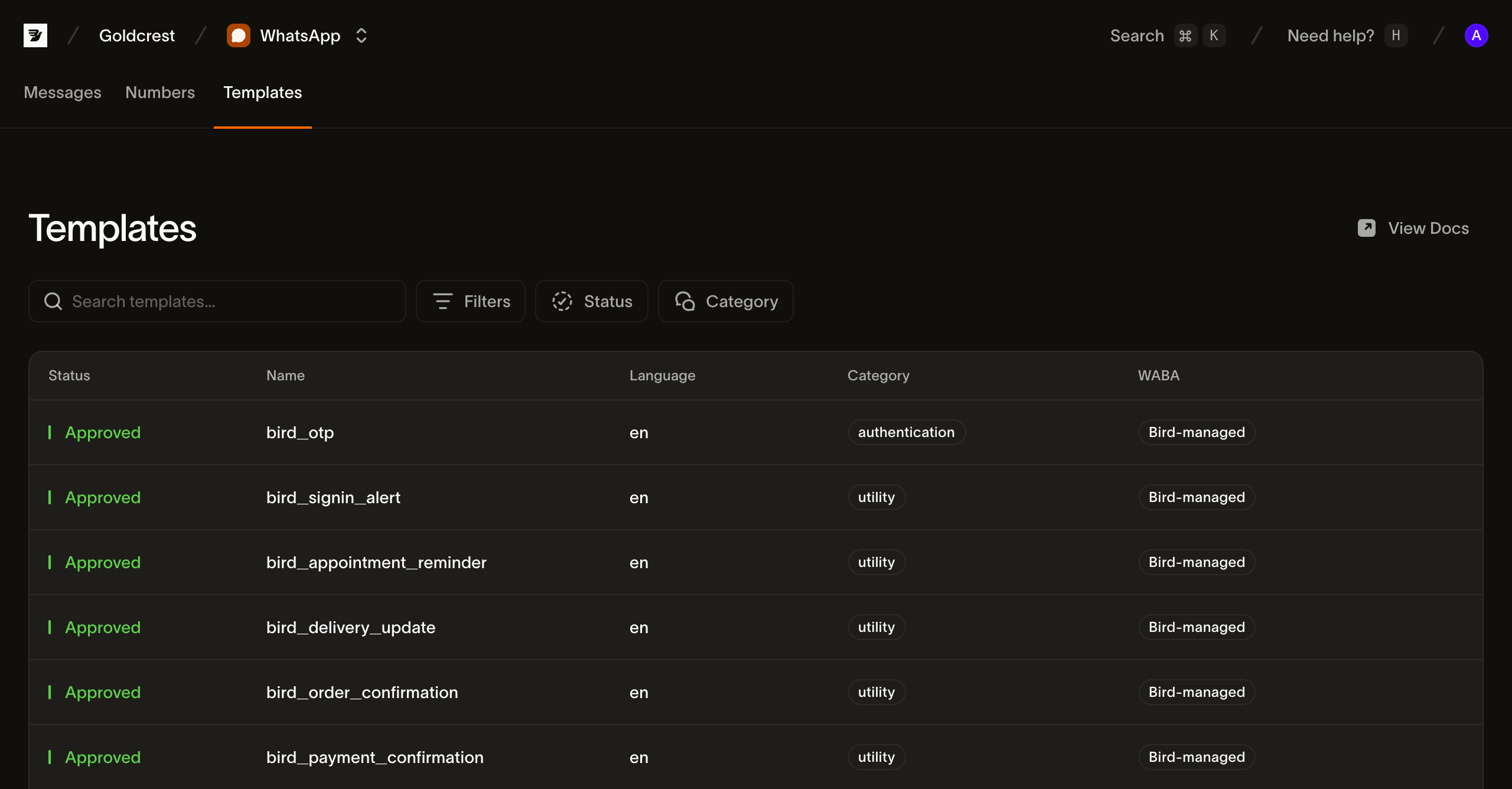
Templates bekijken in het dashboard
Open Templates via WhatsApp > Templates. Your templates bevat de templates die deze werkruimte heeft aangemaakt; All templates voegt de door Bird beheerde catalogus toe. Zoek op naam of filter op status en categorie, en wissel tussen het kaartoverzicht en de lijstweergave met de schakelaar naast de filters.
In de lijstweergave toont elke rij de velden die je nodig hebt om een template te kiezen en te versturen:
- Status: of de template als geheel verzendbaar is. Beheerde catalogustemplates tonen
active; een eigen template toont waar de goedkeuring staat. Controleer de talenlijst om te bevestigen dat de gewenste taal beschikbaar is. - Name: het weergavelabel, met de
slugvan de template eronder. Verstuur met deslug. - Languages: de talen waarin de template is geregistreerd, zoals Engels en Nederlands.
- Category:
authentication,utilityofmarketing. De categorie bepaalt hoe WhatsApp het bericht behandelt, vanaf welk Bird-nummer een beheerde template verzendt, en samen met het bestemmingsland de prijs. - WABA: Bird-managed voor catalogustemplates. Een eigen template toont het WhatsApp Business Account dat deze bevat, en verzendt alleen vanaf een nummer op datzelfde account.
- Updated: wanneer de template het laatst is gewijzigd.
Klik op een rij om het detail van de template te openen.
Wat zit er in een template
De detailweergave toont de berichttekst, variabelen en knoppen in een WhatsApp-achtige preview.
Het detail bevat ook een cURL-voorbeeld voor POST /v1/whatsapp/messages, met de regionale host en de voorbeeldwaarden van de template. Vervang de API-key, ontvanger en variabelewaarden voordat je verzendt.
Het voorbeeld is de snelste manier om de structuur te zien waaraan een verzending moet voldoen. Via de API komt dezelfde inhoud uit de versie van de template (De inhoud van een template lezen).
Templates opvragen via de API
GET /v1/whatsapp/templates retourneert een cursor-gepagineerde catalogus. Het verzoek vereist whatsapp_management-leestoegang. Gebruik HTTP of een raw-request-methode van een SDK.
type Templates = { data: Array<{ slug: string; status: string }> };

const templates = await bird.request<Templates>({
  method: "GET",
  path: "/v1/whatsapp/templates",
});
templates = client.get("/v1/whatsapp/templates")var out struct {
Data []struct {
Slug string `json:"slug"`
Status string `json:"status"`
} `json:"data"`
}
if err := client.Get(context.Background(), "/v1/whatsapp/templates", &out); err != nil {
log.Fatal(err)
}$templates = $bird->get('/v1/whatsapp/templates');curl https://us1.platform.bird.com/v1/whatsapp/templates \
-H "Authorization: Bearer $BIRD_API_KEY"Elke vermelding identificeert de template, de categorie en de beschikbare talen. Lees de live versie apart voor de berichtinhoud.
{
  "available_languages": ["en", "es", "pt-BR", "..."],
  "category": "authentication",
  "default_language": "en",
  "description": "One-time passcode",
  "id": "wat_01ky4x8e4genzb7way45txfkm1",
  "languages": {
    "en": { "status": "approved" },
    "es": { "status": "approved" },
    "pt-BR": { "status": "approved" },
    "...": "..."
  },
  "name": "bird_otp",
  "on_missing_language": "fail",
  "scope": "system",
  "slug": "bird_otp",
  "status": "active"
}
Het voorbeeldantwoord verkort de bird_otp-talenlijsten.
De velden waarvan een verzending afhankelijk is:
slug: de handle die je in een verzending gebruikt. Slugs van beheerde templates beginnen metbird_, een prefix die voor hen is gereserveerd.waba: het WhatsApp Business Account dat de talen van de template bij Meta bevat, en het account waartoe een verzendnummer moet behoren. Ontbreekt bij een beheerde template omdat Bird het account beheert.available_languages: talen die verzonden kunnen worden. Een gepauzeerde, uitgeschakelde, gearchiveerde of beperkte taal verdwijnt uit deze lijst.on_missing_language: wat er gebeurt als de gevraagde taal niet beschikbaar is. Door Bird beheerde WhatsApp-templates gebruikenfail, dat de verzending weigert in plaats van een andere taal te substitueren.
Status en taalstatus
Door Bird beheerde templates rapporteren status: active. languages.<tag>.status rapporteert de status van WhatsApp voor één taal, zoals approved, paused of disabled.
Een actieve template kan nog steeds een niet-beschikbare taal hebben. Gebruik available_languages om te bepalen of een taal verzendbaar is.
De inhoud van een template lezen
Berichtinhoud hoort bij een taal in de live versie. Lees live_version_id uit de template en vraag vervolgens de gewenste taal op:
const language = await bird.request({
  method: "GET",
  path: "/v1/whatsapp/templates/bird_order_confirmation/versions/{version_id}/languages/en",
});
language = client.get(
"/v1/whatsapp/templates/bird_order_confirmation/versions/{version_id}/languages/en"
)var language map[string]any
if err := client.Get(context.Background(),
"/v1/whatsapp/templates/bird_order_confirmation/versions/{version_id}/languages/en",
&language); err != nil {
log.Fatal(err)
}$language = $bird->get('/v1/whatsapp/templates/bird_order_confirmation/versions/{version_id}/languages/en');curl https://us1.platform.bird.com/v1/whatsapp/templates/bird_order_confirmation/versions/{version_id}/languages/en \
-H "Authorization: Bearer $BIRD_API_KEY"De templateverwijzing accepteert een slug of wat_-ID. GET …/versions/{version_id}/languages toont de talen van de versie zonder hun inhoud.
{
  "category": "utility",
  "components": [
    {
      "example_parameters": [
        { "name": "ref", "text": "A1B2C3D4", "type": "text" },
        { "name": "amount", "text": "USD 49.99", "type": "text" }
      ],
      "text": "Your order {{ref}} has been confirmed for a total of {{amount}}. Thanks for shopping with us.",
      "type": "body"
    }
  ],
  "language": "en",
  "status": "approved"
}
De components van de verzending moet overeenkomen met de template. example_parameters identificeert elke placeholder. In dit voorbeeld gebruiken de body-parameters name: "ref" en name: "amount". Een positionele template laat name weg en neemt waarden in {{n}}-volgorde. Geparametriseerde knoppen hebben hun eigen example_parameters.
De category van de taal is de Meta-categorie die voor prijsbepaling wordt gebruikt. Deze kan afwijken van de geregistreerde categorie van de template als Meta de taal herclassificeert.
De variables-lijst van de versie vat elke placeholder samen met de key, het type, de verplicht-vlag en de beperking. Benoemde placeholders gebruiken hun naam als key. Positionele placeholders gebruiken hun nummer.
Verzenden met een template
Geef de template op in het template-object van de verzending en vul de variabelen in via components; zie WhatsApp-berichten versturen voor de volledige payload:
const msg = await bird.whatsapp.send({
  to: "+15551234567",
  template: {
    slug: "bird_otp",
    components: [{ type: "body", parameters: [{ type: "text", text: "123456" }] }],
  },
});
console.log(msg.id, msg.status);
msg = client.whatsapp.send(
to="+31612345678",
template="bird_otp",
language="en",
components=[{"type": "body", "parameters": [{"type": "text", "text": "123456"}]}],
)
print(msg.id, msg.status)code := "123456"
msg, err := client.Whatsapp.Send(context.Background(), bird.WhatsappSendParams{
To: "+15551234567",
Template: "bird_otp",
Language: "en",
Components: []bird.WhatsAppMessageTemplateComponent{{
Type: "body",
Parameters: &[]bird.WhatsAppMessageTemplateComponentParameter{{Type: "text", Text: &code}},
}},
})
if err != nil {
log.Fatal(err)
}
fmt.Println(msg.Id, *msg.Status)$message = $bird->whatsapp->send(
to: '+15551234567',
template: 'bird_otp',
language: 'en',
components: [
(new WhatsAppMessageTemplateComponent())
->setType('body')
->setParameters([
(new WhatsAppMessageTemplateComponentParameter())->setType('text')->setText('123456'),
]),
],
);
echo $message->getId(), ' ', $message->getStatus();bird whatsapp send \
--components '[{"parameters":[{"text":"1234","type":"text"}],"type":"body"},{"parameters":[{"text":"1234","type":"text"}],"type":"button"}]' \
--language en \
--template bird_otp \
--to +31612345678curl -X POST https://us1.platform.bird.com/v1/whatsapp/messages \
-H "Authorization: Bearer $BIRD_API_KEY" \
-H "Content-Type: application/json" \
-d '{
"to": "+14155550100",
"template": {
"slug": "bird_otp",
"language": "en",
"components": [
{ "type": "body", "parameters": [{ "type": "text", "text": "481920" }] },
{ "type": "button", "parameters": [{ "type": "text", "text": "481920" }] }
]
}
}'Verzenden per categorie
Elke template heeft een van Meta's drie categorieën, en de categorie bepaalt wat je moet doen voordat een verzending slaagt én wat het kost. Het aanmaken of kopiëren van een eigen authenticatietemplate vereist een geverifieerd bedrijf, maar het versturen ervan niet: de beheerde bird_otp van Bird staat op het eigen WhatsApp Business Account van Bird en verzendt zonder verificatie van jouw kant. Marketingtemplates verzenden altijd vanaf een eigen WhatsApp Business Account, via een tweede Meta-API waarnaar Bird automatisch routeert. Utilitytemplates hebben van de drie de minste vereisten.
- Authenticatietemplates: eenmalige verificatiecodes, de kopieerknop en de verificatievoorwaarde bij het aanmaken
- Utilitytemplates: orderupdates, afspraakherinneringen en accountmeldingen
- Marketingtemplates: promotionele verzendingen, het zakelijke account dat je nodig hebt en de opt-outverwachting
Volgende stappen
- WhatsApp-berichten versturen: de volledige verzendpayload waar het
template-object in past - WhatsApp-templaterichtlijnen: de regels waaraan Meta een template toetst
- Authenticatietemplates: eenmalige verificatiecodes en de verificatievoorwaarde bij het aanmaken
- WhatsApp-prijzen: hoe categorie en bestemming de prijs bepalen
Gerelateerde bronnen
Ga verder met de documentatie, handleidingen en voorbeelden voor dit onderwerp.