SMS-log
Het SMS-log, te zien op de Messages-pagina, is het berichtenarchief van je werkruimte. Uitgaande berichten en inkomende antwoorden verschijnen met het nieuwste bovenaan. Gebruik het om een verzending te bevestigen, de bezorgcyclus te volgen en het aantal segmenten, de kosten en de carrierdetails te bekijken. De geaggregeerde Metrics-pagina toont percentages over alle berichten; het SMS-log laat je één bericht inspecteren. De pagina bevat ook Send SMS voor eenmalige verzendingen vanuit het dashboard.
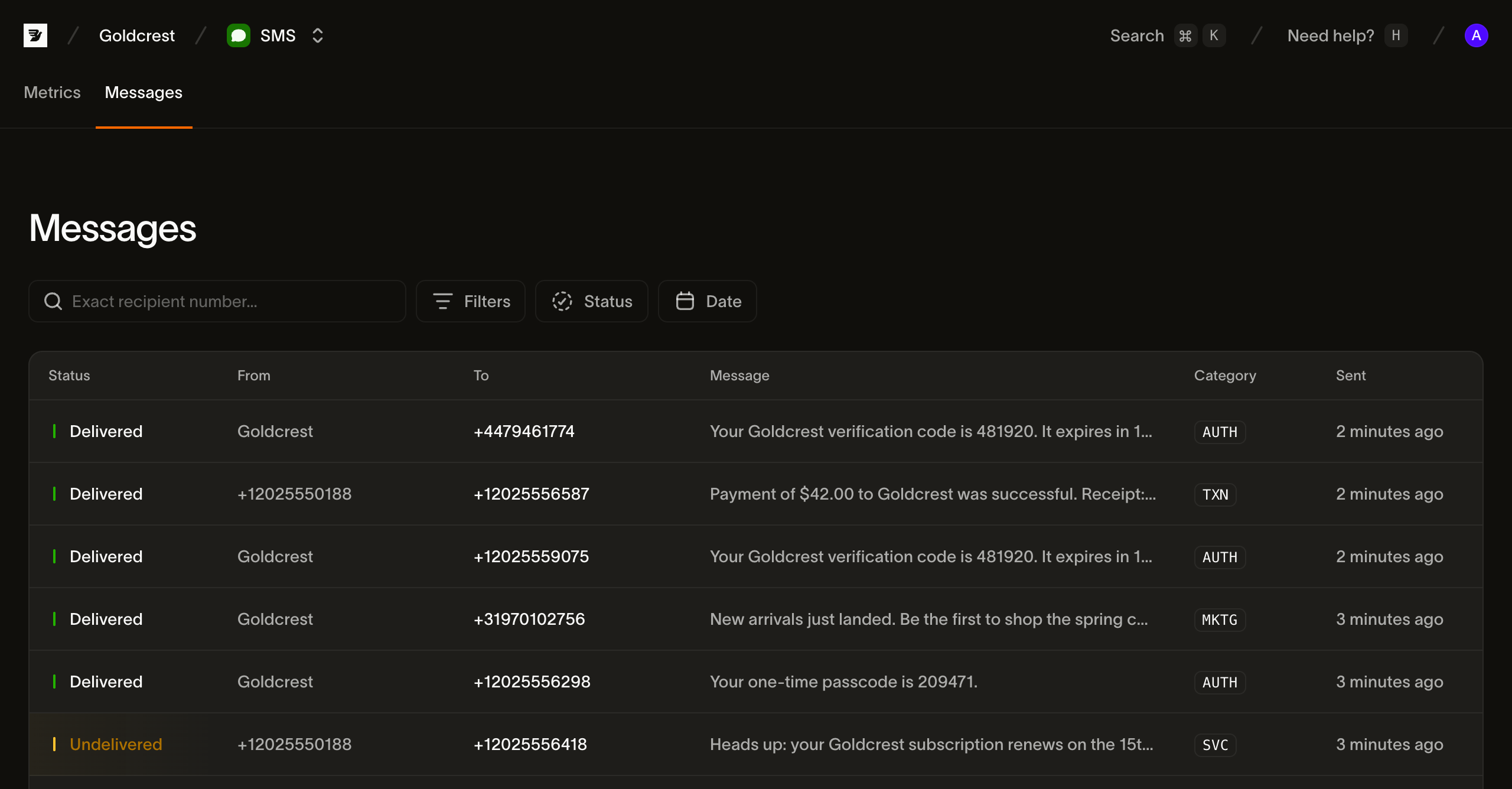
De berichtenlijst
Elke rij is één bericht. De kolommen zijn:
| Kolom | Wat het toont |
|---|---|
| Status | De huidige bezorgstatus van het bericht (zie Statussen) |
| From | De afzender: het nummer, de afzender-ID of de shortcode van waaruit het bericht is verzonden |
| To | Het nummer van de ontvanger |
| Message | Het begin van de berichttekst (klik erop, of ergens op de rij, om het bericht te openen) |
| Category | De categorie van het bericht, weergegeven als een kort badge (TXN, MKTG, AUTH, SVC) |
| Sent | Wanneer de verzending is geaccepteerd, als relatieve tijd (beweeg erover voor het exacte tijdstip) |
De lijst is gepagineerd, 25 berichten per pagina; gebruik Prev en Next om tussen pagina's te navigeren.
Zoeken en filteren
Een berichtenlog loopt snel vol, dus de pagina begint met een ontvangerzoekveld en vier filters. Ze combineren: een statusfilter plus een datumbereik beperkt de resultaten tot berichten die aan beide voldoen.
Zoeken op ontvanger. Het zoekveld zoekt op een exact ontvangernummer in E.164-formaat. Typ het volledige nummer, zoals +31612345678, om elk bericht aan dat nummer te vinden. De zoekopdracht vindt geen gedeeltelijke overeenkomsten.
Status. Filter op een of meer bezorgstatussen. Status is multi-select, dus je kunt bijvoorbeeld alles tonen wat niet is aangekomen door Undelivered, Failed en Expired samen te selecteren. De opties zijn de statussen uit Statussen.
Category. Filter op berichtcategorie: Transactional, Marketing, Authentication of Service.
Direction. Filter op Outbound of Inbound. Antwoorden op je nummers worden naast je verzendingen opgeslagen, dus Inbound toont wat je hebt ontvangen.
Date. Filter op wanneer het bericht is verzonden; kies een voorinstelling of selecteer een aangepast bereik in de kalender.
Wanneer een filtercombinatie niets oplevert, toont de pagina een geen-resultaten-status met een Clear filters-actie om terug te keren naar de volledige lijst.
Statussen
De status van een bericht geeft aan waar het zich bevindt in de bezorgcyclus. Een bericht doorloopt de stappen vanaf accepted richting een definitieve ontvangstbevestiging.
| Status | Betekenis |
|---|---|
| Accepted | Bird heeft het bericht aangenomen en bereidt de overdracht aan een carrier voor |
| Sent | Overgedragen aan de carrier; wacht op een bezorgbevestiging |
| Delivered | De carrier heeft bezorging aan het toestel bevestigd |
| Undelivered | Een niet-permanente mislukte bezorging: het toestel stond uit, was onbereikbaar of de inhoud werd geblokkeerd |
| Failed | Een permanente fout; het bericht kan niet worden bezorgd |
| Rejected | Het bericht is geweigerd (een beleidscontrole, een mislukte afschrijving of een carrier die het heeft afgewezen) |
| Expired | De carrier is gestopt met proberen en heeft het bericht als verlopen gemeld |
| Received | Een inkomend bericht |
Het statuslabel geeft aan of een bericht onderweg, bezorgd, ontvangen of mislukt is. Vertrouw niet alleen op kleur bij het doorlopen van resultaten.
Een bericht inspecteren
Klik op een willekeurige rij om het bericht te openen in een zijpaneel. Het heeft twee tabbladen, Events en Details, en de kop toont de berichttekst, de huidige status, de ontvanger en de categorie. Zolang een bericht onderweg is, ververst het paneel zichzelf om de paar seconden, zodat een statuswijziging of bezorgbevestiging verschijnt zonder handmatig te herladen.
Events
Het standaardtabblad is een tijdlijn met tijdstempels voor één bericht. Het toont de stroom beschreven in SMS-events: Accepted, dan Sent, dan Delivered, of een foutgebeurtenis (Undelivered, Failed, Rejected, Expired). Bezorgevents vermelden de carrier en MCC/MNC (het mobiele netwerk). Foutevents tonen de foutomschrijving; het tabblad Details bevat de foutcode.
Details
Het tabblad Details bevat de metadata van het bericht:
- Message ID, Direction, From, To en Category
- Segments: het factureerbare aantal segmenten, de codering (
GSM_7BITofUCS2) en het aantal tekens (zie segmenten en codering) - Cost: het bedrag en de valuta, zodra het bericht is geprijsd
- Carrier en MCC/MNC: het bezorgende netwerk, indien bekend
- Sent, Handed to carrier en Delivered tijdstempels
- Error: de omschrijving en code, bij een bericht dat niet is aangekomen
- Eventuele Tags en Metadata die je bij de verzending hebt ingesteld
De meeste velden kun je met één klik kopiëren.
Openbare bericht- en eventlezingen beslaan de meest recente 30 dagen. Een ouder bericht-ID valt buiten dat leesvenster; bewaar de gegevens die je applicatie nodig heeft binnen je eigen bewaar- en toestemmingsbeleid.
Hetzelfde log via de API
De lijst achter deze pagina is GET /v1/sms/messages, met filters op status, categorie, tag, exacte ontvanger en tijdvenster. Haal de tijdlijn van een bericht op met GET /v1/sms/messages/{message_id}/events. Lees de laatste staat uit met GET /v1/sms/messages/{message_id}, of consumeer webhook-events terwijl ze binnenkomen.
Volgende stappen
Bekijk SMS-analytics voor de bredere rapportageworkflow en tweerichtings-SMS voor het afhandelen van inkomende berichten.
- SMS-metrics: volg het geaggregeerde bezorgpercentage, foutpercentage en geaccepteerd volume.
- SMS-events: bekijk de eventtermen achter de tijdlijn.
- SMS verzenden: bouw een verzendpayload met categorieën, tags en metadata.
Gerelateerde bronnen
Ga verder met de documentatie, handleidingen en voorbeelden voor dit onderwerp.