Contacten
Beheer contacten in het dashboard onder Contacts > All contacts, vanuit de terminal met bird contacts, via de contacten-API of met een van de SDK's.
Contacten bereiken
Om één persoon te e-mailen, verstuur je naar diens adres met de verzend-API. Het contactrecord bewaart de gegevens van die persoon voor hergebruik. Om veel mensen tegelijk te bereiken, verstuur je een batch of groepeer je hen in een doelgroep en verstuur je een broadcast. Een contact opslaan verstuurt op zichzelf niets.
De pagina Contacts
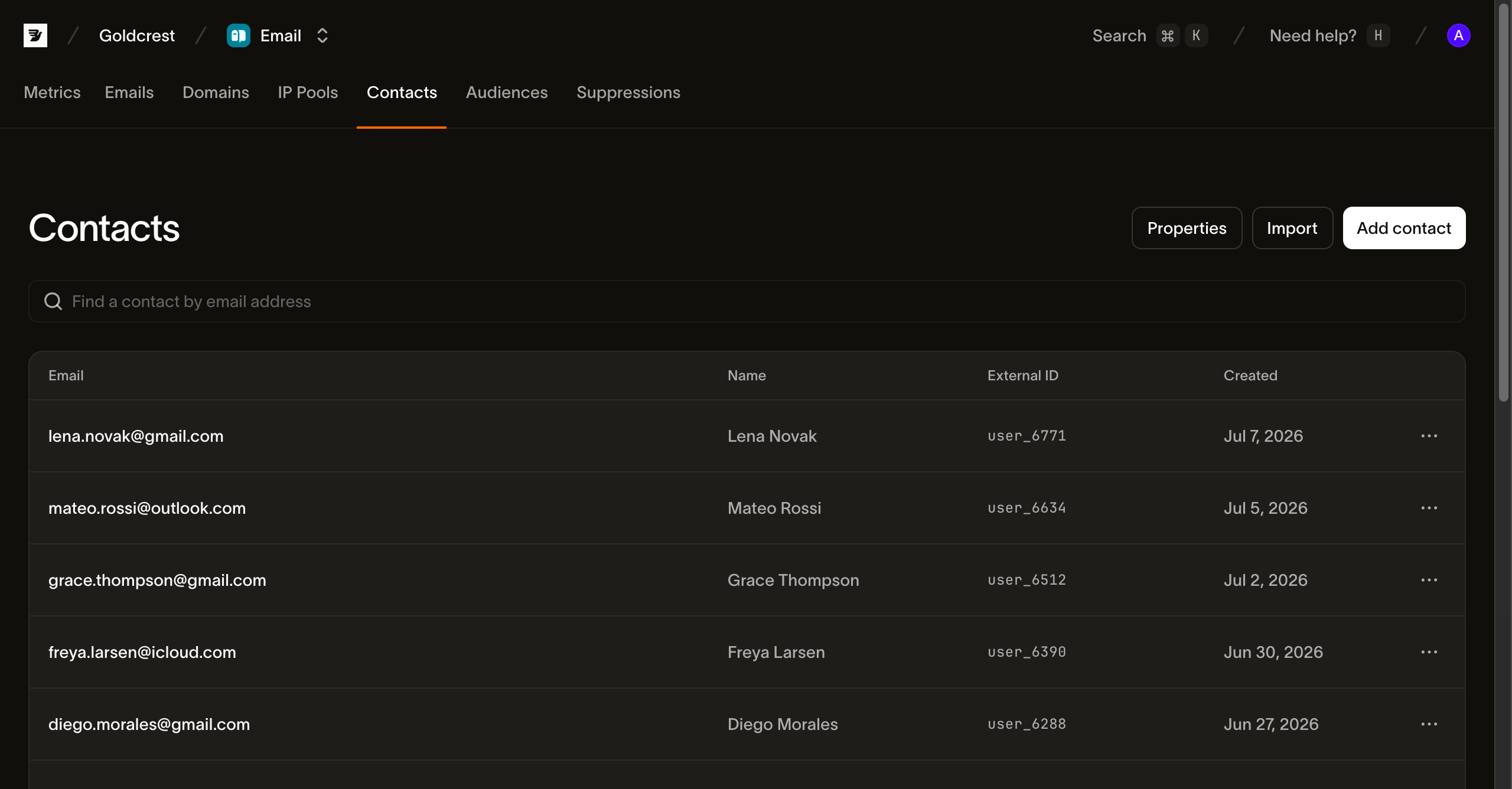
De pagina Contacts toont de naam, identificatiegegevens, doelgroeplidmaatschappen en aanmaakgegevens van het contact. Zoek op naam, e-mailadres of telefoonnummer en selecteer een rij om het contact te openen. Gebruik de acties bovenaan om één contact toe te voegen of meerdere contacten te importeren. Bekijken vereist leesrechten voor email_marketing. Toevoegen, bewerken en verwijderen vereisen schrijfrechten.
Wat een contact bevat
Elk contact heeft een e-mailadres, een telefoonnummer of beide, elk uniek binnen je werkruimte. Daarnaast kun je een naam en een eigen identificatiecode opgeven:
| Veld | Betekenis |
|---|---|
email | Het adres, uniek binnen je werkruimte. We verwijderen witruimte aan het begin en einde en slaan het in kleine letters op. Daardoor worden Sam@Acme.com en sam@acme.com genormaliseerd naar hetzelfde identificatiegegeven. |
phone_number | Het telefoonnummer, uniek binnen je werkruimte. De opmaak wordt genormaliseerd naar de internationale vorm. Opslag controleert geen metadata van het nummerplan, eigendom, bereikbaarheid of toestemming. |
first_name | Optionele voornaam, gebruikt om een verzending te personaliseren. |
last_name | Optionele achternaam. |
external_id | Optioneel. Je eigen primaire sleutel voor de persoon, bijvoorbeeld een gebruikers-ID uit je database. Als deze is ingesteld, is hij uniek binnen je werkruimte. Hiermee koppel je een contact aan je eigen records zonder afhankelijk te zijn van het e-mailadres. |
data | Waarden van aangepaste eigenschappen, één per geregistreerde contacteigenschap. |
Het dashboard leidt de labels Email en SMS af van de aanwezige identificatiegegevens. De API retourneert email en phone_number, maar geen veld channels. Die labels bewijzen geen toestemming om te verzenden of bereikbaarheid via het kanaal.
Elk contact heeft ook een ID met het voorvoegsel con_ en tijdstempels voor aanmaak en bijwerking. De volledige veldspecificatie staat in de API-referentie.
Contacteigenschappen
Contacteigenschappen vormen het typeschema voor de aangepaste velden van een contact. Registreer een eigenschap voor je werkruimte. Vanaf dat moment kan elk contact er een waarde voor hebben onder data. Door het schema vooraf vast te leggen, maak je personalisatie en segmentatie betrouwbaar: een waarde heeft altijd het opgegeven type, waarop een template of filter kan rekenen.
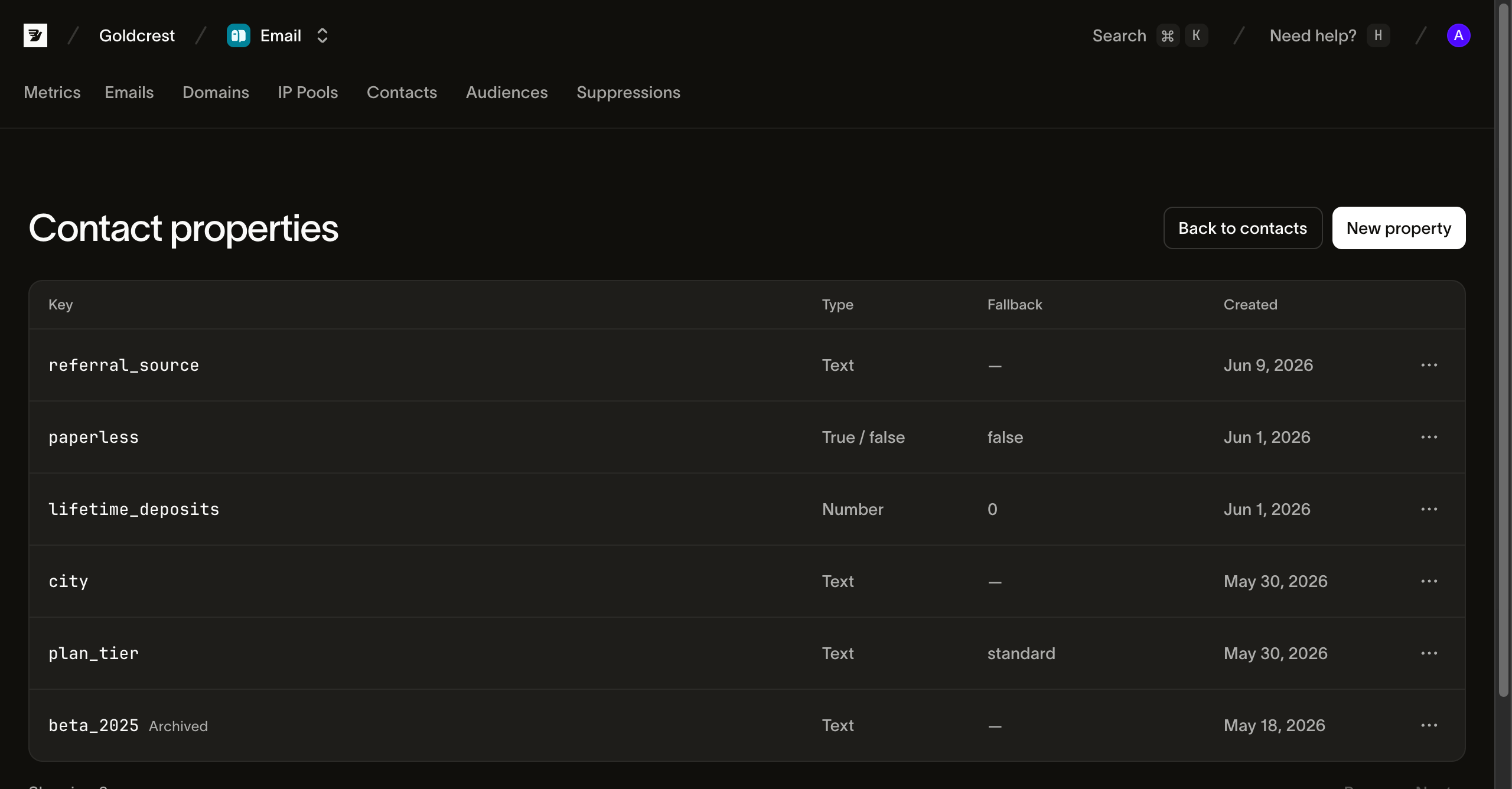
Beheer ze onder Contacts > Contact properties. Elke eigenschap heeft een sleutel, een type en een optionele terugvalwaarde:
- De sleutel is de naam waarmee je naar de waarde verwijst, bijvoorbeeld
plan_tier. Deze moet in kleine letters staan en met een letter beginnen (^[a-z][a-z0-9_]*$). Na het aanmaken kun je de sleutel niet wijzigen. - Het type is
string,number,booleanofdatetimeen staat na het aanmaken ook vast. Eendatetimeaccepteert een RFC 3339-tijdstempel met een expliciete tijdzone-offset, zoals2026-01-15T11:30:00+02:00. We normaliseren die naar UTC met een nauwkeurigheid van seconden, zodat die waarde wordt opgeslagen en geretourneerd als2026-01-15T09:30:00Z. Een losse datum zonder tijd wordt afgewezen. Het dashboard noemt deze typen Text, Number, True / false en Date & time. - De terugvalwaarde wordt uitgelezen voor een contact zonder eigen waarde. Daardoor kan een ontbrekende
plan_tieralsfreeverschijnen in plaats van als een leeg veld.
Stel eigenschapswaarden in waar je een contact bewerkt. Het contactformulier in het dashboard toont per actieve eigenschap een invoerveld met het juiste type. De CLI en de API accepteren dezelfde sleutels onder data.
Een eigenschap archiveren
Door te archiveren verwijder je een contacteigenschap. Bird bewaart de waarden zodat je de eigenschap met Dearchiveren kunt herstellen. Er is geen optie om een eigenschap definitief te verwijderen.
Een gearchiveerde eigenschap verdwijnt uit de eigenschapskiezers, ook bij het koppelen van importkolommen. Nieuwe templateversies die de eigenschap lezen, kunnen niet worden gepubliceerd. De publicatiefout noemt de eigenschap. Gepubliceerde templates blijven verzenden en gebruiken de contactwaarde of de terugvalwaarde van de eigenschap.
Contacten behouden hun opgeslagen waarden. Je kunt deze nog steeds lezen en bijwerken via de API en imports. Waarden moeten overeenkomen met het type van de eigenschap.
Als een gepubliceerde automatisering, ook een gepauzeerde, de eigenschap gebruikt in een trigger of bij het schrijven van contactgegevens, geeft archiveren een 409-conflict terug. Een actieve uitvoering die de eigenschap schrijft, blokkeert archiveren ook. Verwijder de eigenschap uit die automatiseringen of archiveer ze. Laat actieve uitvoeringen afronden of annuleer ze en archiveer de eigenschap opnieuw. De fout noemt de automatiseringen als je ze mag lezen.
Dearchiveer de eigenschap om deze met de waarden te herstellen. De eigenschap verschijnt weer in de kiezers en kan worden gebruikt in nieuwe templateversies. De sleutel blijft tijdens het archiveren gereserveerd en telt mee voor de limiet van 200 eigenschappen per workspace.
Contacten importeren en synchroniseren
Om een lijst vanaf de pagina Contacts te importeren, selecteer je Import en upload je een CSV-, TSV- of Excel-bestand. Gebruik één contact per rij en een koprij met de kolomnamen. Een bestand mag maximaal 50.000 contacten bevatten. CSV-bestanden mogen maximaal 50 MB groot zijn en spreadsheetbestanden maximaal 10 MB.
De koprij helpt elk contactveld te herkennen. Kolommen met de naam "Email Address", "E-Mail" of "Correo electrónico" worden allemaal aan het e-mailveld gekoppeld. Eén kolom met een volledige naam wordt gesplitst in een voornaam en een achternaam. Als twee kolommen hetzelfde veld kunnen vullen, krijgt de kolom waarvan de waarden de naam bevestigen voorrang. Elke kolom toont enkele eigen waarden, zodat je ziet wat erin staat. Een opgesplitste naam wordt naast de oorspronkelijke waarde getoond. Je kunt dit aanpassen via het keuzemenu van elke kolom. Iedereen in het bestand kan tijdens dezelfde import aan één of meer doelgroepen worden toegevoegd.
Elke rij wordt op basis van de aanwezige identificatiegegevens gekoppeld aan een bestaand contact en bijgewerkt, of aangemaakt als het een nieuw contact is. Hetzelfde bestand opnieuw importeren voert dus een upsert uit en levert geen stapel duplicaten op. Voordat er iets wordt opgeslagen, meldt het dashboard hoeveel van de aanvankelijk gecontroleerde rijen met de huidige koppeling niet kunnen worden geïmporteerd. Na de uitvoering toont elke overgeslagen rij het oorspronkelijke regelnummer en de fout.
Het aantal duplicaten bij de import verwijst naar herhaalde rijen in je bestand. Het gebruikt het e-mailadres als dat aanwezig is, anders het telefoonnummer. Overeenkomsten met contacten die al in je werkruimte staan, verschijnen als updates wanneer de API ze bevestigt.
“This row was not confirmed as saved” betekent dat het dashboard geen resultaat heeft ontvangen dat die rij bevestigt. De rij kan toch zijn opgeslagen, ook als de aantallen voor aangemaakt en bijgewerkt nul zijn. Controleer een paar getroffen contacten voordat je het opnieuw probeert. Houd het importtabblad open totdat het klaar is; het dashboard voert de import uit vanuit dat tabblad.
Om te synchroniseren vanuit je eigen database, script je de CLI of roep je het batch-endpoint aan. bird contacts create <email> voegt er één toe. bird contacts batch voert een upsert uit van maximaal 1.000 in één aanroep. Gebruik één batch per run in plaats van één verzoek per persoon om je contactlijst gelijk te houden met je systeem.
const contact = await bird.contacts.create({
  email: "jane@acme.com",
  first_name: "Jane",
});
console.log(contact.id); // "con_…"
contact = client.contacts.create(email="jane@acme.com", first_name="Jane")
print(contact.id, contact.email)contact, err := client.Contacts.Create(context.Background(), bird.ContactCreateParams{
Email: bird.Ptr("jane@acme.com"),
FirstName: bird.Ptr("Jane"),
})
if err != nil {
log.Fatal(err)
}
fmt.Println(contact.Id)$contact = $bird->contacts->create(
(new ContactCreateRequest())
->setEmail('jane@acme.com')
->setFirstName('Jane'),
);
echo $contact->getId(); // "con_…"bird contacts create alice@acme.com \
--first-name Alice \
--last-name Anderson \
--phone-number +31612345678curl -X POST "https://{region}.platform.bird.com/v1/contacts" \
-H "Authorization: Bearer $TOKEN" \
-H "Content-Type: application/json" \
-d '{
"email": "alice@acme.com",
"phone_number": "+31612345678",
"first_name": "Alice",
"last_name": "Anderson"
}'Elke batch-invoer wordt automatisch gematcht op de identifiers die erin staan (e-mailadres, telefoonnummer of extern ID), en het optionele veld match_on dwingt matching af op slechts één daarvan. Een invoer kan ook aangepaste eigenschapswaarden instellen, en kan elk contact in het verzoek rechtstreeks in doelgroepen plaatsen via audience_ids. Elke invoer slaagt of faalt op zichzelf, en het antwoord rapporteert één resultaat per invoer in volgorde van indiening:
{
  "data": [
    {
      "contact_id": "con_01ky7q5t51echr7mqj5c08423b",
      "entry": { "email": "alex@example.com", "phone_number": null, "external_id": null },
      "matched_on": "email",
      "status": "updated"
    },
    {
      "contact_id": "con_01ky7q6mxdfhe86c9dqyt866pz",
      "entry": { "email": "jamie@example.com", "phone_number": null, "external_id": null },
      "matched_on": null,
      "status": "created"
    },
    {
      "contact_id": "con_01ky7q7rv9e9pt4vkr0w0gxq5e",
      "entry": { "email": "casey@example.com", "phone_number": null, "external_id": "user_2214" },
      "matched_on": "external_id",
      "status": "updated"
    }
  ]
}
Als de identifiers van een invoer naar verschillende bestaande contacten verwijzen, faalt de invoer met een conflict dat je moet beoordelen. Los het bronrecord op voordat je het opnieuw probeert; de batch voegt die contacten niet samen.
Twee standaardinstellingen zijn handig bij een synchronisatie. Een batch voegt data-sleutels samen met bestaande contactgegevens, zodat een import die één attribuut raakt de rest nooit wist. Stuur een null-waarde om één sleutel te wissen, of stel data_mode: "replace" in om de hele map te overschrijven. Stel je eigen external_id in op elk contact, zodat een latere synchronisatie dezelfde persoon vindt, ook nadat diens e-mailadres is gewijzigd. In het batchvoorbeeld bestaat user_2214 al, dus de invoer wordt naar dat contact herleid en schrijft het nieuwe e-mailadres erin.
Een contact verwijderen
Het verwijderen van een contact is permanent: het record en de doelgroeplidmaatschappen verdwijnen en niets herstelt ze. Suppressies en voorkeuren blijven onaangetast. Een adres dat een hard bounce veroorzaakte blijft op je suppressielijst, en een adres dat zich heeft afgemeld behoudt de opt-outvoorkeur, ook nadat je het contact verwijdert. Zo wordt iemand door verwijdering nooit stilletjes weer bereikbaar voor e-mail.
Vervolgstappen
- Doelgroepen: groepeer contacten in herbruikbare lijsten
- Suppressies: de werkruimtelijst van adressen waar we niet aan bezorgen, los van je contacten
- Batchverzending: bereik veel ontvangers in één aanroep, maximaal 100 berichten per verzoek
- CLI: contacten, eigenschappen en doelgroepen scripten met het
bird-commando - API-referentie: volledige request- en responseschema's
Gerelateerde bronnen
Ga verder met de documentatie, handleidingen en voorbeelden voor dit onderwerp.