Template WhatsApp
Gli invii WhatsApp avviati dall'azienda usano un template pre-approvato. Un template contiene testo fisso e variabili, quindi un invio fornisce solo valori come un codice OTP o un numero d'ordine.
Bird fornisce un catalogo gestito, ne registra i contenuti presso WhatsApp e li invia dai numeri di Bird; i relativi slug iniziano con bird_. Uno spazio di lavoro che ha collegato un proprio numero può anche creare template sul proprio WhatsApp Business Account. La pagina Templates mostra tutti i template che lo spazio di lavoro può inviare e come viene visualizzato ciascuno.
Sfogliare i template nella dashboard
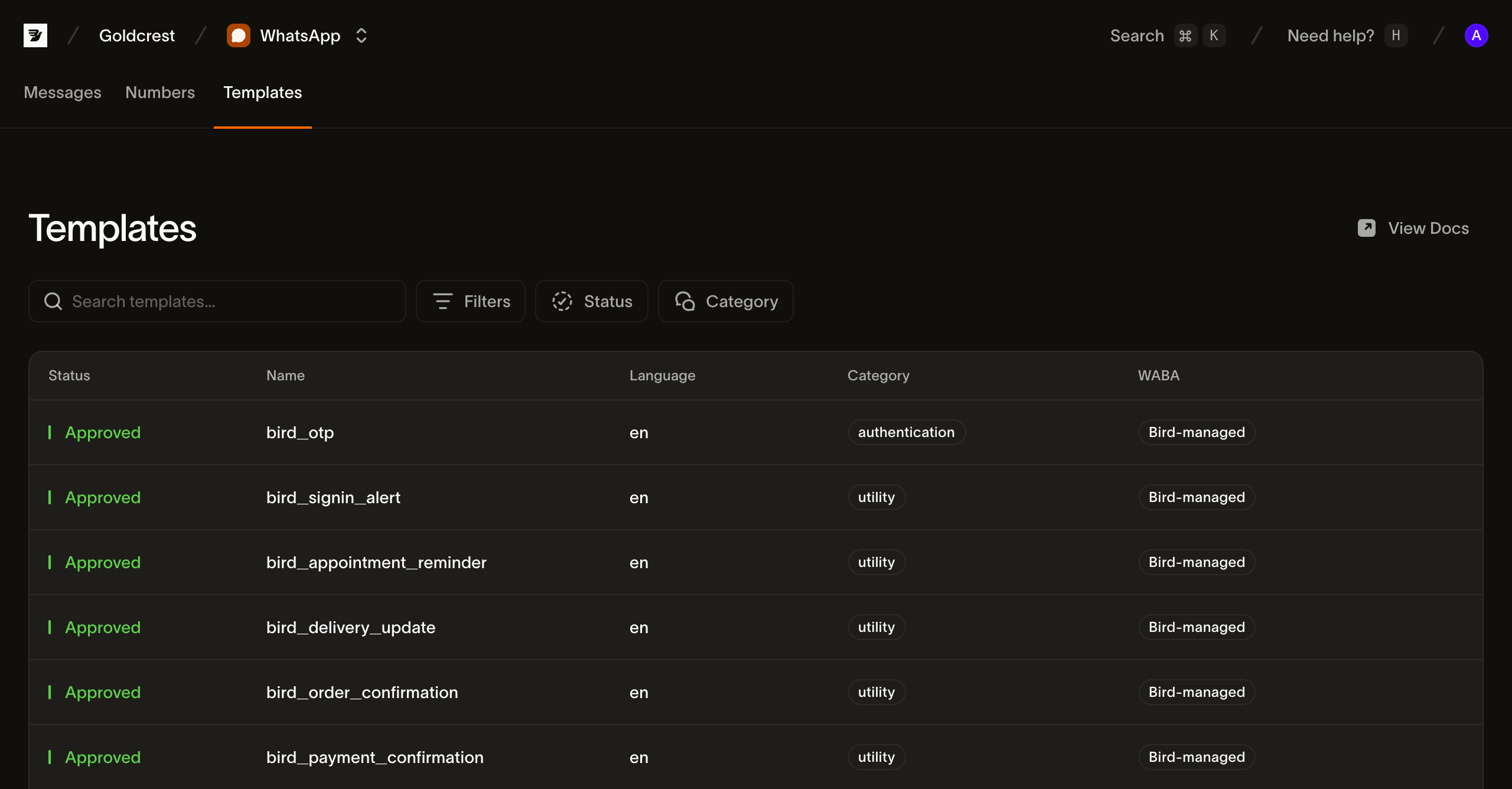
Apri Templates in WhatsApp > Templates. Your templates contiene i template creati da questo spazio di lavoro; All templates aggiunge il catalogo gestito da Bird. Cerca per nome o filtra per stato e categoria, e passa dalla griglia a schede alla visualizzazione elenco con il selettore accanto ai filtri.
Nella visualizzazione elenco, ogni riga mostra i campi necessari per scegliere e inviare un template:
- Status: indica se il template è inviabile nel complesso. I template del catalogo gestito riportano
active; un template creato da te riporta lo stato della propria approvazione. Controlla l'elenco delle lingue per confermare che la lingua richiesta sia disponibile. - Name: l'etichetta visualizzata, con lo
slugdel template sotto. Invia usando loslug. - Languages: le lingue in cui il template è registrato, ad esempio inglese e olandese.
- Category:
authentication,utilityomarketing. La categoria determina come WhatsApp tratta il messaggio, da quale numero Bird un template gestito viene inviato e, insieme al paese di destinazione, il prezzo. - WABA: Bird-managed per i template del catalogo. Un template creato da te mostra il WhatsApp Business Account che lo detiene e invia solo da un numero su quello stesso account.
- Updated: data dell'ultima modifica al template.
Fai clic su una riga per aprire il dettaglio del template.
Cosa contiene un template
La vista di dettaglio mostra il corpo del messaggio, le variabili e i pulsanti in un'anteprima in stile WhatsApp.
Il dettaglio fornisce anche un esempio cURL per POST /v1/whatsapp/messages, con l'host regionale e i valori di esempio del template. Sostituisci la chiave API, il destinatario e i valori delle variabili prima di inviare.
L'esempio è il modo più rapido per vedere la struttura che un invio deve rispettare. Tramite API, lo stesso contenuto proviene dalla versione del template (Leggere il contenuto di un template).
Elencare i template da API
GET /v1/whatsapp/templates restituisce un catalogo paginato con cursore. La richiesta richiede accesso in lettura a whatsapp_management. Usa HTTP o un metodo raw-request di SDK.
type Templates = { data: Array<{ slug: string; status: string }> };

const templates = await bird.request<Templates>({
  method: "GET",
  path: "/v1/whatsapp/templates",
});
templates = client.get("/v1/whatsapp/templates")var out struct {
Data []struct {
Slug string `json:"slug"`
Status string `json:"status"`
} `json:"data"`
}
if err := client.Get(context.Background(), "/v1/whatsapp/templates", &out); err != nil {
log.Fatal(err)
}$templates = $bird->get('/v1/whatsapp/templates');curl https://us1.platform.bird.com/v1/whatsapp/templates \
-H "Authorization: Bearer $BIRD_API_KEY"Ogni voce identifica il template, la sua categoria e le lingue disponibili. Leggi separatamente la versione live per il contenuto del messaggio.
{
  "available_languages": ["en", "es", "pt-BR", "..."],
  "category": "authentication",
  "default_language": "en",
  "description": "One-time passcode",
  "id": "wat_01ky4x8e4genzb7way45txfkm1",
  "languages": {
    "en": { "status": "approved" },
    "es": { "status": "approved" },
    "pt-BR": { "status": "approved" },
    "...": "..."
  },
  "name": "bird_otp",
  "on_missing_language": "fail",
  "scope": "system",
  "slug": "bird_otp",
  "status": "active"
}
La risposta di esempio abbrevia gli elenchi di lingue bird_otp.
I campi da cui dipende un invio:
slug: l'identificativo usato in un invio. Gli slug dei template gestiti iniziano conbird_, un prefisso riservato a loro.waba: il WhatsApp Business Account che detiene le lingue del template su Meta, e l'account a cui deve appartenere il numero mittente. Assente nei template gestiti perché Bird gestisce il relativo account.available_languages: lingue che possono essere inviate. Una lingua in pausa, disabilitata, archiviata o limitata esce da questo elenco.on_missing_language: cosa succede quando la lingua richiesta non è disponibile. I template WhatsApp gestiti da Bird usanofail, che rifiuta l'invio anziché sostituire un'altra lingua.
Stato e stato della lingua
I template gestiti da Bird riportano status: active. languages.<tag>.status riporta lo stato di WhatsApp per una singola lingua, ad esempio approved, paused o disabled.
Un template attivo può comunque avere una lingua non disponibile. Usa available_languages per stabilire se una lingua è inviabile.
Leggere il contenuto di un template
Il contenuto del messaggio appartiene a una lingua nella versione live. Leggi live_version_id dal template, quindi richiedi la lingua desiderata:
const language = await bird.request({
  method: "GET",
  path: "/v1/whatsapp/templates/bird_order_confirmation/versions/{version_id}/languages/en",
});
language = client.get(
"/v1/whatsapp/templates/bird_order_confirmation/versions/{version_id}/languages/en"
)var language map[string]any
if err := client.Get(context.Background(),
"/v1/whatsapp/templates/bird_order_confirmation/versions/{version_id}/languages/en",
&language); err != nil {
log.Fatal(err)
}$language = $bird->get('/v1/whatsapp/templates/bird_order_confirmation/versions/{version_id}/languages/en');curl https://us1.platform.bird.com/v1/whatsapp/templates/bird_order_confirmation/versions/{version_id}/languages/en \
-H "Authorization: Bearer $BIRD_API_KEY"Il riferimento al template accetta uno slug o un ID wat_. GET …/versions/{version_id}/languages elenca le lingue della versione senza il relativo contenuto.
{
  "category": "utility",
  "components": [
    {
      "example_parameters": [
        { "name": "ref", "text": "A1B2C3D4", "type": "text" },
        { "name": "amount", "text": "USD 49.99", "type": "text" }
      ],
      "text": "Your order {{ref}} has been confirmed for a total of {{amount}}. Thanks for shopping with us.",
      "type": "body"
    }
  ],
  "language": "en",
  "status": "approved"
}
I components dell'invio devono corrispondere al template. example_parameters identifica ogni segnaposto. In questo esempio, i parametri del corpo usano name: "ref" e name: "amount". Un template posizionale omette name e accetta i valori nell'ordine {{n}}. I pulsanti parametrizzati hanno i propri example_parameters.
La category della lingua è la categoria Meta usata per la tariffazione. Può differire dalla categoria registrata del template se Meta riclassifica la lingua.
L'elenco variables della versione riassume ogni segnaposto con chiave, tipo, flag di obbligatorietà e vincolo. I segnaposto con nome usano i propri nomi come chiavi. I segnaposto posizionali usano il proprio numero.
Inviare con un template
Indica il template nell'oggetto template dell'invio e compila le sue variabili tramite components; vedi Inviare messaggi WhatsApp per il payload completo:
const msg = await bird.whatsapp.send({
  to: "+15551234567",
  template: {
    slug: "bird_otp",
    components: [{ type: "body", parameters: [{ type: "text", text: "123456" }] }],
  },
});
console.log(msg.id, msg.status);
msg = client.whatsapp.send(
to="+31612345678",
template="bird_otp",
language="en",
components=[{"type": "body", "parameters": [{"type": "text", "text": "123456"}]}],
)
print(msg.id, msg.status)code := "123456"
msg, err := client.Whatsapp.Send(context.Background(), bird.WhatsappSendParams{
To: "+15551234567",
Template: "bird_otp",
Language: "en",
Components: []bird.WhatsAppMessageTemplateComponent{{
Type: "body",
Parameters: &[]bird.WhatsAppMessageTemplateComponentParameter{{Type: "text", Text: &code}},
}},
})
if err != nil {
log.Fatal(err)
}
fmt.Println(msg.Id, *msg.Status)$message = $bird->whatsapp->send(
to: '+15551234567',
template: 'bird_otp',
language: 'en',
components: [
(new WhatsAppMessageTemplateComponent())
->setType('body')
->setParameters([
(new WhatsAppMessageTemplateComponentParameter())->setType('text')->setText('123456'),
]),
],
);
echo $message->getId(), ' ', $message->getStatus();bird whatsapp send \
--components '[{"parameters":[{"text":"1234","type":"text"}],"type":"body"},{"parameters":[{"text":"1234","type":"text"}],"type":"button"}]' \
--language en \
--template bird_otp \
--to +31612345678curl -X POST https://us1.platform.bird.com/v1/whatsapp/messages \
-H "Authorization: Bearer $BIRD_API_KEY" \
-H "Content-Type: application/json" \
-d '{
"to": "+14155550100",
"template": {
"slug": "bird_otp",
"language": "en",
"components": [
{ "type": "body", "parameters": [{ "type": "text", "text": "481920" }] },
{ "type": "button", "parameters": [{ "type": "text", "text": "481920" }] }
]
}
}'Invio per categoria
Ogni template rientra in una delle tre categorie di Meta, e la categoria cambia sia cosa devi fare prima che un invio riesca, sia quanto costa. Creare o copiare un template di autenticazione proprio richiede un'azienda verificata, ma inviarne uno no: il bird_otp gestito da Bird risiede sul WhatsApp Business Account di Bird e viene inviato senza alcuna verifica da parte tua. I template di marketing vengono sempre inviati da un WhatsApp Business Account tuo, tramite un secondo API Meta verso cui Bird instrada automaticamente. I template utility hanno i minori prerequisiti tra i tre.
- Template di autenticazione: codici di verifica monouso, il pulsante per copiare il codice e il requisito di verifica per crearne uno
- Template utility: aggiornamenti sugli ordini, promemoria per appuntamenti e notifiche sull'account
- Template di marketing: invii promozionali, l'account aziendale necessario e l'aspettativa di opt-out
Prossimi passi
- Inviare messaggi WhatsApp: il payload di invio completo in cui si inserisce l'oggetto
template - Linee guida per i template WhatsApp: le regole rispetto alle quali Meta valuta un template
- Template di autenticazione: codici di verifica monouso e il requisito di verifica aziendale per crearne uno
- Prezzi WhatsApp: come categoria e destinazione determinano il prezzo
Risorse correlate
Continua con la documentazione, le guide e gli esempi per questo argomento.