Creare template WhatsApp
Crea un template sul WhatsApp Business Account collegato per inviare messaggi con le tue parole. Questa panoramica tratta bozze, lingue, invio e revisione. Scegli una categoria per la relativa guida alla creazione:
- Authentication: codici di verifica con il testo predefinito di Meta e un pulsante per copiare il codice.
- Utility: aggiornamenti sugli ordini, promemoria per appuntamenti e avvisi sull'account.
- Marketing: messaggi promozionali, carousel e prezzo massimo.
Per sfogliare e inviare un template esistente, consulta Template WhatsApp.
Tre aspetti definiscono l'intero flusso:
- Un template contiene versioni, e una versione contiene una voce per lingua. Ogni invio usa una lingua approvata di una versione.
- Il contenuto viene scritto in una bozza. Un template ha al massimo una bozza aperta, e nulla al suo interno raggiunge WhatsApp finché non la invii.
- L'approvazione arriva per lingua. Una lingua può essere approvata mentre un'altra sulla stessa versione viene rifiutata.
Prima di iniziare
Serve un numero proprio collegato: è questo che assegna al tuo spazio di lavoro un WhatsApp Business Account su cui creare template. Un account non collegato viene rifiutato, così come la modifica di uno dei template bird_ predefiniti di Bird: risiedono sull'account di Bird, quindi duplicane uno sul tuo.
Creare un template di authentication richiede inoltre un'azienda verificata; utility e marketing no. Consulta Authentication templates per questo requisito.
Crea un modello nella pagina Approved templates, con la bird CLI o tramite il server MCP.
Nella dashboard
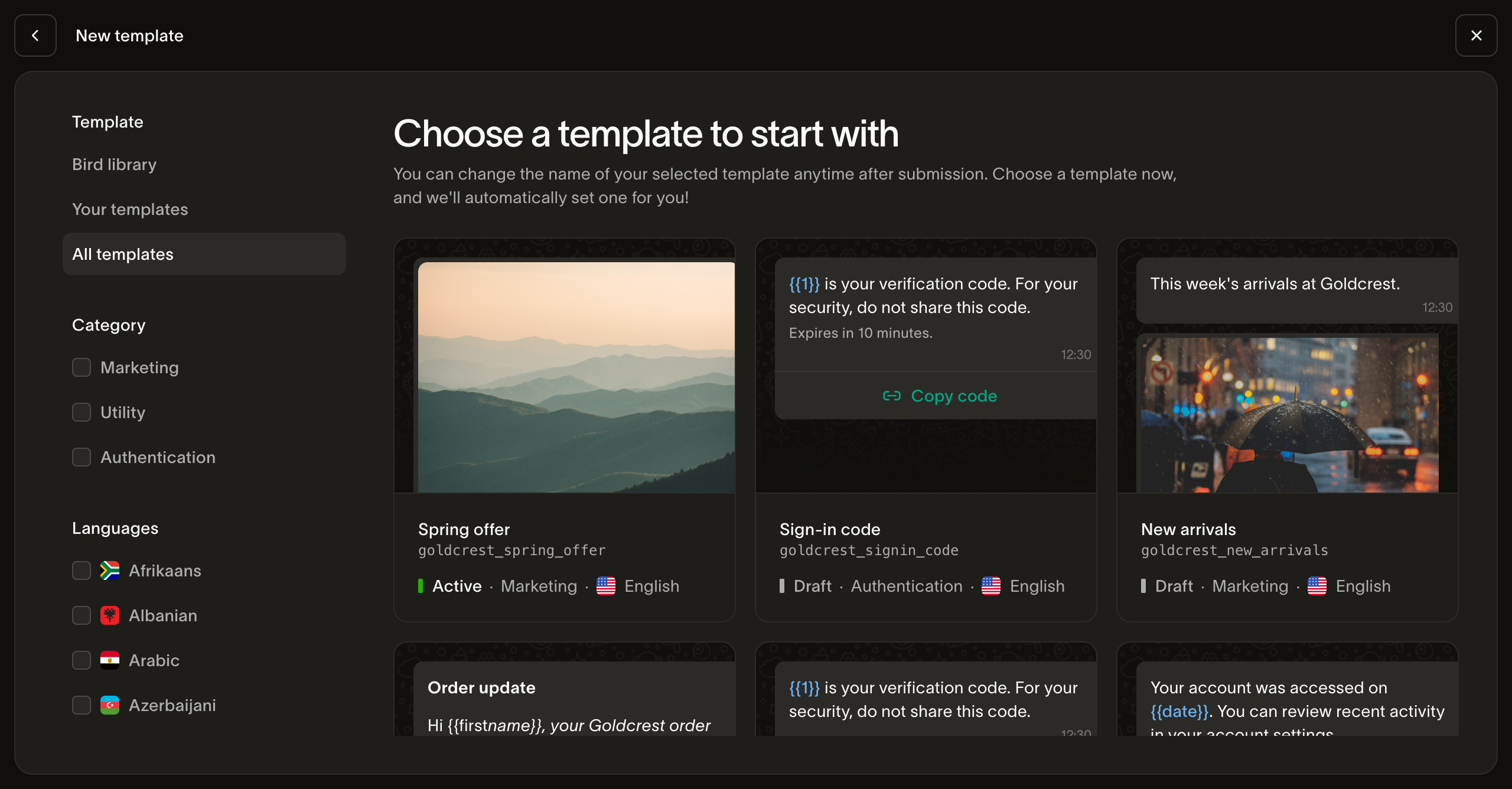
New template offre due strade. Start with a template apre la galleria, il percorso più rapido: scegli un template che dice già quasi quello che ti serve, incluso uno di Bird, e la copia viene creata sul tuo account come bozza aperta.
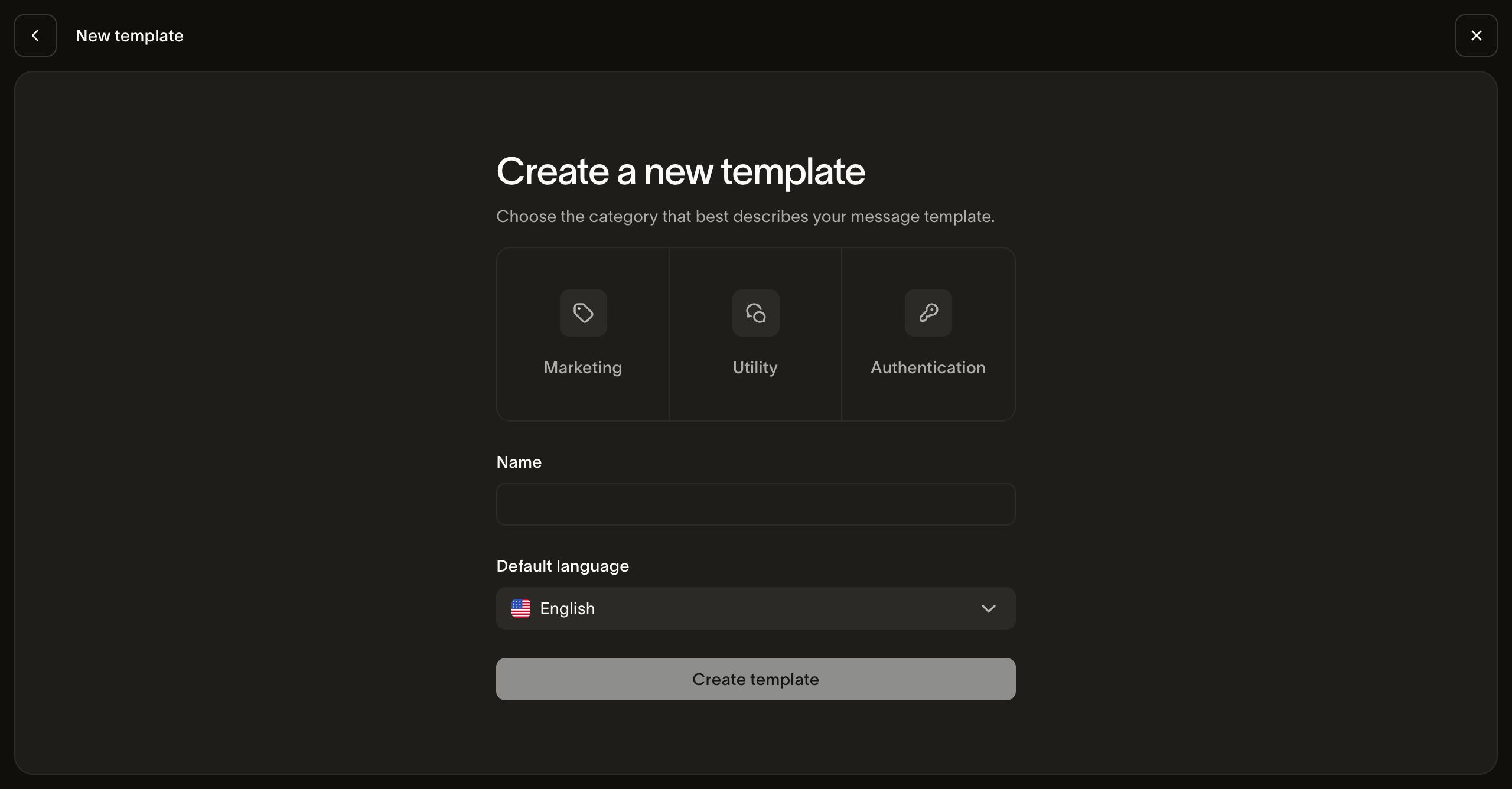
Start from scratch richiede categoria, nome e lingua predefinita prima di aprire l'editor. Per un modello marketing scegli anche il tipo di messaggio. Il nome diventa lo slug. Puoi modificare lo slug in Settings fino al primo invio in revisione; la categoria viene fissata alla creazione del modello.
L'editor scrive una lingua alla volta. L'elenco delle lingue mostra lo stato di revisione di ciascuna, e l'anteprima su telefono mostra il contenuto con i valori di esempio. Segui la guida per authentication, utility o marketing per i controlli disponibili nella tua categoria.
Save as draft salva il lavoro senza contattare WhatsApp. Submit for review fissa la versione e la invia a WhatsApp.
Due modi per iniziare
Duplicare un template esistente
Un duplicato porta il contenuto dell'originale come bozza aperta e chiama WhatsApp zero volte, quindi nulla viene inviato finché non lo decidi tu. Due cose su una copia vale la pena sapere prima di crearne una:
- La categoria viene ereditata e non può essere cambiata. Se ti serve una categoria diversa, crea da zero.
- Puoi ridurre le lingue, mai aggiungerne. Un template del catalogo con 70 lingue non deve per forza diventare 70 lingue tue: scegli il sottoinsieme che manterrai effettivamente. Richiedere una lingua che l'originale non contiene viene rifiutato con
E15060, e la risposta indica quali non corrispondevano. Aggiungi altre lingue alla copia in seguito.
Creare da zero
La categoria viene fissata alla creazione; lo slug dopo il primo invio in revisione. Prima dell'invio puoi correggere lo slug in Settings. WhatsApp ricava il proprio nome del modello dallo slug. Per modificare lo slug dopo l'invio o usare un'altra categoria, crea un nuovo modello. Il prefisso bird_ è riservato al catalogo di Bird. La categoria scelta non determina necessariamente il prezzo dell'invio: Meta assegna una propria categoria per lingua e può modificarla; il prezzo segue quella di Meta.
Scrivere ogni lingua
Ogni variabile ha bisogno di un valore di esempio. Meta revisiona il messaggio con quei valori inseriti. Senza esempi l'invio per la revisione è bloccato. Fornisci tu il testo e gli esempi di ogni lingua; Meta non li traduce. Consulta i fondamenti dei template di Meta.
Per le lingue marketing, imposta un prezzo massimo nell'editor o con optimization_spec. La guida marketing tratta unità di prezzo, override per paese, stime e moltiplicatori per messaggio.
Imposta per quanto tempo WhatsApp riprova a consegnare un messaggio. WhatsApp riprova a consegnare un messaggio non recapitabile per tutto il time to live della lingua, poi lo scarta. Scegli una durata in Time to live oppure seleziona l'opzione predefinita: Default · 10 min per authentication, oppure Default · 30 days per utility e marketing. Questo limite parte dal momento in cui consegniamo il messaggio a Meta. Tramite API, imposta message_send_ttl_seconds in secondi, invia null per tornare al valore predefinito oppure ometti il campo per mantenere il valore attuale. L'intervallo dipende dalla categoria:
| Categoria | Intervallo |
|---|---|
| Authentication | 30 secondi–15 minuti |
| Utility | 30 secondi–12 ore |
| Marketing | 12 ore–14 giorni |
Se modifichi solo il time to live, non serve una nuova revisione. Su un template marketing, il valore si applica finché il business account è abilitato a Marketing Messages.
Controlla, poi invia
Controlla il contenuto e gli esempi delle variabili di ogni lingua, poi seleziona Submit for review per inviare a Meta la bozza salvata. Correggi gli errori di convalida prima dell'invio.
Solo le lingue il cui contenuto differisce dalla copia approvata richiedono la revisione del contenuto. Una lingua che corrisponde già mantiene la propria approvazione. Le modifiche di prezzo marketing vengono applicate separatamente. Un invio in cui non sono cambiati né il contenuto né i prezzi si conclude immediatamente, senza nulla da interrogare. In seguito non si apre alcuna bozza sostitutiva: il ciclo di modifiche successivo inizia creando di nuovo una bozza.
Monitorare la revisione
L'approvazione arriva in un secondo momento e per lingua. Lo stato pending_version_id del template resta impostato finché almeno una lingua è ancora in attesa di esito, e l'elenco per lingua riporta ogni verdetto:
approvedinvia.available_languagessul template è esattamente ciò che un invio può risolvere in questo momento.rejectedosubmit_failedrichiedono di esaminare l'errore della lingua prima di riprovare. Se serve, correggi il contenuto su una nuova bozza.pausednon può inviare. Rivedi il contenuto e il pubblico; Meta può revocare una pausa temporanea. Puoi anche modificare e reinviare una lingua in pausa. Consulta la guida di Meta sulla sospensione dei template.disabled,limit_exceeded,in_appealnon possono essere modificati. Controlla l'errore della lingua e segui l'azione indicata da Meta in WhatsApp Manager. Se un ricorso è in attesa, controllane lo stato per conoscere la decisione.
Lo stato status del template è un aggregato: active significa che almeno una lingua è inviabile, non tutte.
Inviare ciò che hai creato
Un template creato da te viene inviato attraverso lo stesso endpoint di qualsiasi altro, con una differenza rispetto al catalogo di Bird: devi specificare from, e deve essere un numero sullo stesso WhatsApp Business Account del template. Un mittente su un account diverso viene rifiutato con 422 E15023 prima che qualsiasi cosa venga addebitata.
Un template può richiedere una lingua del destinatario tramite language_source_required. In caso contrario, on_missing_language controlla se la risoluzione fallisce o può usare una lingua base approvata o default_language. Testa la policy configurata rispetto ai available_languages approvati del template; una lingua predefinita non approvata non è inviabile. I valori che fornisci devono riempire i segnaposto della lingua che viene effettivamente risolta, quindi leggi il contenuto di quella lingua prima dell'invio. Consulta Inviare messaggi WhatsApp per il payload completo.
Aspetti da tenere d'occhio
- Controlla la versione live prima dell'invio. Un elenco di versioni è ordinato dalla più recente e include eventuali bozze aperte, quindi la prima riga è spesso una bozza o una versione ancora in revisione. Il template indica la versione in servizio come
live_version_id; un template senza versione live non può essere inviato. - Una lingua in revisione rifiuta una scrittura. WhatsApp la blocca fino al termine della revisione, quindi una modifica durante
pendingfallisce anziché accodarsi. - Una riga dell'elenco non contiene contenuto. L'elenco dei template li trova e ne mostra lo stato del ciclo di vita; leggere cosa dice effettivamente un template richiede una lettura della versione.
- L'eliminazione è irreversibile. Scartare una lingua, eliminare una bozza ed eliminare un template richiedono tutti una conferma esplicita, e l'eliminazione di un template interrompe ogni invio con quello slug.
Passaggi successivi
- Template WhatsApp: il catalogo, le categorie e il contratto condiviso di invio tramite template
- Linee guida per i template: cosa cerca la revisione di Meta
- Inviare messaggi WhatsApp: il payload di invio completo
- API dei modelli: creare modelli tramite codice
- Creare e inviare un template WhatsApp: un video che crea un template utility e un carousel marketing
Risorse correlate
Continua con la documentazione, le guide e gli esempi per questo argomento.