Contactos
Gestiona los contactos en Contacts > All contacts en el panel de control, con bird contacts desde el terminal, mediante la API de contactos o con cualquiera de los SDK.
Contactar con tus contactos
Para enviar un correo a una persona, usa su dirección con la API de envío; el registro del contacto conserva su información para que puedas reutilizarla. Para dirigirte a muchas personas a la vez, envía un lote o agrúpalas en una audiencia y envía una difusión. Almacenar un contacto no envía nada por sí solo.
La página Contactos
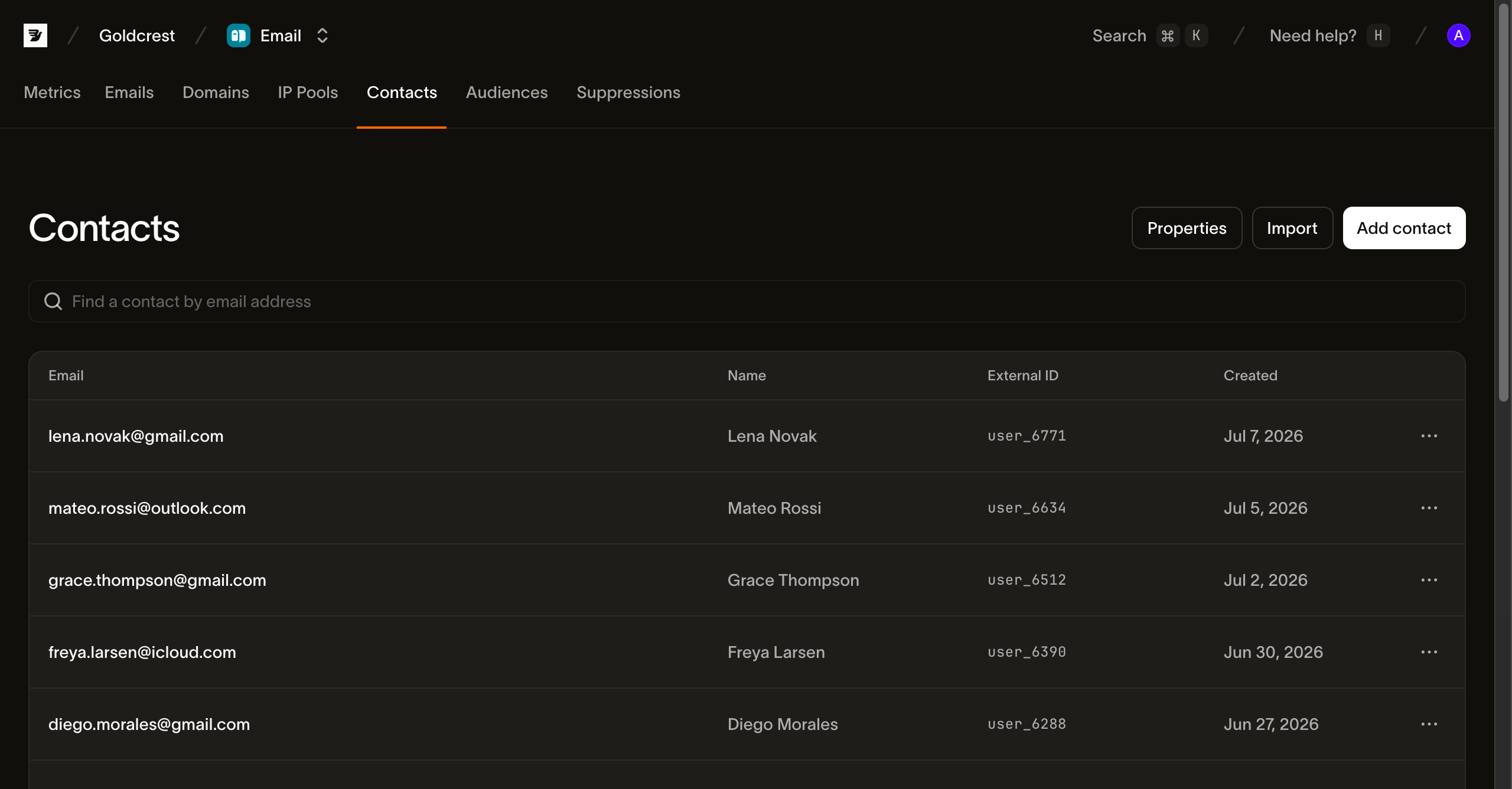
La página Contactos muestra el nombre del contacto, sus identificadores, las audiencias a las que pertenece y la información de creación. Busca por nombre, correo electrónico o teléfono y selecciona una fila para abrir el contacto. Usa las acciones de la cabecera para añadir un contacto o importar varios. Para verlos necesitas permiso de lectura de email_marketing. Para añadirlos, editarlos o eliminarlos necesitas permiso de escritura.
Qué contiene un contacto
Cada contacto tiene una dirección de correo electrónico, un número de teléfono o ambos, cada uno único en tu espacio de trabajo, además de un nombre y un identificador propio opcionales:
| Campo | Qué es |
|---|---|
email | La dirección, única en tu espacio de trabajo. La almacenamos sin espacios al principio ni al final y en minúsculas, por lo que Sam@Acme.com y sam@acme.com se normalizan al mismo identificador. |
phone_number | El número de teléfono, único en tu espacio de trabajo. Su formato se normaliza al formato internacional. Almacenarlo no verifica los metadatos del plan de numeración, la titularidad, la posibilidad de contactar con el número ni el consentimiento. |
first_name | Nombre de pila opcional, usado para personalizar un envío. |
last_name | Apellido opcional. |
external_id | Opcional. Tu propia clave primaria para la persona (un ID de usuario de tu base de datos), única en tu espacio de trabajo cuando se establece. Te permite vincular un contacto con tus propios registros sin depender del correo electrónico. |
data | Valores de propiedades personalizadas, uno por cada propiedad de contacto registrada. |
El panel de control genera las etiquetas Email y SMS a partir de los identificadores presentes. La API devuelve email y phone_number; no devuelve un campo channels. Esas etiquetas no acreditan el permiso de envío ni la posibilidad de contactar por ese canal.
Cada contacto también tiene un ID con el prefijo con_ y marcas de tiempo de creación y actualización. La referencia de la API incluye la especificación completa de los campos.
Propiedades de contacto
Las propiedades de contacto definen el esquema tipado de los campos personalizados de un contacto. Registra una propiedad para tu espacio de trabajo y, a partir de entonces, cada contacto podrá tener un valor para ella en data. Declarar el esquema de antemano hace que la personalización y la segmentación sean fiables: cada valor siempre llega con el tipo que declaraste, de modo que una plantilla o un filtro puede contar con él.
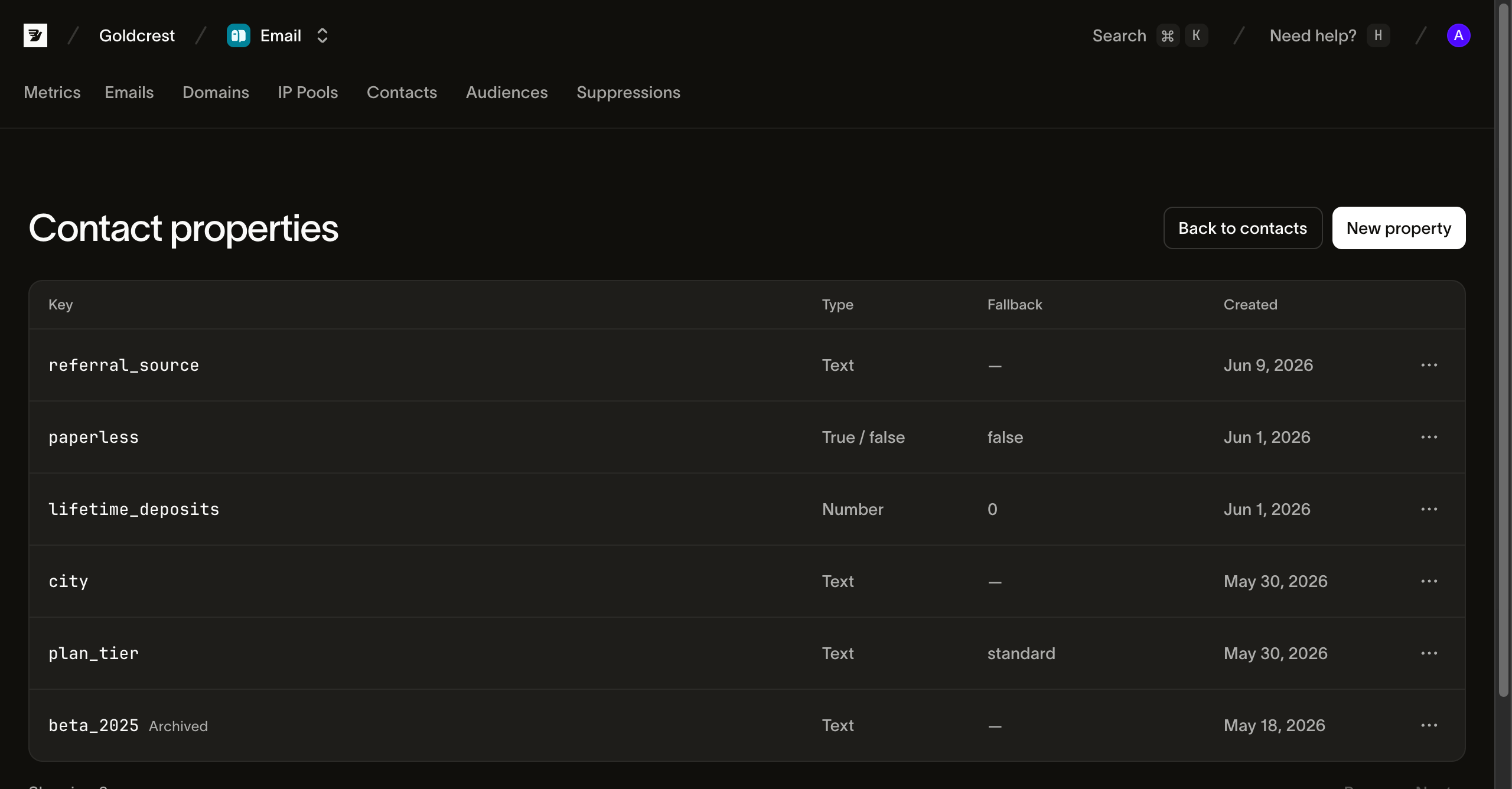
Gestiónalas en Contacts > Contact properties. Cada propiedad tiene una clave, un tipo y un valor predeterminado opcional:
- Key es el nombre con el que haces referencia al valor, por ejemplo,
plan_tier. Debe estar en minúsculas y comenzar por una letra (^[a-z][a-z0-9_]*$), y no se puede cambiar después de crearla. - Type es uno de los siguientes:
string,number,booleanodatetime, y tampoco se puede cambiar después de crear la propiedad. Undatetimeacepta una marca de tiempo RFC 3339 con un desfase explícito, como2026-01-15T11:30:00+02:00, que normalizamos a UTC con precisión de segundos. Por tanto, ese valor se almacena y se devuelve como2026-01-15T09:30:00Z. Se rechaza una fecha sin hora. En el panel de control, estos tipos aparecen como Text, Number, True / false y Date & time. - Fallback value es el valor que se obtiene al leer la propiedad de un contacto que no tiene un valor propio. Así, si falta
plan_tier, puede devolversefreeen lugar de un valor vacío.
Establece los valores de las propiedades donde edites un contacto. El formulario de contacto del panel de control muestra un campo de entrada tipado por cada propiedad activa, y la CLI y la API aceptan las mismas claves en data.
Nombres en las plantillas
Los atributos integrados first_name, last_name y email leen los valores almacenados del contacto. El nombre y el apellido pueden estar vacíos. Elige el saludo con Liquid en la plantilla, por ejemplo Hello {{ bird.contact.first_name | default: "there" }}!. Consulta personalización con variables para ver un ejemplo con nombre y apellido.
Los envíos individuales, por lotes y programados con plantillas que leen bird.contact.* requieren un contacto coincidente para cada dirección del campo Para. Los destinatarios en Cc y Cco reciben copias personalizadas para esos contactos del campo Para. Si falta el contacto, se devuelve 422 con E04099, aunque la plantilla use un valor predeterminado o una condición. Crea o actualiza el contacto antes del envío. Los valores predeterminados de las propiedades personalizadas siguen completando los valores que faltan en los contactos existentes.
Archivar una propiedad
Archivar es la forma de quitar una propiedad de contacto. Bird conserva sus valores para que puedas restaurarla con Unarchive. No hay una opción para eliminar definitivamente una propiedad.
Una propiedad archivada desaparece de los selectores de propiedades, incluida la asignación de columnas de importación. No se pueden publicar nuevas versiones de plantilla que la lean. El error de publicación indica la propiedad. Las plantillas ya publicadas siguen enviando mensajes y usan el valor del contacto o el valor predeterminado de la propiedad.
Los contactos conservan sus valores almacenados. Puedes seguir leyéndolos y actualizándolos mediante la API y las importaciones. Los valores deben corresponder al tipo de la propiedad.
Si una automatización publicada, incluida una en pausa, usa la propiedad en un disparador o al escribir datos de contacto, el archivado devuelve un conflicto 409. Una ejecución activa que escribe la propiedad también impide archivarla. Quita la propiedad de esas automatizaciones o archívalas. Deja que las ejecuciones activas terminen o cancélalas y vuelve a archivar la propiedad. El error indica las automatizaciones si tienes permiso para leerlas.
Desarchiva la propiedad para restaurarla con sus valores. Volverá a aparecer en los selectores y podrá usarse en nuevas versiones de plantilla. Su clave queda reservada mientras está archivada y cuenta para el límite de 200 propiedades del espacio de trabajo.
Importar y sincronizar contactos
Para importar una lista desde la página Contactos, selecciona Importar y sube un archivo CSV, TSV o Excel. Incluye un contacto por fila y una fila de cabecera con los nombres de las columnas. Un archivo puede contener hasta 50.000 contactos. Los archivos CSV pueden ocupar hasta 50 MB y las hojas de cálculo hasta 10 MB.
La fila de cabecera ayuda a identificar cada campo de contacto. Las columnas llamadas "Email Address", "E-Mail" o "Correo electrónico" se asignan todas al campo de correo electrónico. Una columna que contiene el nombre completo se divide en nombre y apellido. Si dos columnas pueden completar el mismo campo, se elige aquella cuyos valores respaldan su nombre. Cada columna muestra algunos de sus valores para que veas qué contiene, y los nombres divididos se muestran junto al valor original. Cambia cualquier asignación desde el desplegable de cada columna. Puedes añadir a todas las personas del archivo a una o más audiencias en esa misma importación.
Cada fila se vincula a un contacto existente mediante sus identificadores y lo actualiza, o crea uno si es nuevo. Por tanto, volver a importar el mismo archivo crea o actualiza los contactos mediante upsert en lugar de acumular duplicados. Antes de escribir nada, el panel de control informa de cuántas filas iniciales no se pueden importar con la asignación actual. Tras la ejecución, cada fila omitida indica su número de línea de origen y el error.
El recuento de duplicados de la importación se refiere a filas repetidas dentro de tu archivo. Usa la dirección de correo electrónico cuando está presente, o el número de teléfono en caso contrario. Las coincidencias con contactos que ya existen en tu espacio de trabajo aparecen como actualizaciones cuando API las confirma.
“This row was not confirmed as saved” significa que el panel de control no recibió un resultado que confirme esa fila. Es posible que la fila se haya guardado, incluso si los recuentos de creados y actualizados son cero. Comprueba algunos contactos afectados antes de reintentar. Mantén la pestaña de importación abierta hasta que termine; el panel de control ejecuta la importación desde esa pestaña.
Para sincronizar desde tu propia base de datos, programa el CLI o llama al endpoint de lotes. bird contacts create <email> añade uno. bird contacts batch hace upsert de hasta 1000 en una sola llamada. Usa un lote por ejecución en lugar de una solicitud por persona para mantener tu lista de contactos sincronizada con tu sistema.
const contact = await bird.contacts.create({
  email: "jane@acme.com",
  first_name: "Jane",
});
console.log(contact.id); // "con_…"
contact = client.contacts.create(email="jane@acme.com", first_name="Jane")
print(contact.id, contact.email)contact, err := client.Contacts.Create(context.Background(), bird.ContactCreateParams{
Email: bird.Ptr("jane@acme.com"),
FirstName: bird.Ptr("Jane"),
})
if err != nil {
log.Fatal(err)
}
fmt.Println(contact.Id)$contact = $bird->contacts->create(
(new ContactCreateRequest())
->setEmail('jane@acme.com')
->setFirstName('Jane'),
);
echo $contact->getId(); // "con_…"bird contacts create alice@acme.com \
--first-name Alice \
--last-name Anderson \
--phone-number +31612345678curl -X POST "https://{region}.platform.bird.com/v1/contacts" \
-H "Authorization: Bearer $TOKEN" \
-H "Content-Type: application/json" \
-d '{
"email": "alice@acme.com",
"phone_number": "+31612345678",
"first_name": "Alice",
"last_name": "Anderson"
}'Cada entrada del lote se empareja automáticamente con los identificadores que incluye (dirección de correo electrónico, número de teléfono o ID externo), y el campo opcional match_on fuerza el emparejamiento con uno solo de ellos. Una entrada también puede establecer valores de propiedades personalizadas e incorporar directamente todos los contactos de la solicitud en audiencias mediante audience_ids. Cada entrada tiene éxito o falla por separado, y la respuesta reporta un resultado por entrada en el orden de envío:
{
  "data": [
    {
      "contact_id": "con_01ky7q5t51echr7mqj5c08423b",
      "entry": { "email": "alex@example.com", "phone_number": null, "external_id": null },
      "matched_on": "email",
      "status": "updated"
    },
    {
      "contact_id": "con_01ky7q6mxdfhe86c9dqyt866pz",
      "entry": { "email": "jamie@example.com", "phone_number": null, "external_id": null },
      "matched_on": null,
      "status": "created"
    },
    {
      "contact_id": "con_01ky7q7rv9e9pt4vkr0w0gxq5e",
      "entry": { "email": "casey@example.com", "phone_number": null, "external_id": "user_2214" },
      "matched_on": "external_id",
      "status": "updated"
    }
  ]
}
Si los identificadores de una entrada apuntan a contactos existentes distintos, la entrada falla con un conflicto para revisión. Corrige el registro de origen antes de reintentar; el lote no fusiona esos contactos.
Dos valores por defecto son útiles para una sincronización. Un lote combina las claves de data con los datos existentes del contacto, así que una importación que toca un solo atributo nunca borra los demás. Envía un valor null para vaciar una clave, o establece data_mode: "replace" para sobrescribir todo el mapa. Asigna tu propio external_id a cada contacto, de modo que una sincronización posterior encuentre a la misma persona incluso si su correo electrónico cambia. En el ejemplo de lote, user_2214 ya existe, así que la entrada se asocia a ese contacto y actualiza su correo electrónico con el nuevo.
Eliminar un contacto
Eliminar un contacto es permanente: el registro y sus pertenencias a audiencias desaparecen, y nada los recupera. Las supresiones y preferencias no se ven afectadas. Una dirección que tuvo un rebote permanente permanece en tu lista de supresión, y una que canceló su suscripción conserva su preferencia de exclusión, después de que elimines el contacto, de modo que eliminar a alguien nunca lo vuelve a hacer contactable silenciosamente.
Próximos pasos
- Audiencias: agrupa contactos en listas reutilizables
- Supresiones: la lista del espacio de trabajo con direcciones a las que no se envía, separada de tus contactos
- Envío por lotes: envía a muchos destinatarios en una sola llamada, hasta 100 mensajes por solicitud
- CLI: gestión de contactos, propiedades y audiencias con el comando
bird - Referencia de API: esquemas completos de solicitud y respuesta
Recursos relacionados
Continúa con la documentación, guías y ejemplos de este tema.