Domínios de envio
Antes de entregarmos e-mails a partir do seu domínio, você precisa provar que é o proprietário e publicar os registros DNS que permitem aos provedores de caixa de entrada autenticar suas mensagens. Um domínio de envio é o recurso com escopo de espaço de trabalho (dom_...) que rastreia essa configuração: quais registros publicar, o que já foi verificado e se o domínio está pronto para enviar.
Compartilhando um domínio entre organizações
O mesmo domínio pode ser registrado por mais de uma organização sem que uma interfira na outra. Cada organização comprova a propriedade com sua própria chave DKIM, então:
- Outra organização no mesmo domínio nunca pode ver o estado da sua verificação nem alterar sua configuração.
- Cada região (
us1,eu1) é independente: o mesmo domínio em duas regiões são dois registros separados, cada um com seus próprios registros DNS. Registre o domínio em cada região de onde você envia.
Registrar um domínio
Crie o domínio com POST /v1/email/domains. A chamada tem escopo de espaço de trabalho e recebe o domínio de envio, além de rótulos opcionais para os hostnames de return-path e tracking. Passe apenas o rótulo (send, links), e nós compomos o hostname completo sob o seu domínio de envio. Valores omitidos usam os padrões send e links.
Use um subdomínio dedicado (mail.acme.com) em vez do seu domínio registrado. Isso mantém sua reputação de envio separada de tudo o mais no domínio e mantém todos os registros que pedimos para você publicar fora do apex da sua zona. Esse segundo motivo é o que causa problemas: o registro MX para recebimento fica no mesmo nome dos registros MX que já carregam o e-mail da sua empresa, então em um domínio de envio no apex, publicá-lo redireciona esse e-mail para nós.
const domain = await bird.domains.create({ domain: "mail.acme.com" });
console.log(domain.id, domain.status); // "dom_…", "pending"
domain = client.domains.create(domain="mail.acme.com")
print(domain.id, domain.status)domain, err := client.Domains.Create(context.Background(), bird.DomainCreateParams{
Domain: "mail.acme.com",
})
if err != nil {
log.Fatal(err)
}
fmt.Println(domain.Id, *domain.Status)$domain = $bird->domains->create(
(new DomainCreate())->setDomain('mail.acme.com'),
);
echo $domain->getId(), ' ', $domain->getStatus(); // "dom_…", "pending"bird email domains create mail.acme.comcurl -s https://eu1.platform.bird.com/v1/email/domains \
-H "Authorization: Bearer $BIRD_API_KEY" \
-H "Content-Type: application/json" \
-d '{
"domain": "mail.acme.com",
"return_path": { "name": "send" },
"tracking": { "name": "links" }
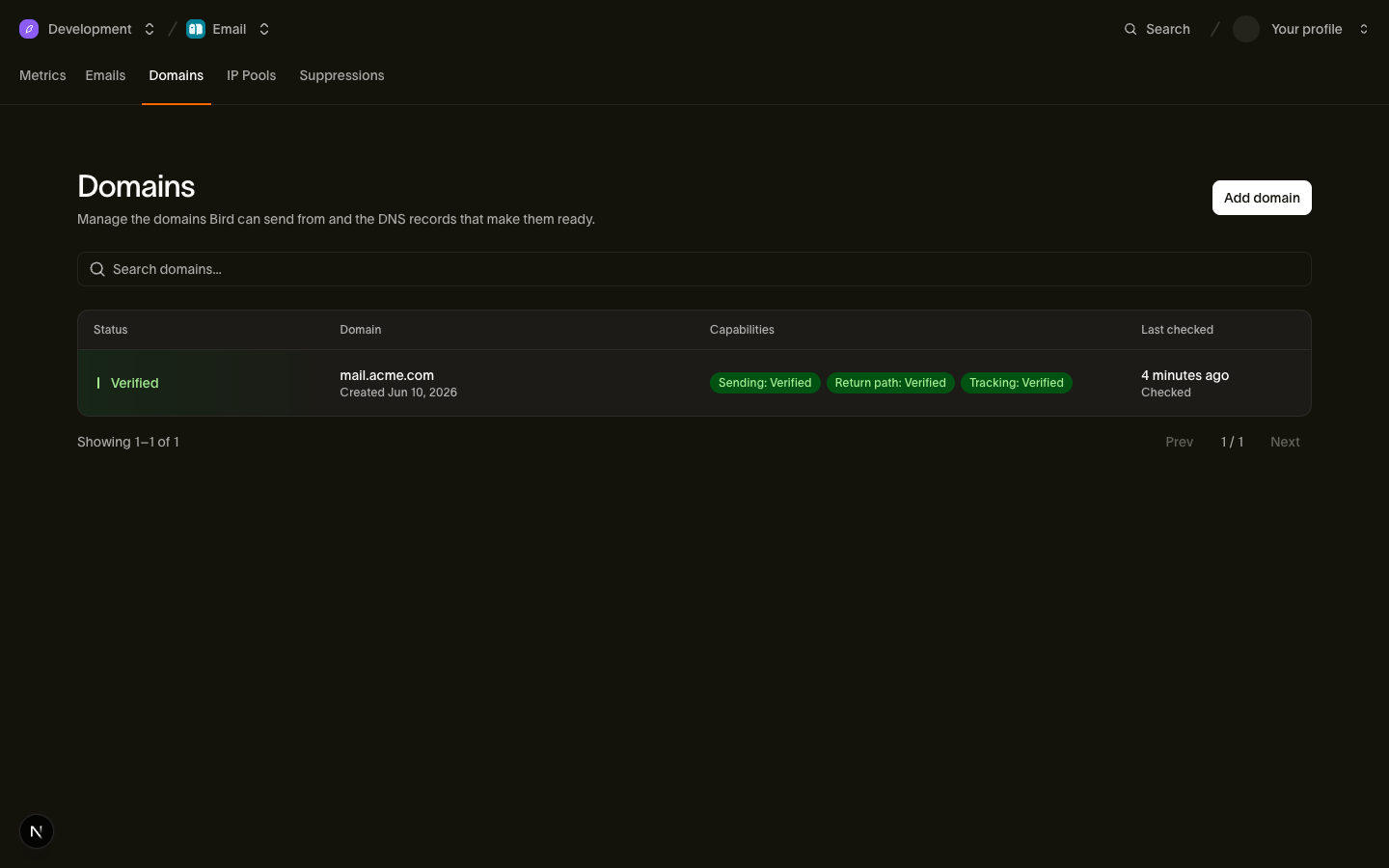
}'A resposta inclui status: pending, o seletor DKIM atribuído à sua organização, e os dns_records a publicar. Um registro de espaço de trabalho já existente retorna 409. Exceder a cota de domínios da sua organização retorna 422. Substitua eu1 por us1 para um espaço de trabalho nos EUA. As chaves API usam os mesmos prefixos regionais: bk_eu1_... e bk_us1_.... Você também pode gerenciar domínios em Email > Domains.
Publicar os registros DNS
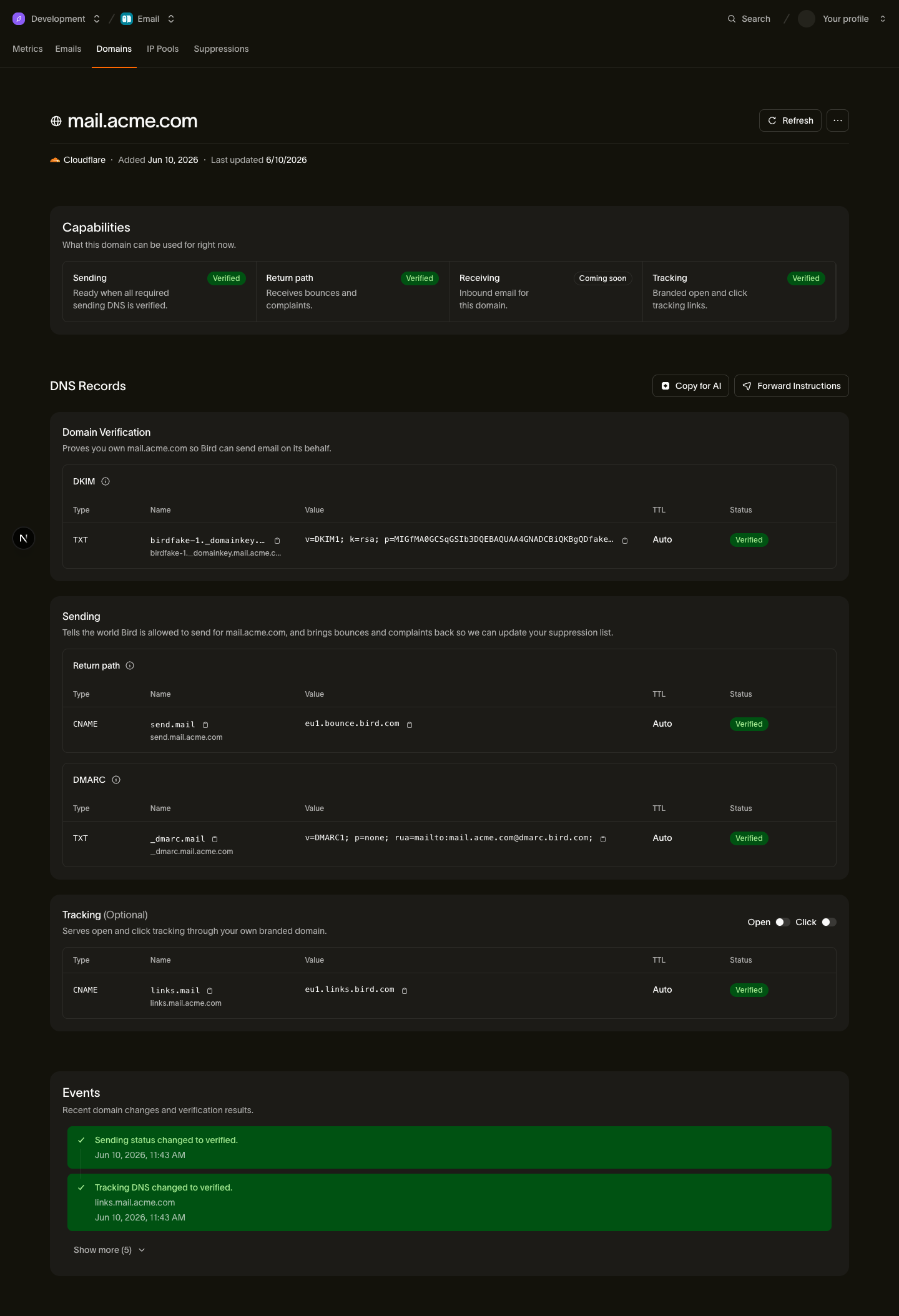
O array dns_records fornece name, host e value prontos para copiar e colar para cada registro. Alguns provedores rejeitam um valor TXT DKIM longo como uma única string; o divisor de registros DNS divide-o nas strings entre aspas que esses provedores esperam. O que você publica:
| Registro | Tipo | Obrigatório para envio | O que faz |
|---|---|---|---|
| DKIM | TXT | Sim | Comprova a propriedade e assina seus e-mails com a chave da sua organização |
| CNAME de return-path | CNAME | Sim | Roteia devoluções de volta para nós e cobre SPF; a consulta SPF segue o CNAME, então nenhum registro SPF no apex do seu domínio é necessário |
| DMARC | TXT | Sim | Qualquer política v=DMARC1 válida que cubra o domínio de envio, no próprio domínio ou no seu domínio registrado (organizacional). Uma política p=none mínima é suficiente. |
| CNAME de tracking | CNAME | Não | Habilita hostnames de rastreamento de abertura/clique com sua marca; links rastreados são servidos via HTTPS após a verificação |
| MX de entrada | MX | Não | Roteia e-mails do domínio para nós para recebimento. Exibe optional: true até você habilitar o recebimento; publicá-lo substitui os registros MX que o domínio usa atualmente. |
Para a finalidade e os valores de cada registro, consulte DKIM, SPF e DMARC. Os registros MX de recebimento estão em dns_records com purpose: inbound_mx sempre que o recebimento estiver disponível na sua região, e carregam optional: true até você habilitar o recebimento no domínio. Ignore todo registro marcado como optional, a menos que você queira o que ele habilita. Para passos de configuração por provedor DNS, consulte os guias do Cloudflare, Route 53 ou registrador genérico.
O painel detecta provedores DNS compatíveis a partir dos nameservers do seu domínio e exibe links para suas configurações DNS. Acesse Email > Domains e selecione um domínio para ver seus registros. Se outra pessoa gerencia o seu DNS, POST /v1/email/domains/{domain_id}/dns-records/share envia os registros a publicar por e-mail.
Ciclo de vida da verificação
Um novo domínio começa como pending. Você nunca precisa fazer polling porque verificamos seus registros automaticamente. As verificações começam imediatamente no registro e recuam de intervalos de alguns minutos para a cada hora ao longo dos três primeiros dias. Depois, passam a rodar diariamente para todo domínio ativo. Publicar seus registros e aguardar é suficiente; a maioria dos domínios verifica em minutos após a propagação DNS. Se você quiser uma verificação imediata (por exemplo, logo após editar o DNS), chame POST /v1/email/domains/{domain_id}/verify: ela executa uma verificação nova e retorna o domínio atualizado. Um 200 com registros ainda pending não é uma falha; significa que os registros ainda não foram encontrados, o que é normal enquanto o DNS propaga (minutos a horas). A chamada pode ser repetida com segurança enquanto você aguarda.
Um domínio que permanece não verificado por cerca de 14 dias é removido. Enviamos um lembrete por e-mail ao espaço de trabalho alguns dias antes da remoção para que você possa concluir a configuração.
O status de nível superior do domínio reflete a propriedade, comprovada pelo registro DKIM:
pending: o registro DKIM ainda não foi publicado.verified: o registro DKIM está configurado; a propriedade está confirmada.failed: existe um registro DKIM, mas ele não corresponde ao valor esperado, ou um registro previamente verificado foi removido. Corrija o registro para recuperar.temporary_failure: a resolução DNS falhou de forma transitória; a verificação é tentada novamente automaticamente.rejected: o domínio foi recusado por motivos de política; entre em contato com o suporte.
A prontidão para envio é reportada separadamente em capabilities. A porta de envio é capabilities.sending, que só verifica quando DKIM, o CNAME de return-path e uma política DMARC estão todos configurados; SPF no apex do domínio não é obrigatório. A prontidão de tracking (capabilities.tracking) é independente da porta de envio: ela controla se o tracking de abertura/clique com sua marca pode ser usado, nunca se o domínio pode enviar.
Quando um registro verificado quebra
A verificação nunca para: a reverificação diária mantém os domínios verificados em dia, então se o seu DNS quebrar depois, nós percebemos. Para evitar oscilações causadas por falhas transitórias de DNS, um registro verificado que começa a falhar nas reverificações é mantido como verificado em estado de alerta e reverificado de hora em hora, e nós notificamos você. Somente após o registro continuar falhando por 24 horas completas o domínio é rebaixado; qualquer verificação bem-sucedida dentro dessa janela limpa o alerta. Rebaixamentos entram em vigor no próximo envio, e um domínio rebaixado é reverificado automaticamente assim que os registros são corrigidos, na próxima verificação automática ou em uma verificação manual.
Gerenciando domínios
Regiões. O estado do domínio é regional. Se você envia de us1 e eu1, registre o domínio em cada região; cada registro recebe seu próprio seletor DKIM e verifica de forma independente.
Alterando hostnames de return-path ou tracking. Esses hostnames pertencem à configuração de domínio do seu espaço de trabalho. Um hostname que já foi verificado nunca é substituído por um não verificado: as alterações são preparadas, verificadas em paralelo com a sua configuração ativa e promovidas somente quando os novos registros passam na verificação.
Rastreamento de abertura/clique. Os toggles settings pertencem à configuração de domínio do espaço de trabalho. Alterações nos toggles se aplicam apenas a esta configuração de domínio. Você pode ativá-los assim que um domínio de tracking estiver configurado. Habilitar um sem um domínio de tracking retorna 409. Os toggles afetam envios somente após a verificação desse domínio de tracking, então a verificação é aplicada por envio.
Exclusão. DELETE /v1/email/domains/{domain_id} remove o domínio de envio do seu espaço de trabalho. Outros usos do domínio permanecem inalterados.
Próximos passos
- DKIM, SPF e DMARC: o que cada registro faz e como escolher os valores.
- Guias de DNS por provedor: passos de configuração para Cloudflare, Route 53, GoDaddy e outros.
- Referência API de Domains: schemas completos de requisição/resposta para cada endpoint.
Recursos relacionados
Continue com a documentação, guias e exemplos sobre este tópico.