Forwarding emails from Gmail to Support
To monitor and reply to emails sent to your Gmail accounts in Bird Inbox, you can to set up an email forwarding rule in you Google workspaces.
To set up a forwarding rule:
- Log in to your Gmail account
- Navigate to Settings > Forwarding and POP/IMAP
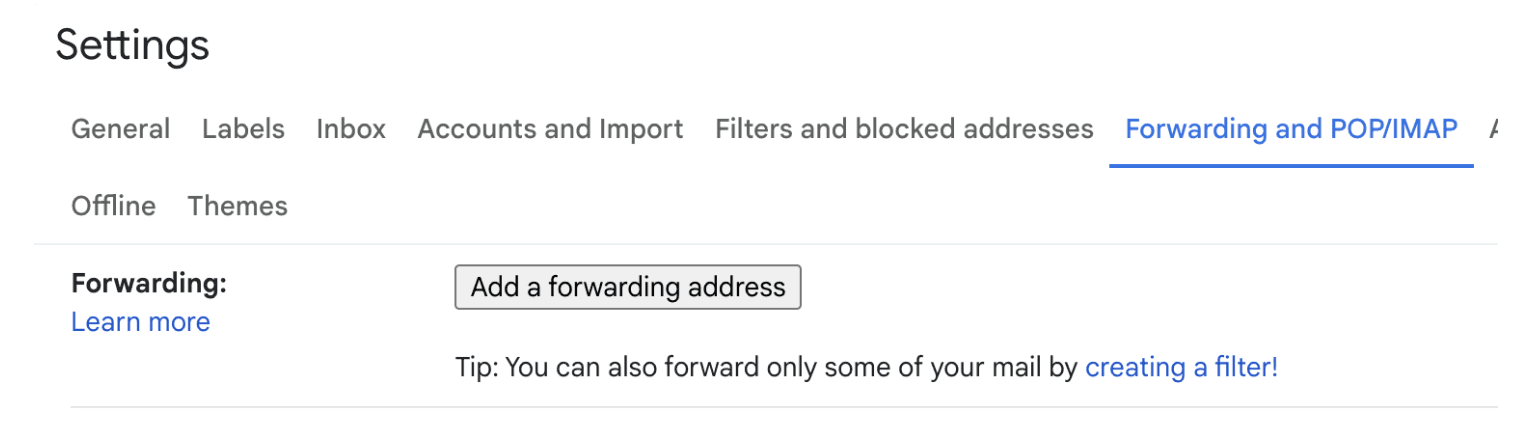
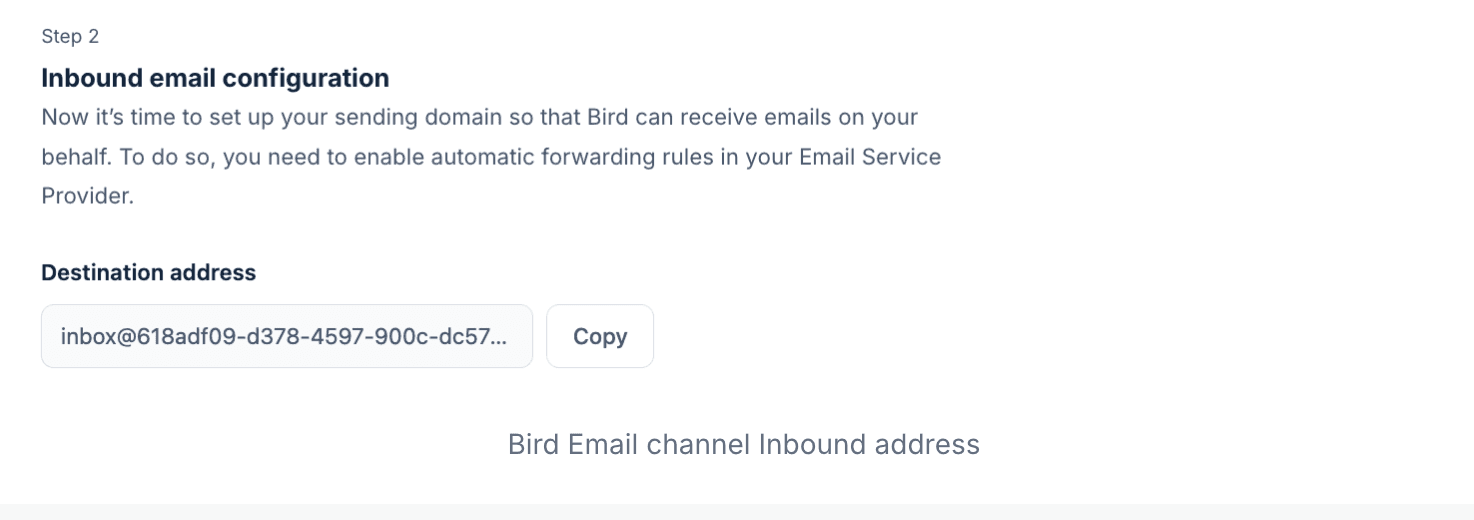
- Click Add a forwarding address and enter the inbound email configuration destination address for your Bird email channel. You can find this in the Bird platform by navigating to Admin console > Channels > Email > Email Channel > Settings tab
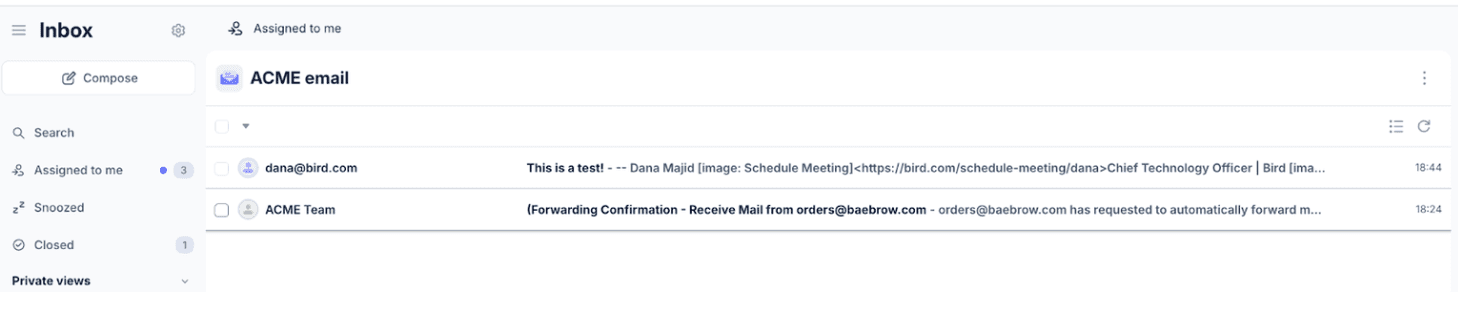
- Google will send a verification email to the forwarding address. This will be received as a new ticket in Bird Inbox. Click the verification link in the email
- Switch back to Gmail and finish configuring email forwarding.
- Choose whether to keep a copy of forwarded emails in your Gmail or Inbox or delete after forwarding
- Once you have configured the forwarding options according to your preferences, click Save Changes to apply the settings
- Finally test the forwarding: Send a test email to your Google workspace email address to ensure that emails are being forwarding correctly to the specified address.
That's it! You've now set up email forwarding for your Google workspace account.