Your own verification email
Verify sends a built-in email by default: Bird's layout and copy, translated into 40 languages. If you want the code to arrive in your own design, with your logo, wording, and translations, build an email template and pin it to your Verify email sender. Your user then receives your email with the code in it; Verify keeps checking the code, the attempts, and the expiry exactly as before.
A template only ever sends from an address on your own verified domain. The shared Bird Verify and Authifly senders always send Bird's built-in email, so content you write never affects their reputation.
Before you start
- A verified sending domain in the same workspace. The template sends from an address on it, such as
verify@send.yourdomain.com. - Permission to manage email templates, to create and publish the template; read access to sending domains, to choose the address; and write access to Verify settings, to pin it. Without domain read access the custom sender form stays hidden and the control offers only Manage domains, even when the workspace has a verified domain. A member who can write Verify settings but cannot read templates sees a pinned template by its id and can switch back to Bird's built-in email, but cannot pick a template.
Design the template in Email Templates
- Open the Templates page under Email and choose New template.
- Name it, for example
Verification code, and choose the Transactional category: a verification email carries no unsubscribe link, and Verify refuses a marketing template. - Pick the default language, the one recipients get when their language is not available, and choose Create.
- Write the subject and body the way you write any template, then put the code where your user should read it:
{{ code }}is the one-time passcode. Show it as text in the body, large enough to read and copy. Do not put it in the subject line, and do not put it inside a link or a URL.{{ expires_in_minutes }}is how many minutes the code is still valid when this email is sent. For the first message that is the code lifetime from your verification settings; an email sent later in the same verification, such as a resend or a switch from another channel, shows the minutes that remain. Use it in a sentence such as "This code expires in {{ expires_in_minutes }} minutes."
- Choose Save, then Publish.
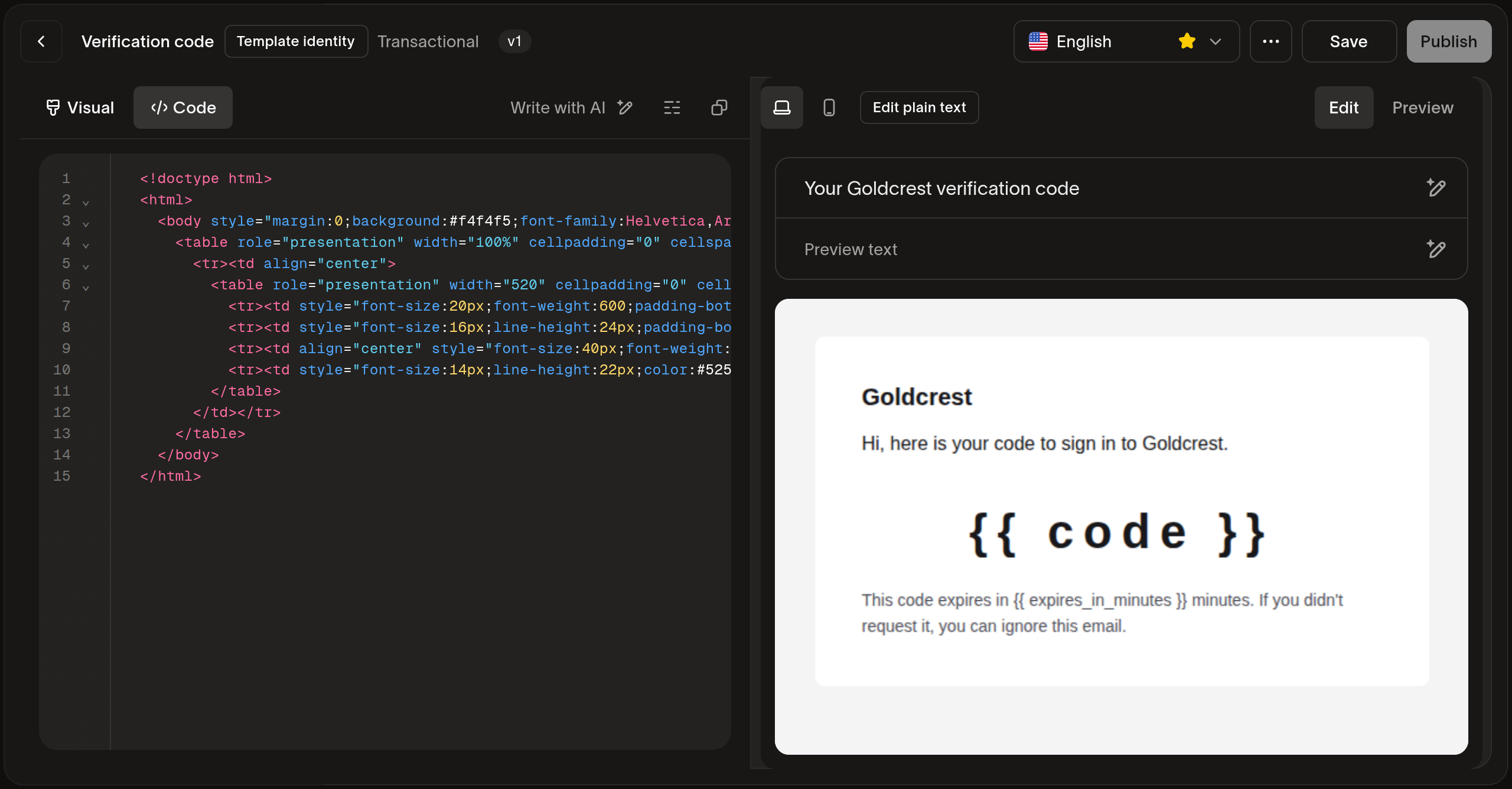
These are the only two variables Verify fills in. A template that reads anything else, such as {{ first_name }} or a {{ bird.* }} variable, cannot be pinned: a verification goes to someone who is usually not a contact yet, and the value would render empty.
Add the languages you need in the same template, up to the 25 a template carries. Every language must show {{ code }} in its body, because a recipient whose language the template does not stock gets the default language. Templates you create in the dashboard fall back to their default language; if you manage a template's language policy through the API, keep on_missing_language on fallback and leave language_source_required off, because a verification names a language only when you pass options.language or it has a phone number to derive one from, so an email-only verification without that option sends in the template's default language.
Verify only pins published, transactional templates from your own workspace.
Pin the template to your Verify sender
- Open the Configure page under Verify and its Channels tab.
- In the Email row, open the sender control and select Custom sender.
- Enter the part of the address before the
@and choose one of your verified domains. - Under Email, pick the template. The list shows your published transactional templates, with Bird's built-in email as the first choice.
- Choose Save; the sender is saved straight away.
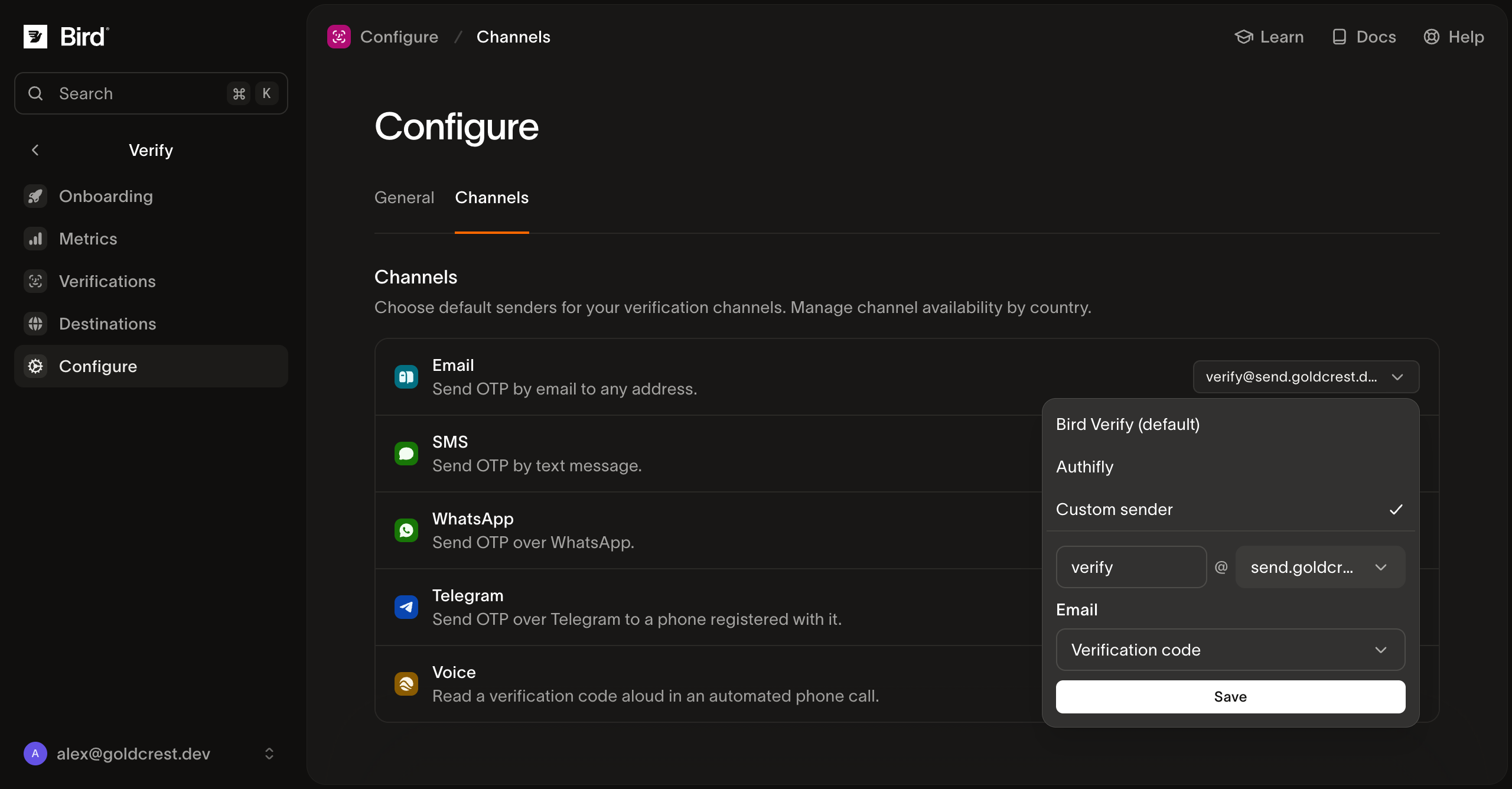
The control shows the address and the template name once saved, for example verify@send.goldcrest.dev · Verification code. To go back to Bird's built-in email on the same address, open the control again and pick Bird's built-in email under Email. Selecting Bird Verify or Authifly switches to a shared sender and drops the template with it.
You can also pin a template for one destination only. Open the country in Destinations, set its Email sender to a custom sender, and choose the template there; a per-country choice wins over the default for recipients in that country.
What Verify checks when you save
Verify reads every published language of the template when you save the pin, and refuses the save when a language breaks a rule. The error names the language, or the template for a rule about the whole template, and the reason.
| Rule | Why |
|---|---|
{{ code }} is shown as text in the body of every language | Verify checks the plain-text body, derived from your HTML when you write none, so a code only in a comment or an HTML attribute does not count. When you write both an HTML and a plain-text part, both must show it. The check reads the template, not every render: a code inside a condition that never applies, or hidden with CSS, passes the check and still shows your user nothing, so keep it in plain, always-rendered text. |
{{ code }} is not in the subject line | Bird keeps the subject of each sent email as sent. The body is kept with the code masked, so only the body may carry it. |
{{ code }} is not inside a link or URL | A code in a link is a code a click sends to whoever owns that link. |
Only code and expires_in_minutes are used, and no bird.* | Verify fills in only these two values; anything else renders empty. |
| The template is transactional and published | A marketing template carries an unsubscribe block; a draft has no content to send. |
| The template falls back to its default language | A template set to require a language, or to fail when a language is not stocked, would refuse the sends Verify makes without a language. |
The same check runs again on every send, against the version that is published at that moment. If the published version stops meeting the rules, because you publish a new version that drops {{ code }} from a language or roll back to an older one without it, or if you delete the template, that email is not sent: the verification moves to its next channel when it has one, and an email-only configuration fails the verification until you fix the template or the pin. With a next channel in place the symptom is a slower code rather than a missing one, so check the Verify log when users report delays: the session shows the email attempt as failed and the channel that delivered instead. To repair, make a version that shows the code in every language the published one, by publishing a corrected draft or rolling back to a version that has it, or open the sender control and pick another template or Bird's built-in email. Bird's built-in email never stands in for a template you chose, with one exception: deleting a template while the configuration that pins it is archived clears the pin when you unarchive it, and that address then sends Bird's built-in email.
A template that a live configuration pins cannot be deleted. The delete is refused until you switch the configuration, or the country that pins it, to another template or to Bird's built-in email.
What your user receives
Your user receives the rendered email with the real code. In your Verify log and the email's message details, Bird keeps the template with {{ code }} unresolved and the value masked, as it does for Bird's built-in email, so nobody can read a live code from the log.
The email renders in the language the template stocks for the verification's message language, falling back to the template's default language. The Verify log shows which language each attempt rendered.
Troubleshooting
| What you see when saving | What to do |
|---|---|
template does not show {{ code }} in its text body or … HTML body | Add {{ code }} as visible text to that language's body; if you wrote a separate plain-text part, add it there too. |
subject must not contain {{ code }} | Move the code out of the subject line. |
{{ code }} must not appear in a link or URL | Remove the code from the link, button, or URL and show it as text. |
uses variable "…" Verify does not provide or reads "bird.…" | Remove the variable; only code and expires_in_minutes are available. |
requires a language on every send or must fall back to its default language | Through the API, set the template's on_missing_language to fallback and language_source_required to false. |
is not a transactional template, has no published version or … language | Create the template as Transactional, or publish it, then pin it again. |
| The template is missing from the Email list | The list shows published transactional templates of this workspace; publish it, or check its category. |
Next steps
| Page | What it covers |
|---|---|
| Email templates | Drafts, versions, languages, and variables in Email Templates |
| Senders and branding | Bird-managed and custom senders for every Verify channel |
| Verify destinations | Per-country channel order and senders |
| Sending verifications | The send and check calls, statuses, and message language |
Verwandte Ressourcen
Weiter mit der Dokumentation, Anleitungen und Beispielen zu diesem Thema.