Convide sua equipe
Cada colega faz login com a própria conta e recebe o acesso atribuído à sua função. Use esta página para escolher uma função, enviar um convite e gerenciar o acesso.
Escolha uma função
Você convida pessoas para o seu espaço de trabalho com uma função que define exatamente o que elas podem fazer. Escolha entre três funções:
- Admin administra o espaço de trabalho, incluindo equipe e configurações.
- Developer cria integrações e gerencia domínios, webhooks e chaves de API.
- Analyst tem acesso somente leitura aos escopos atribuídos à função.
A maioria dos colegas precisa apenas de uma função no espaço de trabalho. Um Owner de organização gerencia cobrança e membros em toda a organização. A pessoa que cria a conta começa como Owner, e uma organização pode ter vários Owners. Consulte Usuários, equipes e funções.
O acesso ao espaço de trabalho também controla quem pode receber mensagens de teste do domínio compartilhado de onboarding do Bird. Um colega que precisa de envios de teste durante a configuração deve ter acesso ao seu espaço de trabalho.
Envie um convite
No dashboard, abra Settings > Team. A página lista todos com acesso ao espaço de trabalho, suas funções e convites pendentes.
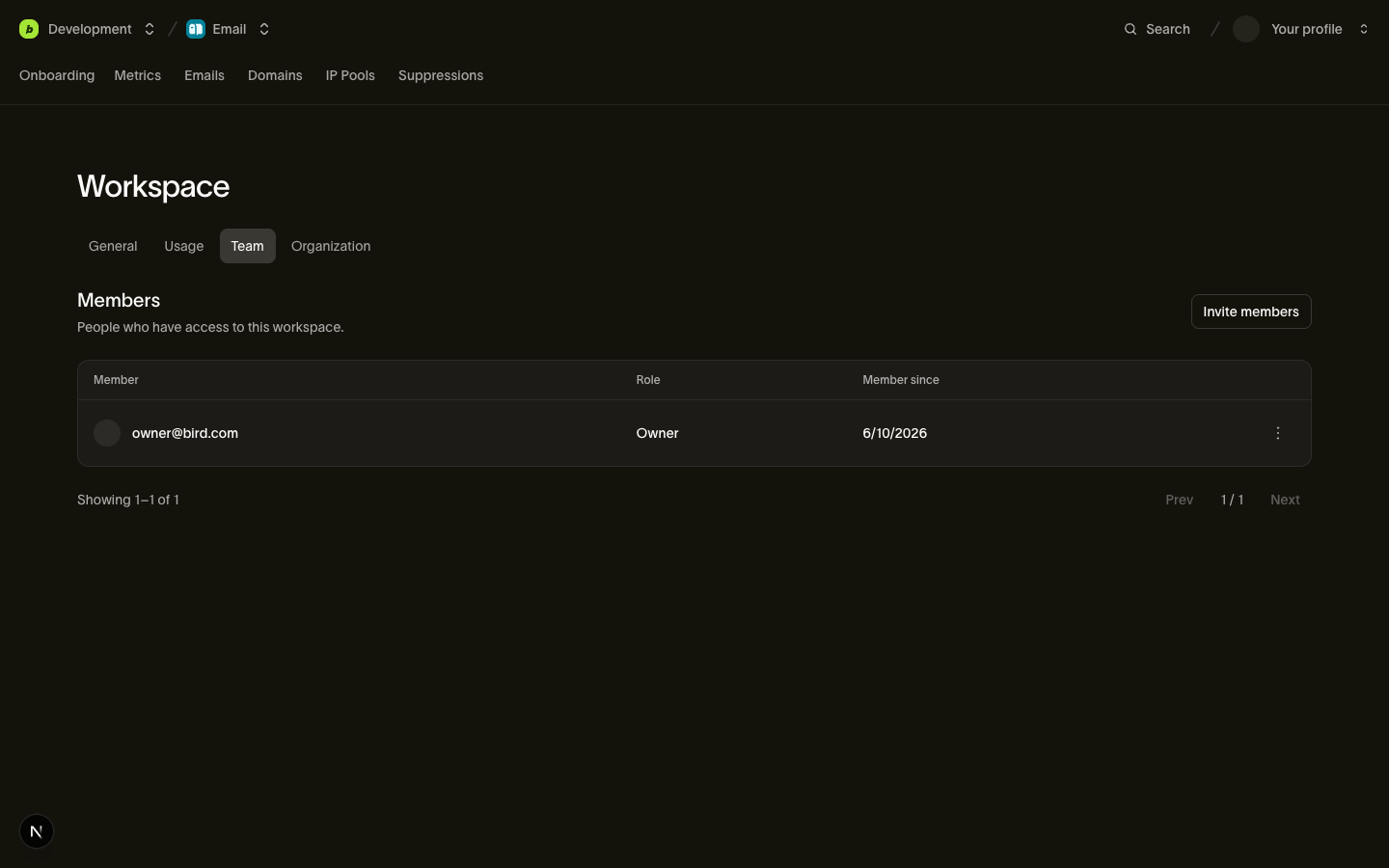
Clique em Invite members, insira o endereço de e-mail do colega e escolha a função. O que acontece em seguida depende de a pessoa já usar o Bird:
- Novo no Bird: a pessoa recebe um e-mail de convite com um link de cadastro. Assim que criar a conta, ela entra diretamente no seu espaço de trabalho com a função que você escolheu. O link é válido por 7 dias; depois disso, o convite expira e você precisará enviar um novo pela mesma tela.
- Já faz parte da sua organização: a pessoa é adicionada ao espaço de trabalho imediatamente com a função escolhida. Sem e-mail, sem espera.
Você pode cancelar um convite pendente a qualquer momento na tela de Team. Convidar o mesmo endereço duas vezes não cria uma duplicata: você será direcionado ao convite que já está pendente.
Aceitar um convite
O Bird envia o convite por e-mail. Siga o link e depois crie uma conta ou faça login. O espaço de trabalho aparece no seu dashboard com a função que o remetente escolheu. Se o link tiver expirado, peça ao remetente que envie um novo convite.
Alterar funções e remover pessoas
Um admin ou owner do espaço de trabalho pode alterar a função de outro membro ou removê-lo em Settings > Team. Membros não podem alterar o próprio acesso, e uma organização deve manter pelo menos um owner.
Para ver tudo o que cada função pode ou não fazer, consulte Usuários, equipes e funções.
Próximos passos
- Usuários, equipes e funções: a matriz completa de permissões de cada função.
- Faça o tour pelo dashboard para que novos colegas saibam onde encontrar tudo.
Recursos relacionados
Continue com a documentação, guias e exemplos sobre este tópico.