Log de auditoria
O log de auditoria é o histórico cronológico e somente leitura de alterações da sua organização. Use-o para investigar mudanças de configuração, revisar atividades de segurança ou acompanhar um incidente. Acesse Logs > Audit.
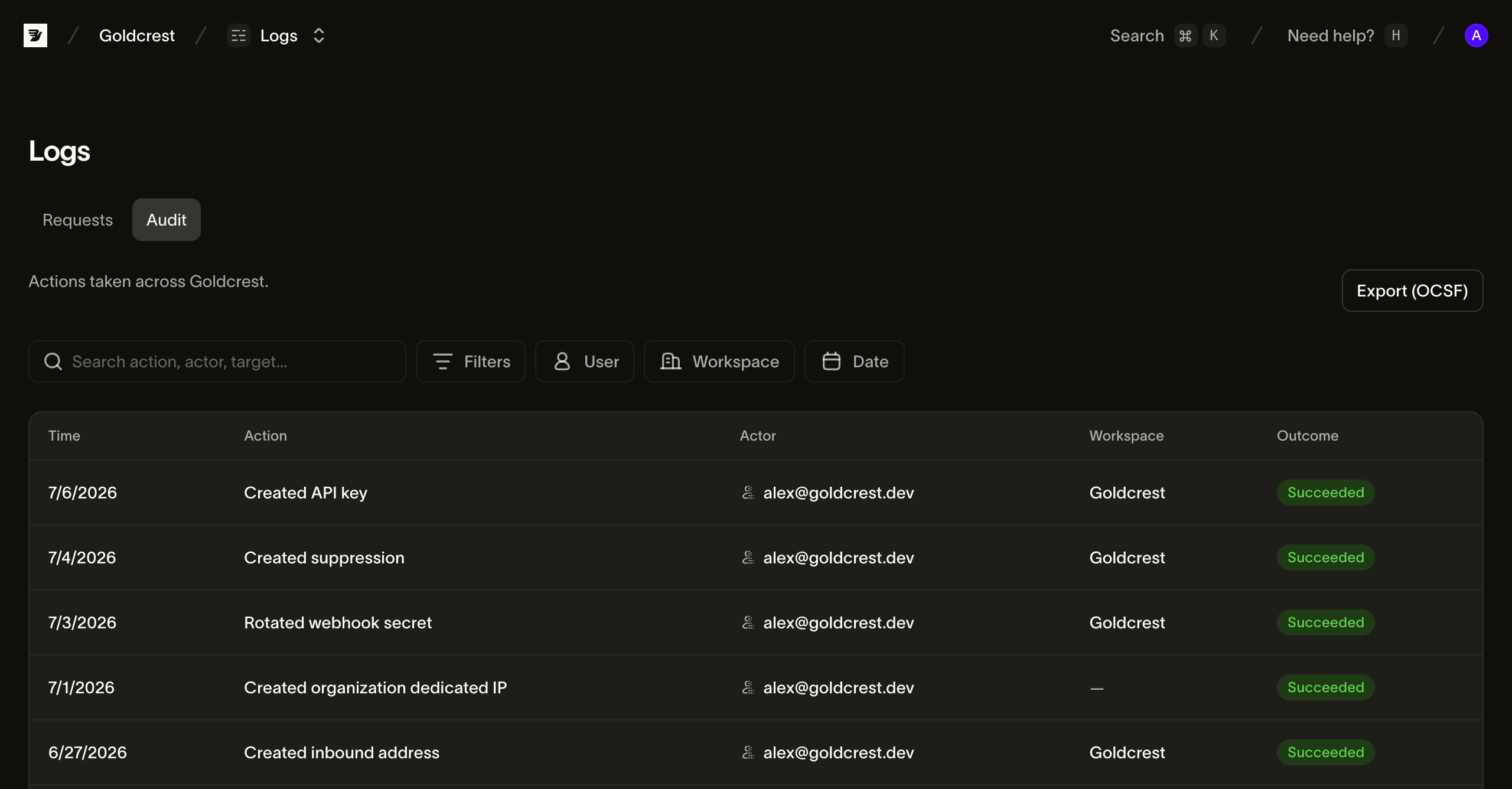
O que é registrado
O log de auditoria captura alterações na configuração da sua conta. A atividade de mensagens aparece nos seus logs de mensagens e analytics. As entradas de auditoria incluem:
- Chaves API: criação, edição de escopos (registrando quais escopos foram adicionados e removidos), rotação e revogação
- Domínios de envio: adição, verificação e exclusão de domínios
- Webhooks: criação, atualização e exclusão de endpoints, e rotação de segredos de assinatura
- Espaço de trabalho e organização: renomeação de espaços de trabalho e alterações nas configurações da organização
- Equipe: convites, alterações de função e remoções de membros
- Eventos de segurança: logins (incluindo tentativas falhas), alterações de MFA, regeneração de códigos de recuperação e redefinições de senha
- Ações de faturamento: alterações feitas nas suas configurações de faturamento
O tráfego do dia a dia não está no log de auditoria de propósito: e-mails individuais enviados, eventos de entrega e abertura e visualizações somente leitura de páginas não geram entradas. Esses dados ficam nos seus logs de mensagens e analytics.
Lendo uma entrada
Use estes campos para ler uma entrada:
- Ator: quem. O usuário que clicou ou a chave API que fez a chamada. Ações realizadas pelos próprios sistemas da Bird são identificadas como tal.
- Ação: o quê. Um nome como
api_key.created,domain.verifiedoumember.role_updatedidentifica o recurso e a alteração. - Timestamp: quando. O horário exato em que a alteração aconteceu.
As entradas também incluem o recurso-alvo e o contexto de solicitação disponível, como IP de origem, cliente e ID da solicitação. Valores sensíveis como segredos de chaves API não aparecem.
Usando na prática
- "Why did sending break on Tuesday?" Filtre por esse dia e revise alterações recentes em domínios, webhooks ou chaves API.
- Revisão de segurança. Examine eventos de segurança em busca de logins falhos que você não reconhece, fatores de MFA sendo removidos ou chaves API criadas fora das janelas normais de mudança.
- Verificação de offboarding. Após a saída de alguém, confirme que a remoção do membro está registrada e revise o que a pessoa alterou nas últimas semanas.
- Acompanhamento de incidente. O ator, IP e ID da solicitação em cada entrada fornecem um rastro concreto para incluir no relatório do incidente.
Quem pode ver
Workspace Admins e Analysts podem ler o log de auditoria; Developers não podem. Organization Owners podem lê-lo em toda a organização. As entradas não podem ser editadas ou excluídas no painel.
Próximos passos
- Gerenciamento de chaves API: os eventos de chave que você verá com mais frequência
- Login, senha e MFA: os eventos de segurança por trás das entradas do log
Recursos relacionados
Continue com a documentação, guias e exemplos sobre este tópico.