Set up Bird Verify with Auth0
Use Bird Verify to deliver the code Auth0 generates for phone verification. Auth0 checks the code the user enters. This guide covers the Custom Phone Provider for tenant-level MFA and passwordless SMS. Older Auth0 tenants can use the separate Send Phone Message MFA flow.
Before you start
You need an Auth0 test tenant, a Bird workspace with balance, and a phone number you control. Start in a development tenant before changing your production login flow.
Prepare your Bird workspace
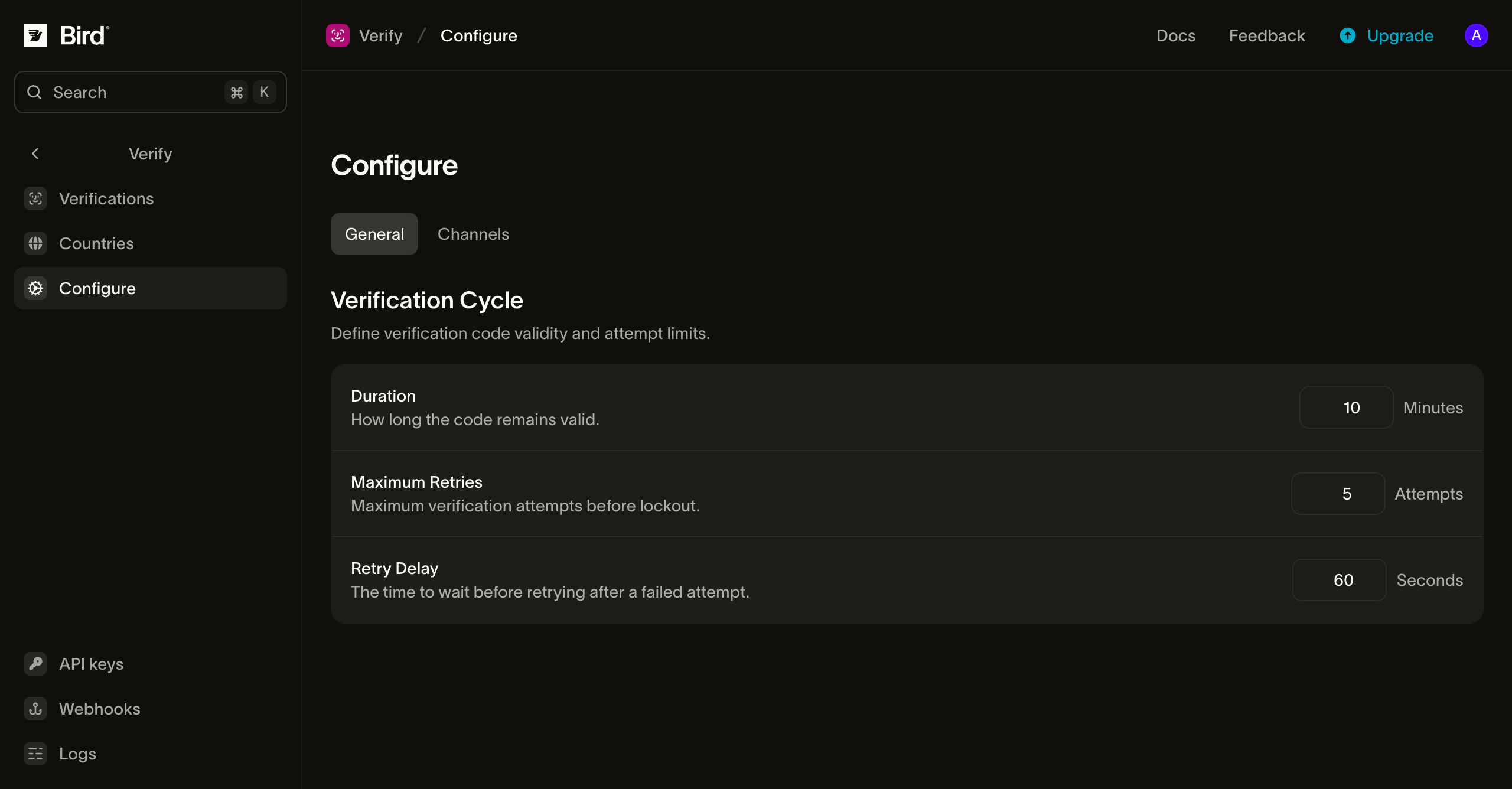
- Open Verify > Configure > General.
- Set Duration to your Auth0 code lifetime. These settings apply across the workspace; use a separate workspace if other applications need different settings.
- Open Destinations, select the recipient's country, and enable SMS. Enable voice only if you intend to use voice challenges.
- Check your Verify senders. Verify uses its own templates and branding; Auth0's message text is not used.
Create the Bird API key
- Open Platform tools > API keys.
- Select Create API key and enter a name such as Auth0 verification.
- Grant Verify > Write permission, then create the key.
- Copy the secret to your secret manager. You will paste it into Auth0 in the next step. Replace the key in Auth0 before it expires.
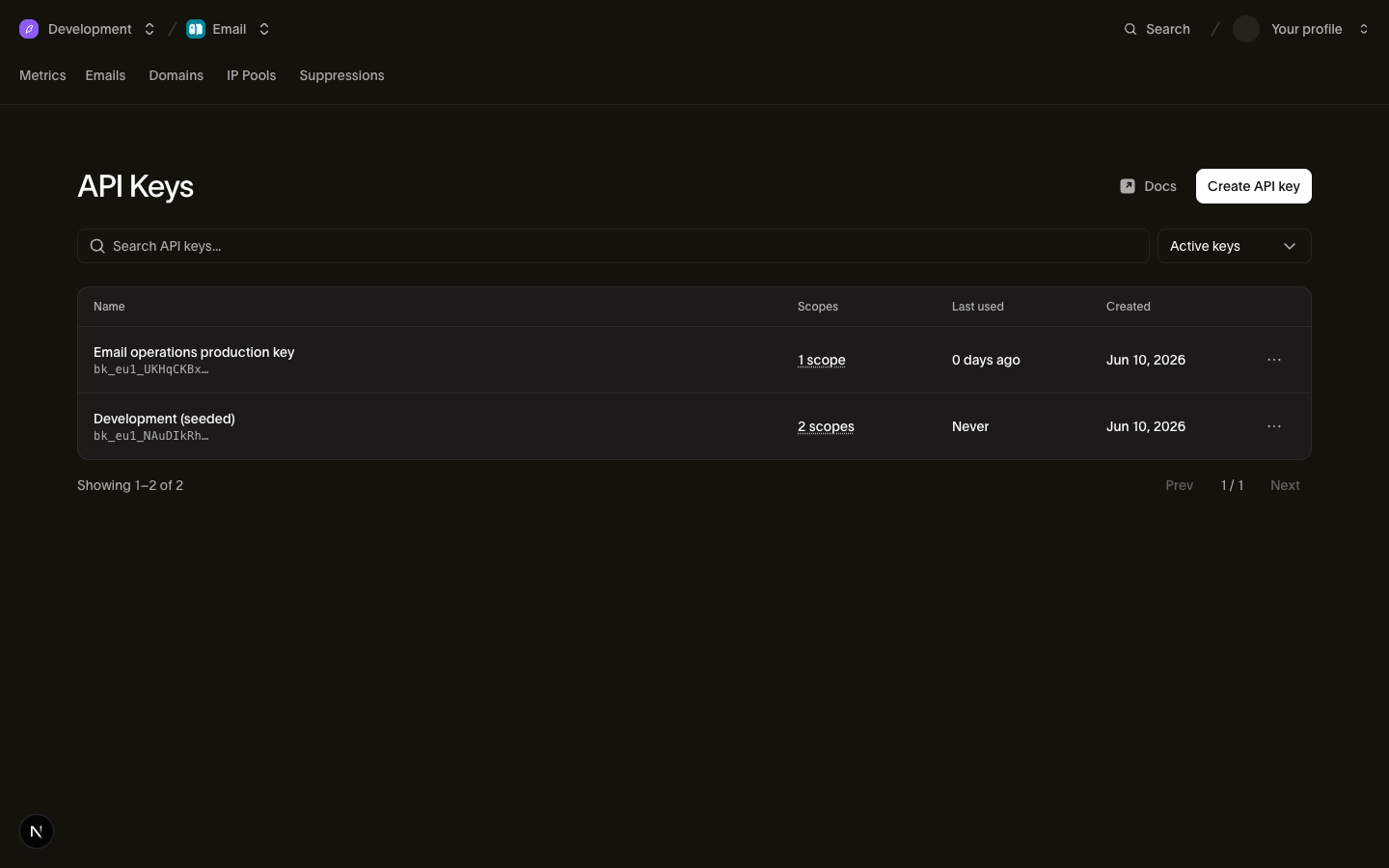
The key's prefix selects the EU or US API region. You do not need an OAuth client, a region setting, or a sender number in Auth0. See API key management for key rotation and access restrictions.
Configure the Auth0 phone provider
This provider delivers verification codes for enrollment and login. It rejects account alerts such as blocked-account and password-change messages. If your tenant sends those alerts, arrange a separate delivery path before switching providers.
- In the Auth0 Dashboard, select your test tenant.
- Open Branding > Phone Provider and enable the Phone Message Provider toggle.
- Select Custom under Choose a provider.
- Select Text under Delivery Methods. Select Voice only if it is available in your Auth0 plan and configured in Bird.
- Under Provider Configuration, select the Secrets key icon, then Add Secret.
- Enter
BIRD_API_KEYas the name, paste your Bird key as the value, and select Create. Close the Secrets panel. - Paste the code below into the provider editor. It uses Node.js 22 and needs no npm dependencies.
- Select Save and confirm the provider change.
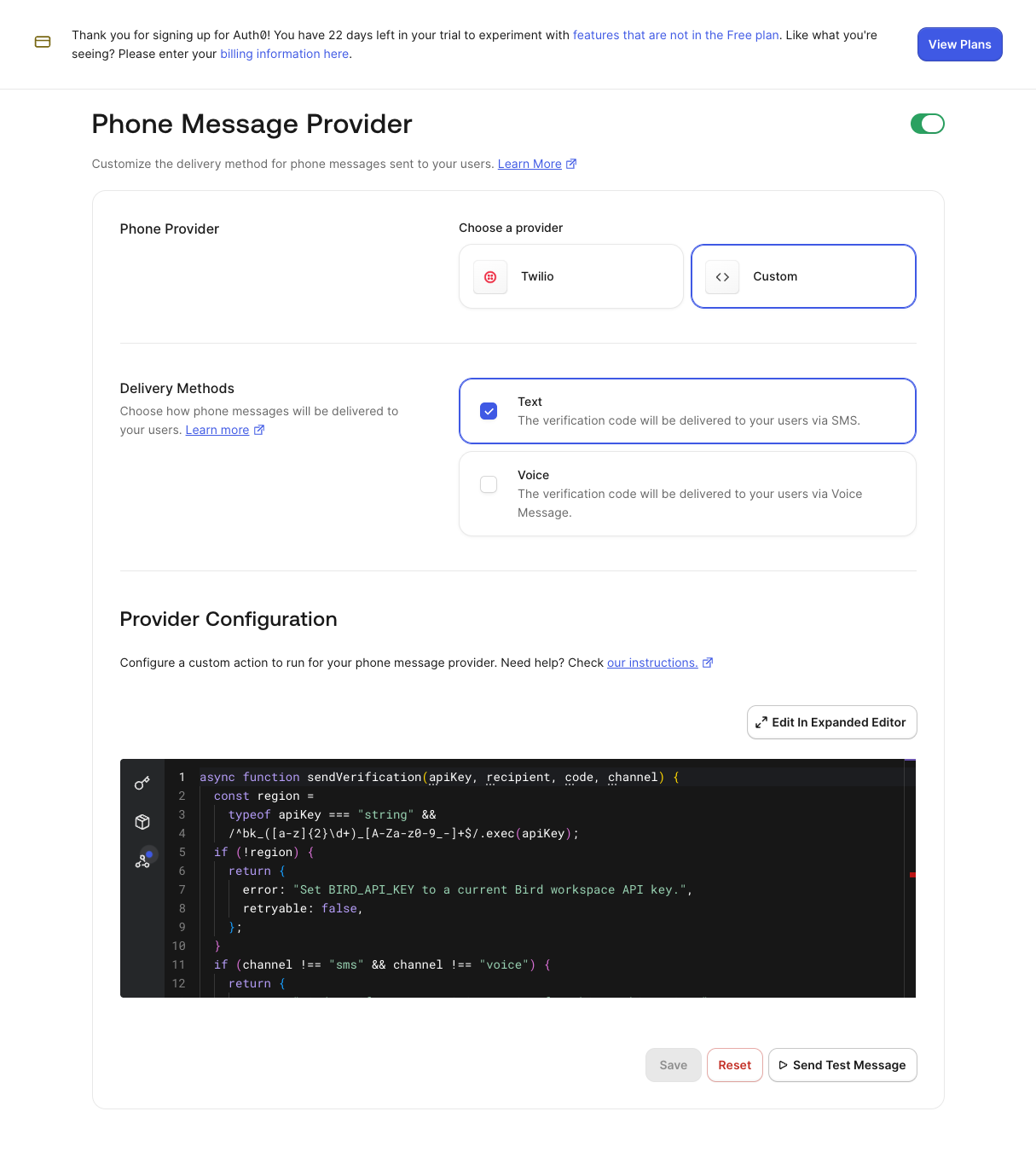
Auth0's Send Test Message button sends a test notification without a verification code. This provider rejects it. Use a real enrollment or login to test delivery, as described below.
Provider code
async function sendVerification(apiKey, recipient, code, channel) {
  const region = typeof apiKey === "string" && /^bk_([a-z]{2}\d+)_[A-Za-z0-9_-]+$/.exec(apiKey);
  if (!region) {
    return {
      error: "Set BIRD_API_KEY to a current Bird workspace API key.",
      retryable: false,
    };
  }
  if (channel !== "sms" && channel !== "voice") {
    return {
      error: "Bird Verify supports SMS or voice for this Auth0 Action.",
      retryable: false,
    };
  }
  if (typeof code !== "string" || !/^[0-9]{4,8}$/.test(code)) {
    return {
      error: "Auth0 must supply a verification code containing 4 to 8 digits.",
      retryable: false,
    };
  }
  if (typeof recipient !== "string" || !/^\+[1-9]\d{1,14}$/.test(recipient)) {
    return {
      error: "Auth0 must supply the recipient in E.164 format.",
      retryable: false,
    };
  }

  const controller = new AbortController();
  const timeout = setTimeout(() => controller.abort(), 8000);
  try {
    const response = await globalThis.fetch(
      `https://${region[1]}.platform.bird.com/v1/verify/verifications`,
      {
        method: "POST",
        redirect: "error",
        headers: {
          Authorization: `Bearer ${apiKey}`,
          "Content-Type": "application/json",
        },
        body: JSON.stringify({
          to: { phone_number: recipient },
          options: { custom_code: code, channels: [channel] },
        }),
        signal: controller.signal,
      },
    );
    if (response.status === 200) {
      const verification = await response.json();
      if (verification.status === "pending") return {};
      return {
        error: "Bird did not accept the verification for delivery. Check the Verify log.",
        retryable: false,
      };
    }
    // Provider error bodies can echo input. Keep codes and recipients out of Auth0 logs.
    await response.body?.cancel();
    const advice = {
      401: "Replace the expired or revoked Bird API key.",
      402: "Check the Bird workspace balance.",
      403: "Give the Bird key Verify write permission and check its access restrictions.",
      422: "Check the code length, Verify channels, destinations, and senders in Bird.",
      429: "Wait for the Bird resend cooldown or rate limit before retrying.",
    };
    return {
      error: `Bird Verify returned HTTP ${response.status}. ${advice[response.status] || "Check the Bird request log."}`,
      retryable: response.status === 429 || response.status >= 500,
    };
  } catch {
    return {
      error: "The Bird Verify request timed out or could not be completed.",
      retryable: true,
    };
  } finally {
    clearTimeout(timeout);
  }
}

exports.onExecuteCustomPhoneProvider = async (event, api) => {
  const notification = event.notification || {};
  if (notification.message_type !== "otp_verify" && notification.message_type !== "otp_enroll") {
    api.notification.drop(
      "Bird Verify handles OTP notifications. Configure a separate delivery path for account alerts.",
    );
    return;
  }
  const channel = { text: "sms", voice: "voice" }[notification.delivery_method];
  const result = await sendVerification(
    event.secrets?.BIRD_API_KEY,
    notification.recipient,
    notification.code,
    channel,
  );
  if (result.error) {
    if (result.retryable) api.notification.retry(result.error);
    else api.notification.drop(result.error);
  }
};
Enable phone verification for MFA
- Open Security > Multi-factor Auth.
- Select Phone Message in the Factors list.
- Enable the phone factor and select SMS as the delivery method. Set Code Length to four to eight digits and make Code Lifetime match your Bird Verify duration. If Use Tenant-Level Messaging Provider appears, enable it. New tenants already use that provider.
- Save the factor settings and return to Multi-factor Auth.
- Choose when your application requires MFA. For a development tenant, Always requires MFA at login. Leave the option to remember the browser unchecked during testing. This policy applies to the tenant's applications; review Auth0's MFA setup before changing a production tenant.
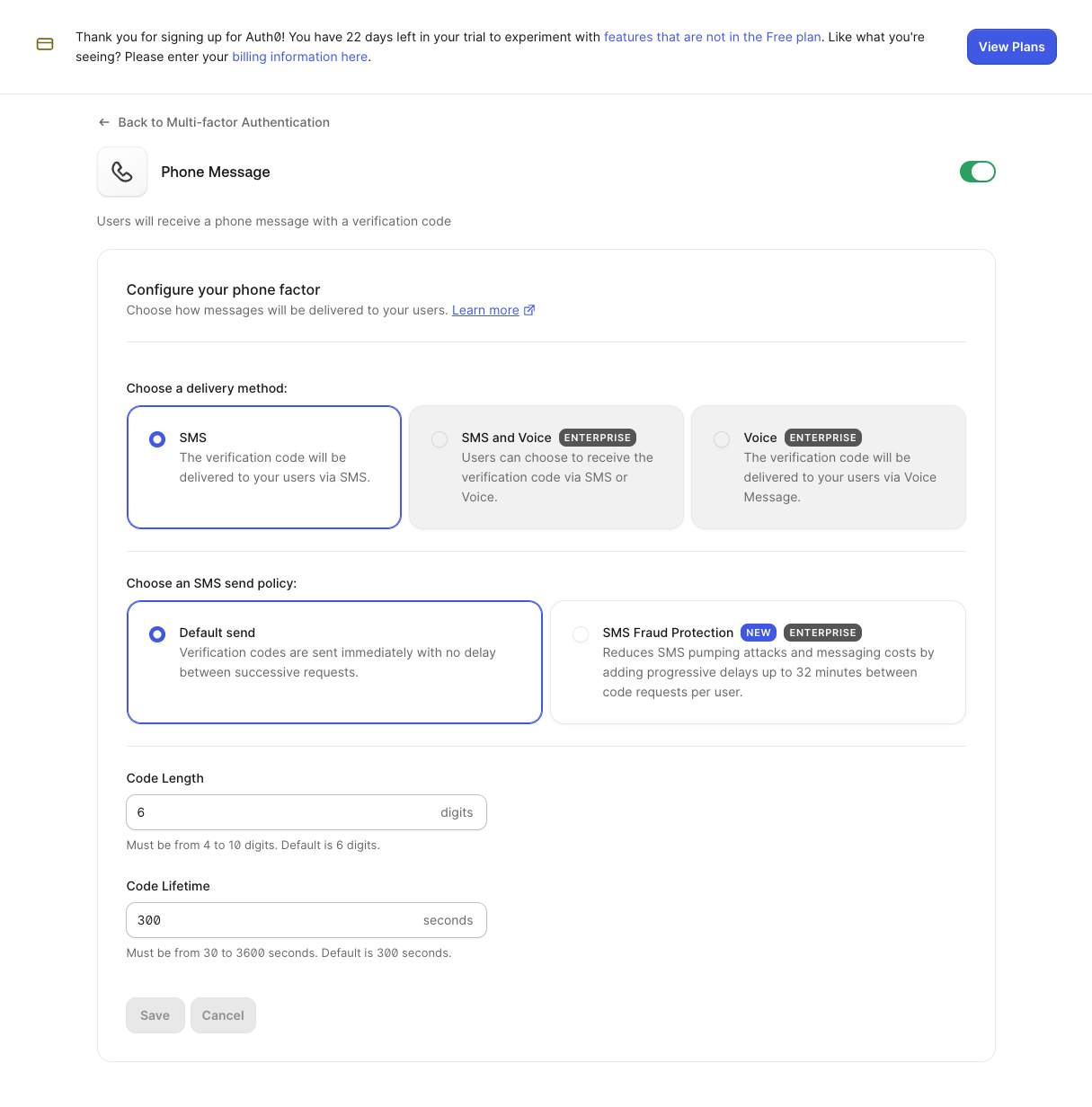
Each request uses the method Auth0 selected: Text sends SMS and Voice makes a voice call. The provider does not select WhatsApp or another fallback channel.
Enable passwordless SMS
Complete this section only if you want users to sign in with a phone number and code instead of a password.
- Open Authentication > Authentication Profile.
- Select Identifier First and save.
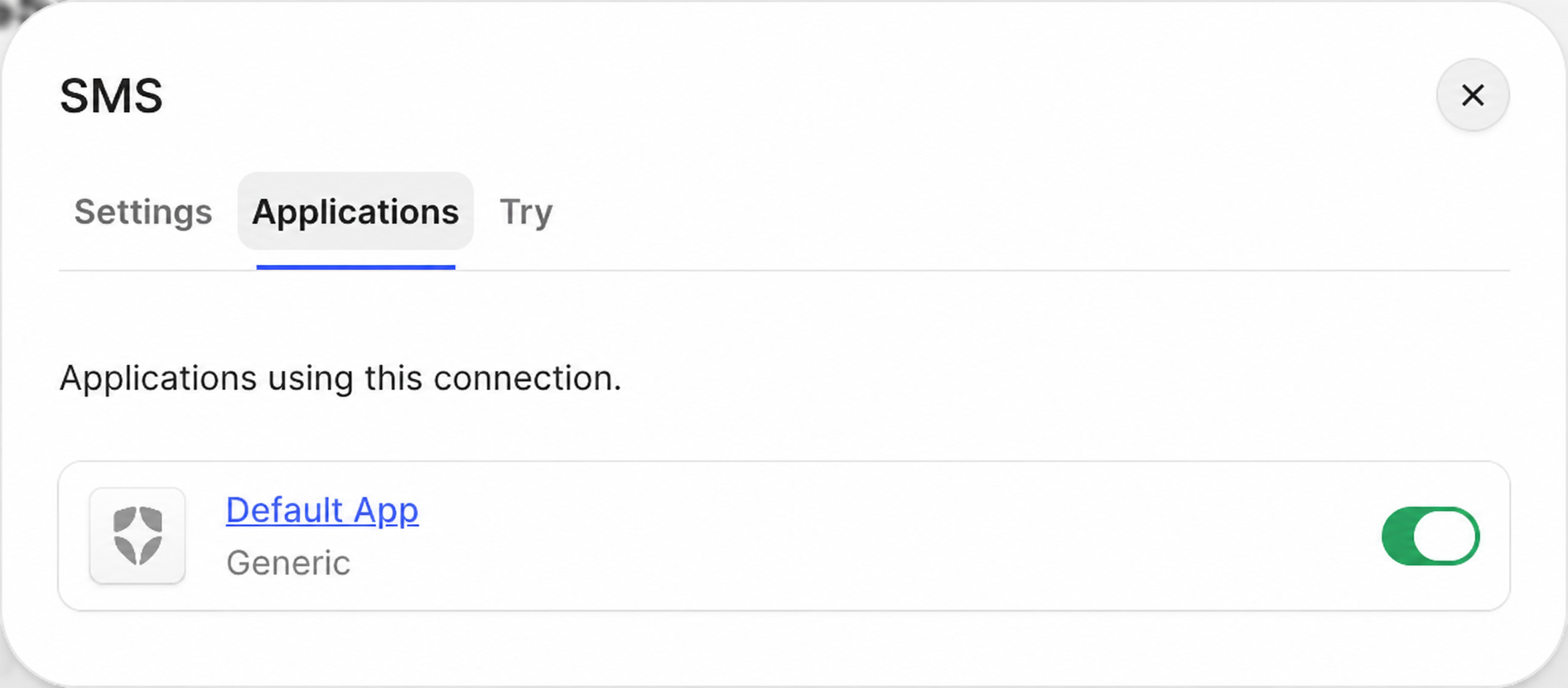
- Open Authentication > Passwordless and select SMS. Some tenants label this connection SMS (Twilio) even when the custom tenant-level provider handles delivery.
- On Settings, use the tenant-level provider if that option appears. Set OTP Length to four to eight digits. If you also use MFA, use the same code length for both flows: Bird rejects a different length while a verification for the recipient is still pending. Make the expiration match the Bird Verify duration, then save the settings.
- On Applications, enable the test application.
- Select Try, enter a phone number you control, and enter the received code.
If your policy also requires MFA, the user must complete another configured factor after the passwordless code. A delivered SMS alone does not prove the full login succeeds. See Auth0's passwordless SMS documentation for application prerequisites.
Use the Send Phone Message Action
The separate MFA Action targets Auth0's Send Phone Message flow for MFA enrollment and challenges. It is separate from the tenant-level provider and does not replace the passwordless setup.
This flow requires a tenant that still offers the custom MFA delivery-provider selector. New tenants can require the tenant-level provider instead; use the setup above when the selector is absent.
Ask Bird for the Send Phone Message preview bundle before configuring this flow. The bundle includes integration.action.js and its installation guide. Create the Action with that file, select Node.js 22, and add the BIRD_API_KEY secret. Deploy the Action and add it to the flow. Select the custom MFA provider under Security → Multi-factor Auth → Phone Message. A tenant-level provider or an older Send Phone Message Hook can take precedence; configure one delivery path for the test.
The Marketplace installation guide will become available with the reviewed listing. The integration has not been published in Auth0 Marketplace yet.
Test verification
Start an MFA enrollment with a test user and enter the received code in Auth0. Sign in again to test the challenge. Confirm that a wrong code fails, an expired code fails, and a resend delivers a usable code. Test passwordless SMS separately if you use that flow. Test voice before enabling it for customers.
Inspect the Verify log for delivery attempts and Auth0 tenant logs for authentication results. An accepted API request means Bird started delivery; it does not prove that the phone received the code.
Auth0 checks the code itself. Bird does not receive that result yet, so a successful Auth0 login can leave a Bird verification that later expires. Bird's verified events and conversion metrics do not reflect these successful logins. Do not configure an Auth0 log-stream webhook to Bird for this integration yet.
Do not call Bird's Check endpoint with Auth0's generated code inside the delivery Action. That would mark the verification successful before the user entered the code.
Troubleshoot delivery
| Symptom | What to check |
|---|---|
| HTTP 401 or 403 | Replace an expired key, confirm the workspace and Verify write permission, and check key access restrictions. |
| HTTP 402 | Check the Bird workspace balance. |
| HTTP 422 | Confirm a supported code length, enabled destination channels, and valid senders. |
| HTTP 429 | Wait for the resend cooldown or sending limit. |
| Timeout or HTTP 5xx | Inspect the Verify log. Auth0 retries transient Custom Phone Provider failures; a lost response can result in another send. |
| No Action execution | Check the selected provider, the MFA tenant-level setting, and any older Send Phone Message Hook. |
| Account alert is dropped | This provider delivers OTPs. Use a delivery path that supports the other notification types before switching the tenant provider. |
The Action reports safe diagnostics without logging codes, phone numbers, API keys, or provider response bodies.
Recover from a lost response
Bird can accept a request and start delivery before the response is lost. This snippet cannot confirm that earlier delivery automatically. A retry during Bird's cooldown returns HTTP 429. After the cooldown, a retry can send another message and consume another send attempt.
Auth0's event reference does not document a stable notification ID for retry deduplication. Do not use only the phone number and code as an idempotency key: that can suppress an intentional resend of the same code.
Check the Bird Verify log before requesting another code. If the code arrived and Auth0 still shows the code-entry screen, enter it there. If delivery failed or Auth0 closed the challenge, wait for the cooldown and request a new code through Auth0. A delivery log entry does not replace Auth0's code check.
Next steps
- Verify settings: configure code lifetime and resend behavior.
- Verify senders: configure delivery and branding.
- Auth0 Custom Phone Provider reference: inspect the notification event.