Panoramica della dashboard
Usa questa pagina per orientarti tra i controlli e le risorse principali della dashboard. Se hai appena creato il tuo account, inizia da qui.
Ti trovi sempre in uno spazio di lavoro. La barra laterale è la navigazione principale. All products apre il catalogo prodotti e Platform tools apre le risorse condivise e gli strumenti per sviluppatori. L'intestazione contiene il breadcrumb, la ricerca e il tuo profilo.
Dove passerai la prima sessione
Tre tappe coprono la configurazione iniziale di un nuovo account:
- Il passaggio di configurazione del canale. Ogni canale inizia dimostrando chi sei: registrando l'identità da cui invierai. La panoramica di ciascun canale illustra la propria configurazione: Email.
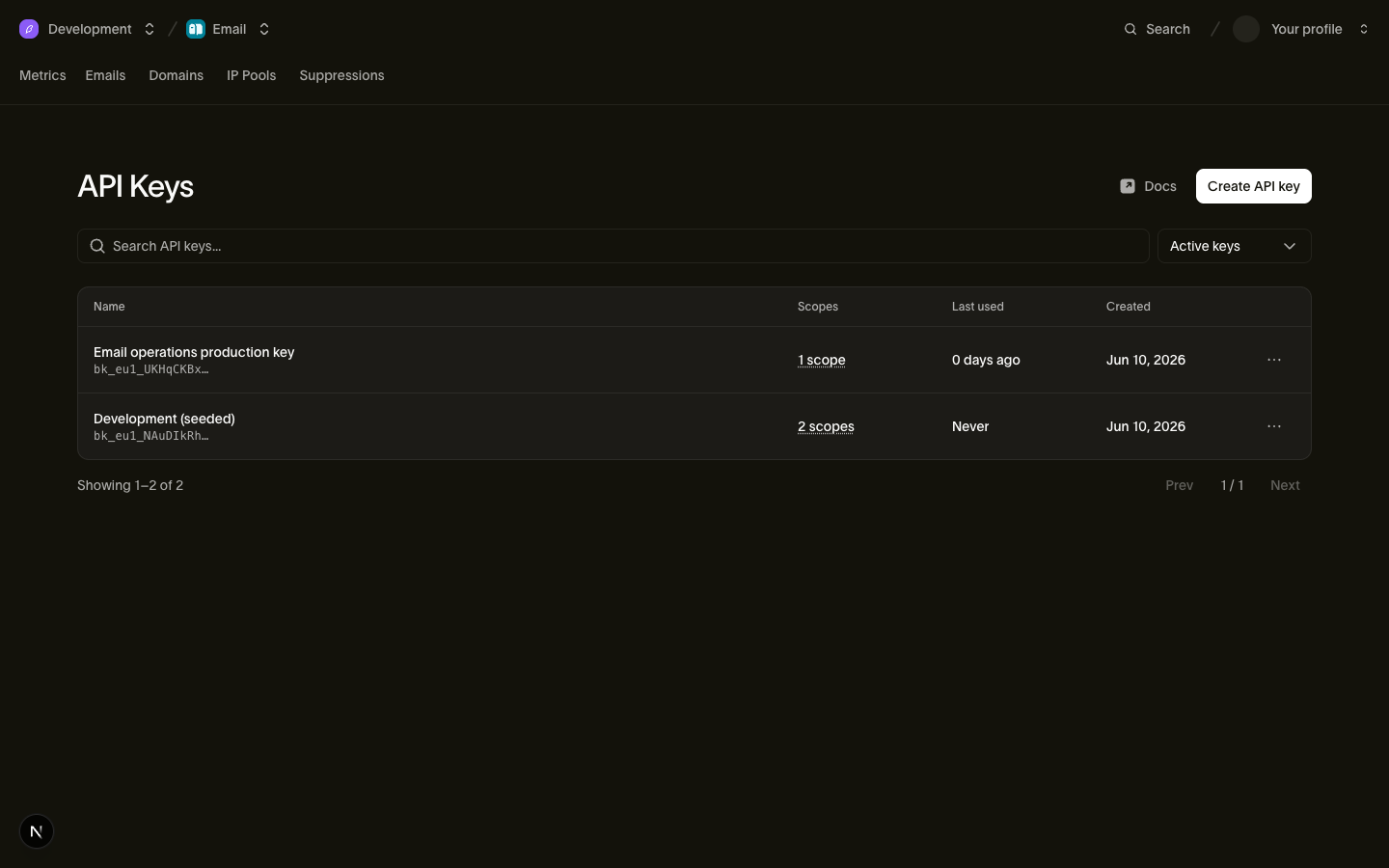
- Chiavi API: crea una chiave per il prodotto o lo strumento che si connette a Bird. Ogni chiave appartiene al tuo spazio di lavoro. Apri Platform tools > Chiavi API oppure usa la ricerca e digita chiavi API.
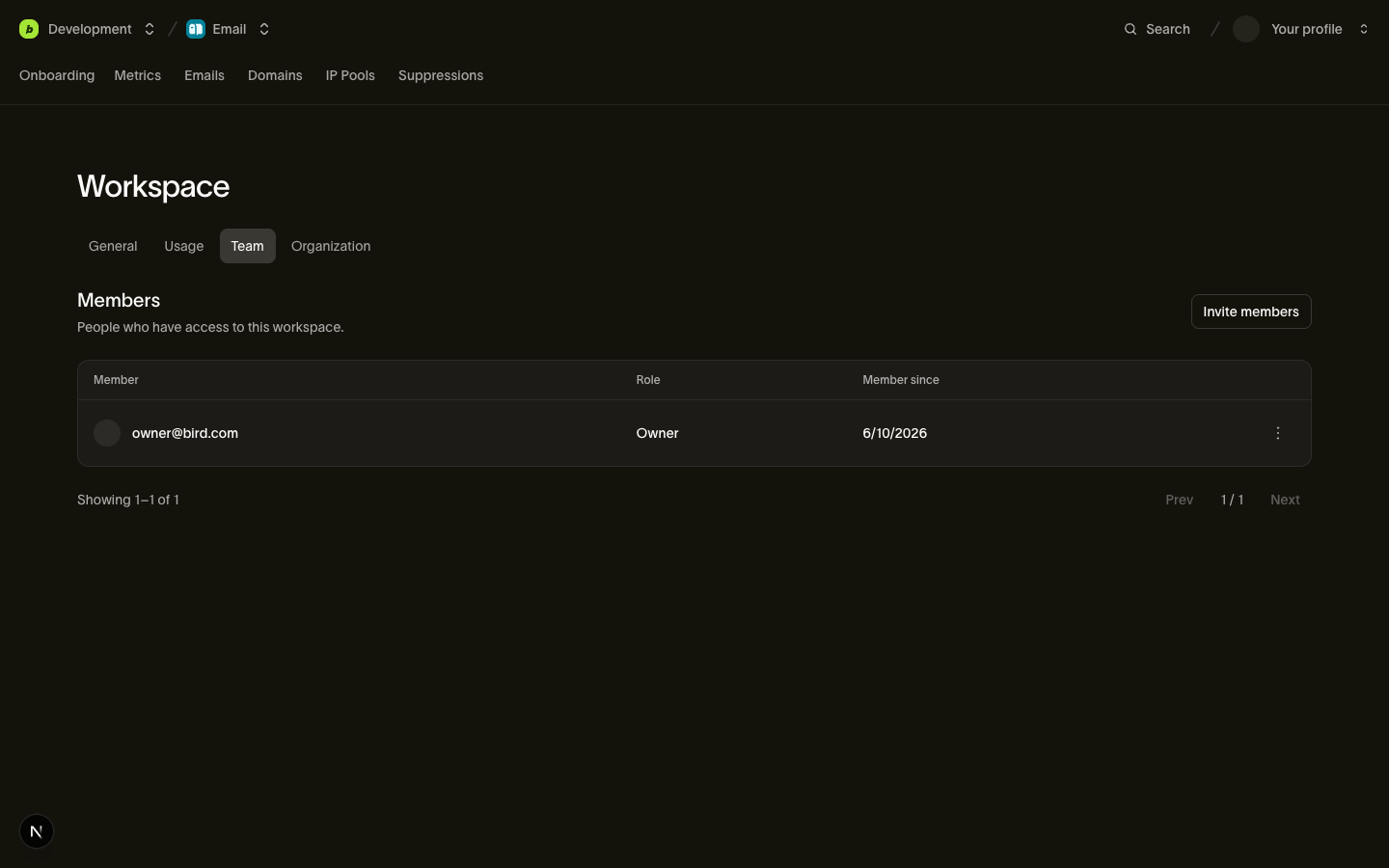
- Settings > Team: invita i membri e assegna l'accesso necessario. Vedi Invita il tuo team.
Prosegui con le altre sezioni in base alle esigenze della tua configurazione di invio.
La barra laterale
La barra laterale si apre con una barra di ricerca (Cmd + K su macOS oppure Ctrl + K su Windows e Linux), con scorciatoie e i menu All products e Platform tools.
All products elenca i canali e le applicazioni disponibili nel tuo spazio di lavoro. Home rimanda alla panoramica dello spazio di lavoro. Le righe dei prodotti aprono un secondo pannello con pagine per attività, metriche, configurazione o altre impostazioni specifiche del prodotto. Il nome del prodotto in quel pannello è anche il controllo per tornare indietro: selezionalo per riaprire la barra laterale principale.
Platform tools contiene i record condivisi tra i canali: Contacts e Numbers sono a livello di spazio di lavoro, mentre Identity Center copre l'intera organizzazione.
Apri Platform tools per trovare le chiavi API, i Webhooks e i Logs. I pin della barra laterale sono scorciatoie personali: l'assenza di un pin non significa che la pagina non sia disponibile.
Pagine dei canali
Ogni canale si articola in un insieme coerente di pagine per il log attività, le metriche e la configurazione.
La panoramica di ciascun canale documenta le sue pagine una per una: Email.
Fatturazione e impostazioni
- Upgrade compare nella barra superiore quando hai accesso alla fatturazione e apre le pagine di fatturazione della tua organizzazione.
- Settings apre le pagine per lo spazio di lavoro, l'organizzazione, le notifiche e il team. Le voci visibili dipendono dai tuoi permessi.
Ricerca e assistenza
- Search apre la palette dei comandi dalla barra di ricerca nell'intestazione della barra laterale. Premi Cmd + K su macOS oppure Ctrl + K su Windows e Linux, quindi digita per raggiungere qualsiasi pagina o canale nello spazio di lavoro.
- Seleziona Help per aprire Ask Bird, poi Contact Support per contattare il supporto Bird.
Il tuo profilo
Il menu del profilo mostra gli inviti in sospeso. Apre anche le impostazioni dell'account per il tuo profilo, Security, Active sessions e Connected apps.
Prossimi passi
- Configura il tuo canale dall'inizio alla fine: Panoramica Email
- Aggiungi le persone giuste: Invita il tuo team
Risorse correlate
Continua con la documentazione, le guide e gli esempi per questo argomento.