Email log
The email log is your workspace's record of every message it has sent. It's the Emails page in the dashboard, and every send made through POST /v1/email/messages lands here, newest first. Use it to confirm a specific message went out, see where a recipient is in the delivery lifecycle, and read the exact content that was sent.
It's the per-message companion to the aggregate Metrics page. Metrics tells you the rates across everything you send. The email log lets you drill into a single message. For a tour of where this page sits in the dashboard, see the dashboard tour.
The page's Receiving tab is the same log for mail we receive. That side is covered in Receiving email.
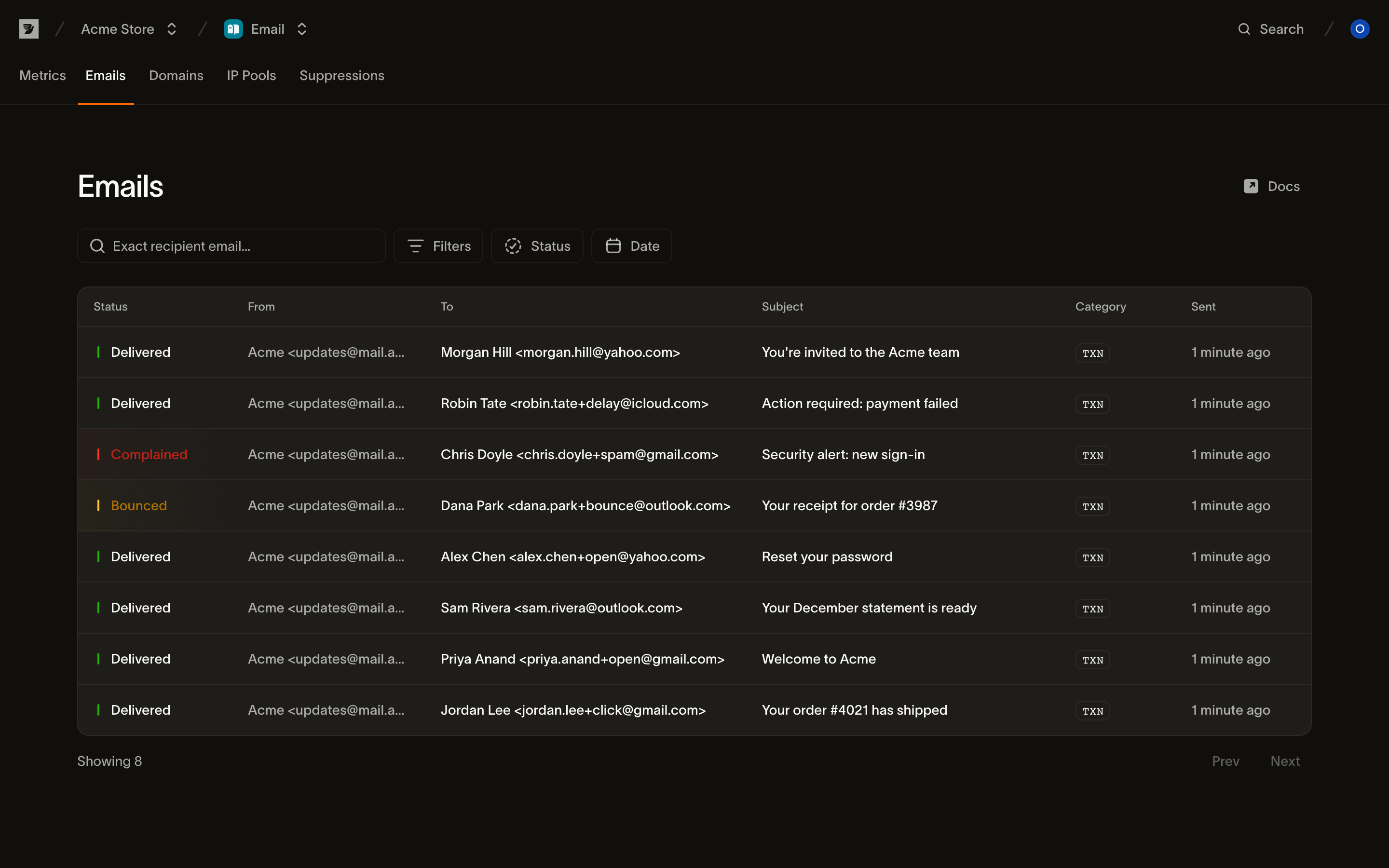
The message list
Each row is one message. The columns are:
| Column | What it shows |
|---|---|
| Status | The message's current delivery status (see Statuses), shown as a color-coded indicator |
| From | The sender: display name and address, or the address alone |
| To | The primary recipient; sends with more than one recipient show a count you can hover to expand |
| Subject | The message subject (click it, or anywhere on the row, to open the message) |
| Category | The message category: TXN for transactional, MKTG for marketing |
| Sent | When the send was accepted, as a relative time (hover for the exact timestamp) |
Rows whose status needs attention are tinted: a warning tint for Deferred, Bounced, and Partial failure, and a stronger tint for Complained and Rejected. The list is paginated; use Prev and Next to move between pages.
Searching and filtering
A message log fills up fast, so the page leads with one search box and three filters. They combine: a status filter plus a date range narrows to messages matching both.
Search by recipient. The search box matches an exact recipient email address: type the full address you sent to (e.g. jane@example.com) to find every message addressed to it, whether the address was in to, cc, or bcc. It is an exact match, not a substring search, so partial addresses or domains won't return results.
Status. Filter to a single delivery status. The options are the statuses listed in Statuses.
Category. Filter to Transactional or Marketing messages.
Date. Filter by when the message was sent: pick a preset (Last 3 days, Last 7 days, Last 30 days) or choose a custom range from the calendar.
When a filter combination matches nothing, the page shows a No emails match your filters state with a Clear filters action to reset back to the full list.
Statuses
A message's status is the roll-up of where its recipients are in the delivery lifecycle. For a single-recipient message, the status mirrors that recipient's status directly. For a multi-recipient send, the status reflects the message as a whole: Partial failure means some recipients succeeded and some did not.
| Status | Meaning |
|---|---|
| Scheduled | The send has a future send time and has not started yet. See scheduled sending. |
| Accepted | The send has been accepted, and delivery is being prepared. |
| Processed | The message is built and queued for delivery. |
| Delivered | The recipient's mail server accepted the message. |
| Deferred | A temporary failure. We retry automatically, and it resolves to delivered or bounced. |
| Bounced | A permanent failure. The recipient's mail server refused the message. |
| Complained | The recipient reported the message as spam. |
| Rejected | The send was rejected before delivery was attempted. This is most often because the recipient is suppressed. |
| Partial failure | A send to more than one recipient, where the outcome is different for different recipients. |
| Canceled | A scheduled send canceled before it went out. |
The indicator is color-coded:
- Green for delivered.
- Blue for in-flight (Accepted, Processed).
- A warning color for Deferred, Bounced, and Partial failure.
- A destructive color for Complained and Rejected.
Inspecting a message
Click any row to open the message in a side panel. It has four tabs (Events, Details, HTML, and Text) and arrows to step to the previous or next message in the list without closing it. A message that is still scheduled shows its send time and a cancel action. Scheduled sending covers that flow.
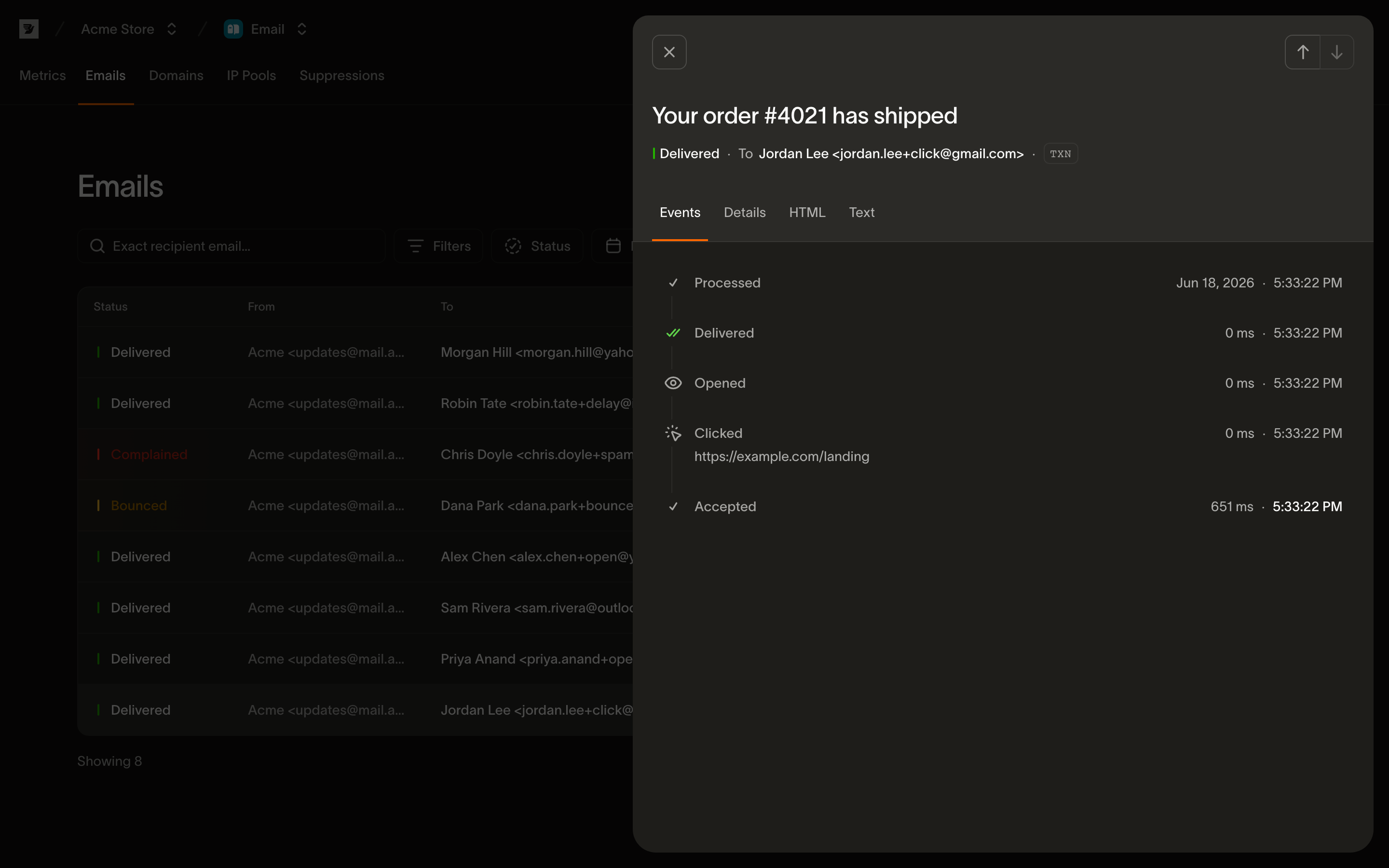
Events
The default tab is a per-recipient timeline of everything that happened to the message, in order, each with its timestamp. This is the same event stream described in the email events reference, rendered for one message: Accepted → Processed → Delivered, then engagement events like Opened and Clicked, or failure events like Bounced, Deferred, Complained, and Rejected.
- For a send with several recipients, an All recipients selector lets you view the merged timeline or filter to one recipient's journey.
- Failure events show their detail inline: a bounce shows its description, and a rejection shows its reason.
- An Opened event auto-fetched by an inbox privacy proxy is flagged as not a real open, matching how open tracking treats prefetches.
- When an event auto-adds the recipient to your suppression list (a hard bounce or a complaint), the timeline says so and links to the list.
- While a message is still in flight, the timeline refreshes itself every few seconds until every recipient reaches a final state.
If a delivered message has no opens or clicks, the timeline explains why: most commonly that open and link tracking wasn't enabled for the domain or wasn't requested on the send.
Details
The Details tab shows the message's metadata:
- Its Message ID.
- The From, To, and any CC, BCC, or Reply-To addresses.
- The sending Domain.
- The Category.
- Whether Open tracking and Link tracking were enabled.
- The Sent and Delivered timestamps.
Any tags and metadata you set on the send are listed here too, and attachments appear with their size, type, and a download action. Most fields can be copied with one click.
HTML and Text
The HTML tab renders the message exactly as it was sent: a Preview sub-tab shows the message in a sandboxed frame, and a Source sub-tab shows the raw HTML. The Text tab shows the plain-text body. Content is stored shortly after the send, so for a message sent moments ago these tabs may briefly show that the content is still being stored.
The same log over the API
Everything on this page reads from GET /v1/email/messages and its sub-resources. The list takes the same filters the page exposes, and more:
- status.
- category.
- tag.
- An exact to or from address (bare address, matched case-insensitively).
- A created_after/created_before window.
Per-message detail lives on the recipients, events, and content sub-resources. The events reference covers reading a timeline programmatically.
Next steps
- Email metrics: aggregate stats across everything you send, and how open and click tracking work
- Email events: the full per-recipient event vocabulary the timeline is built from
- Suppressions: why a recipient was rejected and how to manage the suppression list
- Sending email: the send payload, including tags, categories, and tracking toggles
- API reference: messages: read messages, recipients, and events programmatically