Payment methods and wallet
Bird records usage charges, add-on subscriptions, and legacy Email plan renewals against your organization's wallet. Funding plans add their monthly deposits to it. A saved card can fund manual and automatic top-ups, and pays your plan payments.
Open Billing and payments > Overview to view the available balance, next charge, automatic top-up, low-balance alert, payment methods, and billing address. Organization Owners and Billing admins manage these settings.
The wallet
The available balance is the amount the organization can spend. Usage charges change this balance as they settle, and a message with a delivery-time fee settles twice: once when Bird processes it, once when it is delivered. Next charge shows the date and amount of the upcoming renewal and warns when the available balance is insufficient.
Two states are worth recognizing:
- Running low. A dismissible banner appears when you're under your alert threshold, and the organization's billing notification list gets an email. Top up before the renewal date and nothing else happens.
- Exhausted prepaid balance. Pay-as-you-go charges pause when the wallet cannot cover them. A negative prepaid balance blocks sending until you add enough funds. A fee charged on delivery behaves differently: when the balance falls short, the fee is skipped rather than the message held, so a message already on its way still arrives.
Topping up
At Billing and payments > Overview, select Add funds to open the top-up flow. Enter at least 15 units in the wallet currency and pay by card. Before the first payment, provide a billing address and VAT status. Add a VAT number when applicable.
A completed top-up shows the new balance immediately, appears as a credit on the Spend page, and gets its own payment receipt (separate from your monthly invoice, which only covers charges).
Paying by bank transfer
A pro forma invoice lets you add funds to the wallet by bank transfer instead of by card:
- At Billing and payments > Overview, select Add funds.
- Enter the amount and select Get a pro forma invoice.
- When the dialog shows Pro forma ready, select Download PDF.
- Send the transfer from your bank to the account on the PDF, with the payment reference as the transfer reference.
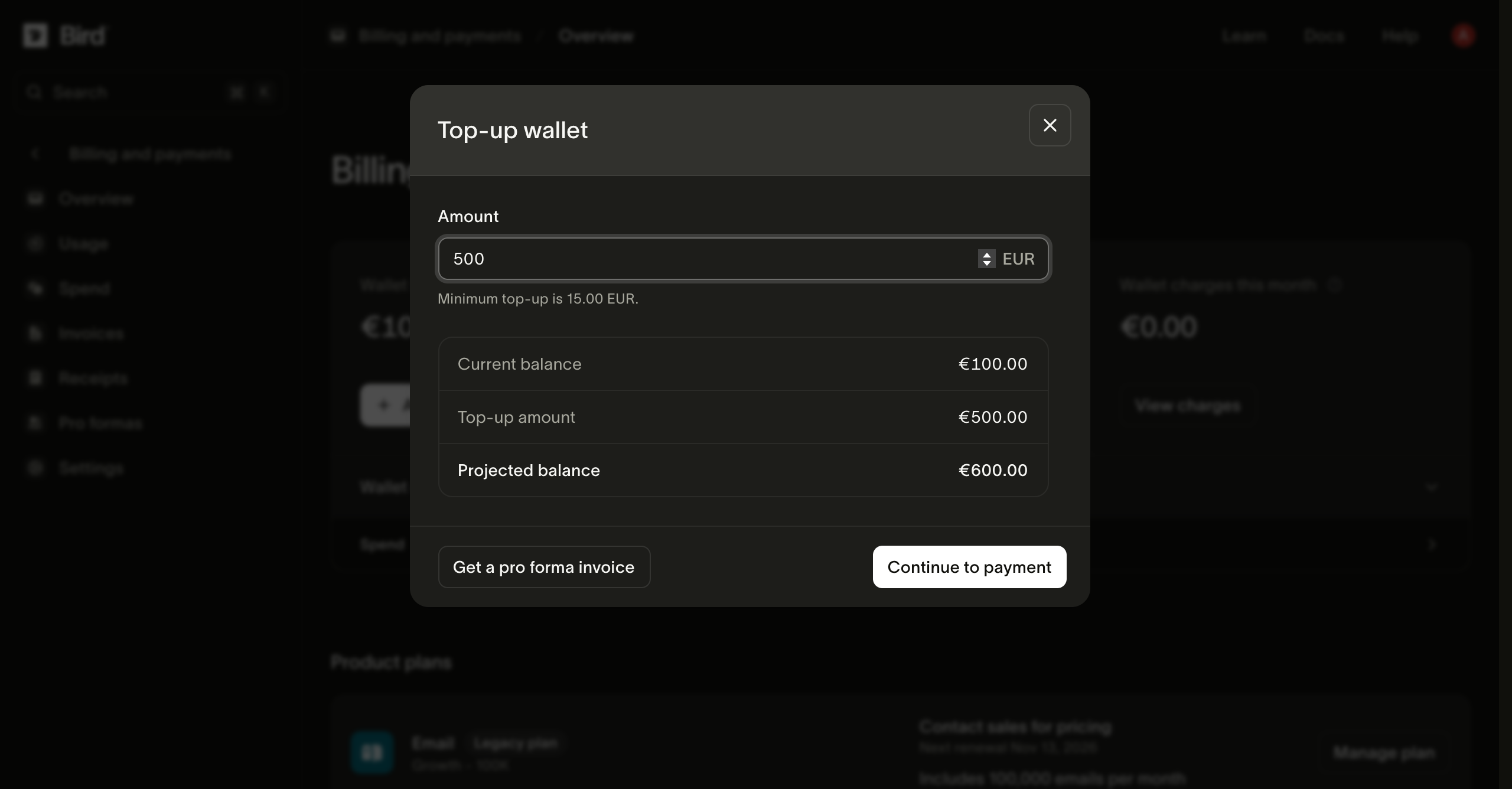
The PDF has Bird's bank details for the wallet currency, the amount, and a document number such as PRO-2600001. The payment reference is a separate short code, such as R9NGKC, shown in the dialog and on the PDF. Bird matches your transfer to the pro forma by the payment reference, so a transfer without it takes longer to trace.
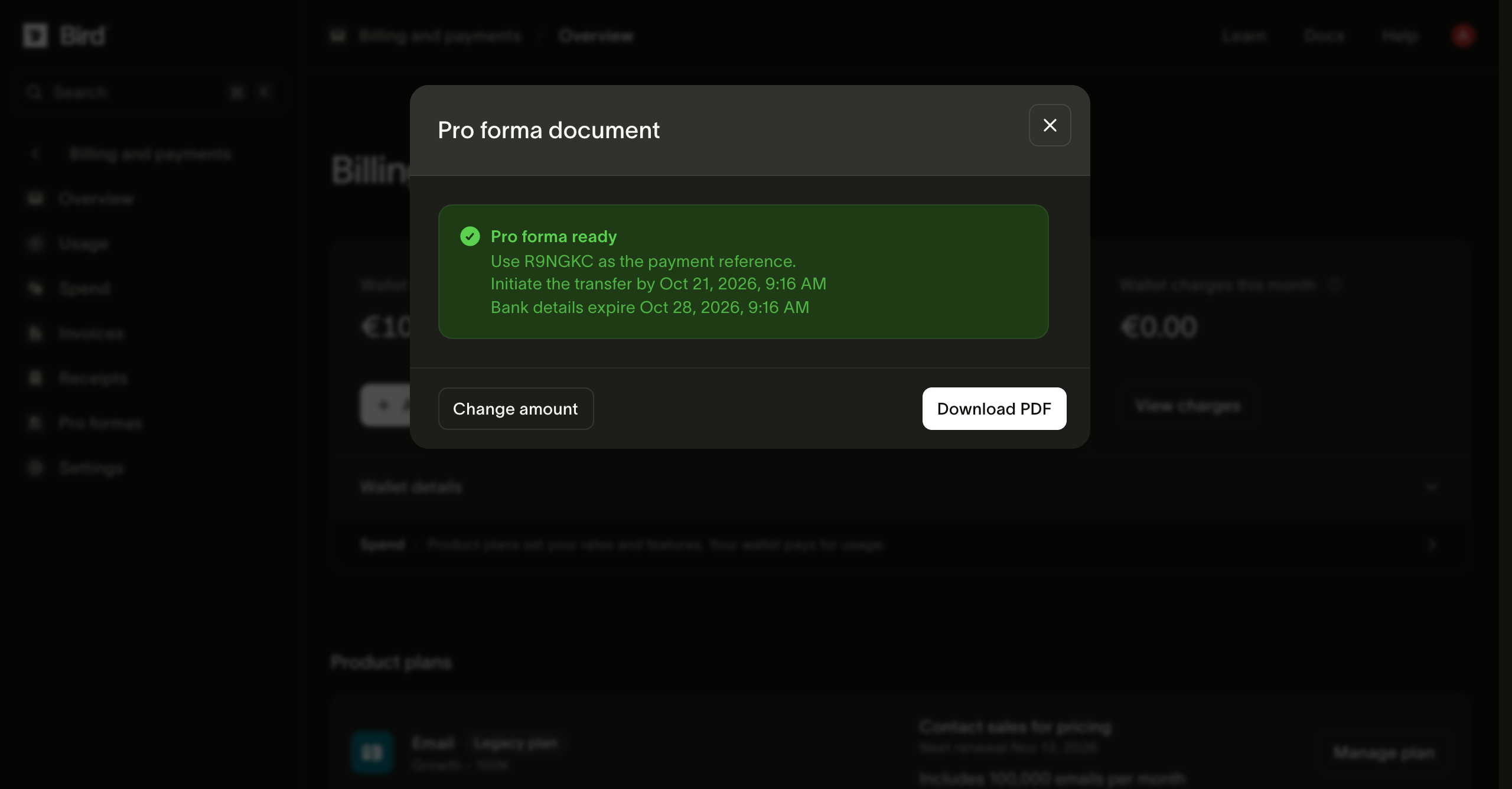
The dialog and the PDF also show two dates. Start the transfer within 7 days. The bank details expire after 14 days, so for a later payment, create a new pro forma.
Two things to plan around:
- A bank transfer is not immediate. Bird credits the wallet after the transfer arrives and is matched. Start the process before you need the balance.
- A pro forma requests payment. It carries no VAT breakdown and doesn't replace your monthly tax invoice. Once the transfer is credited you get a payment receipt for it, the same as any other top-up.
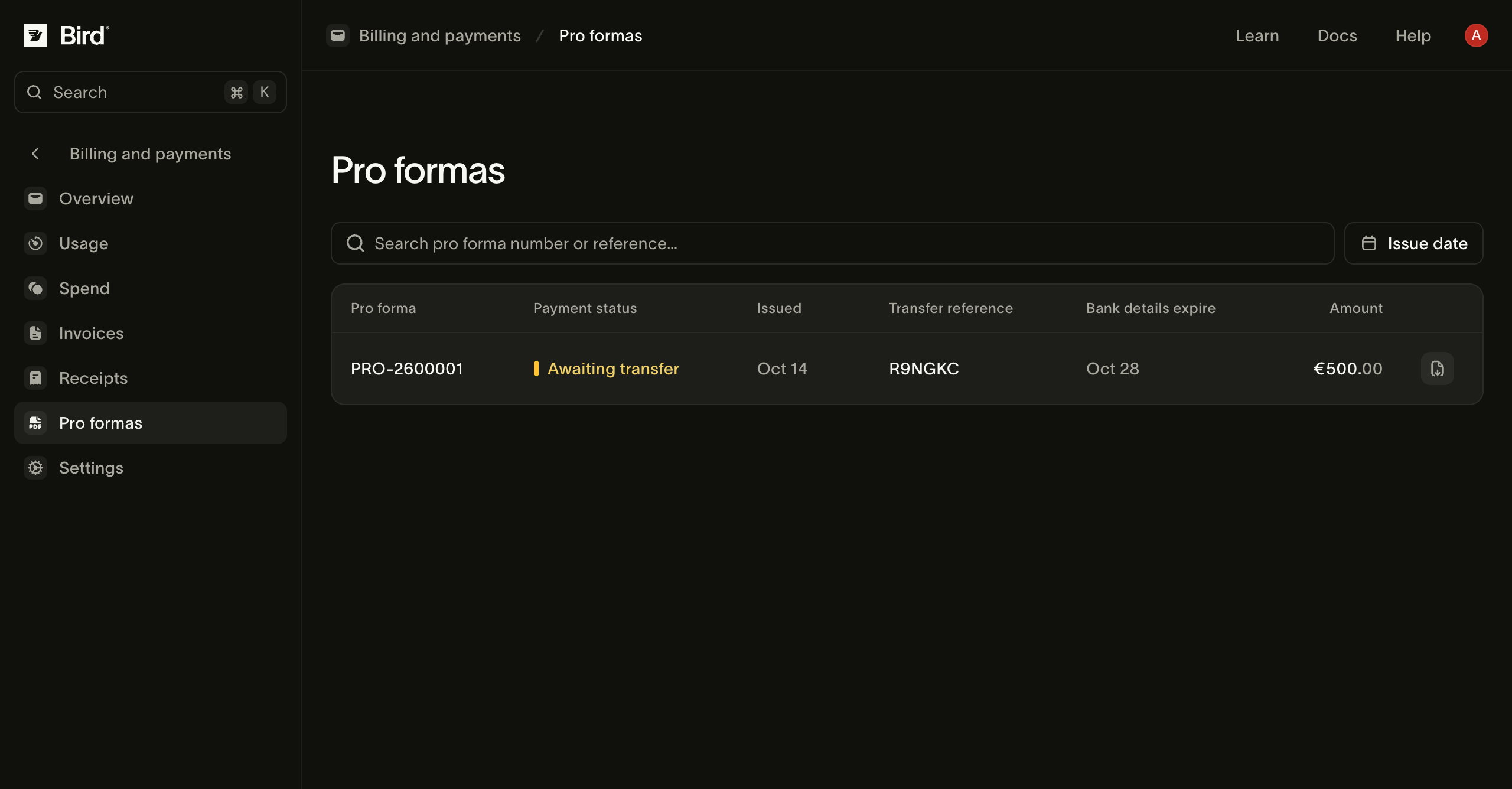
The amount uses the wallet currency and the same 15-unit minimum as a card top-up. Past documents remain available at Billing and payments > Pro formas. Each row shows the payment status, the transfer reference, and when the bank details expire, and has a button to download the PDF again. A pro forma shows Awaiting transfer until Bird receives and matches your payment, then Paid.
Deposits from funding plans
Each successful payment for a funding plan, such as a paid SMS or Email plan, adds its full amount to the wallet. The deposit is ordinary balance: it can pay for any product's usage and add-on subscriptions, and unused balance carries forward to the next month. The Overview page lists your recurring plan deposits under Wallet funds from plans, and each deposit gets its own payment receipt.
A funding plan is paid separately from the wallet. Existing balance does not reduce the plan payment, so a large balance does not skip a renewal. If your usage outpaces your deposits, top up or turn on auto top-up as well. Plans & pricing explains funding plans.
Auto top-up
For continuous usage, configure Auto top-up from the wallet sidebar. Set a balance threshold and refill amount. When the balance falls below the threshold, Bird attempts to charge the default card.
Automatic top-ups appear on the Spend page. A Low balance alert sends an email when the balance crosses its threshold. The alert goes to the organization's billing notification list, or to the organization owners when no list is set; so do the out-of-balance warning and payment-failure notices. You can enable both features; the alert can warn you if an automatic top-up fails.
Payment methods
The Payment method row lists saved cards. The default card backs automatic top-up and automatic plan renewal payments. See Plan changes & renewals for the payment sequence.
- Adding a card verifies it without charging it. Some banks show a temporary authorization that reverses automatically.
- Make default switches which card future charges use; past transactions are unaffected.
- A card that declined its last charge is flagged in the list. Replace it promptly: a stale default card plus an empty wallet is the one combination that leads to the failed-renewal path.
- You can't remove the default card while other cards exist; make another card the default first.
Billing details
The billing address and VAT number appear on invoices. At Billing and payments > Overview, use Billing address to update them or set a separate invoice address. Billing and payments > Settings stores the billing contact, and Billing and payments > Subscriptions lists the organization's subscriptions and scheduled changes.
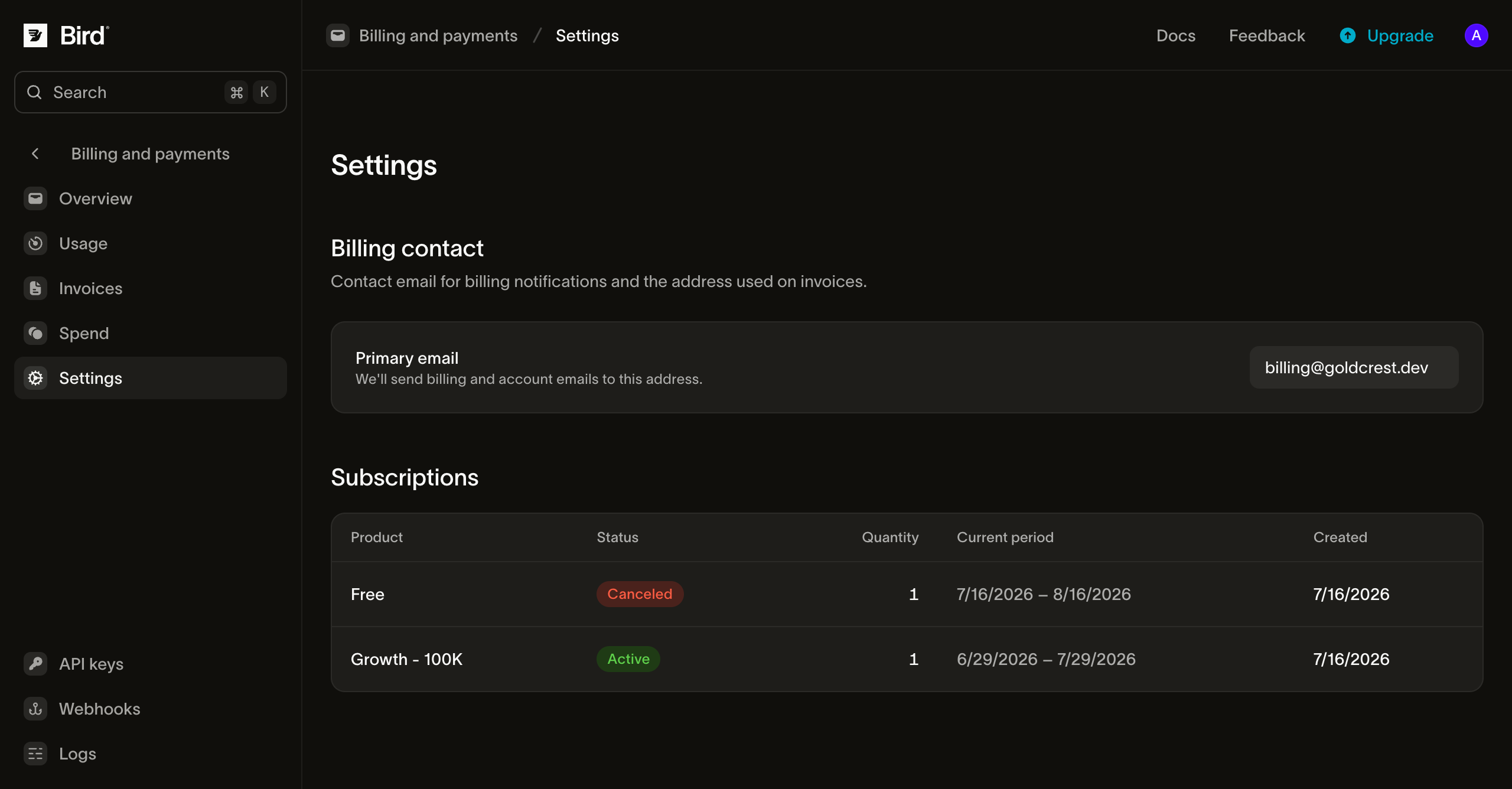
In an organization with one workspace, a member with access to that workspace who can manage organization settings sets the billing notification list under Settings > Notifications > Billing. This list controls low-balance alerts, invoices, payment failures, and plan changes. The billing contact on Billing and payments > Settings is a separate setting. A Billing admin without workspace access cannot open the Notifications page, and the dashboard does not yet show the list for an organization with several workspaces. Use a monitored team alias for it so payment and balance notifications do not depend on one person.
If a low-balance email is missing, check the alert threshold on Overview and the addresses in the Billing notification list. Check the recipient's spam folder. If those checks do not explain it, contact Support with the approximate time and the expected recipient so the notification can be investigated. A saved notification address does not confirm that a particular email was delivered.
Next steps
- Plan changes & renewals: how plan renewals are paid, and what happens when a payment fails.
- Usage, spend & invoices: the ledger and the monthly bill.
- Refunds and your wallet balance: what happens to unused balance, and how to stop future charges.
- How top-ups and the wallet ledger work behind these pages is in Billing & usage.
Related resources
Continue with the documentation, guides and examples for this topic.