Add DNS records · Google Domains / Squarespace
Domains previously registered with Google Domains are managed in Squarespace Domains. Use this page to publish the DKIM, return-path, tracking, and DMARC records Bird provides. Bird does not require an SPF record at the domain apex; see DKIM, SPF & DMARC.
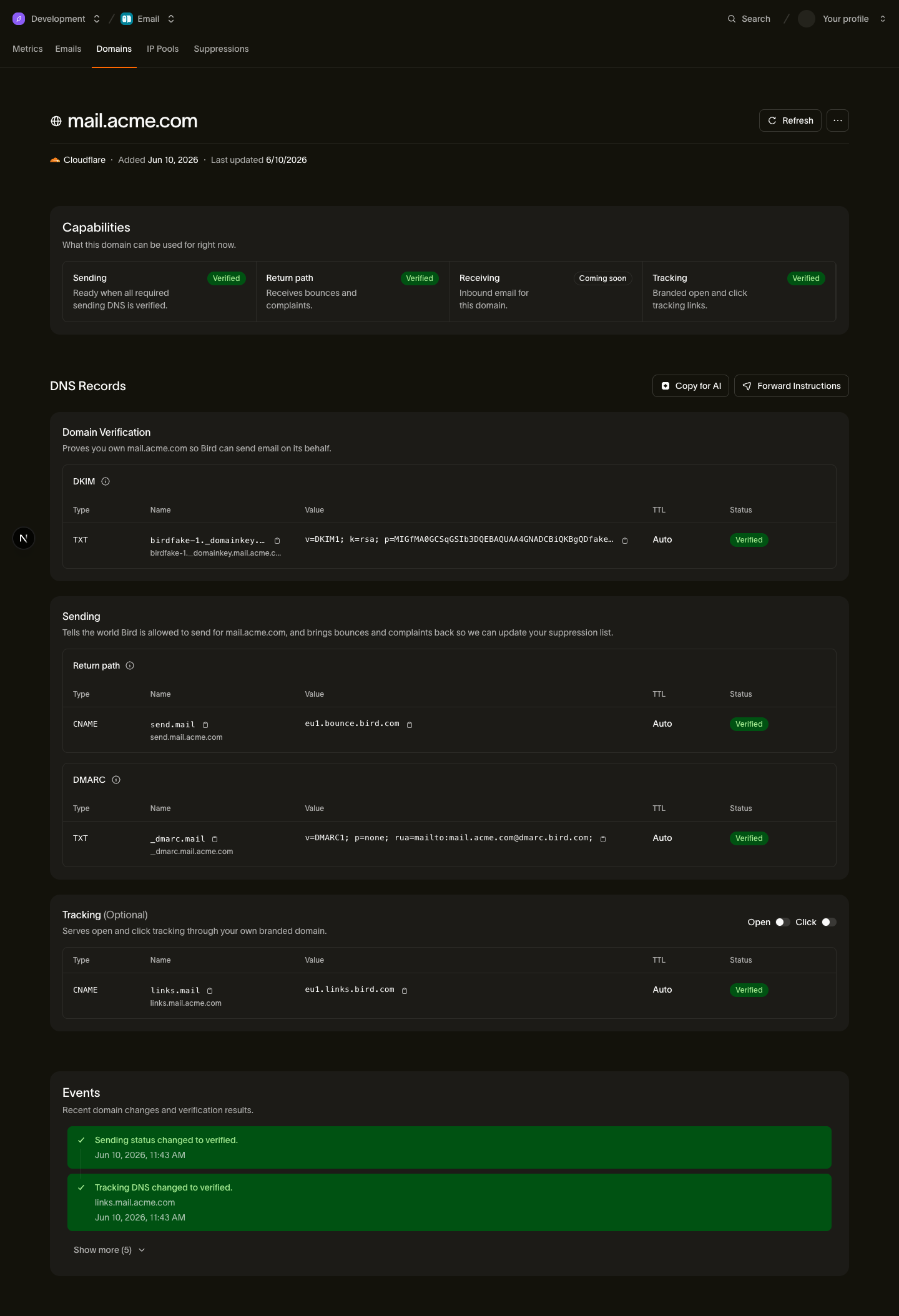
Before you start, open your domain's detail page in the Bird dashboard and keep it visible. Copy each host and value from that page.
Find the DNS editor
- Sign in to your Squarespace account at domains.squarespace.com: this works even if you only ever used Google Domains and have never built a Squarespace site. If your domain has not been claimed since the migration, Squarespace prompts you to claim it with your Google sign-in.
- Click Domains and select your domain from the list.
- Click DNS settings (or DNS), then scroll to Custom records.
Add the records
For each record on your Bird domain detail page, click Add record under Custom records and fill in the fields. The Host field in Squarespace is relative to your domain: enter only the part before your domain name.
DKIM (TXT)
- Click Add record.
- Host: paste the DKIM host from Bird, then remove your domain from the end. For
example.com, enter<selector>._domainkey. - Type: select TXT.
- Data: paste the DKIM value exactly as shown in Bird (
v=DKIM1; k=rsa; p=...). Do not add quotes around it: Squarespace stores the raw text and quotes it on the wire for you. If the field won't accept the full value as a single value, use the DNS record splitter to break it into chunks first. - Click Save (or press Enter to confirm the row).
Return-path (CNAME)
- Click Add record.
- Host:
send(or whatever subdomain your Bird dashboard shows before your domain name). - Type: select CNAME.
- Data: paste the value from Bird, for example
<region>.bounce.bird.com. - Save the record.
Tracking (CNAME, optional)
This optional record enables branded open and click tracking. Your domain can verify and send without it.
- Click Add record.
- Host:
links(or the subdomain shown in Bird). - Type: select CNAME.
- Data: paste the value from Bird, for example
<region>.links.bird.com. - Save the record.
DMARC (TXT)
- Click Add record.
- Host:
_dmarc. - Type: select TXT.
- Data: paste the DMARC value from Bird, for example
v=DMARC1; p=none; rua=mailto:dmarc-agg@dmarc.bird.com;: again, no surrounding quotes. - Save the record. Keep an existing valid DMARC record at this domain or a parent domain.
Squarespace gotchas
- The editor moved. Requests to domains.google.com redirect to Squarespace. Manage migrated DNS at Account > Domains > Your domain > DNS settings > Custom records.
- Host names are relative. Squarespace appends your domain to whatever you type in the Host field. Entering the full hostname (
send.example.com) creates a broken record atsend.example.com.example.com: enter onlysend. - Paste TXT values without quotes. Some providers require quoted TXT values; Squarespace does not. Paste the DKIM and DMARC values exactly as Bird shows them, with no
"added. - Third-party name servers override everything. If your domain's name servers point somewhere else (Cloudflare, for example), records added in Squarespace have no effect: add them at whichever provider the name servers point to instead.
After you publish
Bird checks your DNS automatically. You can also open the domain details in the dashboard and select Refresh. If the domain remains pending, see Verification delays.
Next steps
- Sending domains: adding and managing domains end to end
- DKIM, SPF & DMARC: what each record proves and why Bird does not publish an apex SPF record
- Verification delays: what to check when a domain stays pending
Related resources
Continue with the documentation, guides and examples for this topic.