Dashboard tour
Use this page to learn where the main dashboard controls and resources live. If you've recently created your account, start here.
You're always in a workspace. The sidebar is the main navigation. All products opens the product catalogue, and Platform tools opens shared resources and developer tools. The header contains the breadcrumb, search, and your profile.
Where you'll spend your first session
Three stops cover the setup work for a new account:
- Your channel's setup step. Every channel starts by proving who you are on it: registering the identity you'll send from. Each channel's overview walks its own setup: Email.
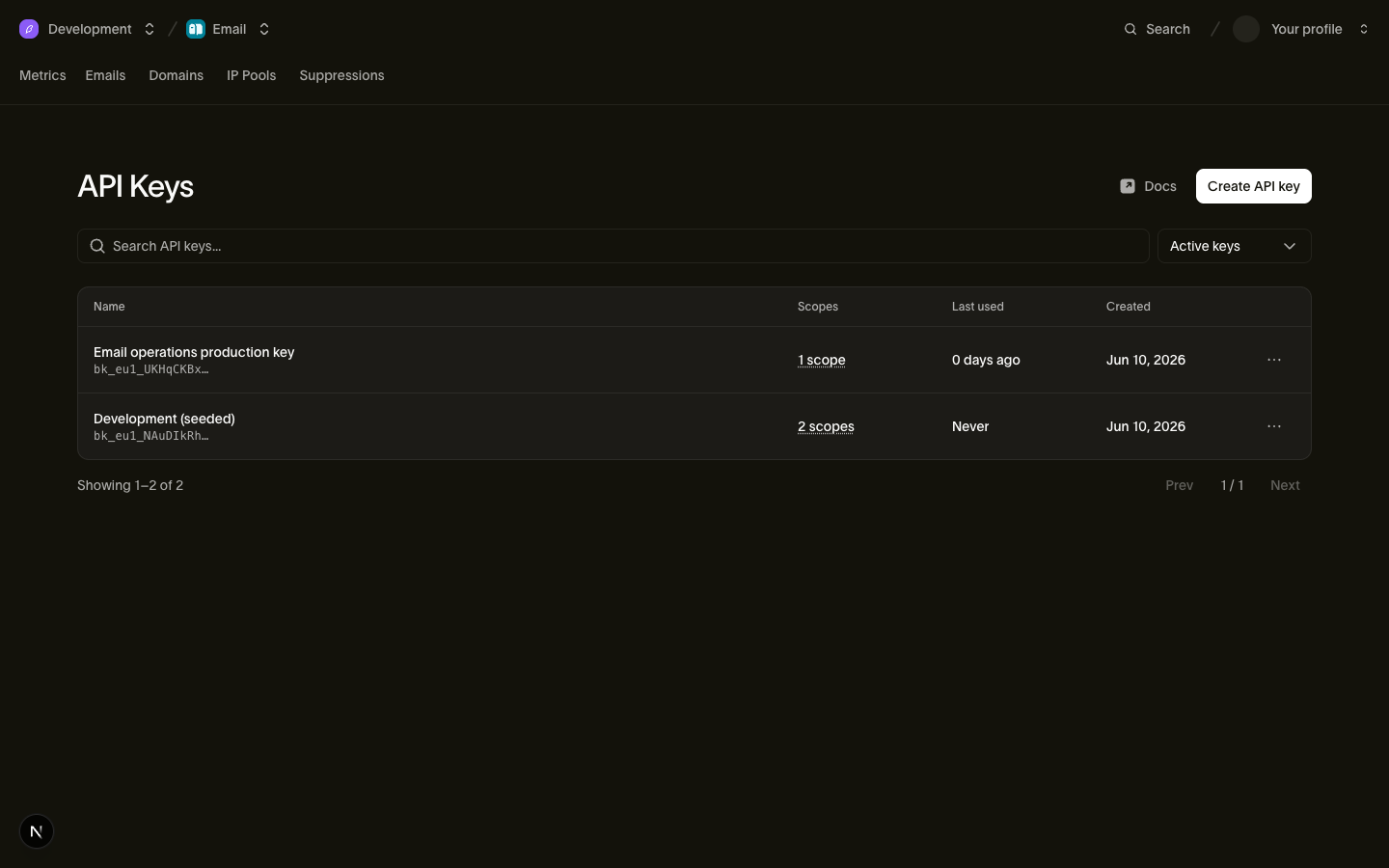
- API keys: create a key for the product or tool connecting to Bird. Each key belongs to your workspace. Open Platform tools > API keys, or use Search and type API keys.
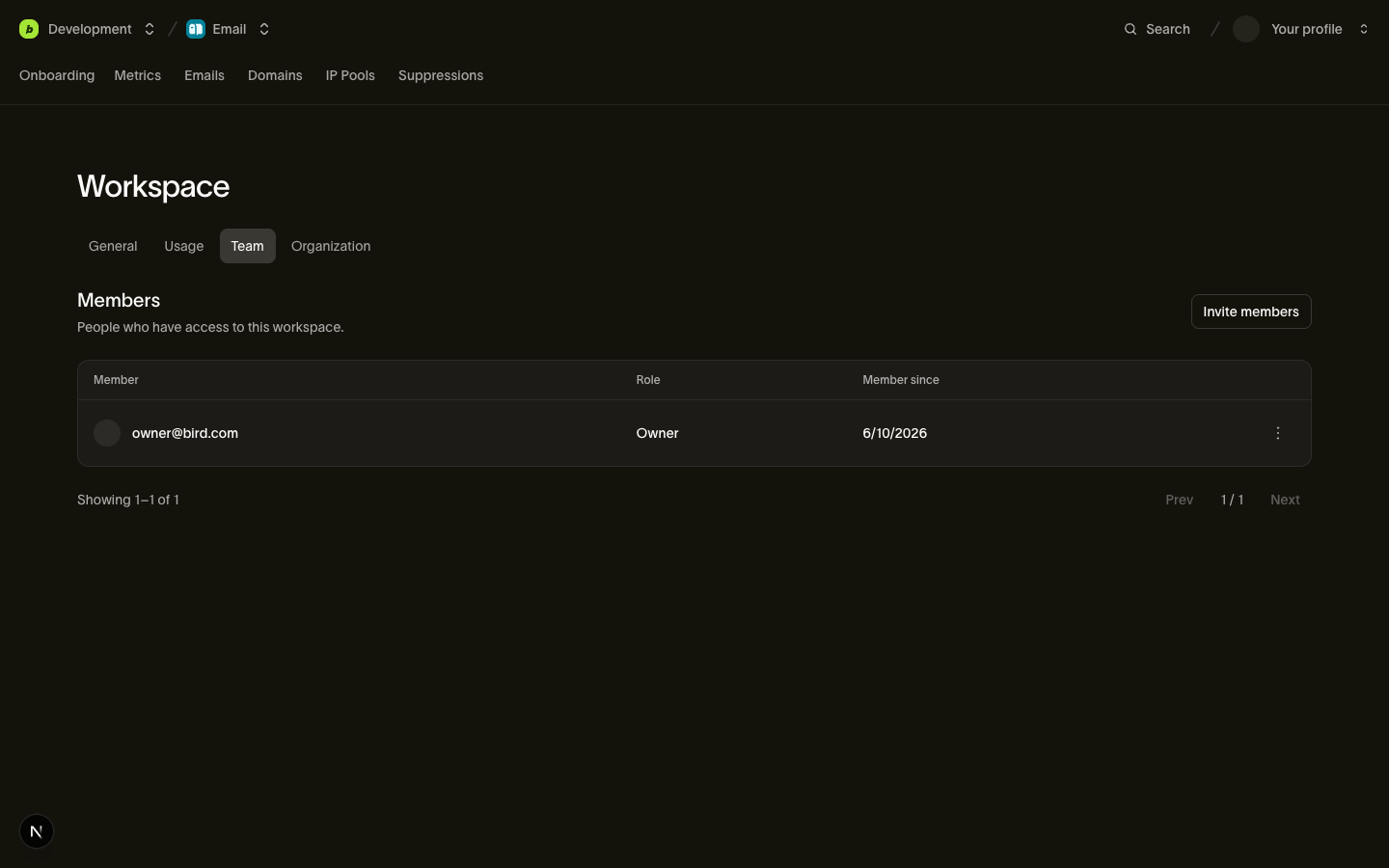
- Settings > Team: invite members and assign the access they need. See Invite your team.
Continue to other sections as your sending setup requires them.
The sidebar
The sidebar opens with a search bar (Cmd + K on macOS or Ctrl + K on Windows and Linux), with shortcuts and the All products and Platform tools menus.
All products lists the channels and applications available to your workspace. Home links to your workspace overview. Product rows open a second panel with pages for activity, metrics, configuration, or other product-specific settings. The product name in that panel is also the return control; select it to reopen the main sidebar.
Platform tools contains shared records that span channels: Contacts and Numbers are workspace-level, while Identity Center covers the whole organization.
Open Platform tools to find API keys, Webhooks, and Logs. Sidebar pins are personal shortcuts; a missing pin does not mean a page is unavailable.
Channel pages
Every channel drills into a consistent set of pages for its activity log, metrics, and configuration.
Each channel's overview documents its pages one by one: Email.
Billing and settings
- Upgrade appears in the top bar when you have billing access and opens your organization's billing pages.
- Settings opens pages for the workspace, organization, notifications, and team. The entries you see depend on your permissions.
Search and help
- Search opens the command palette from the search bar in the sidebar header. Press Cmd + K on macOS or Ctrl + K on Windows and Linux, then type to jump to any page or channel in the workspace.
- Select Help to open Ask Bird, then Contact Support to contact Bird support.
The Ask Bird guide explains supported chat attachments, daily limits, and how to review a support summary before sending it.
Your profile
Your profile menu shows pending invitations. It also opens account settings for your profile, Security, Active sessions, and Connected apps.
Next steps
- Set up your channel end to end: Email overview
- Get the right people in: Invite your team
Related resources
Continue with the documentation, guides and examples for this topic.