Add DNS records · any registrar
DNS providers use different controls for the same record fields: name, type, and value. Use this page when your provider does not have a dedicated walkthrough. Bird provides DKIM, return-path, optional tracking, and DMARC records. It does not require an SPF record at the domain apex; see DKIM, SPF & DMARC.
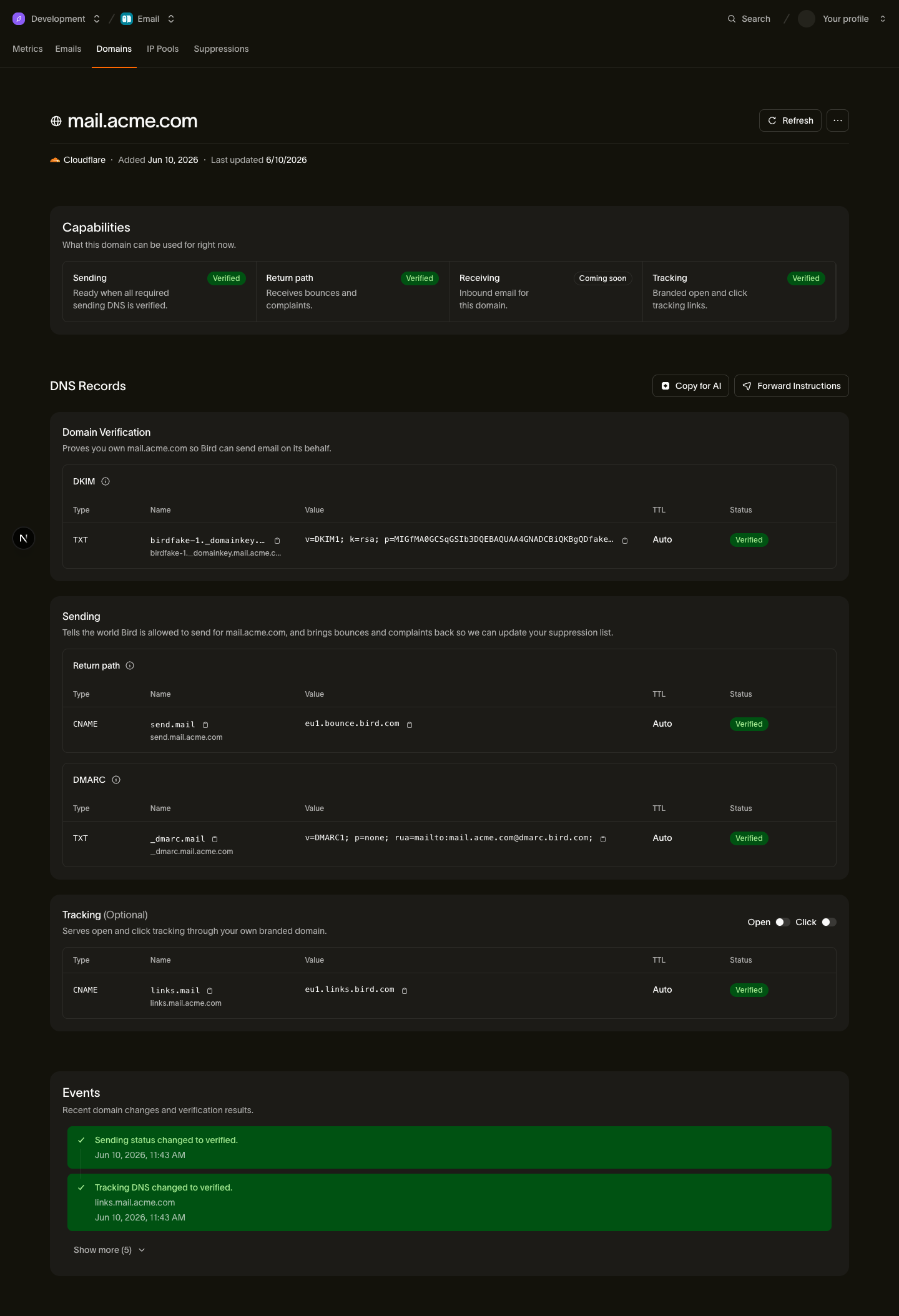
Before you start, open your domain's detail page in the Bird dashboard and keep it visible. Copy every host and value from that page.
Step 1: find the DNS editor
Sign in to your registrar and open the domain's DNS editor. Common labels include DNS Management, Advanced DNS, DNS settings, Zone File, and Manage DNS. Look for a list of records with type, host or name, and value fields.
Step 2: confirm the name servers point here
Publish records at the provider named by your domain's name servers. If the name servers point to Cloudflare, a web host, or a cloud DNS service, add the records there instead of at the registrar.
Step 3: add the records
Add four records (the tracking one is optional). For each, find the Add record or Add new record button, pick the type, and fill in the host and value from your Bird domain detail page.
Which records are which type
| Record | Type | Host | Value (copy from Bird) |
|---|---|---|---|
| DKIM | TXT | <selector>._domainkey.example.com | v=DKIM1; k=rsa; p=<public-key> |
| Return-path | CNAME | send.example.com | <region>.bounce.bird.com |
| Tracking* | CNAME | links.example.com | <region>.links.bird.com |
| DMARC | TXT | _dmarc.example.com | v=DMARC1; p=none; rua=mailto:dmarc-agg@dmarc.bird.com; |
*Optional: it only enables branded open and click tracking; your domain can verify and send without it.
The two CNAME records point hostnames to Bird, while the two TXT records publish authentication text. Select the record type before completing the other fields because provider forms often change by type.
How the host/name field works
This is where providers differ most, and where most mistakes happen:
- Most providers want the host relative to your domain. If the form already shows your domain next to the field (or appends it on save), enter only the leading part:
send,links,_dmarc,<selector>._domainkey. - Some want the fully qualified name. Use the full hostname (
send.example.com) if savingsendproduces a record with no domain or the provider uses a raw zone-file editor. A trailing dot in a zone file marks the name as complete and prevents the provider from appending the domain. @means the domain itself (the root or apex). It appears as a placeholder or in existing records. None of Bird's records go at the apex, so you do not need to enter@for this setup.- When in doubt, save one record and look at the result. If the records list shows
send.example.com.example.com, you entered a full name where a relative one was expected: edit it down tosend.
Copy values exactly
Paste each value from the Bird dashboard without retyping or editing:
- The DKIM value is a long machine-generated key: a single missing character invalidates it. If your provider has a length limit and Bird shows the value split into multiple quoted strings, paste it as shown; that is standard DNS formatting. If your provider doesn't split it for you, the DNS record splitter creates quoted strings that fit.
- Whether TXT values need surrounding quotes varies by provider: most add them for you, so start without quotes and only add them if the provider's docs say to.
- CNAME values are hostnames. Leave out
https://and the trailing slash. A trailing dot shown after saving is normal. - Leave TTL at the provider's default; it only affects how fast future changes propagate.
Step 4: after you publish
Bird checks your DNS automatically. You can also open the domain details in the dashboard and select Refresh. If the domain remains pending, see Verification delays. After verification, send a test message and inspect it in the email log. The Email header analyzer can read the received message's SPF, DKIM, and DMARC results.
Provider-specific guides
If your provider is one of these, the dedicated walkthrough matches its exact screens:
Next steps
- Sending domains: adding and managing domains end to end
- DKIM, SPF & DMARC: what each record proves and why Bird does not publish an apex SPF record
- Verification delays: what to check when a domain stays pending
Related resources
Continue with the documentation, guides and examples for this topic.