WhatsApp opt-outs and keywords
A suppression your workspace recorded, or a preference the recipient stated, stops a WhatsApp send. The two are separate records, kept in separate places.
This page explains the difference and the vocabulary the rest of the section uses. The pages under it cover the three things you work with: the keywords Bird answers on your numbers, the preferences recipients state, and the suppression list you maintain.
Suppressions and preferences
| Suppression | Preference | |
|---|---|---|
| What it is | An address your workspace will not message | A statement about what the recipient wants |
| Who records it | You, from the dashboard or the API | The recipient, or you on their behalf |
| What it covers | Every message to the address, within its scope | All messages, or marketing messages |
| Where it lives | The Suppressions list | The Preferences tab |
| Who can reverse it | You, for one you added | Whoever stated it |
Scope and coverage
Two properties describe how far a record reaches.
Scope is which of your WhatsApp Business Accounts the record applies to. A record scoped to one account leaves your other accounts free to message the address. A record scoped to the workspace covers every account, including accounts you connect later.
Coverage is which messages the record stops. All messages stops everything. Non-transactional stops marketing and other non-essential messages while transactional ones, such as verification codes, keep flowing.
A suppression carries a scope and stops every message within it. A preference carries both a scope and a coverage.
What happens at send time
Sending and delivery are separate stages, so a block does not come back as an immediate error. Bird accepts the send, then fails it asynchronously with a whatsapp.rejected event carrying error.code: "recipient_suppressed". If you are reconciling a message that vanished after a successful API response, that event carries the reason.
A suppression blocks every message to the address within its scope. A preference blocks what its coverage says. Bird checks both stores for a send addressed to a person. A send addressed to a group is not checked against either store, so honor a member's opt-out in your own sending logic.
Where to look
Open the Suppressions page to inspect both stores. The Suppressions tab lists the addresses your workspace blocks, and its Business account column names the account each one is scoped to, or reads All accounts for a workspace-wide record. The Preferences tab on the same page lists the statements recipients have made.
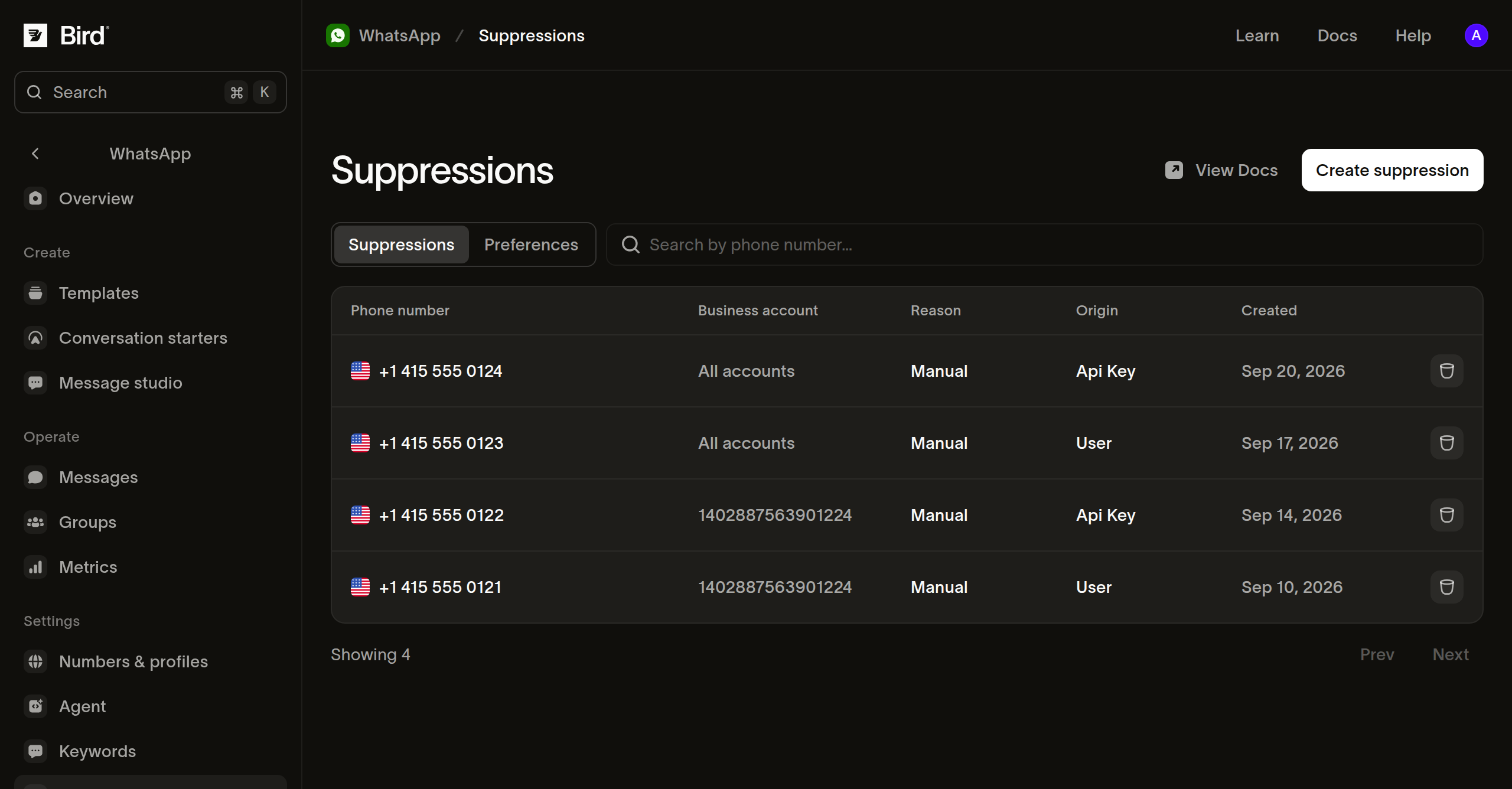
Configure keywords separately, on the Keywords page.
Before you change a recipient's records, read both tabs. A record you cannot find in one may exist in the other, and ending a suppression does not clear a preference.
Next steps
- Keyword rules: the words Bird answers on your numbers, and how to change the reply.
- Preferences: what recipients state, and which statements you can reverse.
- Suppressions: record, read, and end the addresses you will not message.
Related resources
Continue with the documentation, guides and examples for this topic.