Create and send Apple Messages templates
Use Apple Messages > Templates to author a reusable message, then prepare and send it to an open customer conversation. Choose a supported message type before you start.
Understand where drafts are saved
Template drafts are saved in this browser for the selected workspace. They are not a shared, server-stored library. A teammate, another device, or another browser profile will not automatically have your draft. Clearing site data can remove it.
Save template saves the draft; it does not publish a running journey, submit content to Apple, or send a message. Keep an approved copy of important wording and native settings in your team's normal content records.
Create the content
- Open Templates and select New template.
- Choose the message type, such as Quick replies, List picker, or Form.
- In Content, enter a descriptive Template name, a customer-facing Title, and the Message.
- Configure the type's choices or media. For structured lists, forms, and time slots, continue in Apple delivery using the native-message guides.
- In Personalization, select the Business that will send it.
- Open Review, resolve the listed content issues, and select Save template.
The confirmation says the template was saved in this browser. Reopen it to check that your changes were retained. A preview shows the prepared content but does not prove how Apple's Messages app renders it.
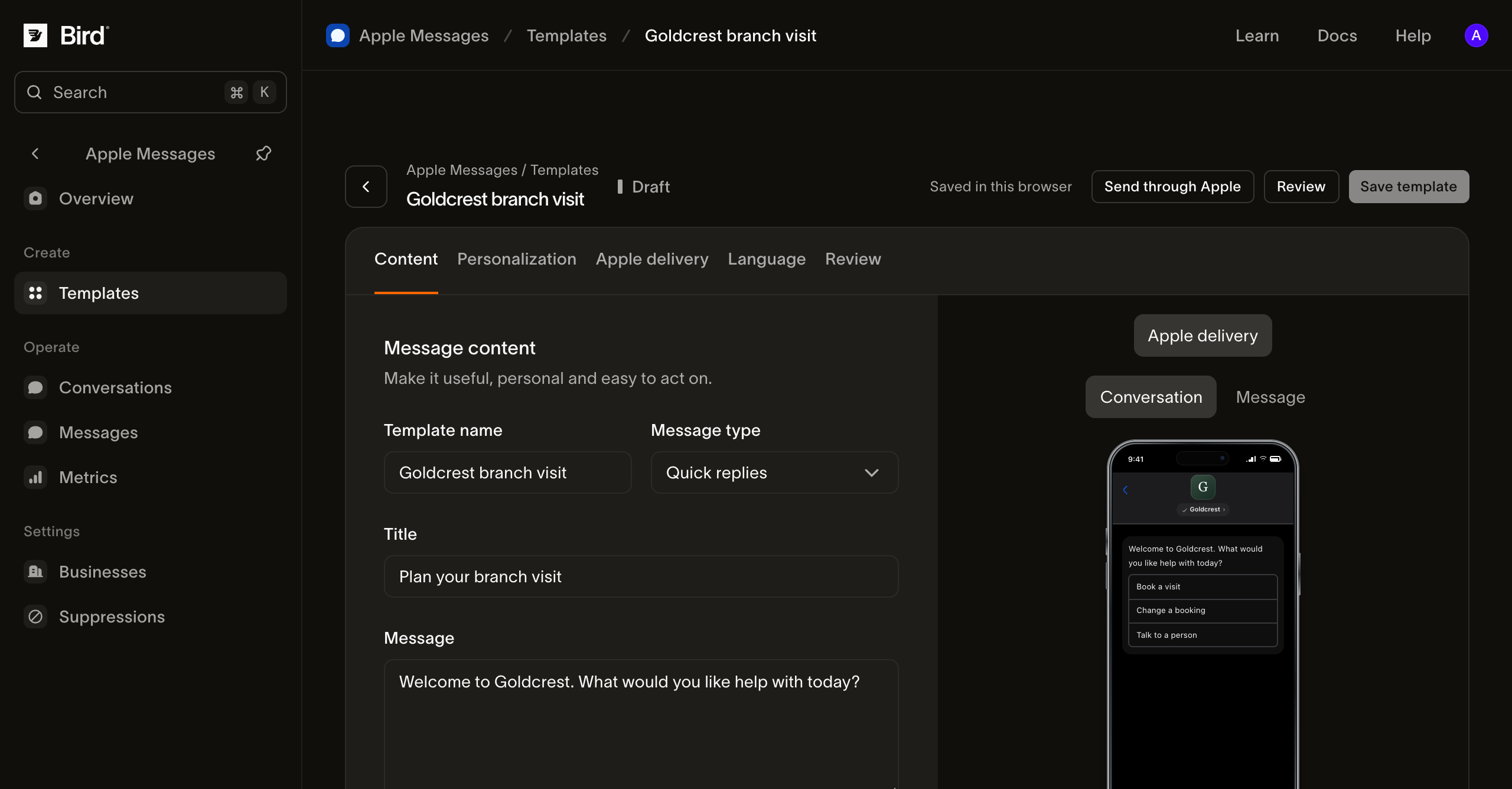
View the screenshot at full size.
Add variables and language variants
Write variables with double braces, for example {{customer.first_name}} or {{order.reference}}. In Personalization, enter fictional example values to check the preview. Use names that your team understands and can supply accurately.
These examples are preview values. When sending, you must enter the actual values for the selected customer. The editor does not automatically read your CRM, order system, or booking calendar.
Under Language, choose Content language and Category to organize the draft. Changing the language label does not translate the text. Use Duplicate template from a saved template's detail to create a separate language draft, translate its customer-facing text, and have it reviewed. Choose the correct language draft explicitly when sending.
Send the reviewed template
You need send permission, a connected business, and an open conversation with that business. A business in Testing can send to your test users while you prepare for approval. Sending through the connected channel can incur charges.
- Select Send through Apple from the editor. Alternatively, open a conversation and choose Actions > Template, then the saved template.
- Select the recipient conversation if it is not already fixed by the conversation view.
- Enter the actual values for the variables shown. Do not enter placeholder or preview data for a real customer.
- Select Prepare message. Preparation checks the native content, business, conversation, and known device capabilities.
- In Review your message, check the business, conversation, and complete content. Use Edit recipient or values if anything is wrong.
- Select Send message. Use View message and events to inspect the submitted record.
Preparation does not send. Submission queues the message for processing; media or provider errors can occur afterward. See message statuses before treating the send as successful.
Update a draft safely
Edit and save the draft, then prepare a fresh message to review the changed content. Previously sent messages retain their submitted content. Changing a draft does not update a message already on the customer's device.
If another tab saved a newer revision, reload the current draft and reapply your intended changes. If saving fails, preserve the text and settings before closing the page and check browser storage. For a missing draft, use the storage checks.