Connect your WhatsApp number
Connect your WhatsApp number to Bird. These screenshots use a pre-verified US number and a new WhatsApp Business Account.
To keep using the WhatsApp Business app, connect your number with coexistence.
Start on the Numbers page with a Bird number allocated to your workspace and a Meta login that can manage your business.
Select your number in Bird
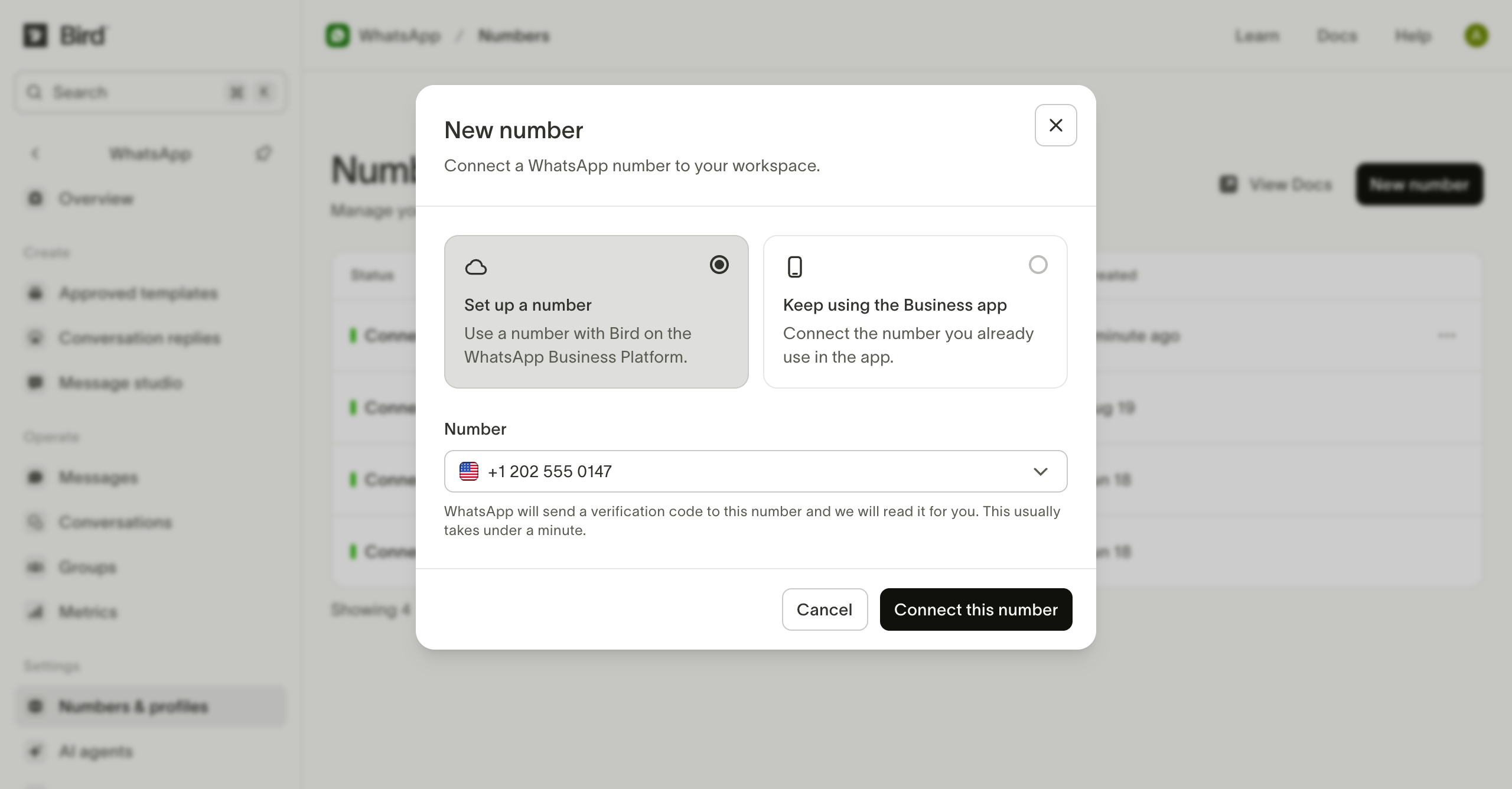
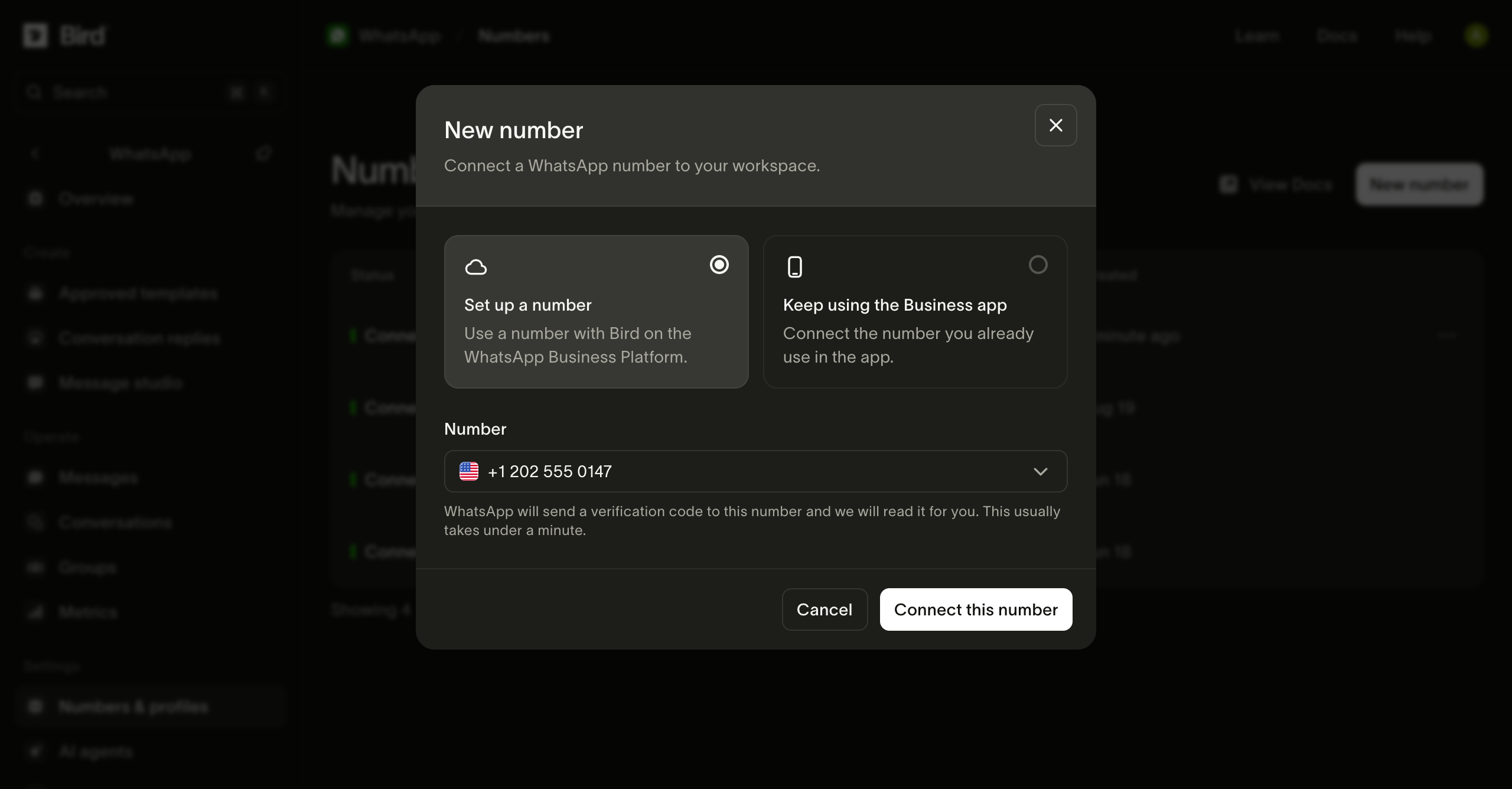
Choose New number, then Set up a number. Select your allocated number from Number, then select Connect this number.
Wait for verification
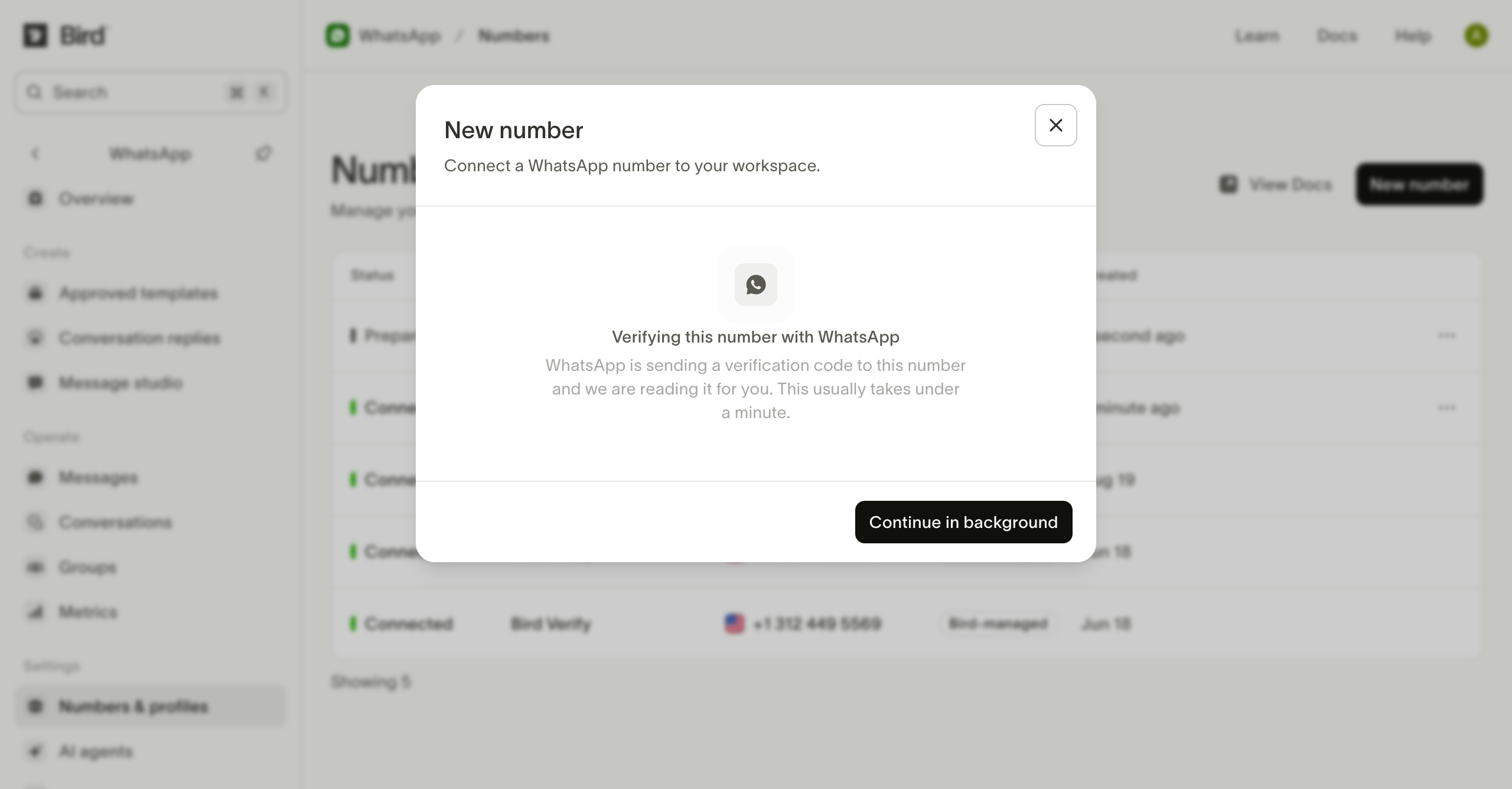
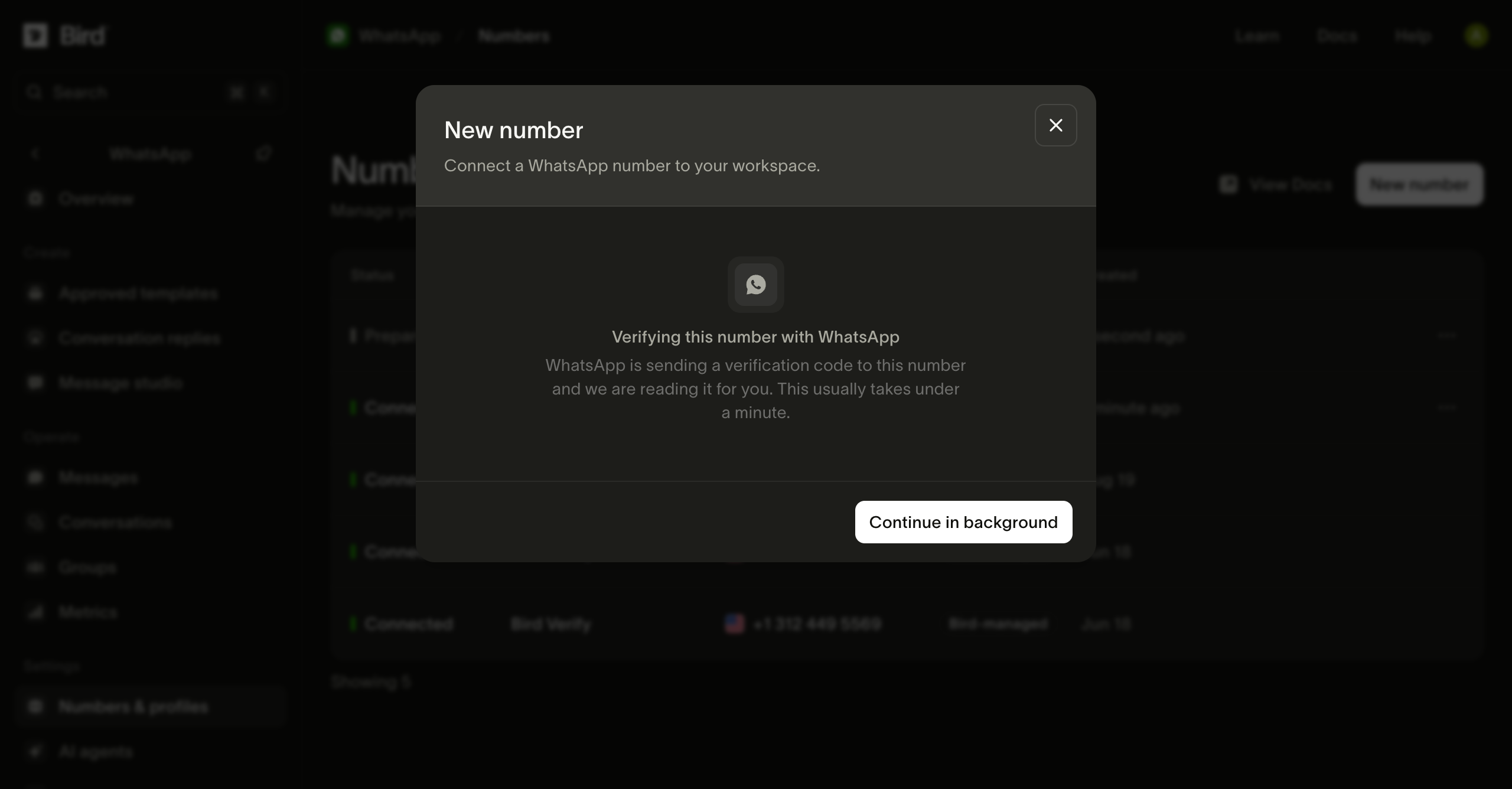
Bird receives Meta's verification code for you. You can select Continue in background and follow progress in the numbers list.
Open Meta's setup
When the number is Pre-verified, give it a name and select Finish setting up. Sign in to Meta when prompted.
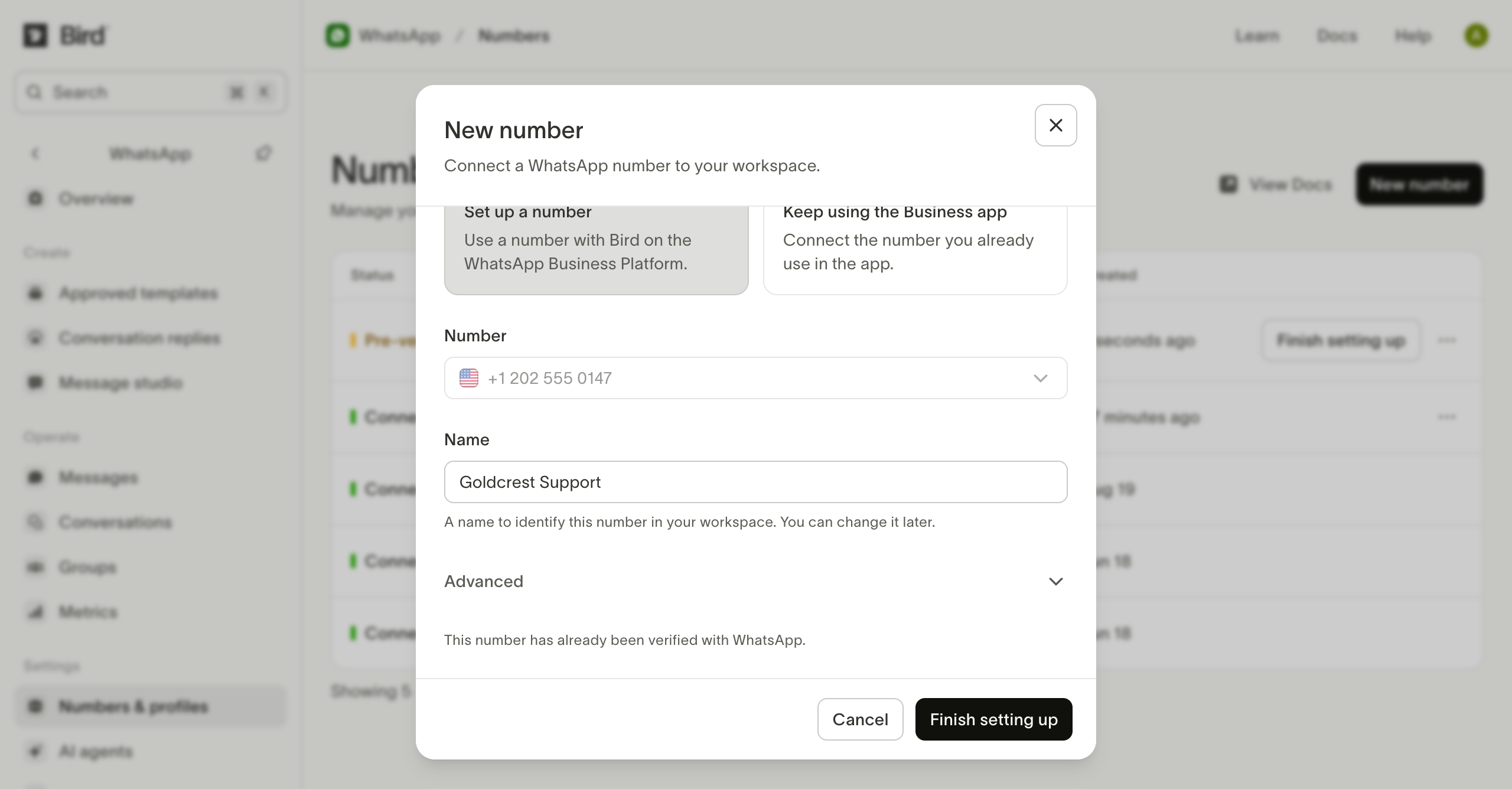
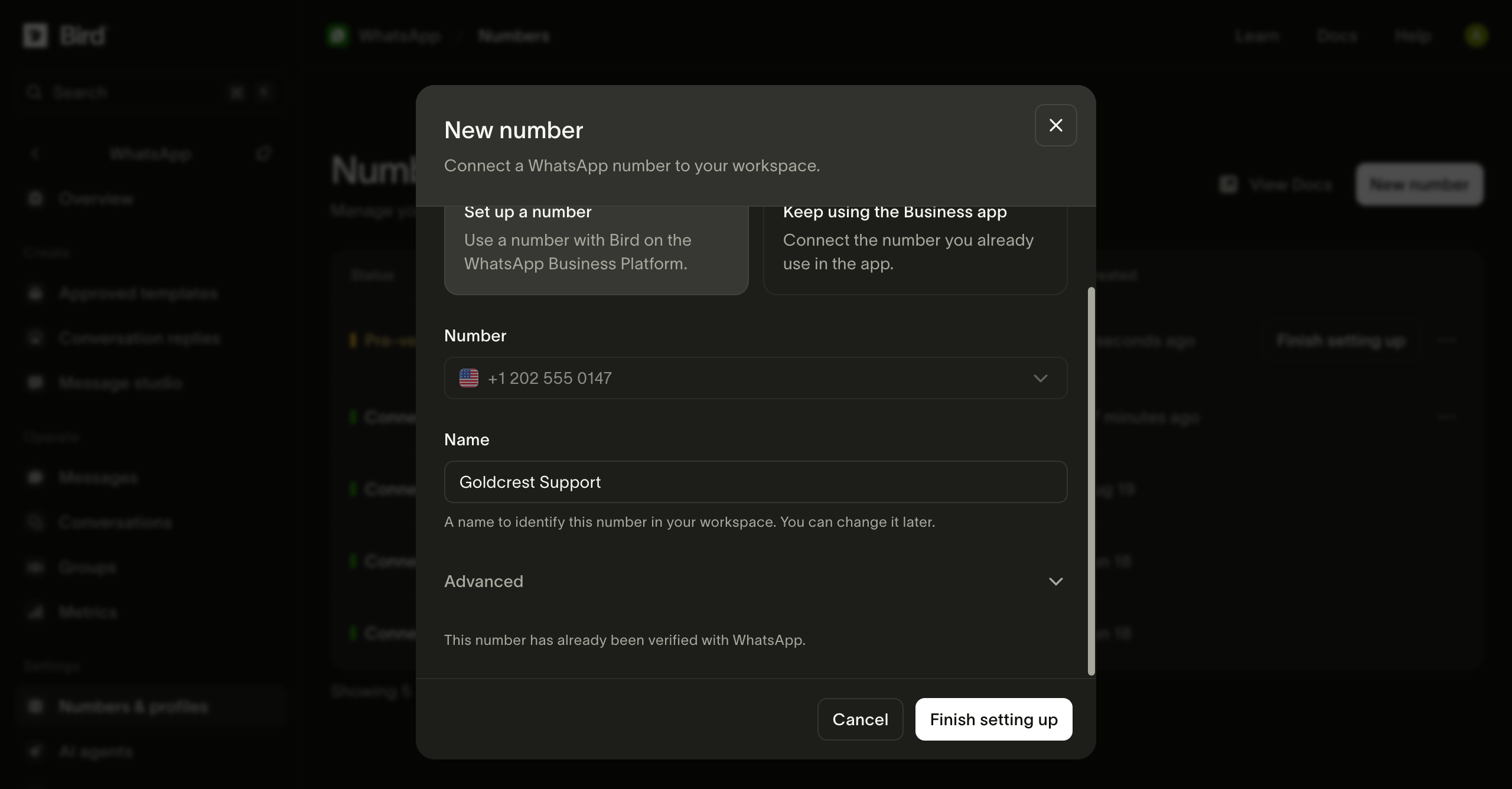
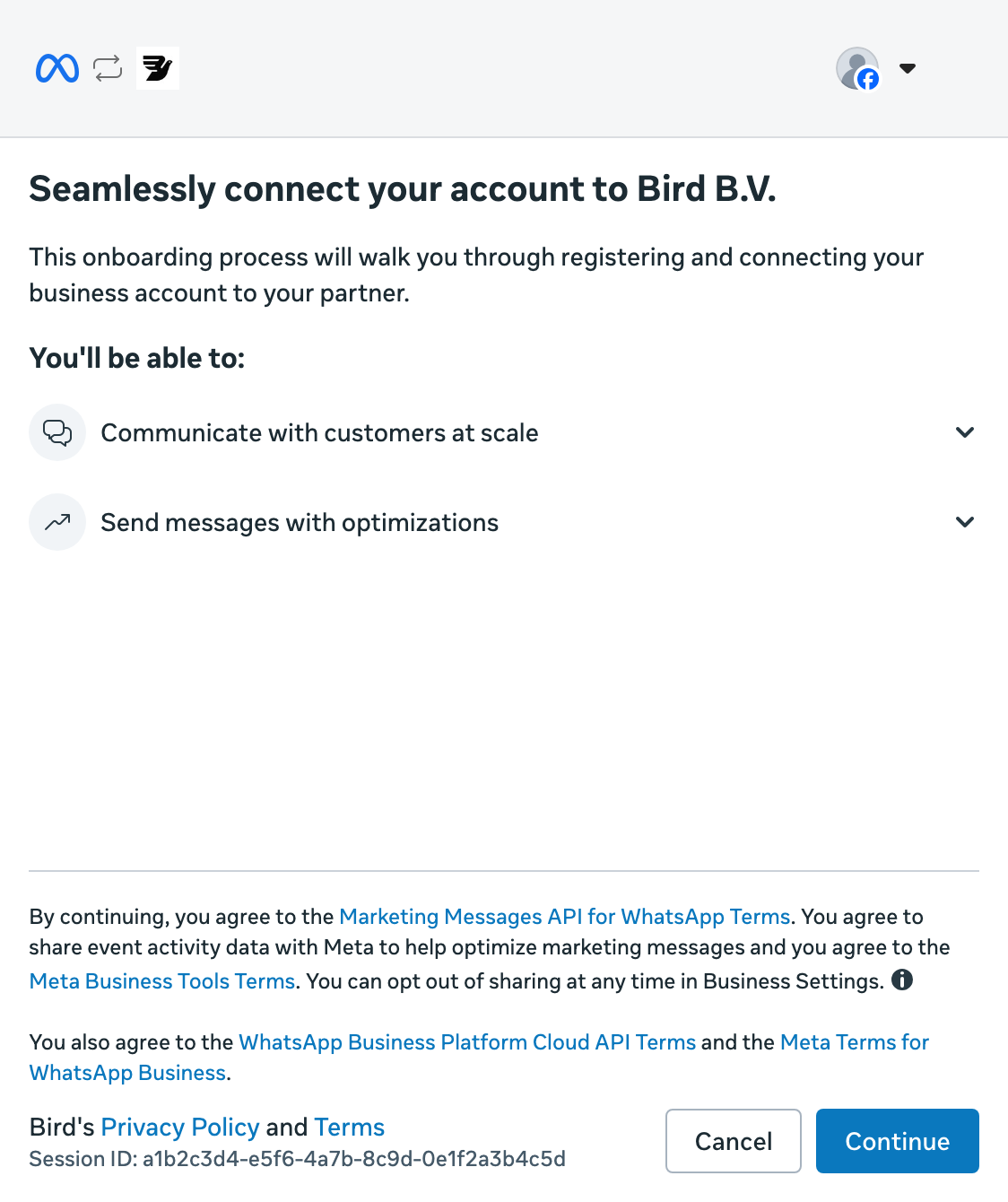
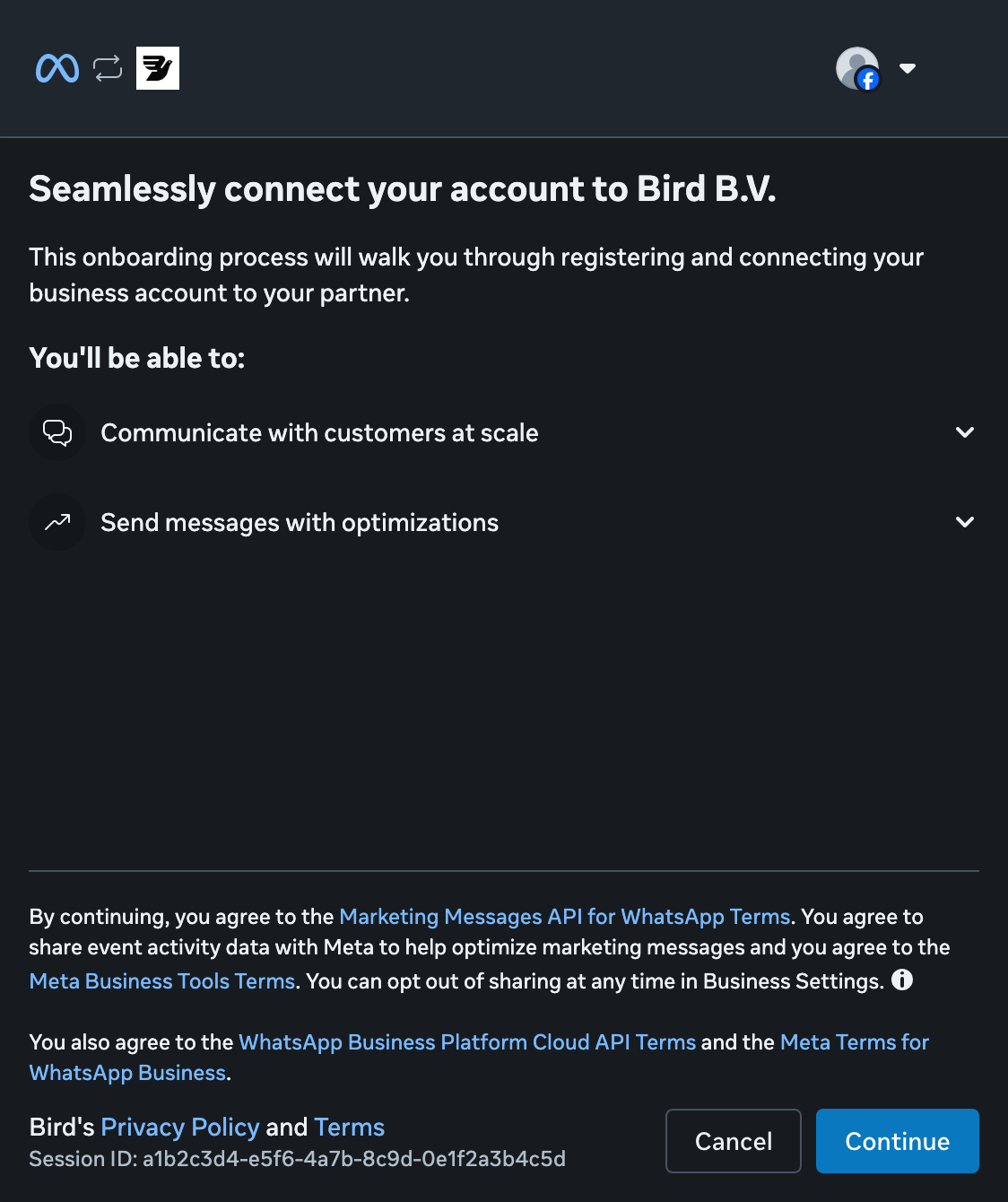
Continue with Meta
Select Continue to start connecting your business to Bird.
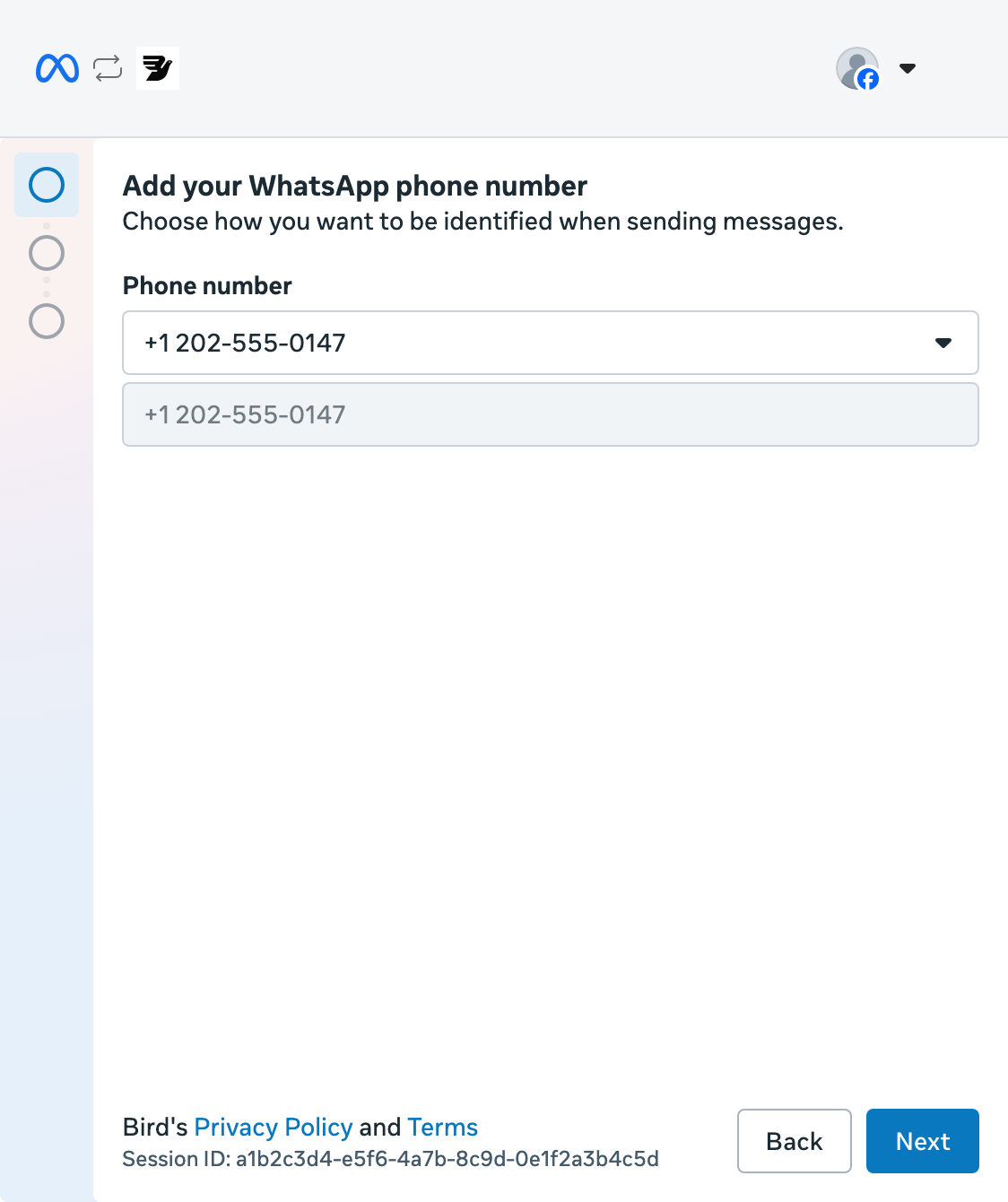
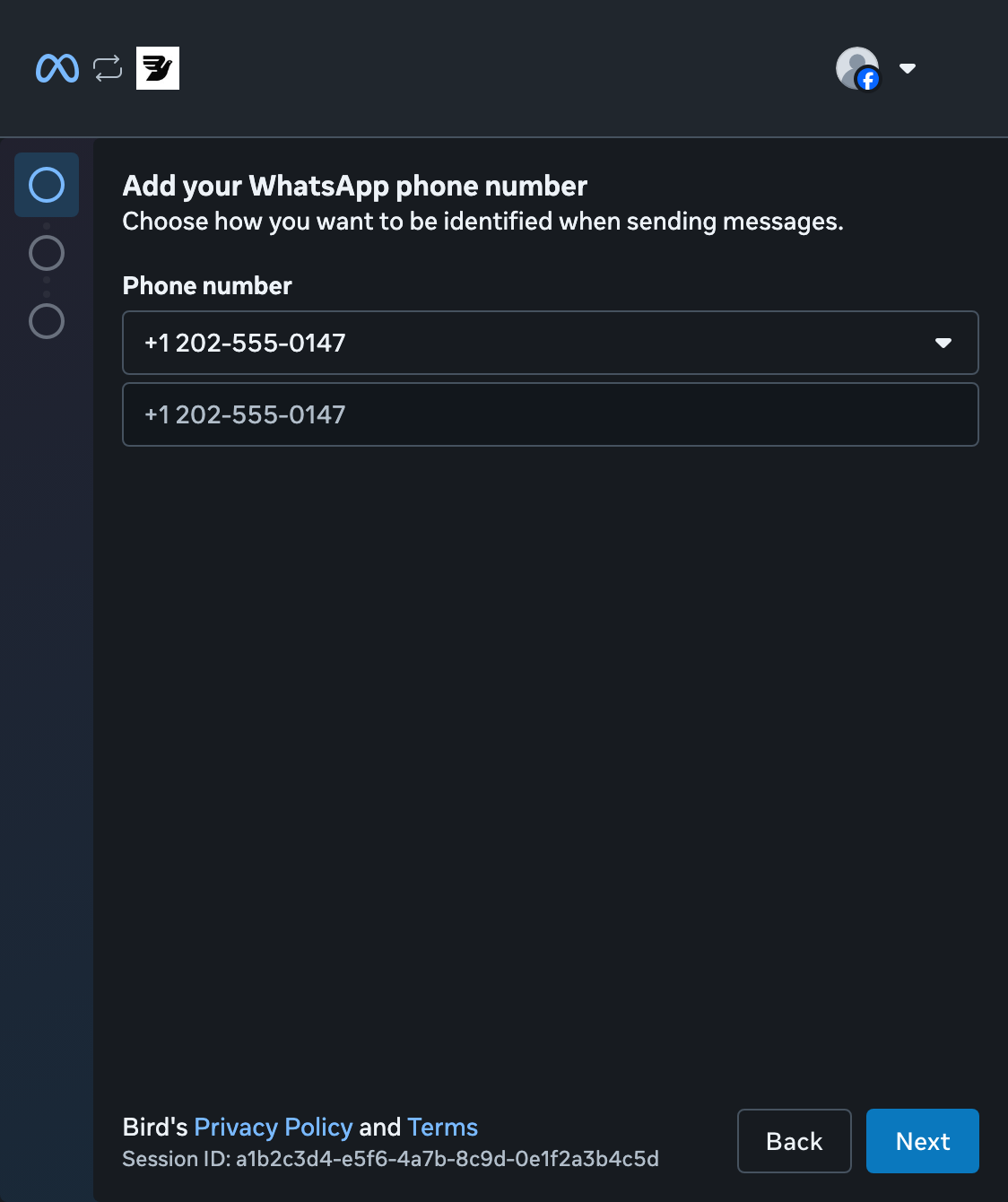
Choose your number
Open the number list and select your pre-verified number, then Next. You do not need another SMS code.
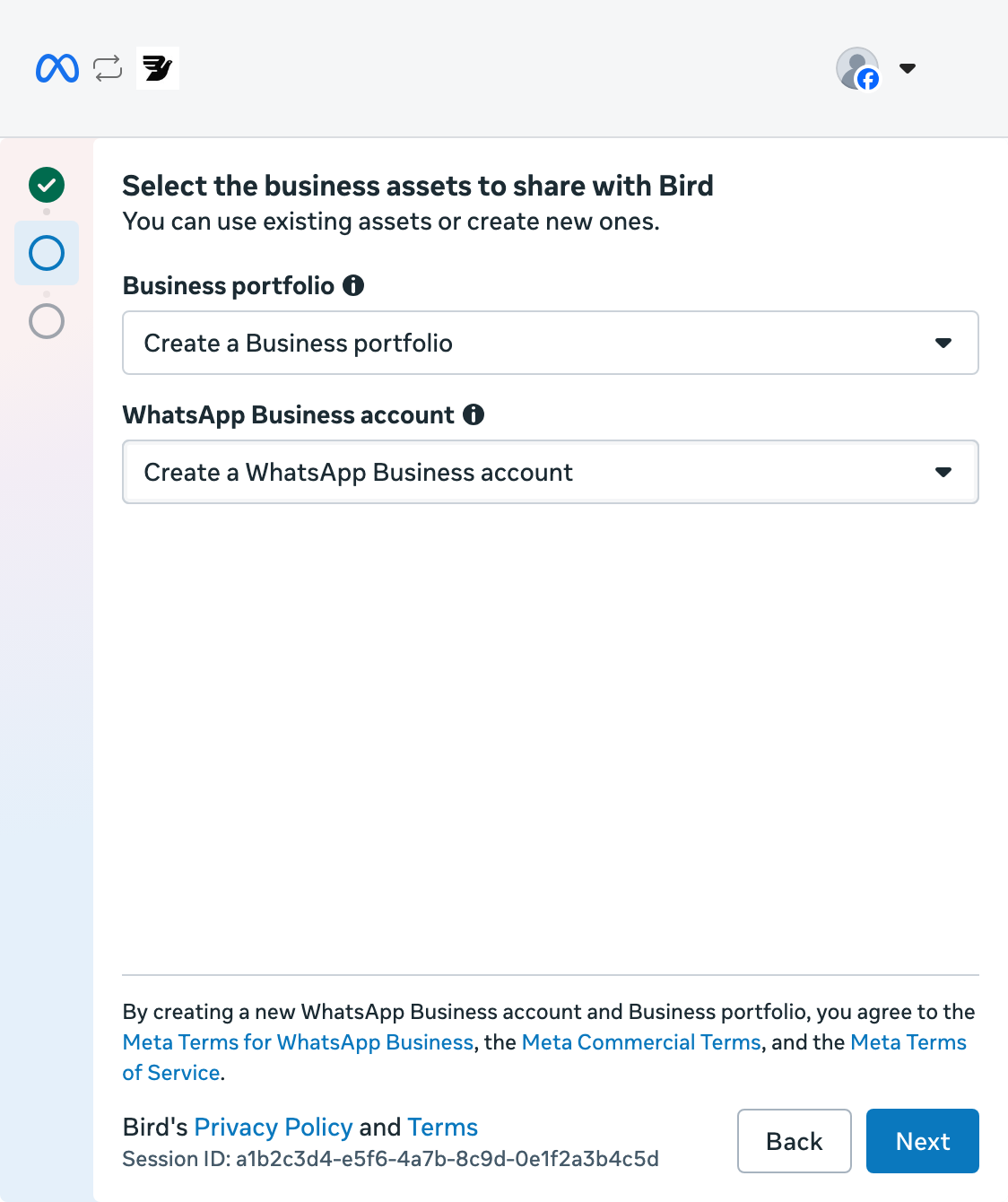
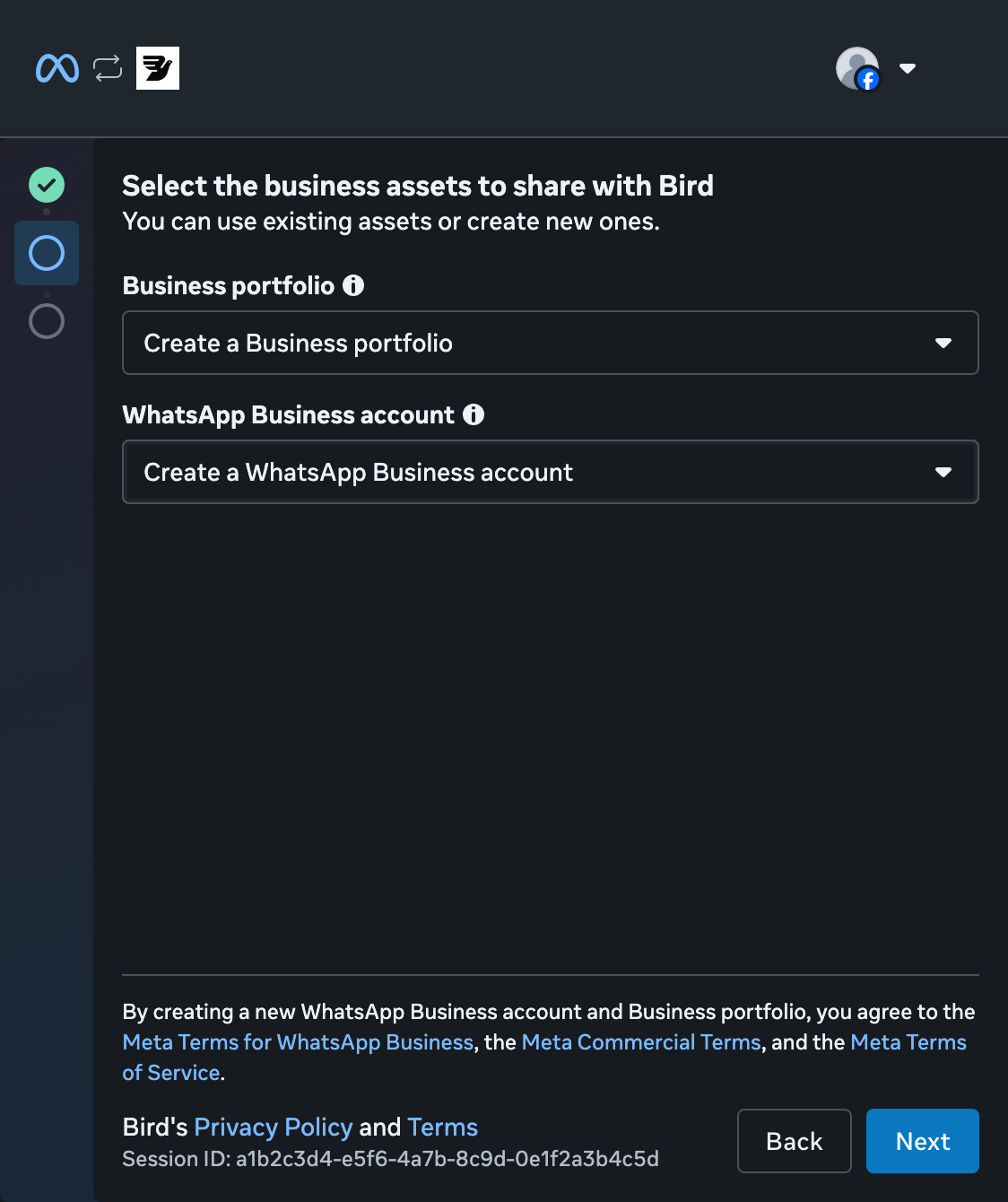
Create a business portfolio
Select Create a Business portfolio. Keep Create a WhatsApp Business account selected, then select Next. If you already have a portfolio, you can choose it instead.
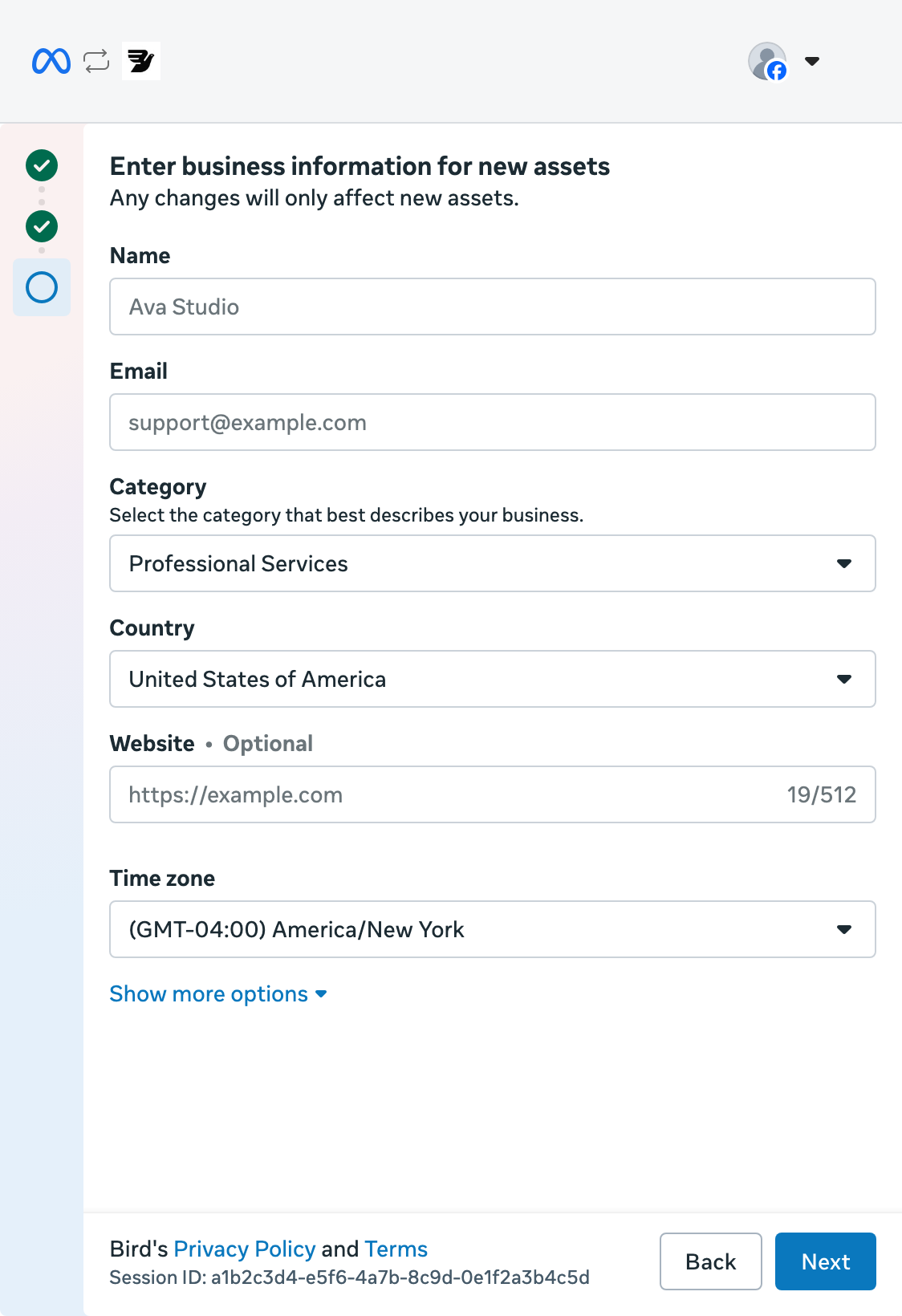
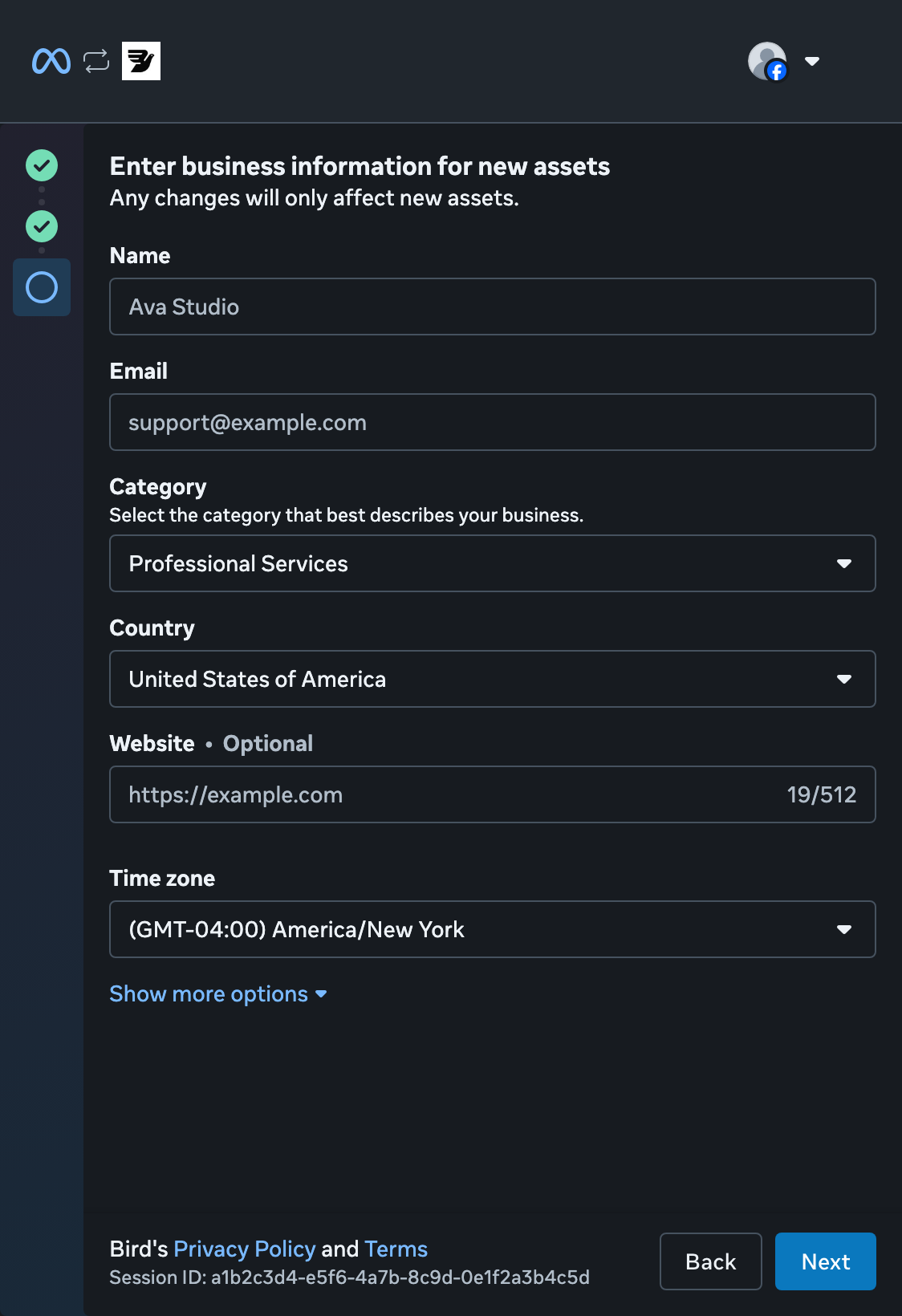
Add your business details
Enter your business name and email, then choose a category and country. Add your website, or indicate that you do not have one. Check the time zone, then select Next.
Review access
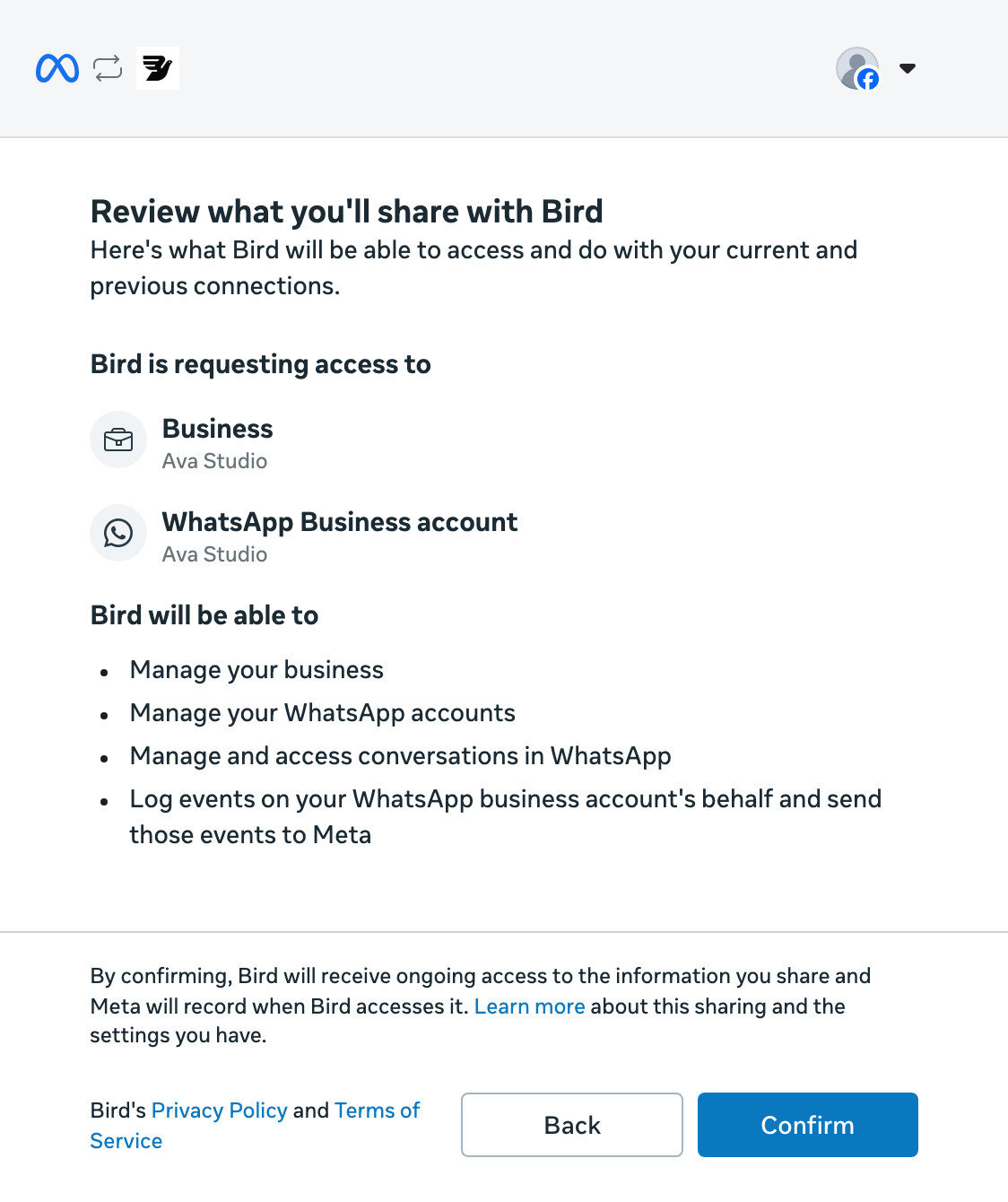
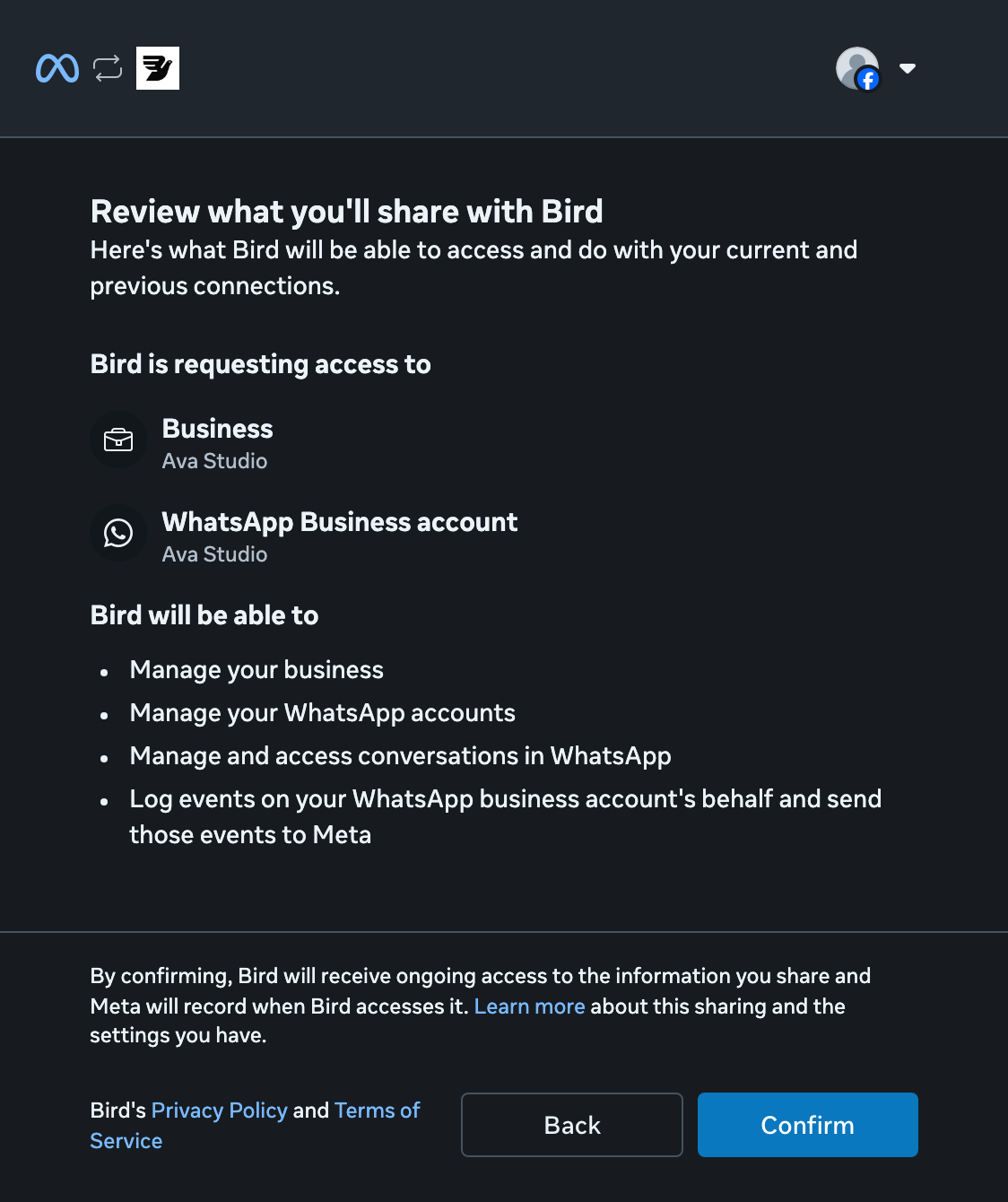
Review the permissions Bird requests, then select Confirm.
Return to Bird
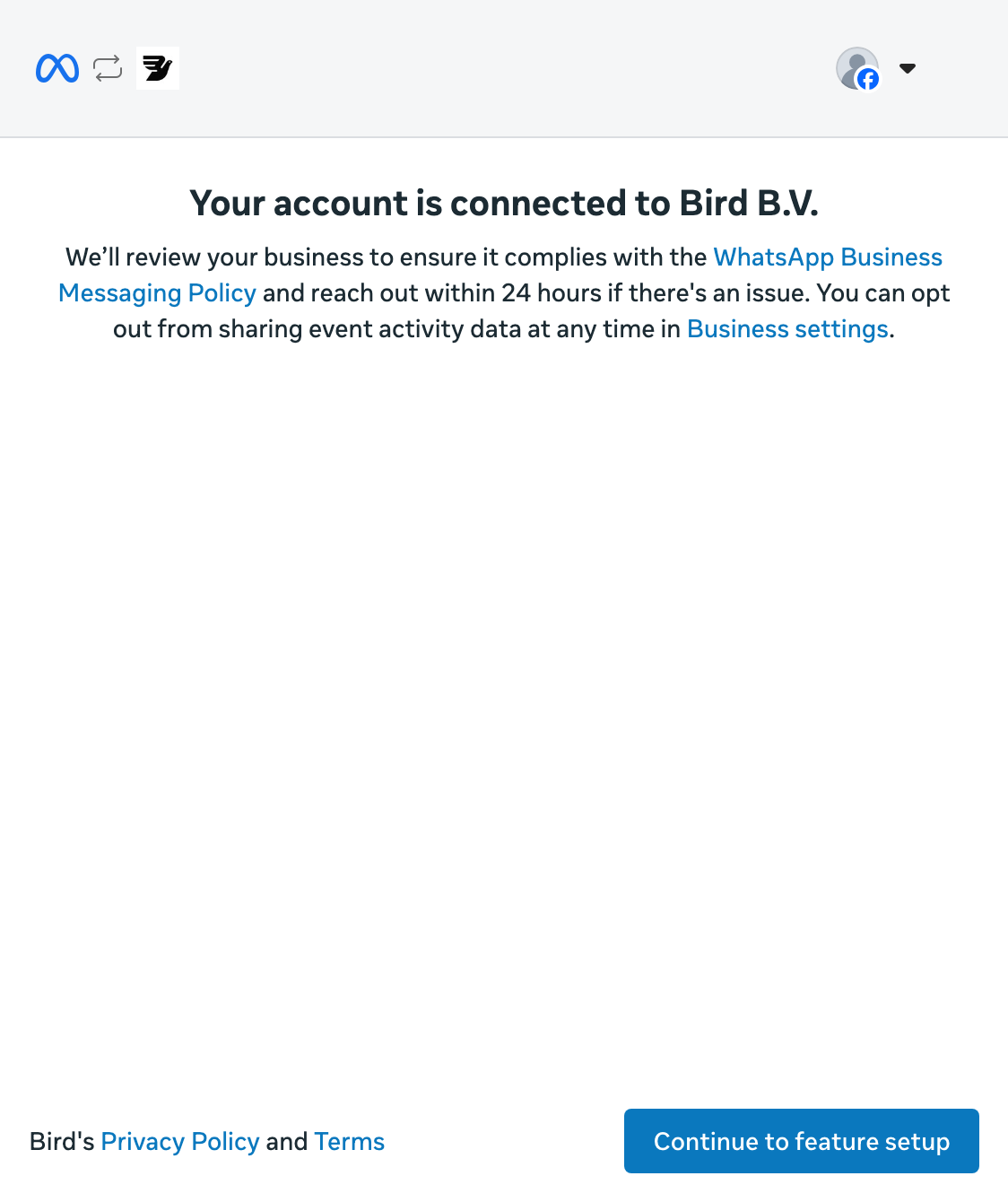
Select Continue to feature setup to finish Meta's setup and return to Bird.
Wait for Connected
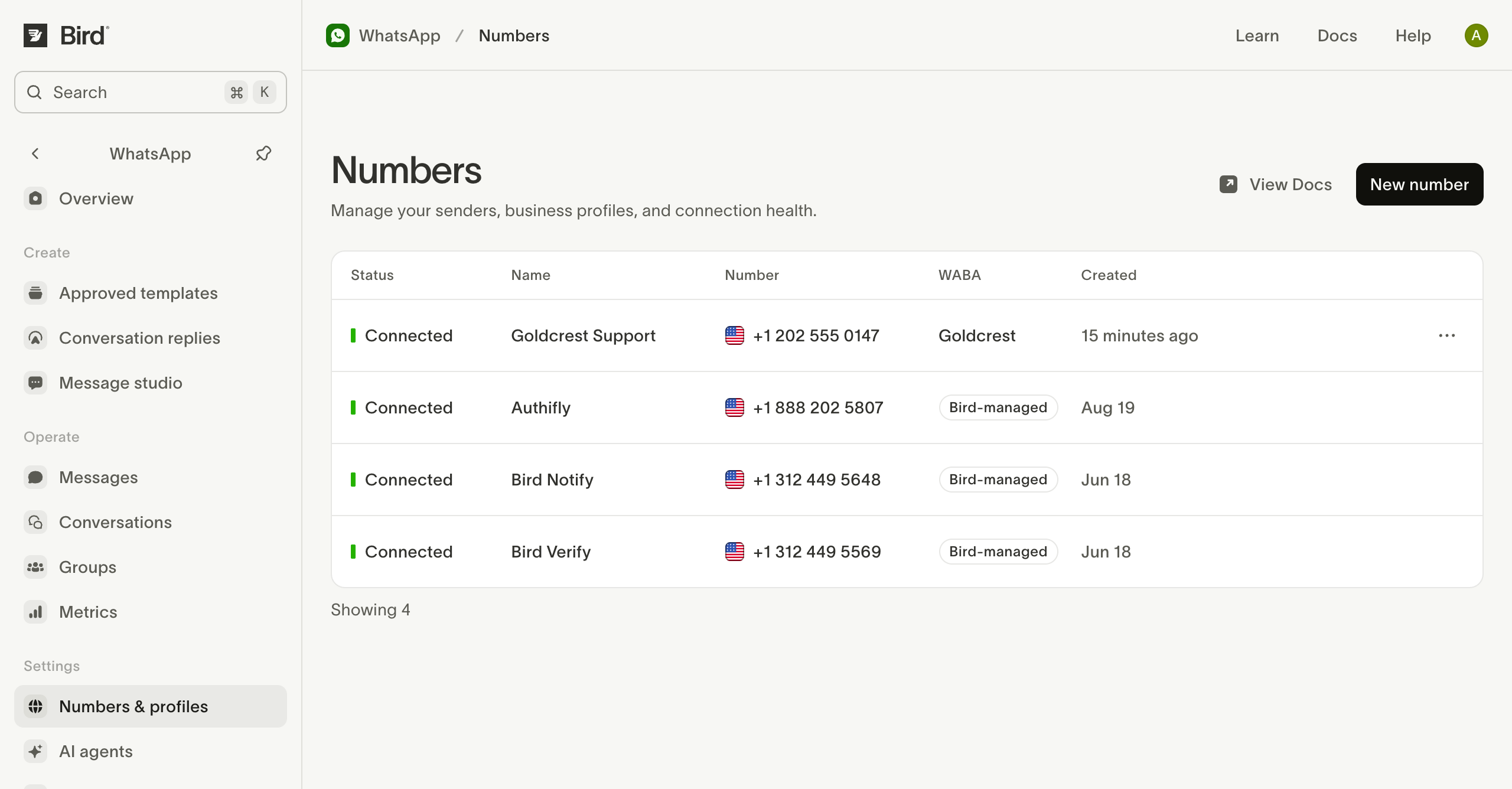
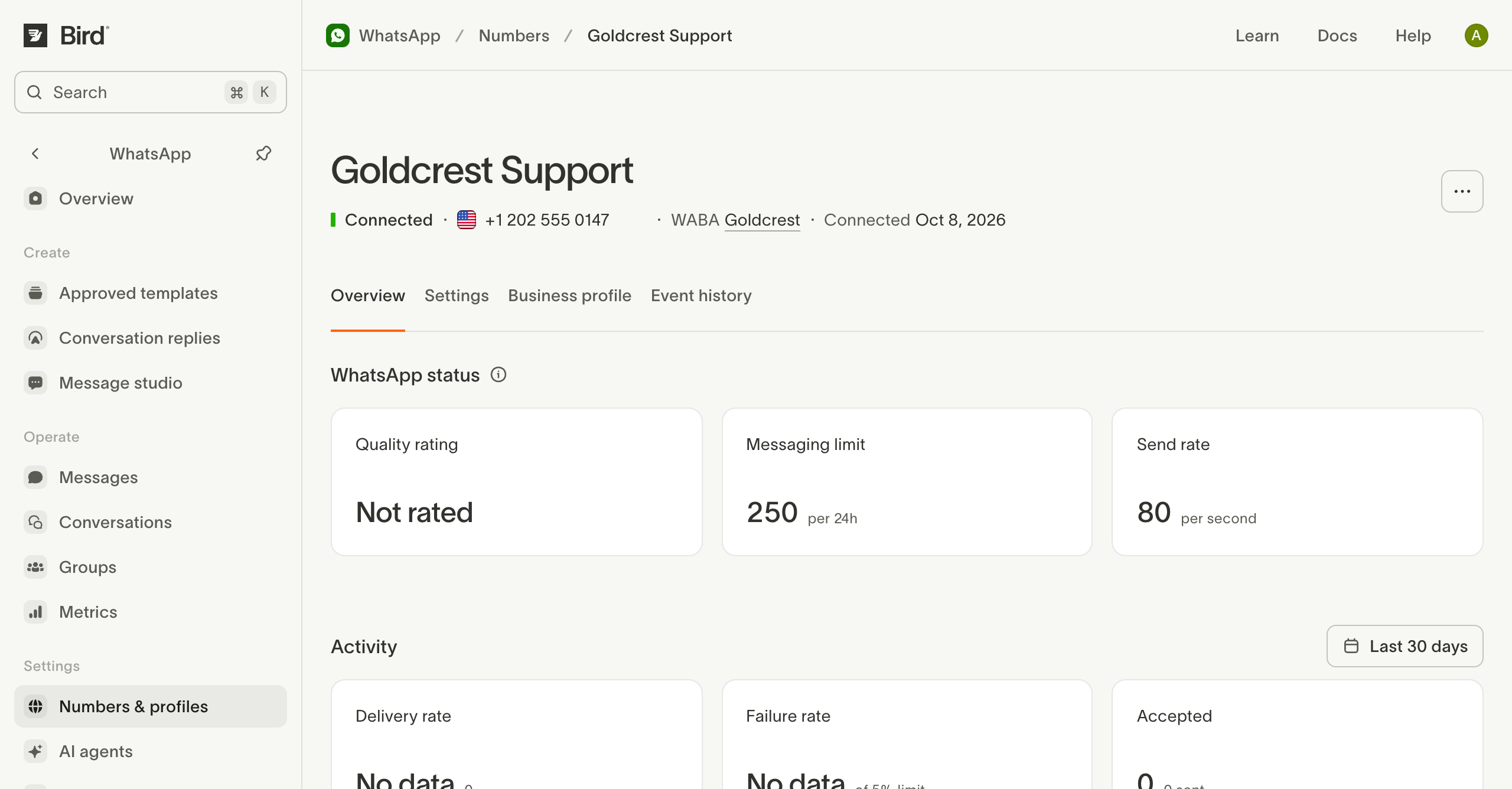
Back in Numbers, wait for Connected before sending. Pending means Bird is still registering the number with Meta.
Check your number
Open the connected number to check its status and sending limits. Use Business profile to review what recipients see.
If setup stops, check the number's status and how to retry.
For other number options, see Default numbers and your own numbers.
Numbers overview covers profiles, business accounts, API reads, and inbound messages. Ready to send? Send a WhatsApp message.
Related resources
Continue with the documentation, guides and examples for this topic.