Register your business for Apple Messages
Connect your Apple Messages for Business account to a Bird workspace and submit your service for review. For service planning, staff training, and launch preparation, start with complete onboarding.
Apple owns account approval and the customer-facing business identity. Your team owns the service design and staffing. Bird reviews the submission and coordinates the provider connection. Creating a Bird business record does not approve it for sending.
Prepare your accounts and service
Before you register, gather:
- A corporate Apple Account and access to your organization in Apple Business Register.
- A Bird workspace and permission to manage Apple businesses. Ask your workspace administrator to invite the people who will operate the channel.
- Your brand name, technical contact, service hours, languages, and expected response time.
- The customer tasks you will support, the entry points you intend to use, and the route to a human when a task cannot be completed.
- Testers with Apple devices and the Apple Accounts used on those devices.
Start with a task your team can complete today, such as answering product questions and arranging a store visit. Record what happens when the request is out of scope or arrives outside staffed hours.
Connect the Apple account
Follow Apple's registration instructions to create a test account and select Bird as your messaging service provider. Use an advanced endpoint configuration only when Bird gives you the required connection details.
Add the Apple Account of each test user as a tester, then submit the changes. Until Apple approves the business, only these test users can message it, so add everyone who will build, rehearse, and record your service demonstration. In Apple's provider configuration, use Test your Messaging Service Provider connection and then Connect when available. Complete the linking flow in the intended Bird workspace.
In Apple Messages > Businesses, open the connected record. If Bird asks you to create the record, enter the Apple Business ID from Apple Business Register and your Brand name, then select Create business. Do not create a second record for an account that is already linked.
Confirm that the Approval tab shows the expected Apple Business ID. On the Settings tab, in Channel settings, set Brand name and Default locale, then Save changes. Saving these settings does not replace Apple's commercial-account review.
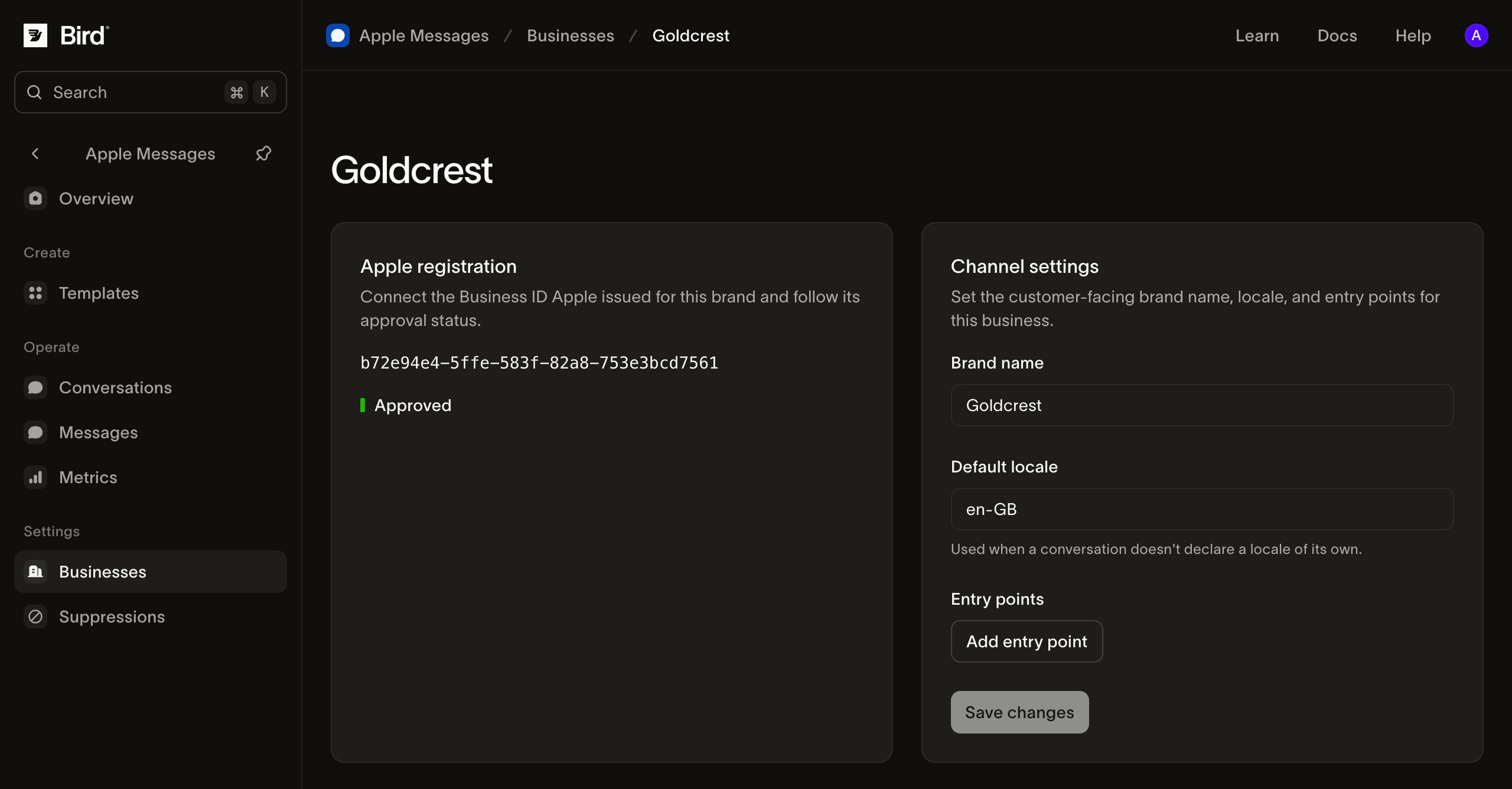
View the screenshot at full size.
Submit your service for review
Open the business's Approval tab. Approval requirements provides the documents and upload controls for:
| Requirement | What to include |
|---|---|
| Readiness review | Messaging goals, operating hours, staffing, escalation, and how the team will monitor the service. |
| Use cases | The customer tasks, entry points, message types, and integrations that your service actually supports. |
| Service demonstration | A recording that follows the customer request through to a result, including the operator's handling and recovery from an unsuccessful path. |
Before recording, connect your business and add your test users in Apple Business Register. While the business is in Testing, your test users can message it, so you can build the experience and record the demonstration on a test user's iPhone before submitting. Public launch still requires approval.
Use Prepare your demo for Experience Review to plan the iPhone recording, rehearse the customer journeys, and review the evidence. Download the forms from the page and complete them. Upload both PDFs and the MP4 demonstration. Use fictional customer information in review examples. Follow the format and upload limits shown by the controls.
Submit the completed requirements. The top of the business page shows one status, what it allows, and any review feedback. Submission history on the Approval tab retains the evidence and review result of every attempt. Bird staff record Apple's decisions, so there is no customer action that changes a business directly to Live.
| Status | What it means and what to do |
|---|---|
| Testing | Only your test users can message the business. Use them to prepare the requirements, then submit them. |
| In review | Bird and Apple are reviewing the submission. Your test users can still message the business. |
| Rejected | Read the review feedback at the top of the page, replace the affected evidence, and resubmit. |
| Live | Apple approved the business. Run the first-conversation check before exposing an entry point. |
| Suspended | Read the reason at the top of the page and contact support. Changing the brand settings does not restore approval. |
| Disconnected | Bird stopped sending for the business. Select Reconnect to resume. The Apple Business ID and approval are kept. |
When Apple approves a business, opening it takes you to the Settings tab. Before approval, it opens on Approval.
Submit evidence through the API
Use the API region that hosts your workspace and a credential with amb_management:write for uploads and submissions, plus amb_management:read to inspect the result. Send X-Workspace-Id for that workspace. Give each POST an Idempotency-Key and reuse that key if you retry the same request.
- Create a draft with
POST /v1/amb/business-accounts. Supplynameand yourapple_business_id. Save the returned accountid; supplying Apple's UUID does not submit the account for review. - Upload the readiness assessment PDF, use-case PDF and demonstration MP4 separately with
POST /v1/amb/business-account-attachments. Each request is multipart form data with afilefield. Save each returned attachmentid. The evidence files must be distinct and uploaded to the same workspace. - Submit with
POST /v1/amb/business-accounts/{business_account_id}/submissions. Setreadiness_attachment_id,use_cases_attachment_idandvideo_attachment_idto the corresponding upload IDs. The submission commits the evidence and freezes the selected business name and Apple UUID for review. A successful response records the review attempt; it does not grant approval. - Read
GET /v1/amb/business-accounts/{business_account_id}foraccount_review_statusand operationalstatus. The dashboard combines them into one status. Astatusofdisconnected,suspendedoractiveshows as Disconnected, Suspended or Live, whatever the review state. Otherwise, noaccount_review_statusis Testing,pendingis In review, andrejectedis Rejected. InspectGET /v1/amb/business-accounts/{business_account_id}/submissionsfor review feedback and the retained evidence. After a rejection, upload corrected evidence and create a new submission. Earlier attempts remain in history.
Use the dashboard or HTTP API to upload files. The CLI also supports bird amb business-accounts attachments upload --file readiness.pdf, and local stdio MCP provides amb_business_accounts_attachments_upload. SDKs and hosted MCP create submissions using the returned attachment IDs; they do not upload local files. A hosted agent needs those IDs from you before it can submit.
Continue to the reply quickstart when the account is active and a customer has opened a conversation.
Prepare for launch
After Experience Review, complete Apple's commercial-account configuration and asset review using the current instructions in Apple Business Register. Prepare the brand assets, response hours, and business locations there.
Before making entry points public:
- Complete the first-conversation quickstart using the business intended for launch.
- Have an operator practice assignment, labels, and replies, including a request they cannot resolve.
- Test each native message on an authorized device. Confirm the external booking or order result separately from the message result.
- Verify the service hours and customer-facing expectations. Name the person responsible for monitoring new conversations and failures.
- Enable your approved entry points, then inspect the first incoming conversations and channel metrics.
Resolve setup problems
If Apple's connection control is unavailable, confirm that the account and testers were submitted. If linking fails, check the Bird workspace and Apple Business ID before retrying. For a missing or disabled Bird action, ask your administrator to check your business-management permissions.
For a review delay, read the status at the top of the business page, Submission history, and the account email for requests from Bird or Apple. For an approved business that cannot reply, follow channel troubleshooting.