SMS log
The SMS log, shown on the Messages page, is your workspace's message history and delivery reports (DLR) record. Outbound sends and inbound replies appear newest first. Use it to confirm a send, follow its delivery lifecycle, and inspect its segment count, cost, and carrier details. The aggregate Metrics page shows rates across messages; the SMS log lets you inspect one message. The page also includes Send SMS for one-off dashboard sends.
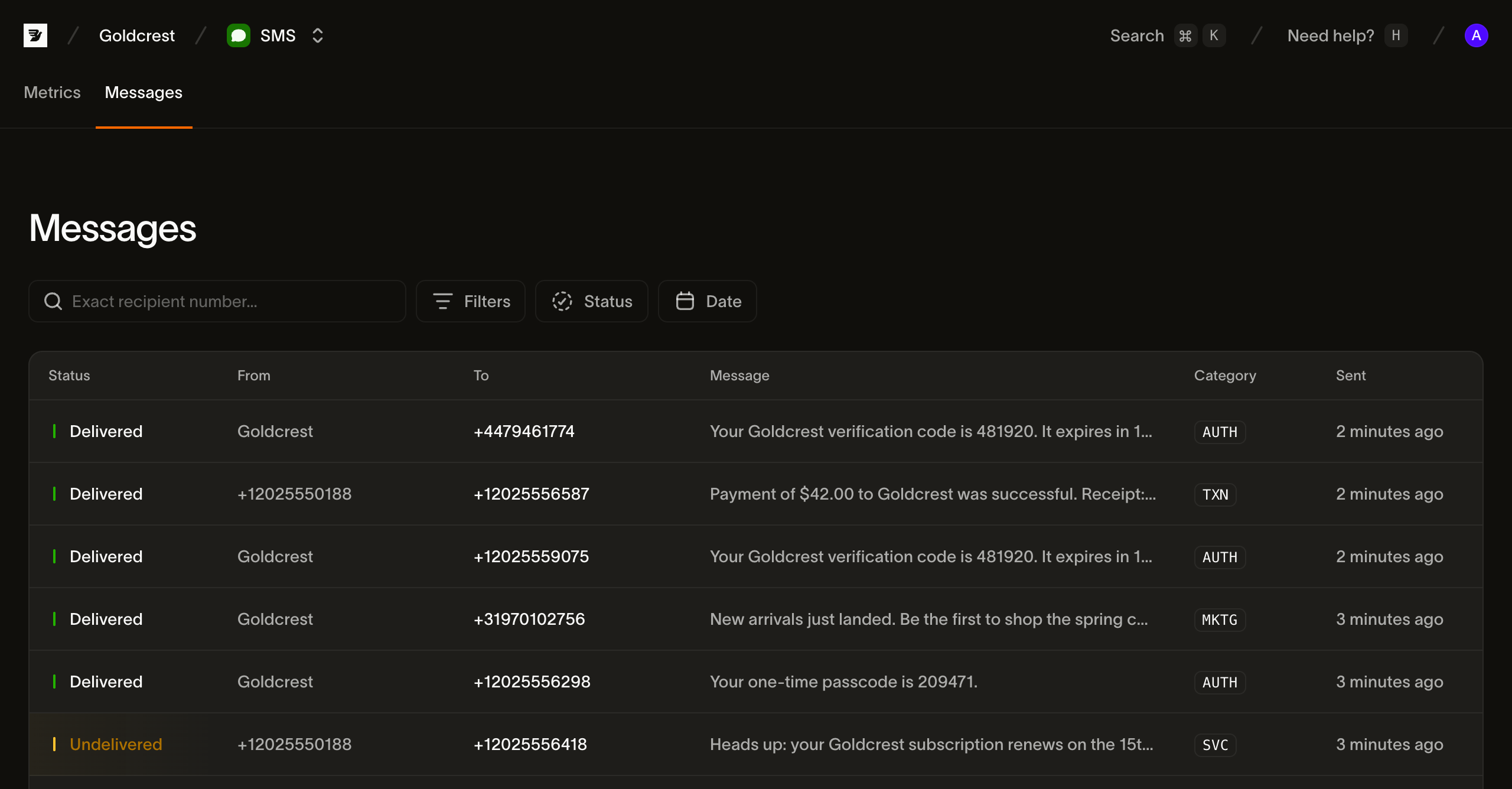
The message list
Each row is one message. The columns are:
| Column | What it shows |
|---|---|
| Status | The message's current delivery status (see Statuses) |
| From | The sender: the number, sender ID, or short code the message was sent from |
| To | The recipient's number |
| Message | The start of the message body (click it, or anywhere on the row, to open the message) |
| Category | The message category, shown as a short badge (TXN, MKTG, AUTH, SVC) |
| Sent | When the send was accepted, as a relative time (hover for the exact timestamp) |
The list is paginated, 25 messages per page; use Prev and Next to move between pages.
Searching and filtering
A message log fills up fast, so the page leads with a recipient search and four filters. They combine: a status filter plus a date range narrows to messages matching both.
Search by recipient. The search box matches an exact recipient number in E.164 format. Type the full number, such as +31612345678, to find every message addressed to it. The search does not match substrings.
Status. Filter to one or more delivery statuses. Status is multi-select, so you can, say, show everything that didn't arrive by selecting Undelivered, Failed, and Expired together. The options are the statuses listed in Statuses.
Category. Filter by message category: Transactional, Marketing, Authentication, or Service.
Direction. Filter by Outbound or Inbound. Replies to your numbers are stored alongside your sends, so Inbound shows what you received.
Date. Filter by when the message was sent; pick a preset or choose a custom range from the calendar.
When a filter combination matches nothing, the page shows a no-results state with a Clear filters action to reset back to the full list.
Statuses
A message's status is where it currently sits in the delivery lifecycle. A message walks from accepted toward a terminal receipt.
| Status | Meaning |
|---|---|
| Accepted | Bird admitted the message and is preparing to hand it to a carrier |
| Sent | Handed to the carrier; awaiting a delivery receipt |
| Delivered | The carrier confirmed delivery to the handset |
| Undelivered | A non-permanent non-delivery: the handset was off, unreachable, or the content was blocked |
| Failed | A permanent failure; the message cannot be delivered |
| Rejected | The message was refused (a policy check, a failed charge, or a carrier that turned it away) |
| Expired | The carrier stopped trying and reported the message as expired |
| Received | An inbound message |
The status label identifies whether a message is in flight, delivered, received, or unsuccessful. Do not rely on color alone when scanning results.
Inspecting a message
Click any row to open the message in a side panel. It has two tabs, Events and Details, and its header shows the message body, the current status, the recipient, and the category. While a message is still in flight, the panel refreshes itself every few seconds, so a status change or a delivery receipt appears without a manual reload.
Events
The default tab is a timestamped timeline for one message. It renders the stream described in SMS events: Accepted, then Sent, then Delivered, or a failure event (Undelivered, Failed, Rejected, Expired). Delivery events identify the carrier and MCC/MNC (the mobile network). Failure events show the error description; the Details tab contains the error code.
Details
The Details tab is the message's metadata:
- Message ID, Direction, From, To, and Category
- Segments: the billable segment count, the encoding (
GSM_7BITorUCS2), and the character count (see segments and encoding) - Cost: the amount and currency, once the message has been priced
- Carrier and MCC/MNC: the delivering network, when known
- Sent, Handed to carrier, and Delivered timestamps
- Error: the description and code, on a message that didn't arrive; see SMS delivery errors for normalized reasons and numeric provider codes, including fraud protection blocks
- Any Tags and Metadata you set on the send
Most fields can be copied with one click.
Public message and event reads cover the most recent 30 days. An older message ID is outside that read window; keep the records your application needs within your own retention and consent policy.
The same log over the API
The list behind this page is GET /v1/sms/messages, whose filters cover status, category, tag, exact recipient, and time window. Retrieve a message's timeline with GET /v1/sms/messages/{message_id}/events. Read its latest state with GET /v1/sms/messages/{message_id}, or consume webhook events as they happen.
Next steps
Explore SMS analytics for the wider reporting workflow and two-way SMS for handling incoming messages.
- SMS metrics: monitor aggregate delivery rate, failure rate, and accepted volume.
- SMS events: review the event vocabulary behind the timeline.
- Sending SMS: build a send payload with categories, tags, and metadata.
Related resources
Continue with the documentation, guides and examples for this topic.