WhatsApp groups
A WhatsApp group is a single chat shared by your business and a handful of people, where everyone sees and can reply to every message. Use one when a conversation involves more than two parties: a support case the customer, an engineer, and an installer all need to follow, a concierge line for a named account, a cohort working through a course together, or a delivery where the buyer and the courier both need to reach you.
Note: creating a group needs a business number with Official Business Account status, the blue check mark WhatsApp puts next to a business name in the chat. WhatsApp Official Business Account covers what Meta requires and how to request it.
Groups differ from every other WhatsApp send in two ways that decide whether they fit:
- Everyone in the group sees everyone else. One message reaches every participant, and every reply goes back to the whole group. To reach many people who must not see each other, send to each of them separately.
- People join themselves, through a link. WhatsApp has no operation that adds someone to a group, so the way in is an invite link you send them, and joining is their decision. A group is an explicit opt-in as a result, and you cannot assemble one from a list of numbers you hold.
Groups stay small. WhatsApp caps how many people fit in one, so a group suits a single case or account instead of a broadcast.
Before you create a group
Two things gate group creation: your own access to the workspace, and the number the group is created from.
The Groups page lives at WhatsApp > Groups, and opening it takes the whatsapp_management permission at read level, with whatsapp at read level putting the WhatsApp section in the navigation. Creating a group takes whatsapp_management at write level, so a member who only reads sees the workspace's groups without a Create group button. Users, teams, and roles covers granting both.
WhatsApp then opens groups only to a business number that holds Official Business Account status, so the Business number field lists a number only once it has finished phone number setup and carries a verified mark on the Numbers page.
Official Business Account status is Meta’s decision rather than ours, and we cannot approve or accelerate it. WhatsApp Official Business Account covers what Meta reviews before it grants the status, including your account’s business verification, how to request the status in WhatsApp Manager, and how to read it back in Bird.
Create a group
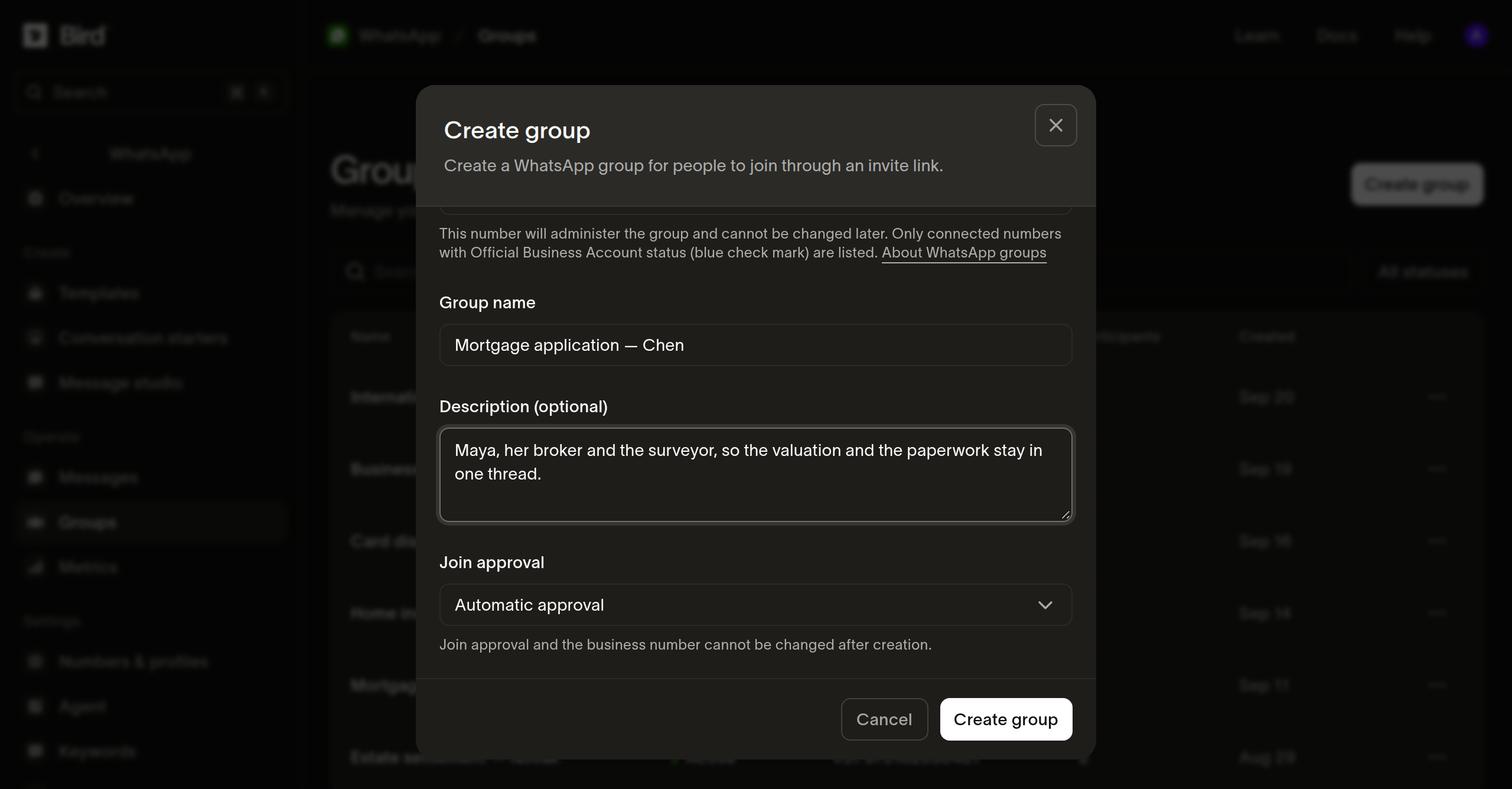
- Open the Groups page and select Create group.
- Pick the Business number that administers the group. The group keeps this number for its whole life, so it cannot be changed later.
- Enter a Group name of up to 128 characters. The name is what invitees see before they join, so name the group for its purpose rather than for an internal reference.
- Add a description of up to 2,048 characters if the purpose needs more than the name carries.
- Choose Join approval. Automatic approval, the default, admits anyone who opens the invite link; Approval required turns each arrival into a join request you decide. Like the business number, this is fixed once the group exists, so a group that should be reviewed has to be created that way.
- Select Create group.
The group appears with status Pending. Creation is asynchronous: we record the request, and WhatsApp confirms the group a moment later, which moves it to Active and fills in its invite link. If WhatsApp refuses the request, the group moves to Failed and its detail shows the reason. A failed group is final, so create a new one rather than retrying that one.
Invite people to the group
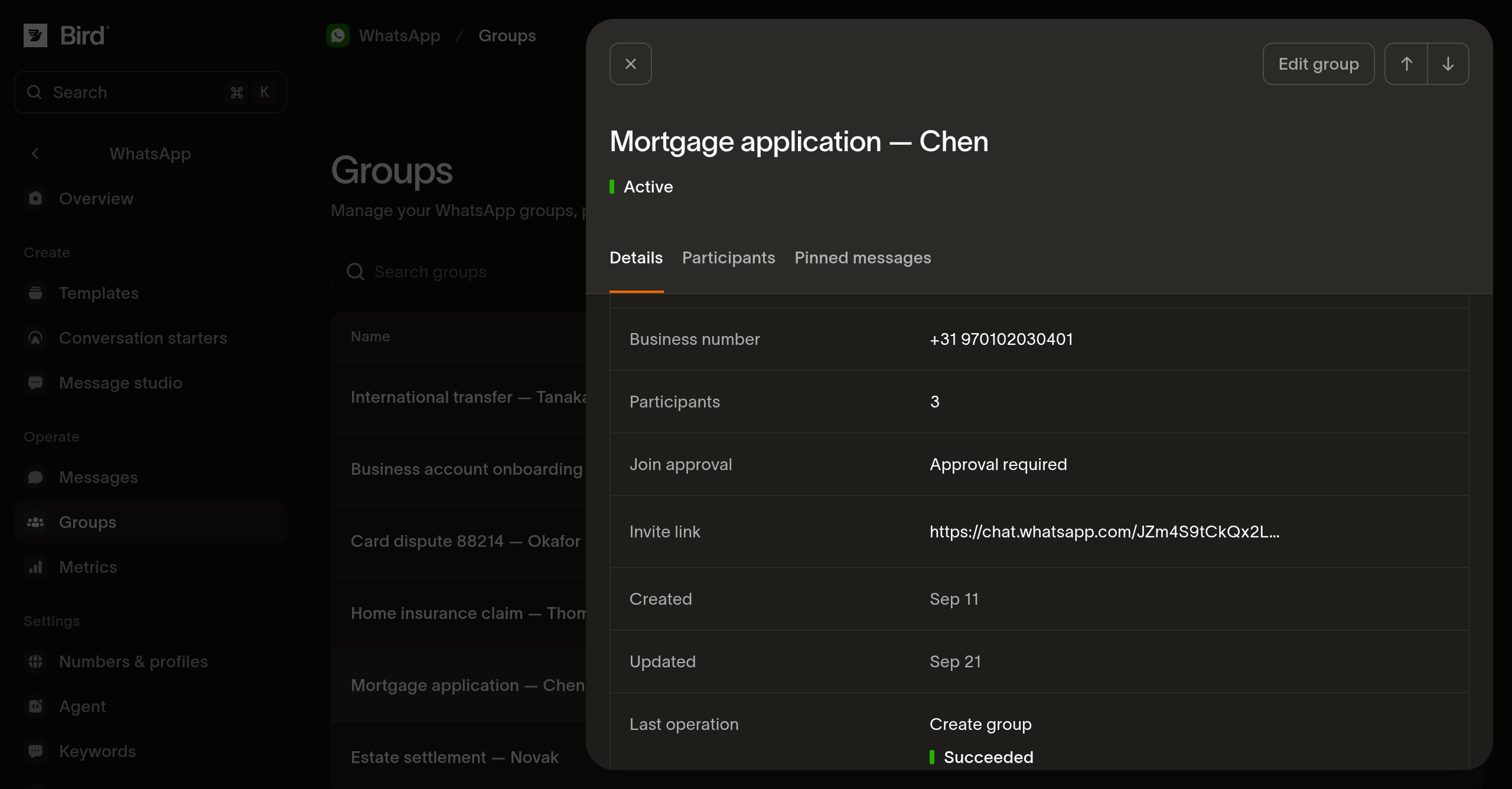
Open the group from the Groups page and copy Invite link from its Details tab, then send that link to the people you want in the group over whatever channel already reaches them. Before WhatsApp confirms the group, the field reads Not available, which is the pending state rather than an error.
Treat the link as a credential. It admits whoever holds it, on the terms the group's approval mode set, so send it to named people rather than publishing it, and create a separate group per case or customer rather than reusing one link widely. Rotate invite link on the group issues a new one and stops every link the group had before, which is how a link that spread too far is taken back.
On a group created with Approval required, everyone who opens the link waits in Join requests at the top of the group's Participants tab. Select the people to let in and choose Approve selected, or Reject selected to turn them away; Select page takes the whole page at once. WhatsApp decides each request on its own, so one can fail while the rest go through. The group's participant limit still applies: approve more people than the group has room for, and the ones that fit get in while the rest come back refused.
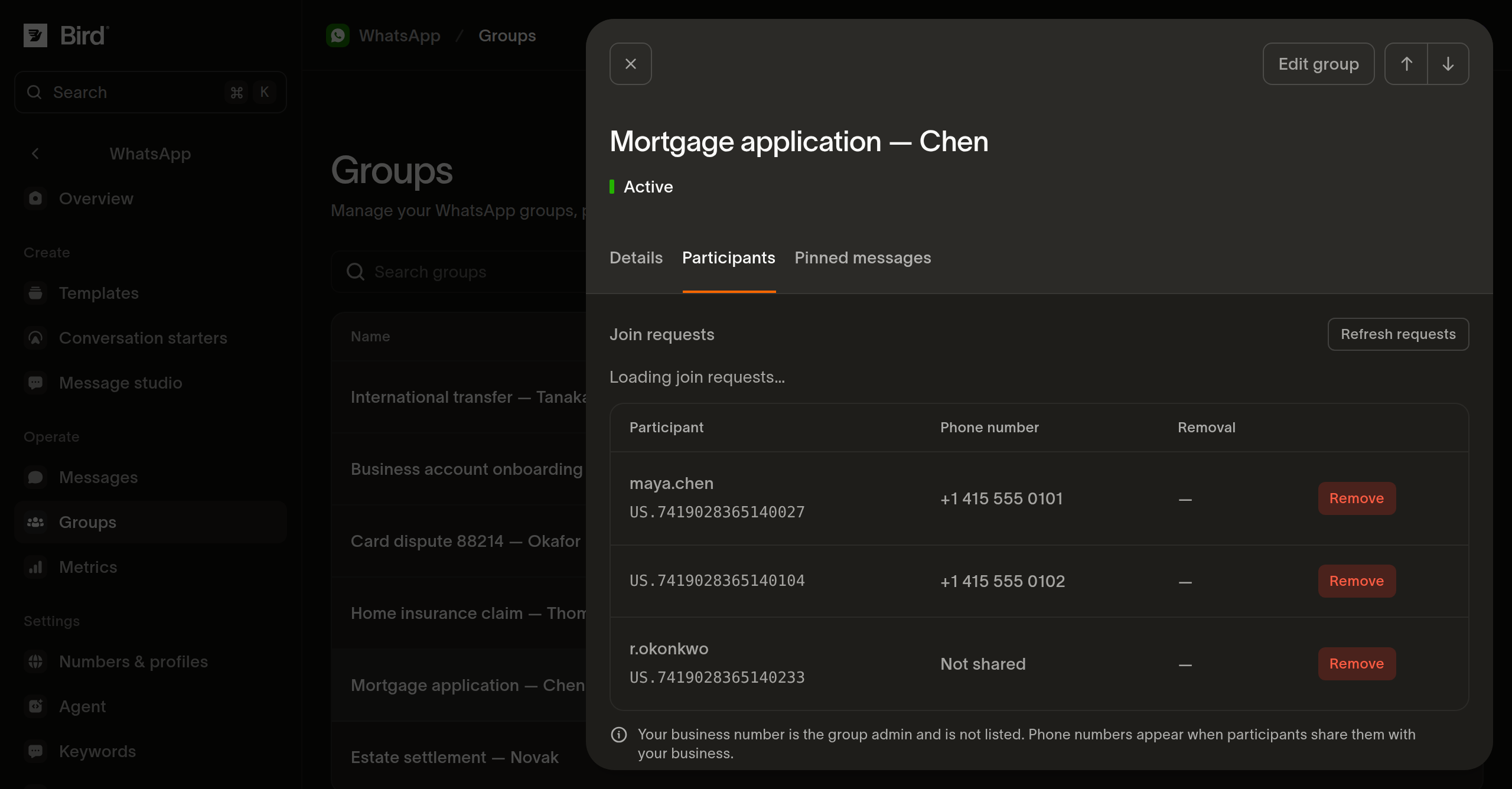
Removing someone is permanent, and nothing puts them back: removing a participant covers what the block does.
Follow a group
Open a group from the list to see who is in it and what the group looks like on WhatsApp:
- Details: the group ID, business number, participant count, join approval mode, invite link, and creation and update times.
- Participants: everyone who joined, listed by WhatsApp username when they have one and by their business-scoped user ID always. A phone number appears only for a participant who shared it with your business. Your own business number administers the group and is not listed.
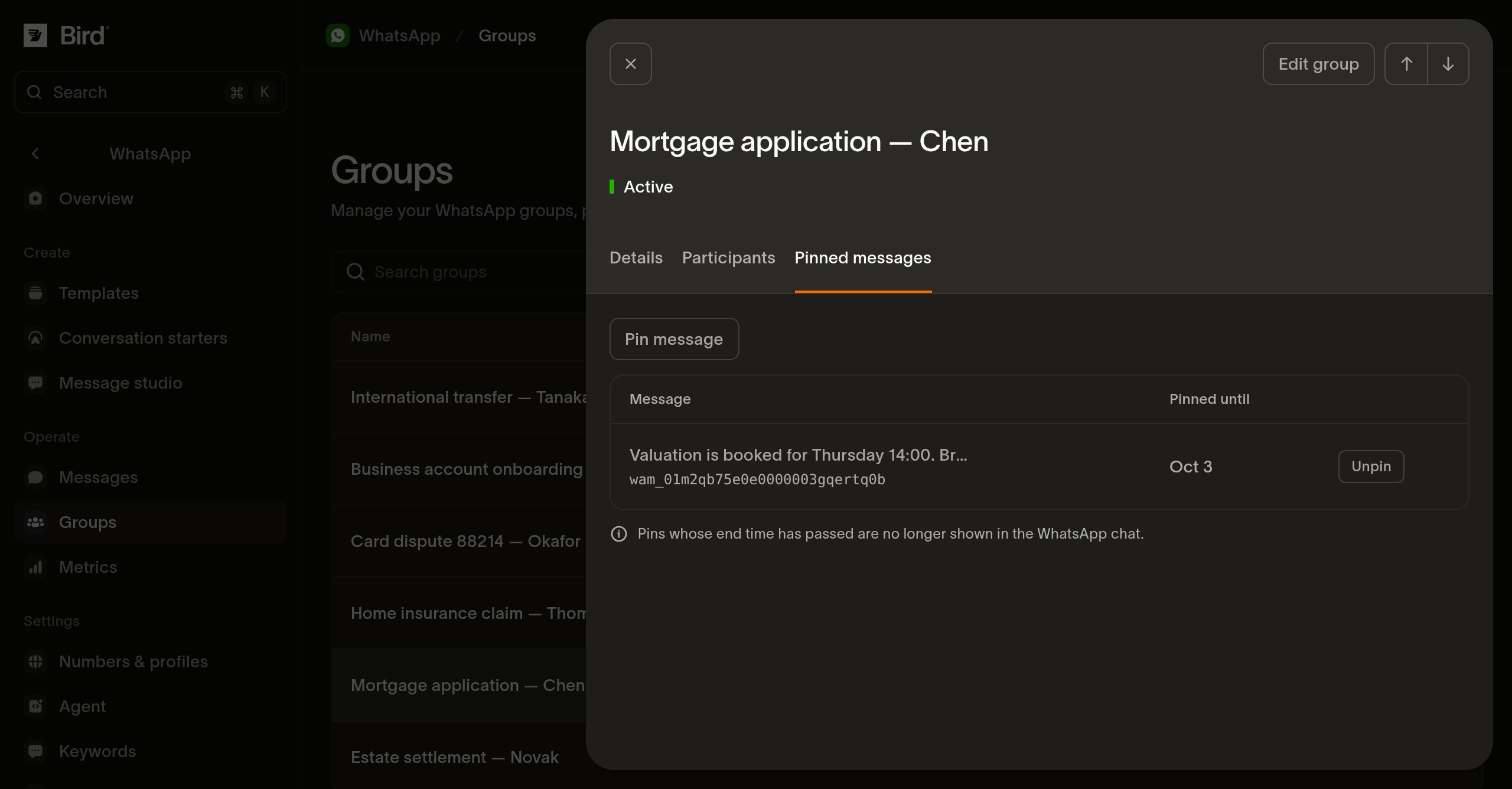
- Pins: the messages pinned in the group, with the time each pin expires.
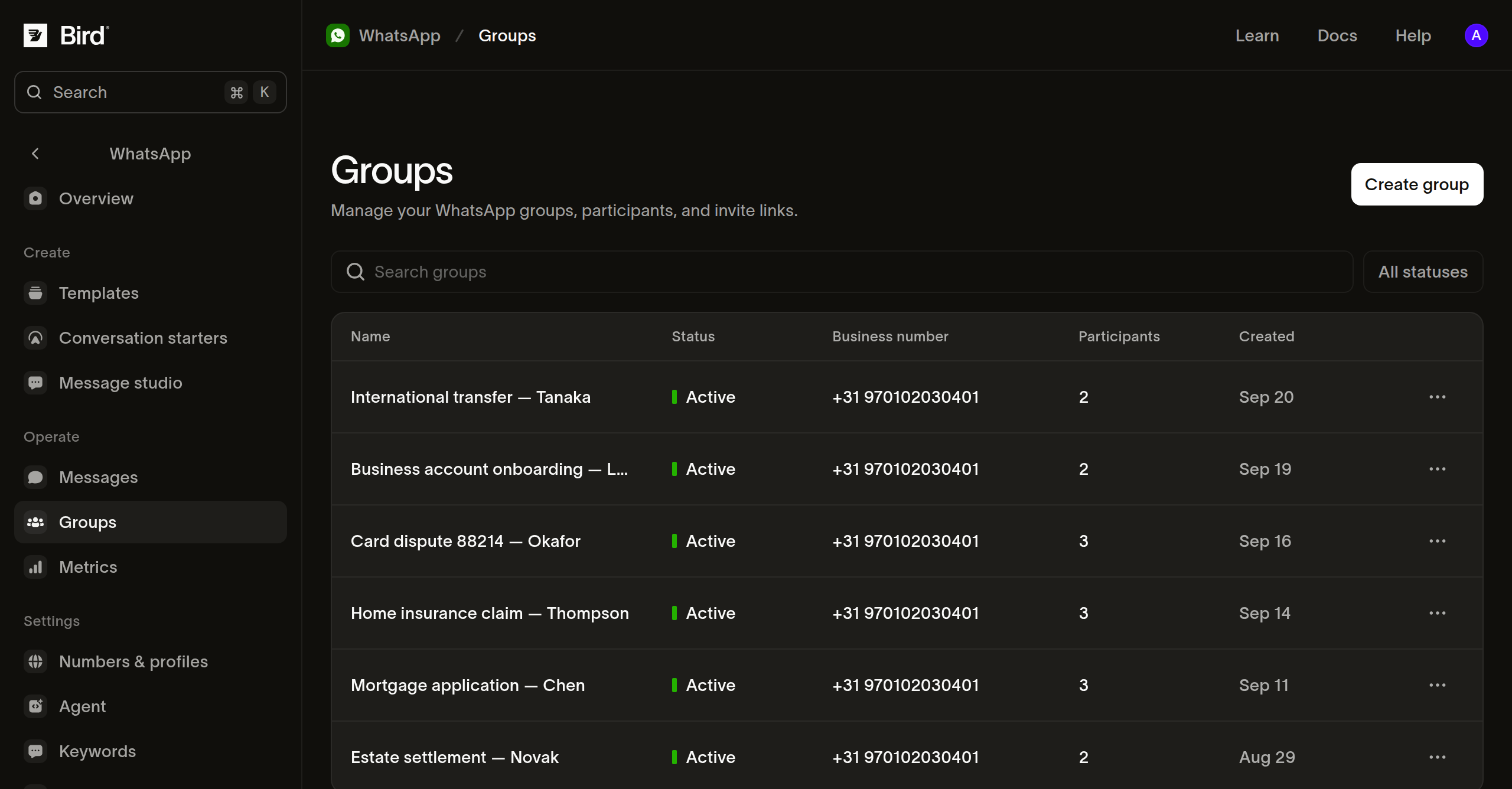
The list page carries the same information across groups: name, status, business number, participant count, and creation date, with search over name and description and a filter by status. A group is messageable only while it reads Active; the five statuses covers what each of the others means.
Manage groups from the API
The same twelve operations back the dashboard pages above, so anything you can do here you can do from /v1/whatsapp/groups, the bird whatsapp groups commands, or a typed SDK method. All of them take whatsapp_management access: read level for the reads, write level for everything else.
Creating a group is asynchronous, and so are changing it, deleting it, and removing a participant: the response is the request accepted, and WhatsApp reports the outcome afterwards. Rotating the invite link, pinning, and unpinning answer with the change already applied. Managing WhatsApp groups walks the whole lifecycle in code, with cURL, CLI, and SDK examples for each step and the refusals it has.
What WhatsApp limits
WhatsApp owns the limits a group runs under, and it changes them on its own schedule. As of September 2026 its groups documentation sets a group at 8 participants, a business number at 10,000 groups, and a group at 3 pinned messages lasting 1 to 30 days each. One business account administers a group, so another business cannot join yours.
Groups also carry the restrictions WhatsApp puts on group chats. Calling, interactive messages, authentication templates, commerce messages, and disappearing messages are not deliverable to a group, and a group's message history cannot be read back.
Messaging a group
A group is messaged over the same endpoints as anyone else, with the group ID in to in place of a phone number. Sending to a WhatsApp group walks the send, what a group chat will and will not take, and how one message's delivery is reported across its participants. Receiving WhatsApp group messages covers the other direction: which participant wrote an inbound message, the window their message opens, and what the whatsapp.received webhook carries.
Next steps
- Managing WhatsApp groups: create groups and manage participants and invite links
- Sending to a WhatsApp group: send messages and track delivery to each participant
- Receiving group messages: identify the sender and reply to the group
- Connecting your own number: set up a business number
Related resources
Continue with the documentation, guides and examples for this topic.