Offer appointment times in Apple Messages
Use a Time picker template to let a customer choose from appointment times inside Messages. A time-picker response records a selection. Your booking system or operator must reserve the appointment and confirm it separately.
Before authoring, obtain current availability from the service that owns the calendar. The template editor does not fetch live calendar slots or prevent another customer from taking the same time.
Create the time picker
- Open Templates and select New template > Time picker.
- In Content, enter the draft name, Title, and Message, explaining the appointment type.
- Open Apple delivery. Set Location or service and an Event identifier that your team can relate to the appointment offering.
- Set Location UTC offset in minutes for the appointment date. Add coordinates if the appointment has a physical location.
- Select Add dated time slot for each offered time.
For a 30-minute appointment in Amsterdam in January, an example slot is:
- Slot identifier:
visit_2027_01_15_1000 - Start date and time:
2027-01-15T10:00:00+01:00 - Duration in seconds:
1800 - Location UTC offset in minutes:
60
Replace the example with actual future availability. Use a complete date and offset, with zero seconds in the start time. Check daylight-saving changes for the appointment date; the current offset may differ.
The simple Available times labels in Content are preview labels. Populate the dated slots in Apple delivery for a real send.
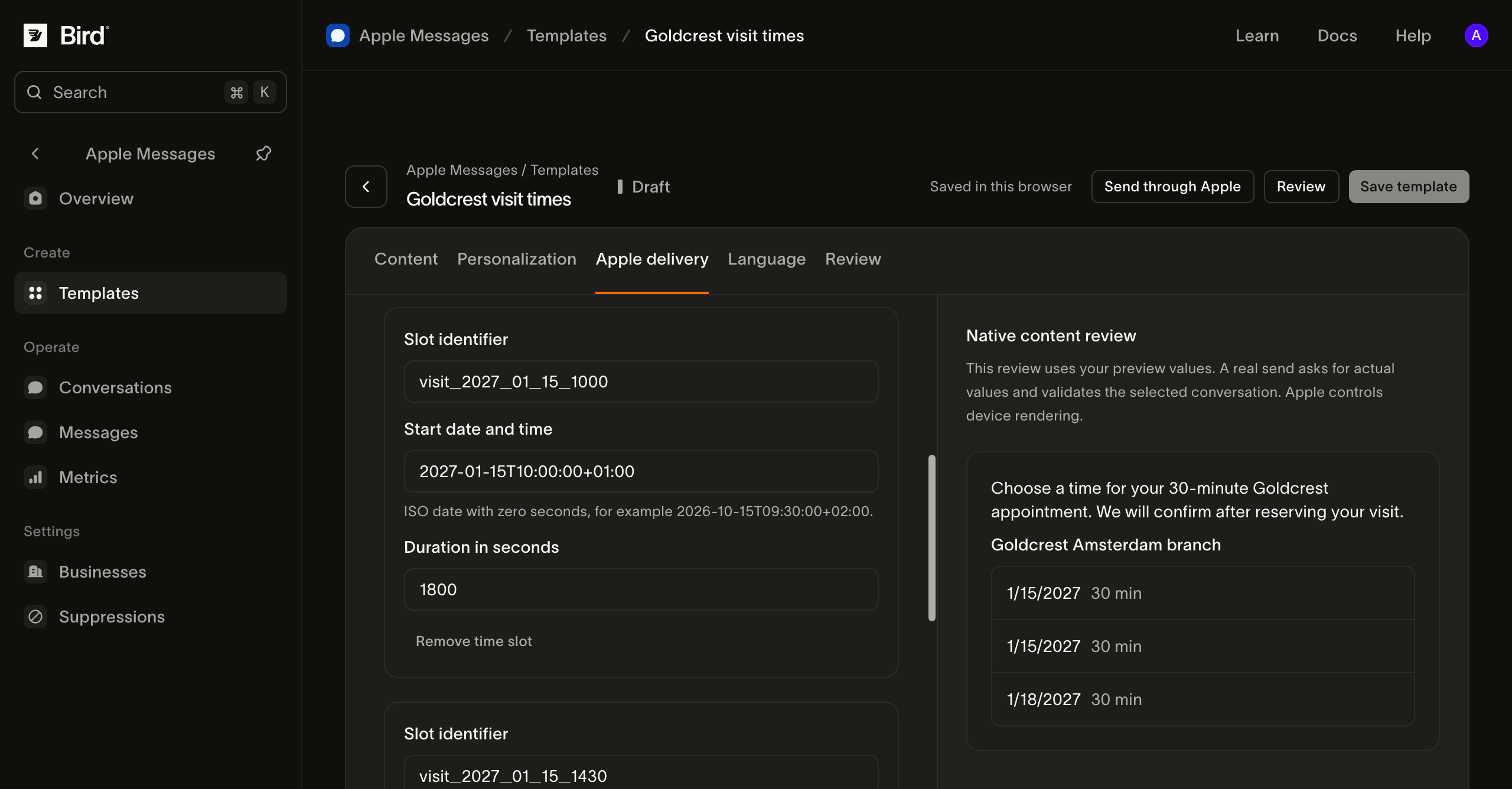
View the screenshot at full size.
Explain what the selection means
Under Native bubble presentation, describe the offered action in Received message bubble. Use wording such as Choose a visit time. Avoid a reply title that claims the booking is confirmed before your calendar accepts it.
Select the business under Personalization, save the template, and prepare and review a test send.
Confirm the appointment separately
After the customer selects a slot:
- Inspect the response in Conversations. Compare it with the times you sent; a response can contain a selected label rather than a complete booking record.
- Recheck availability in your booking system. Treat the original offer as potentially stale.
- Reserve the appointment using the booking system's duplicate-prevention mechanism.
- Send a confirmation with the date, local time, location, reference, and change or cancellation instructions after the reservation succeeds.
If the slot has gone, explain that it is unavailable and offer updated times. Repeating a customer response or webhook must not create a second booking.
Verify and recover
Test the selected time on an authorized Apple device, including a device in a different time zone. Check the actual date and displayed time, not only the weekday label. Test an expired offer and cancellation before treating the flow as ready.
If preparation fails, inspect the date, duration, offset, and required native fields in Apple delivery. If a send fails afterward, use message history. If sending succeeds but the calendar has no booking, investigate the booking step separately.
Use journey planning to connect these steps into your complete appointment service.