Senders and branding
Every Verify code reaches your user as an email, SMS, WhatsApp, or Telegram message, or in a voice call. For email, SMS, and WhatsApp, choose a Bird-managed identity, Bird Verify or Authifly, or use a sender your workspace owns. Telegram uses its own verified notification account and has no sender to select. A voice call has no sender to select either; see Who your codes come from.
The samples on this page show the English versions of Bird's messages. Bird's email, SMS, and shared WhatsApp messages ship in 40 translations, chosen per verification from the recipient's phone number or your options.language. Your own WhatsApp template supplies its own approved languages and wording. See Message language.
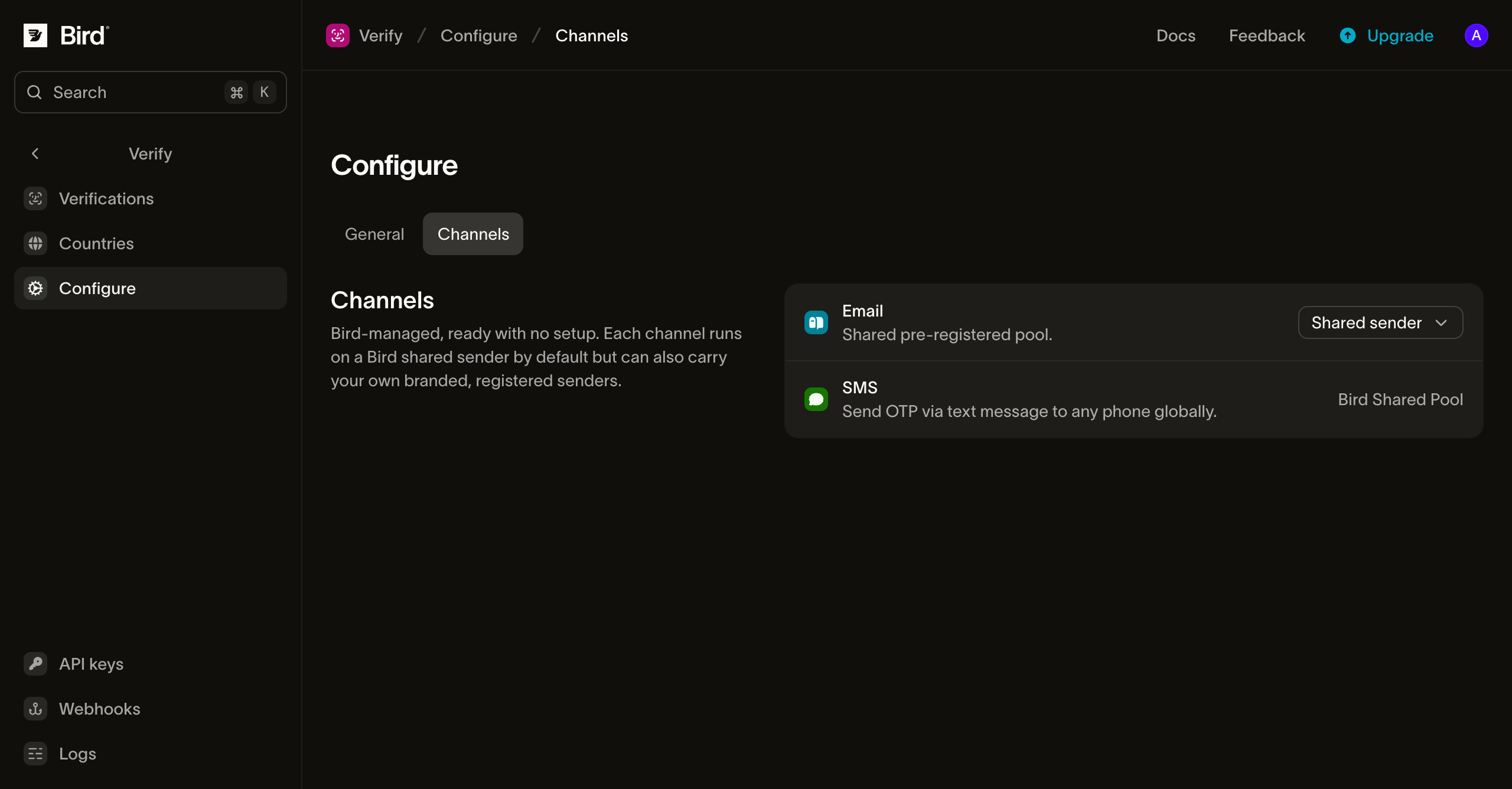
The senders live on the Configure page's Channels tab, one row per channel:
Who your codes come from
Email, SMS, and WhatsApp offer these sender choices:
- Bird Verify is the default and needs no setup. Codes go out under Bird's own identity.
- Authifly is Bird's standalone verification brand. Codes go out under Authifly instead, so no platform vendor appears in front of your users. A recipient who looks it up finds authifly.com, which explains that Authifly delivers one-time codes on a business's behalf.
- Your own sender is a verified sending domain for email, an existing workspace Sender ID for SMS, or a connected workspace number paired with an approved authentication template for WhatsApp. See Branded email sender, Your SMS Sender ID, and Your WhatsApp number.
Select a sender per channel on the Channels tab. You can also choose a different sender for one country in country configuration; the country choice wins over the channel default for recipients there.
A voice call shows a Bird phone number as its caller ID, chosen for the destination country, so the Channels tab shows Number selected by destination on the Voice row instead of a sender choice. The call says "Your verification code is" and reads the digits in groups of three, in English. It repeats the code several times and then says "Goodbye."
Switching identity changes the sender your user sees. It leaves the code, the expiry, and every other verification setting untouched.
The email your user receives
By default the code email arrives from Bird Verify <otp@verify.bird.com> with the subject "Your verification code". On Authifly it arrives from Authifly OTP <otp@verify.authifly.com>, with the same subject.
The body is a single card: an eyebrow naming the shared identity, the code set large in monospace type, the expiry line, and a disclaimer. Each identity carries its own colors. The plain-text version carries the same content:
Your verification code is 123456.followed by the expiry window with a warning never to share the code, and a closing line that the email is safe to ignore if the code wasn't requested.
The expiry line shows the configured code lifetime on the first send and the remaining window on a resend. The subject and body render in the verification's message language. Arabic and Hebrew lay out right to left with the code itself kept left to right. OTP email carries no open or click tracking because it contains no link, and tracking pixels can hurt transactional-mail deliverability.
The SMS your user receives
The SMS leads with the code, where a glance (and the OS's code autofill) looks first:
123456 is your verification code. It expires in 10 minutes. Do not share it.Where a country permits branded alphanumeric sender IDs, the code arrives from Bird Verify, Authifly, or your selected Sender ID. Countries that require a local number or a short code show that sender instead. The message text uses Bird's OTP template in the verification's message language.
The WhatsApp message your user receives
With a shared WhatsApp sender, the code arrives from a Bird-managed business number as an authentication-template message: the Bird Verify number by default, or the Authifly number when you select that identity. WhatsApp fixes the layout for these authentication templates, so the body leads with the code and offers a one-tap Copy code button:
123456 is your verification code. For your security, do not share this code.For Bird's shared templates, the code is the only variable, and the wording follows the verification's message language. Mongolian is the one translation these templates don't carry, so that language sends English on a shared sender.
The two identities differ in one visible way. Under Authifly the message carries a second button, a reply reading "I didn't request a code", which WhatsApp generates for authentication templates. The Bird Verify template has one button, the code copy. WhatsApp owns the extra button end to end: a tap stays inside WhatsApp, reaches no webhook, and leaves the verification running. There's no API call to cancel a disowned verification; treat the reply as a signal in your own fraud logic.
Delivery is an ordinary WhatsApp template send, so the recipient needs WhatsApp on that number; where they don't, or the message can't be delivered, the verification advances to its next channel.
Your SMS Sender ID
To send texts from your own sender, add a Sender ID in the same workspace and complete any registration its destination countries require. On Configure > Channels, open the SMS sender menu, select Your SMS Sender IDs, and choose one from the list. The menu links to Manage Sender IDs if you need to add one. You can also choose a Sender ID for a single country on the Countries page.
An SMS Sender ID must be supported and registered for the recipient's country and permitted for authentication messages. If your configuration default fails one of those checks, Verify retries with the Bird Verify sender for that destination. Other failures, including billing or provider errors, do not switch the sender. A Sender ID selected specifically for a country never gets this sender fallback; if it cannot send there, Verify tries the next channel in the verification plan.
Your WhatsApp number
To send from your own WhatsApp number, connect the number to the same workspace and have an approved authentication template in its WhatsApp Business Account. On Configure > Channels, open the WhatsApp sender menu, select Your WhatsApp numbers, then choose the number and an existing approved authentication template. The number and template menus link to their management pages. You can also choose a different pair for one country on the Countries page.
Verify inserts the passcode into the selected template. The template's approved languages and language policy determine the wording and which requests it can send. If it has no sendable language for a verification, that WhatsApp attempt fails and Verify tries the next channel. Verify never creates or submits a template for you.
If the template has a Code expiration (minutes) footer, match it to Duration on Verify's Configure page. Verify sends only the passcode and does not update or check the template's footer. A mismatch can tell recipients the wrong expiry. The footer supports 1–90 whole minutes; other Verify durations cannot match it exactly.
The Telegram message your user receives
On Telegram the code arrives from Telegram's own verified notification account. Telegram controls the account, message layout, and wording, so the channel has no sender to select, and neither Bird nor your organization appears as the sender:
123456 is your verification code.The recipient's phone number has to be registered with Telegram. A number is checked for whether it can receive a Telegram message before one is sent, and where the answer is no, the verification advances to its next channel without a message going out.
Branded email sender
You can replace the shared email sender with an address on your own domain, so codes arrive from verify@yourdomain.com instead of a Bird-managed address. The prerequisite is a verified sending domain in the same workspace: Verify won't send from a domain you haven't proven you own.
On the Channels tab, open the Email row's sender control, select Custom sender, choose a local part (the part before the @) and one of your verified domains, and save. Selecting Bird Verify (default) or Authifly switches back to a shared identity at any time. You can also pin a different sender for one country in country configuration; a per-country choice wins over this default for recipients there.
Two things to know before you switch:
- The body stops naming an identity. A shared identity's body tells the reader that Bird Verify or Authifly will never ask them for the code. Sending from your own domain drops that name rather than replacing it, because your recipients have no relationship with either: the eyebrow reads "Verification" and the warning becomes "Don't share it with anyone." The subject and the code layout are unchanged, the copy still renders in the verification's message language, and you cannot customize the template.
- The domain must stay verified. A domain that a live configuration pins cannot be deleted, but a domain whose DNS regresses stops being able to send. Sends from it then fail, and delivery advances to the verification's next channel rather than silently reverting to a shared identity. Fix the domain, or switch the channel back to a shared identity.
Next steps
| Page | What it covers |
|---|---|
| Sending domains | Registering and verifying the domain a branded sender needs |
| Country configuration | Pinning senders and channel order per country |
| Sending verifications | The send and check calls and verification settings |
Related resources
Continue with the documentation, guides and examples for this topic.