Create a native Apple Messages form
Use a form to collect several related answers inside Messages. This walkthrough builds a service-request form: the customer chooses order help or another question, then answers the relevant follow-up.
You need permission to edit templates. A real send also requires a connected business and an open conversation. A business in Testing can send in test conversations. The form collects answers; it does not automatically create a case or update your CRM.
Create the form draft
Open Templates, then New template > Form. In Content, set Template name to Service request, Title to How can we help?, and Message to Share a few details so our team can help you.
Open Apple delivery and select Customize native form pages. Once pages are customized, edit the actual form there. The simple Form fields in Content no longer define the structured pages sent to Apple.
Build the branching example
Create the following pages with Add form page. Replace or remove the initial sample pages so the form uses the intended structure.
- Choice page: Set Page identifier to
request_type, Page type to Choice cards, and Question to What do you need help with? - Order follow-up: Set Page identifier to
order_reference, Page type to Text input, and Question to What is your order reference? - Other question: Set Page identifier to
question, Page type to Text input, and Question to What would you like to ask?
On request_type:
- Set Selection to Choose one and After this page to Continue to a page.
- Select Add choice. Set Choice identifier and Answer value to
order_help, Choice title to Help with an order, and Next page for this choice toorder_reference. - Add a second choice with identifier and value
other, title Another question, and next pagequestion.
On each follow-up page, set Required answer to Required and After this page to Submit answers. Use Single line for the order reference and Multiple lines for the question. Set Input label and Input hint to explain what the customer should enter.
Set the form's Start page identifier to request_type. Page identifiers are case-sensitive references: if you rename one, update the start page and any choices that point to it.
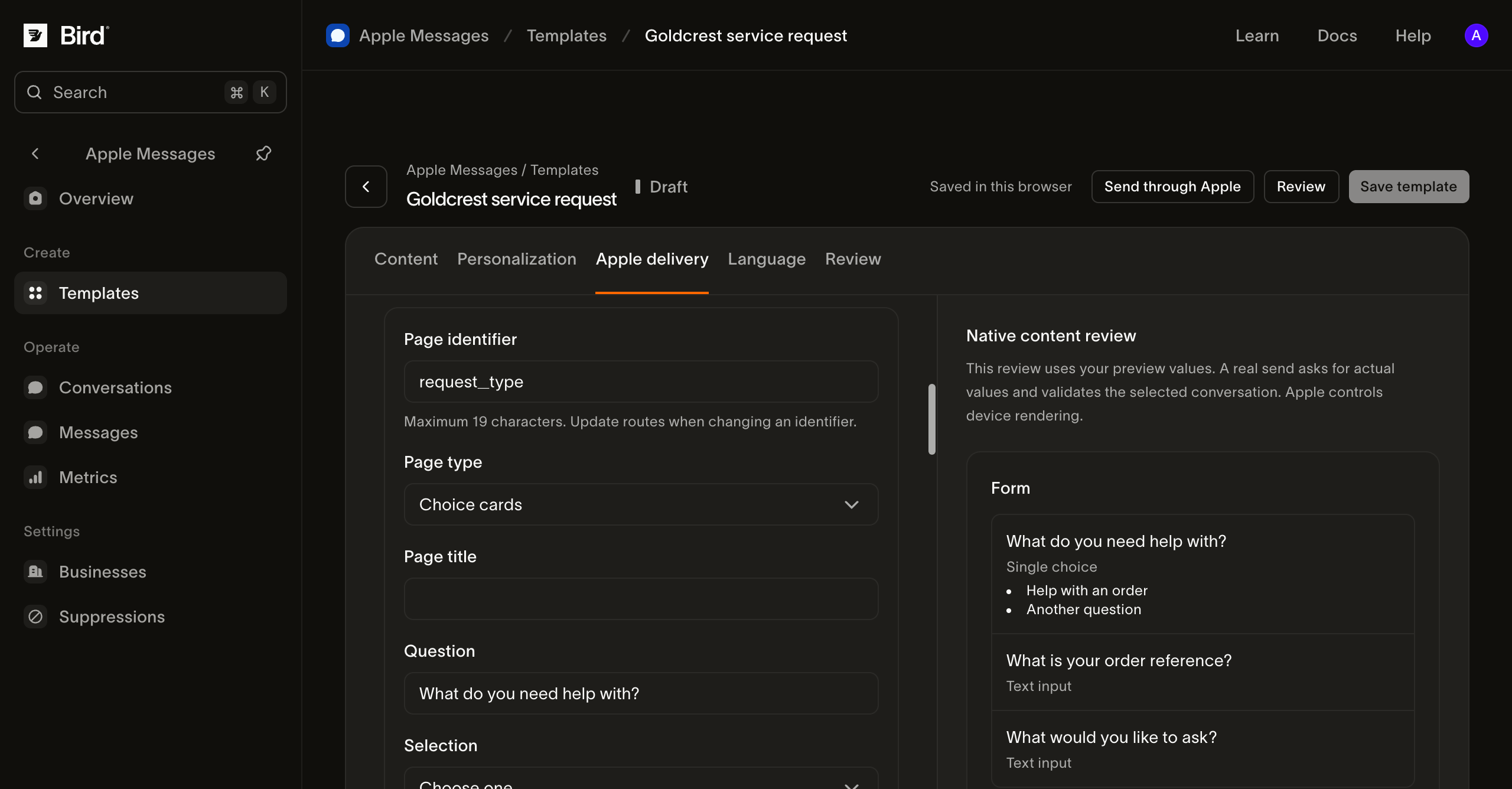
View the screenshot at full size.
Configure validation and presentation
Set Maximum characters to the limit your service can handle. Use Validation expression only when you have a clear input format and a useful explanation for the customer. A keyboard choice helps entry; it does not replace validation in the system that processes the answer.
Other page types serve different tasks:
- Wheel picker presents choices in a picker. Set the choice identifiers, labels, answer values, and the page's next step.
- Date picker collects a date with an initial, earliest, or latest date and a date label. It does not reserve appointment availability.
- Multiple-choice cards can continue to one next page. Use single selection when each choice must take a different route.
Keep Review answers before submission on Show summary when customers should review their answers. Private form controls Apple's response presentation; it is not a promise that Bird or your receiving system will not store the answers. Collect only the information needed for this request.
A welcome title, description, and button can explain the form before it opens. For images, add a named PNG under PNG images and reference that identifier; follow the media requirements.
Prepare and verify the form
Choose the business under Personalization, select Save template, and prepare a test send. Fix the named validation errors before sending. Missing page references and incompatible selection routes prevent preparation.
Complete both branches on an authorized Apple device. Check required answers, the review screen, cancellation, and the final submission. In Conversations, inspect the returned answers and compare them with the sent form.
A valid form can still contain a loop or an unused page. Walk each route to make sure the customer can finish. Do not assume a successful preparation proves the form's usability or that a case was created. Your operator or integration must handle the submitted request and confirm its outcome.
Troubleshoot a form
If a route fails preparation, compare the start and next-page identifiers with the page list. If you changed a page type or selection mode, recheck its choices and routes. If the device cannot use the form, offer a text or web alternative. For errors after submission, inspect Messages and events.