Authoring WhatsApp utility templates
Create a utility template for a specific transaction, account update, or customer request. This guide builds an order update with named variables and a tracking button.
Before you start
Connect your own number and WhatsApp Business Account. Utility template creation does not require the business verification used for authentication authoring.
Check that the message meets Meta's utility category rules. It must be non-promotional and specific to the recipient's action or account, or essential to their safety or service. Include enough context to identify the order, booking, or interaction.
An order confirmation with an added discount or upsell is marketing. A survey tied to a completed order can be utility; a general request for feedback belongs in marketing. Use an authentication template for a verification code.
Creating the template
- Open Approved templates, select New template, then Start from scratch.
- Choose Utility, the connected business account, a name, and the default language.
- Select Create template to open the editor.
You can also choose Start with a template and duplicate an existing utility template. Select the languages you intend to maintain; the copy opens as a draft. See Duplicating a template.
Writing the message
- Write the order update in Message. Use named variables for values that change between recipients, such as
{{order_id}}and{{delivery_date}}. - Add an optional header or footer under Components. A media header needs a sample file for review. A location header receives its coordinates when you send the message.
- Add a link button for tracking or a quick reply for a customer response. A personalized link uses a single
{{1}}at the end of the URL. - Fill Variable samples with realistic example values. Check that the phone preview makes sense with those values, then select Save as draft.
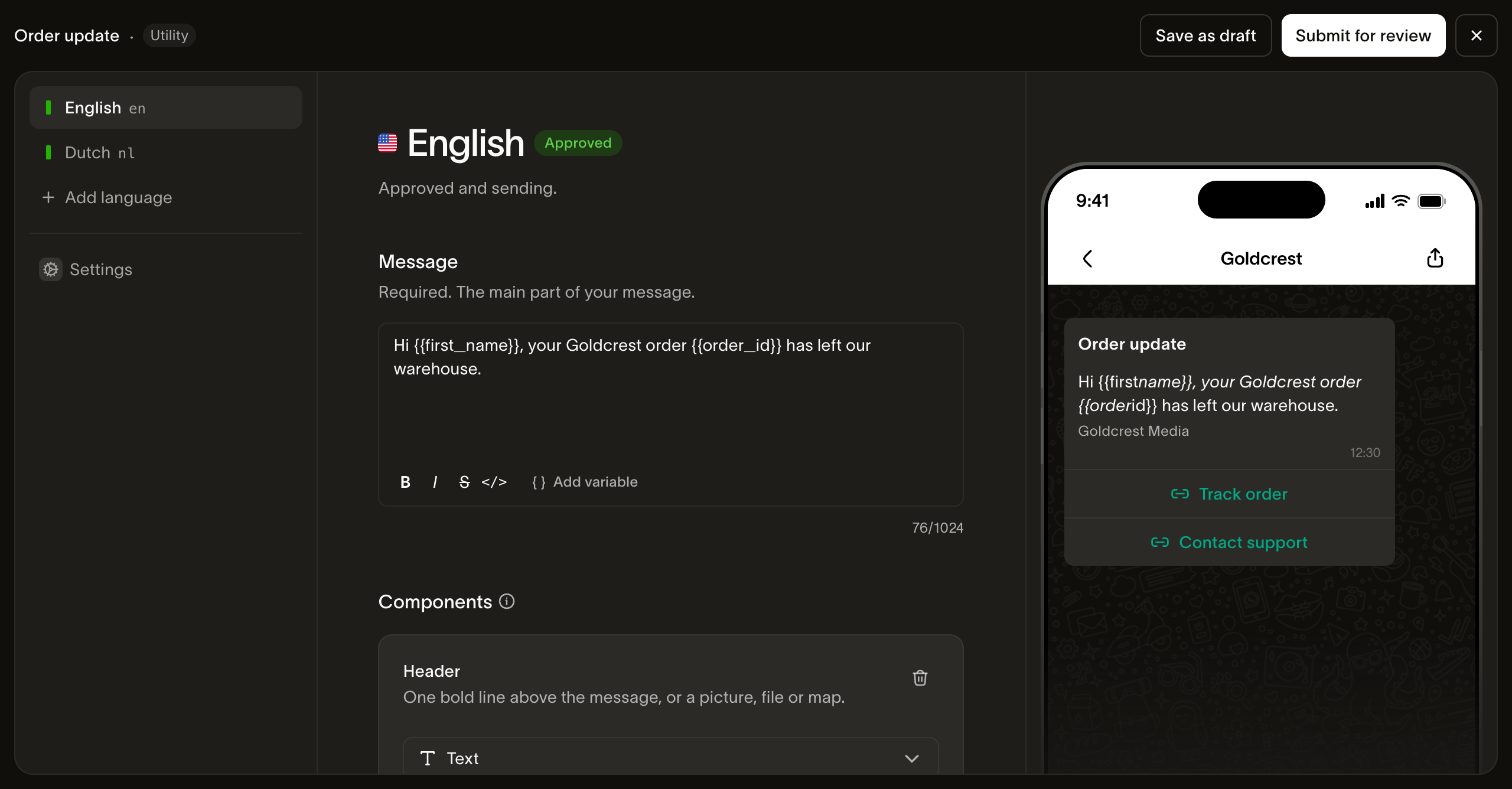
Keep enough fixed text around variables for Meta to understand the message. Avoid starting or ending the body with a variable. A message made mostly of placeholders can fail Meta's template review.
Bird's utility editor supports text, image, video, document, and location headers. Animated GIF headers, coupon-code buttons, carousels, and maximum pricing belong to marketing authoring in Bird.
Submitting and checking the category
- Select Submit for review.
- Check each language's review status and the category Meta assigned. Meta can approve promotional content as marketing even when you requested utility.
- Once the language is available on the live version, send a test message using your new template's slug and that approved language. Set
fromto a number on the same business account andtoto your test recipient. Supply the body variables and any header or button parameters that language requires. Confirm the filled message and tracking destination.
If Meta assigns marketing, review the complete wording, media, and variable samples for promotional content. The language's Meta category determines its delivery pricing. If a language is rejected, read its error, correct the content on a fresh draft, and resubmit.
Next steps
- Authoring overview: shared draft and review workflow
- Sending utility templates: filling approved variables and sending a message
- Template guidelines: content limits and rejection reasons
- Template language API: authoring through the API
Related resources
Continue with the documentation, guides and examples for this topic.