Authoring WhatsApp marketing templates
Create a marketing template for offers, product announcements, or customer re-engagement. Marketing templates give you formats and pricing controls beyond utility and authentication templates:
- Carousels: showcase a collection with swipeable image or video cards, each with its own text and buttons.
- Animated GIF headers: show a product in motion or animate an announcement.
- Coupon codes: give customers a button to copy a promotional code.
- Maximum pricing: choose how much you are willing to pay for a delivery and compare estimated cost and reach.
Choose the format, write each language, and submit it for review. Approval makes a template available to send; delivery remains subject to Meta's controls.
Before you start
Connect your own number and WhatsApp Business Account. Plan the audience's consent and opt-out handling before sending.
Use marketing for promotional content, including an order update with an added offer. Meta's category guidelines also classify general engagement messages and unclear or mixed-purpose content as marketing.
Maximum pricing and animated GIF headers require the business account to be onboarded to Meta's Marketing Messages API. If it is not onboarded, someone with full control of the business portfolio must accept the Marketing Messages API terms in WhatsApp Manager > Overview. See checking your account's status.
Since October 1, 2026, Meta no longer requires partners to enroll each client separately for maximum pricing. This change removes the client allowlist step; it does not remove Marketing Messages API onboarding. See Meta's maximum price enrollment rules.
Geographic availability
Marketing delivery and its extra features have different country restrictions:
| Location | Availability |
|---|---|
| United States recipients | Meta does not deliver marketing templates to US phone numbers. US business numbers can send to recipients outside the US. |
| European Economic Area (EU countries plus Iceland, Liechtenstein, and Norway), United Kingdom, Japan, South Korea, Nigeria, South Africa, and Thailand | Messages sent from or to these countries do not receive delivery optimizations or click and conversion reporting. Per-user marketing limits are also inactive there. |
| Russia and Belarus | Recipients cannot receive messages using maximum pricing. Click and conversion reporting is unavailable for messages sent from or to these countries. A business profile or payment-method address in either country disables delivery optimizations. |
| Cuba, Iran, North Korea, Syria, Venezuela, Crimea, Donetsk, and Luhansk | Businesses cannot onboard, and messages cannot be sent to recipients in these locations. |
For businesses in the EEA and the other countries with reporting restrictions above, Ads Manager and Insights API metrics are unavailable. WhatsApp Manager and Business Management API metrics remain available. These restrictions come from Meta's geographic availability rules.
For maximum pricing, Estimate for country and Country overrides show the supported destinations. Australia, Canada, and New Zealand are supported examples for English-language campaigns. The list excludes the restricted countries above, as well as Switzerland, mainland China, and Ukraine. Selecting a country supplies estimates; it does not target recipients or establish your account's eligibility.
A maximum-price send to an unsupported destination fails with Meta error 131065; it does not fall back to standard pricing. Use a template without maximum pricing for destinations where standard marketing delivery is available. See Meta's maximum pricing errors.
Creating the template
- Open Approved templates, select New template, then Start from scratch.
- Choose Marketing, the connected business account, a name, and the default language.
- Choose Default for a single message or Carousel for a message with swipeable media cards.
- Select Create template to open the editor.
You can also duplicate an existing marketing template through Start with a template. The copy opens as a draft. The authoring overview covers duplication, language selection, and the shared review workflow.
Writing the message
Write the body in Message, then add an optional header, footer, and buttons under Components. Use named variables for personalized text and supply an example for each variable in Variable samples.
A header can show text, an image, a video, an animated GIF, a document, or a location. Supply a sample file for media review; a send provides the file or location each recipient receives.
For a coupon, add a copy-code button and provide an example code. Meta supplies the button label. The code sent to each recipient can differ from the review sample. See Meta's coupon template guide.
A link button can include a single {{1}} at the end of its URL. A quick reply sends a response to your business; wire an unsubscribe reply into your opt-out handling.
Building a carousel
Write the introductory body on the Message tab, then fill each card tab:
- Choose an image or video header and supply its sample media.
- Write the card's text and add its buttons. Card-body variables use numbered placeholders such as
{{1}}. - Repeat the same component structure on the other cards, including header format and button types in the same order.
- Fill the variable samples and check the phone preview across the cards.
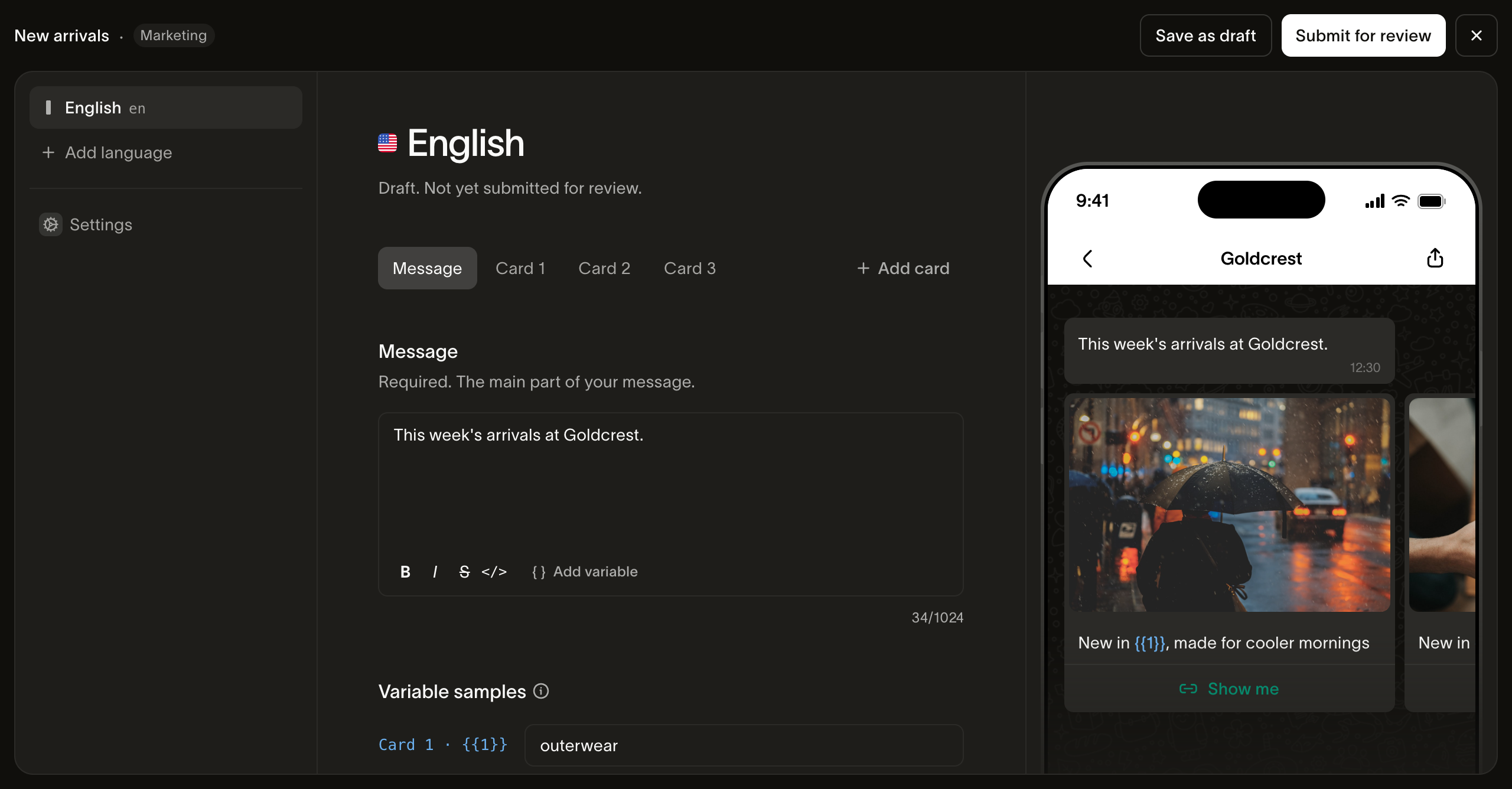
A media carousel needs two to 10 cards. Once approved, the language sends with that card count; changing it requires a new template. Meta's media carousel guide explains the shared card structure.
Setting a maximum price
Maximum pricing caps Meta's charge for each marketing delivery. The actual charge can vary below that cap. A lower cap may reduce delivery; a higher cap can improve delivery during competitive periods. A cap does not limit the total amount you spend across a campaign. Bird's fees are additional.
Meta calls this feature max price. It is available in Bird's marketing template editor; Meta's account and country eligibility rules still apply.
To configure it for the selected language:
- Open Pricing in the editor and enable Use maximum price.
- Choose Estimate for country to load that country's published reference rate and historical estimates.
- Enter Maximum price in the displayed business-account currency, per 1,000 deliveries, or select a price on the graph. Check the per-delivery equivalent beneath the input.
- Compare the expected cost and deliveries, then add any Country overrides.
- Select Save as draft, then Submit for review to apply the saved pricing change.
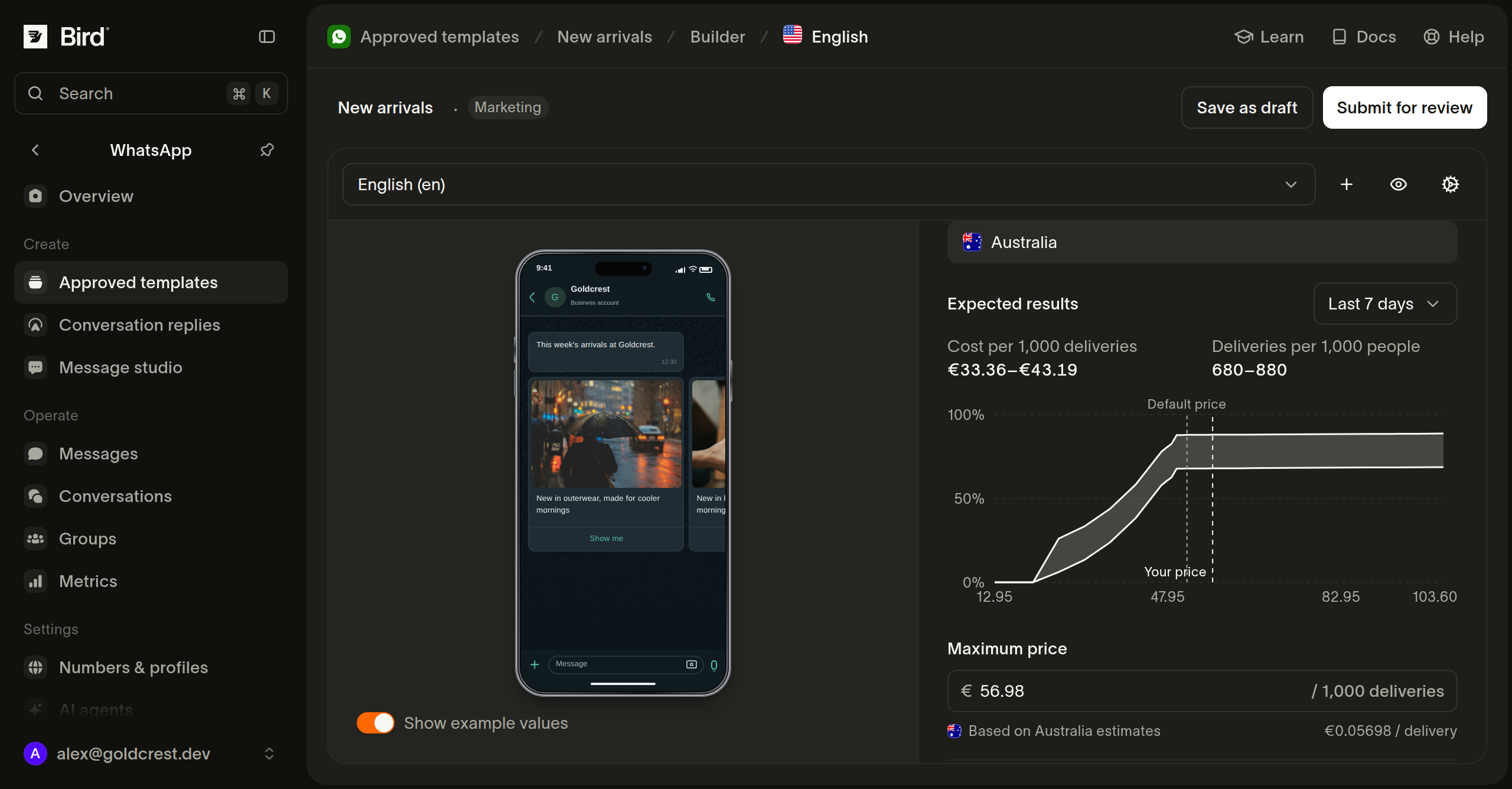
The selected country controls the reference rate and estimates. It does not restrict recipients or make the base maximum country-specific. Changing the estimate country leaves the configured maximum unchanged.
If you choose a graph price for a different country, the editor can ask whether to replace the base maximum or add a country override. Choose the override to keep the base maximum for other destinations.
Reading the estimates
The graph compares candidate maximum prices using recent Meta auctions. Default price marks the country's published rate. Your price marks the configured maximum; Your override marks the effective maximum when the country has an override.
Cost per 1,000 deliveries is the estimated average Meta charge at that price. Deliveries per … people is the estimated delivery count for the audience size returned by Meta. Both show ranges. They exclude Bird's fees and do not guarantee your campaign's results.
The window selector defaults to the last seven days and also offers one, 14, or 28 days. Changing it refreshes the historical data without changing your maximum. If your amount falls between returned price points, the editor uses the nearest point and names that amount beneath the results. Outside the range, it uses the nearest endpoint.
A lookup failure offers Retry. If a published reference rate is unavailable, the editor says to contact sales; that is different from a failed lookup.
Adding country overrides
Each country override is a percentage of the base maximum. For example, 80% lowers the cap for that destination to 80% of the base, and 120% raises it to 120%. A destination without an override uses the base maximum.
Add a country, enter its percentage, and check the effective amount shown beneath it. The graph follows the selected country's effective maximum. Editing the base maximum also changes the amounts calculated from its overrides.
Applying or removing a price
Saving a draft does not change the live price. Submit the saved draft to request the change. A price-only change does not require a new content review, but Meta can still refuse it. The saved price and an Approved status do not confirm that Meta has applied the change. If Meta refuses the change, the language retains its previously applied price.
To return to standard pricing, turn off Use maximum price, save, and submit. Meta notes that updated bid values can take up to one hour to propagate. See Meta's price-update guidance.
Submitting and sending
Submit each language through the shared review flow. Confirm that the language is approved and available on the live version, then send a test message from a number on the same business account.
For an individual send, template.bid_multiplier scales the maximum price without editing the template. The CLI exposes it as --bid-multiplier. It accepts 0.01 to 100; values above 1 raise the effective cap. The resolved language must have a maximum price and a marketing category at Meta. See Send a WhatsApp message.
If a maximum-price send fails with Meta error 131061, check the account's Marketing Messages onboarding. Error 131065 means maximum pricing is unavailable for the recipient's country; use an eligible destination or a template using standard pricing. Neither a higher cap nor template approval bypasses recipient opt-outs or Meta's delivery restrictions.
Planning delivery
Marketing delivery is not guaranteed or necessarily immediate, even for an approved template and an audience that has consented. Plan campaigns around reach over time. Meta uses recipient engagement and, with maximum pricing, auction-based delivery decisions; a higher cap does not guarantee delivery.
Meta can hold messages while it assesses a template's early feedback, then release or drop them. An offline recipient can receive a message much later: Meta's default marketing validity period is 30 days, after which undelivered messages are dropped. Allow time for delivery, and check delivered and failed statuses instead of treating an accepted send as a delivered message. See template pacing and message validity periods.
Meta can also refuse a marketing message to protect recipient engagement. Its per-user limits consider messages across businesses, the recipient's recent marketing read rate, and inbox activity. A message can fail even if you have not contacted that person recently.
When Meta applies these limits, delivery fails with error 131049, described as “This message was not delivered to maintain healthy ecosystem engagement.” Wait at least 24 hours before trying that recipient again. Repeated attempts within that period can trigger further restrictions, and waiting does not guarantee that the next attempt will succeed. See Meta's per-user marketing limits.
Next steps
- Authoring overview: drafts, languages, and review states
- Sending marketing templates: message parameters and delivery failures
- Marketing templates: onboarding and geographic availability
- Template language API: authoring and maximum pricing through the API
Related resources
Continue with the documentation, guides and examples for this topic.