Authoring WhatsApp authentication templates
Create an authentication template to deliver a one-time passcode for sign-in, account verification, or recovery. Meta supplies the message wording. You choose whether to include its security recommendation and code-expiration notice.
Before you start
Connect your own number and WhatsApp Business Account. Check the account's business verification status before creating or duplicating an authentication template.
Bird supports authentication templates with a Copy code button. Meta also documents Android one-tap and zero-tap templates, but Bird's authoring API and editor do not expose those button types. See Meta's authentication template guide.
Creating the template
- Open Approved templates, select New template, then Start from scratch.
- Choose Authentication and the connected business account. Enter a name and choose the default language.
- Select Create template to open the editor.
To start from an existing template, choose Start with a template and copy an authentication template onto your account. The copy is a draft that needs its own submission. An imported authentication template can refuse duplication with E15024; create one from scratch in that case.
Configuring the message
The Authentication settings panel replaces the free-text editor:
- Enable Add security recommendation to include Meta's advice not to share the code.
- Set Code expiration (minutes) to include an expiration notice. Leave it empty to omit that notice. Match it to the code validity your application enforces; the notice does not expire a code in your application.
- Check the phone preview, including the Copy code button, then select Save as draft.
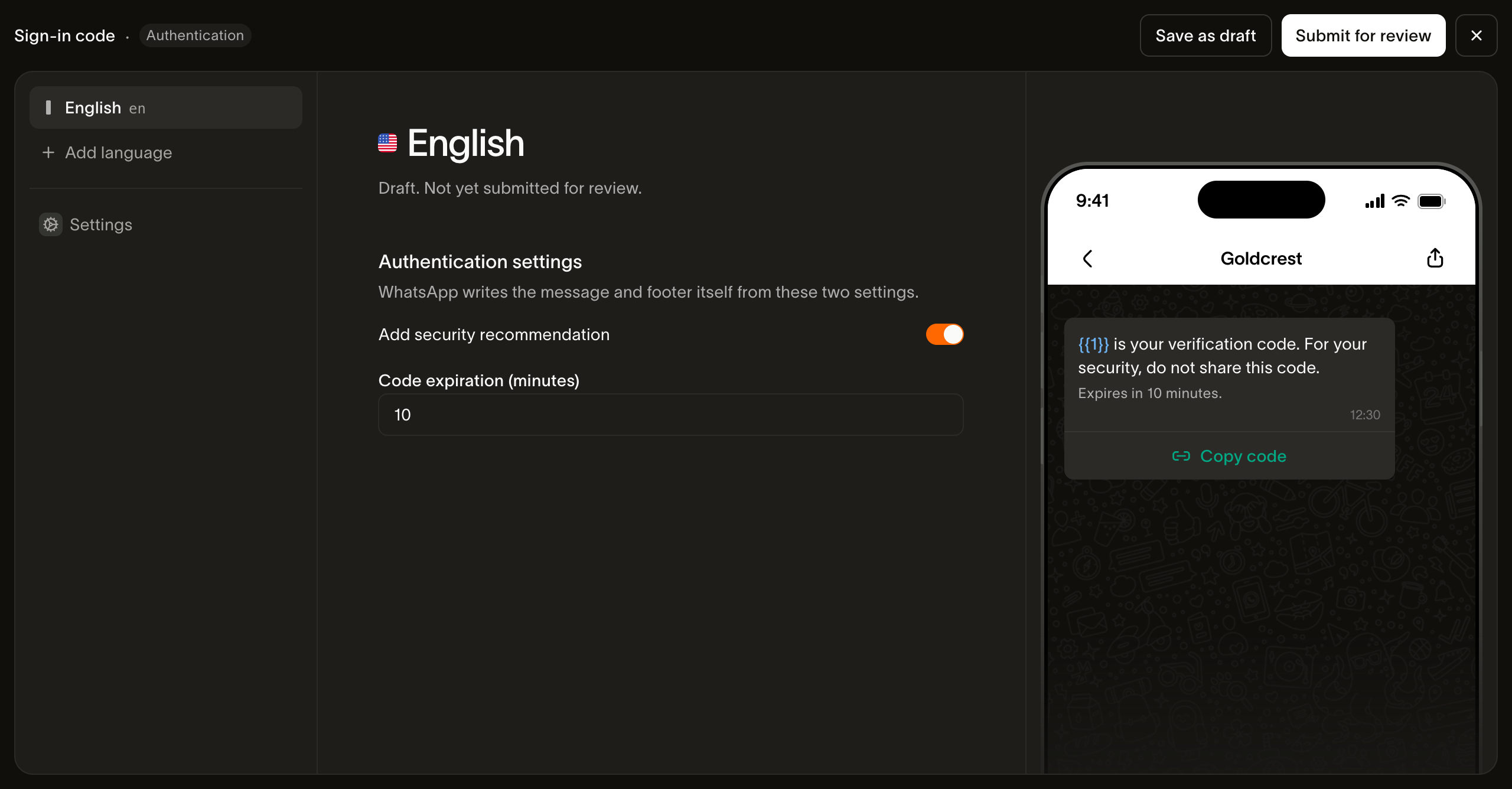
Meta accepts an expiration notice from 1 to 90 minutes. Authentication content cannot include URLs, media, or emojis, and a code can contain at most 15 characters. These restrictions come from Meta's copy-code template documentation.
Add the languages your application needs and check the settings and preview for each one. Approval is per language.
Submitting and testing
- Select Submit for review.
- Wait for the language to become approved and available on the live version.
- Send a test message using your new template's slug and an approved language. Set
fromto a number on the template's business account andtoto your test recipient's phone number. Supply the same passcode in the body and Copy code button parameters.
Confirm that the message arrives, Copy code copies the expected value, and your application accepts the code and rejects it after expiration. Authentication messages display the code on the recipient's primary WhatsApp device; linked devices prompt them to check that device.
If creation fails with E15043, check the connected account's verification status. If submission fails, read the error on the affected language before editing or retrying.
Next steps
- Authoring overview: drafts, languages, and review states
- Sending authentication templates: passcode parameters and sender requirements
- Verify: managed code generation and verification
- Template language API: authoring through the API
Related resources
Continue with the documentation, guides and examples for this topic.