Journal WhatsApp
La page Messages du tableau de bord Bird est le registre de tous les messages WhatsApp envoyés par votre espace de travail : chaque envoi effectué via POST /v1/whatsapp/messages apparaît ici, du plus récent au plus ancien. Utilisez-la pour vérifier qu'un message est parti, consulter son statut de livraison et voir quel modèle l'a produit. Pour un aperçu de l'emplacement de cette page dans le tableau de bord, consultez la visite guidée du tableau de bord.
La liste des messages
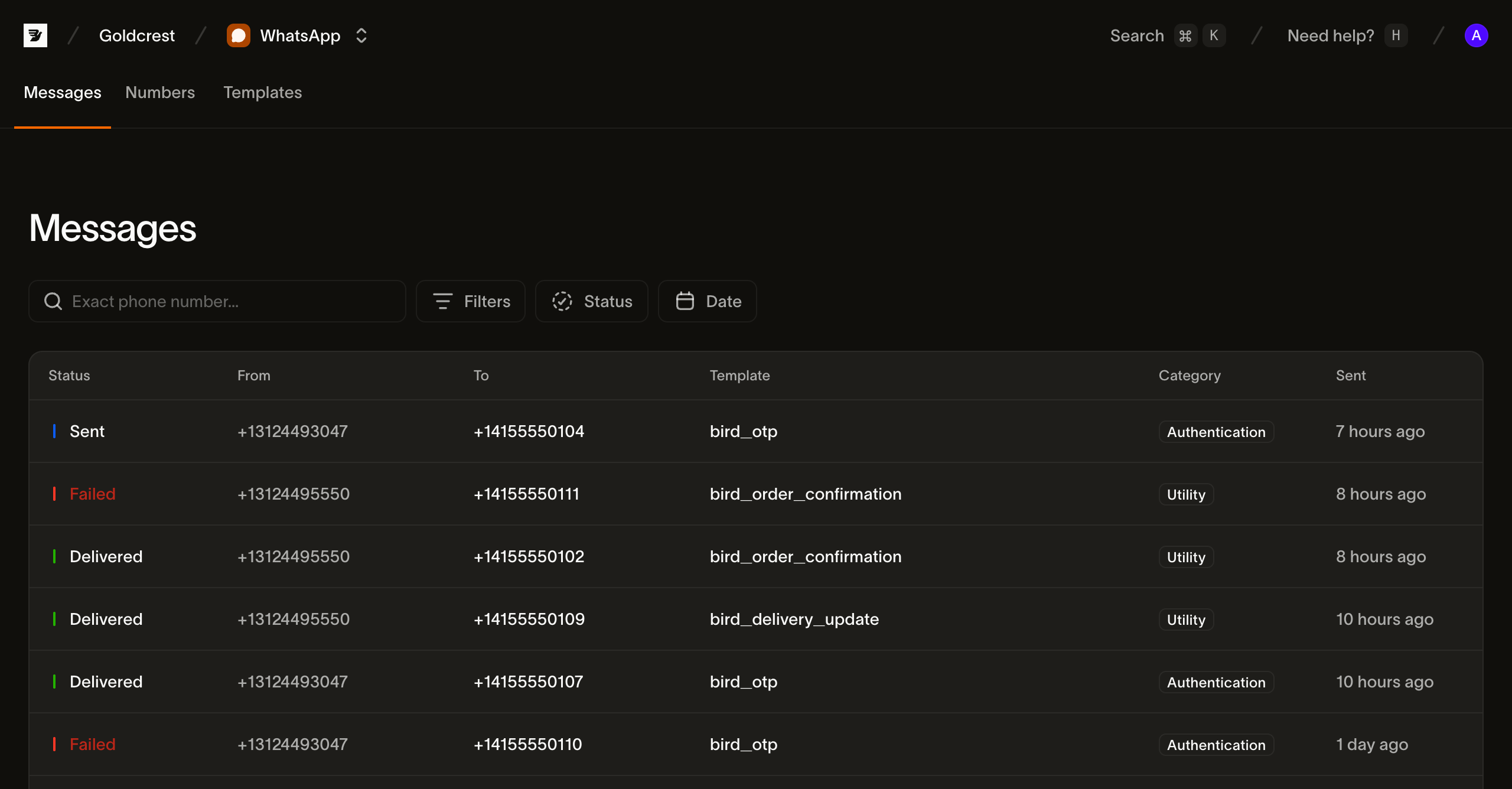
Chaque ligne correspond à un message. Les colonnes sont :
| Colonne | Ce qu'elle affiche |
|---|---|
| Status | Le statut actuel du message (voir Statuts), sous forme de point coloré |
| From | Le numéro d'expéditeur WhatsApp depuis lequel le message a été envoyé |
| To | Le numéro du destinataire |
| Content | Le modèle depuis lequel le message a été envoyé, ou le texte d'un message entrant (cliquez sur la ligne pour ouvrir le message) |
| Category | La catégorie du modèle |
| Sent | Quand l'envoi a été accepté |
La liste est paginée, 25 messages par page ; utilisez Prev et Next pour naviguer entre les pages.
Recherche et filtrage
Un journal de messages se remplit vite : la page commence par une recherche de destinataire et deux filtres. Ils se combinent : un filtre de statut associé à une plage de dates ne conserve que les messages correspondant aux deux critères.
Recherche par destinataire. Le champ de recherche correspond à un numéro de destinataire exact au format E.164. Saisissez le numéro complet auquel vous avez envoyé, par exemple +14155550100, pour retrouver chaque message qui lui est adressé. La recherche porte sur la valeur entière et non sur une sous-chaîne.
Status. Filtrez sur un ou plusieurs statuts. Le filtre est multi-sélection : vous pouvez, par exemple, afficher tout ce qui est encore en cours en sélectionnant Accepted et Sent ensemble. Les options sont Accepted, Sent, Delivered, Failed, Rejected et Received.
Date. Filtrez selon la date d'envoi du message : choisissez une période prédéfinie (3, 7 ou 30 derniers jours) ou sélectionnez une plage personnalisée dans le calendrier.
Lorsqu'une combinaison de filtres ne renvoie aucun résultat, la page affiche un état sans résultat avec une action Clear filters pour revenir à la liste complète.
Statuts
Le statut d'un message indique son état actuel d'envoi ou de réception. Un message sortant progresse depuis accepted vers un accusé de réception terminal.
| Statut | Signification |
|---|---|
| Accepted | Le message a été admis et nous préparons sa remise à WhatsApp |
| Sent | Remis à WhatsApp ; en attente d'un accusé de réception |
| Delivered | WhatsApp a confirmé la livraison au destinataire |
| Failed | L'envoi ou la livraison a échoué ; inspectez l'erreur enregistrée |
| Rejected | Bird a refusé le message avant de l'envoyer. Il n'a pas été envoyé et vous n'avez pas été facturé |
| Scheduled | En file d'attente pour un envoi futur |
| Canceled | Un message planifié annulé avant l'envoi ; aucun envoi ultérieur |
| Received | Un message entrant |
Un message est rejected lorsque le destinataire figure sur la liste de suppression de votre espace de travail, que le solde du portefeuille ne couvre pas l'envoi, ou que la destination n'a pas de prix configuré. Un accusé de lecture n'est pas un statut : lorsqu'un destinataire lit un message livré, Bird enregistre un horodatage read_at et un événement whatsapp.read sur le message, et le statut de livraison reste delivered.
Inspecter un message
Cliquez sur n'importe quelle ligne pour ouvrir le message. Son en-tête affiche le modèle qui l'a produit, le statut actuel, le destinataire et le badge de catégorie, au-dessus de trois onglets :
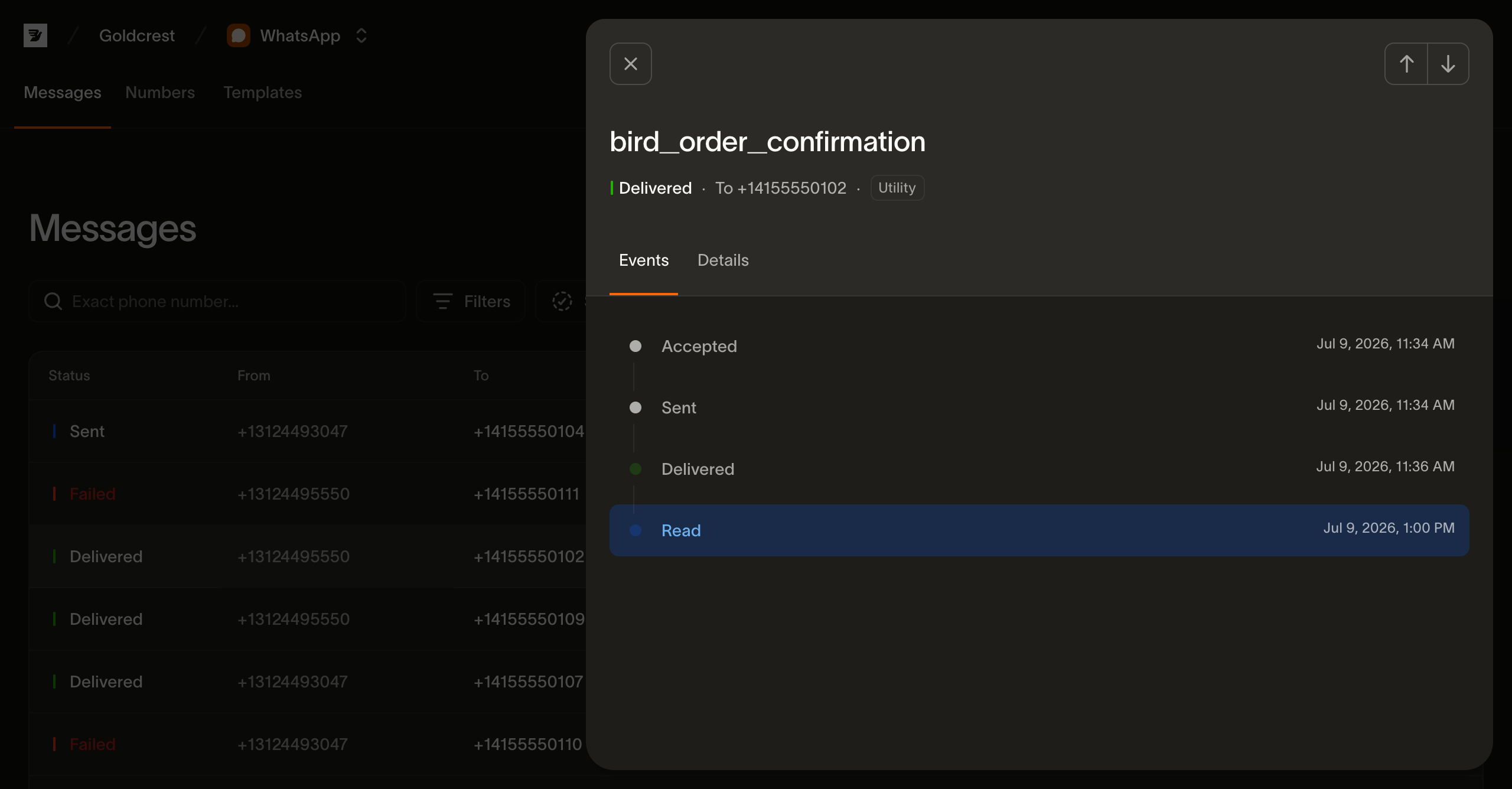
- Events : une chronologie de tout ce qui s'est passé pour le message, dans l'ordre, chaque entrée avec son horodatage. Elle suit
Accepted,Sent,Delivered, puis l'accusé de lecture si le destinataire l'a lu, ou un échec ou un rejet avec sa description d'erreur. C'est le même flux que vous pouvez lire avecGET /v1/whatsapp/messages/{message_id}/events. - Details : les métadonnées du message. Cet onglet contient l'identifiant (avec un bouton de copie), les numéros d'expéditeur et de destinataire, le slug, la langue et la catégorie du modèle, ainsi que les horodatages d'envoi, de livraison et de lecture. Il contient aussi la description de l'erreur pour un message non arrivé, ainsi que les éventuels tags et métadonnées associés à l'envoi.
- Preview : comment le message s'affiche dans WhatsApp. Pour un message basé sur un modèle, l'aperçu utilise le contenu actuel du modèle plutôt que les valeurs fournies lors de l'envoi : les variables apparaissent donc sous forme de paramètres fictifs, et toute modification ultérieure du modèle change ce que vous voyez. Considérez-le comme une aide au rendu, pas comme un enregistrement de ce qui a été livré. Un message entrant affiche son propre contenu.
Durée de conservation
Le journal WhatsApp conserve chaque message pendant 30 jours après son envoi ou sa réception. Passé ce délai, le message n'apparaît plus sur la page Messages, et GET /v1/whatsapp/messages ne le renvoie pour aucune plage de dates. La lecture du message ou de ses événements par identifiant renvoie 404. Les médias reçus expirent avec leur message ; consultez récupérer les médias entrants.
Le même journal via l'API
Tout ce qui apparaît sur cette page provient de GET /v1/whatsapp/messages et de ses sous-ressources par message. La liste accepte trois des filtres de la page : status, category et la plage de dates (created_after/created_before). Elle en ajoute plusieurs pour lesquels la page n'offre pas de contrôle : direction, un tag et un to ou from exact. to et from désignent les mêmes extrémités du message que la réponse, donc to correspond au contact pour un message sortant et à votre numéro professionnel pour un message entrant ; chacun accepte un numéro de téléphone E.164 ou un identifiant utilisateur limité au périmètre professionnel. La recherche par destinataire de la page est le seul filtre sans équivalent direct, car elle correspond à un contact dans les deux sens et to ou from seul ne peut pas exprimer cela. La chronologie derrière l'onglet Events est GET /v1/whatsapp/messages/{message_id}/events ; événements WhatsApp explique comment la lire par programmation.
Étapes suivantes
- Envoyer des messages WhatsApp : le payload d'envoi derrière chaque ligne
- Événements WhatsApp : les événements de statut de message derrière la chronologie
- Métriques WhatsApp : la vue agrégée de l'ensemble des messages ici
- Tarification WhatsApp : le coût d'un message, par destination et catégorie
Ressources associées
Poursuivez avec la documentation, les guides et les exemples sur ce sujet.