Utilisateurs, équipes et rôles
L'accès des personnes dans Bird repose sur les rôles : un utilisateur détient un rôle sur votre espace de travail, et chaque rôle est un ensemble fixe de permissions. Rien d'autre à configurer ; choisissez le bon rôle et les permissions suivent.
Les rôles régissent ce que les personnes peuvent faire dans le tableau de bord. Ce que les services peuvent faire est régi par les scopes de clé API : le même vocabulaire de permissions, accordé par clé plutôt que par rôle.
Rôles d'espace de travail
Les rôles que vous utilisez au quotidien se trouvent sur l'espace de travail (voir Espace de travail) : admin, developer et analyst. Gérez-les dans le tableau de bord sous Settings > Team.
Chaque permission est une paire {scope, level}, où level est read ou write (write inclut read). Un rôle est un ensemble nommé et fixe de ces paires :
| Scope | Signification de write | admin | developer | analyst |
|---|---|---|---|---|
workspace | Modifier les paramètres de l'espace de travail (nom, notifications) | write | read | read |
api_keys | Créer et révoquer des clés API | write | write | none |
emails | Envoyer des e-mails | write | write | read |
email_management | Gérer les suppressions et la configuration e-mail | write | write | read |
email_marketing | Gérer les contacts, les audiences et les diffusions | write | write | read |
domains | Ajouter, vérifier et supprimer des domaines d'envoi | write | write | read |
webhooks | Configurer les endpoints de webhook | write | write | read |
sms | Envoyer des SMS | write | write | read |
sms_management | Gérer les expéditeurs SMS, les suppressions et les paramètres | write | write | read |
verify | Envoyer et vérifier des codes de vérification | write | write | read |
verify_management | Configurer les expéditeurs et les pays de vérification | write | write | read |
whatsapp | Envoyer des messages WhatsApp | write | read | read |
whatsapp_management | Gérer les modèles et les paramètres WhatsApp | write | write | read |
assets | Télécharger, mettre à jour et supprimer des fichiers et dossiers | write | write | read |
compliance | Gérer les identités d'enregistrement, les soumissions et les preuves | write | write | read |
lookup | Rechercher des numéros de téléphone, des adresses e-mail et des correspondances d'identité | write | write | none |
mailbox | Envoyer des messages et répondre aux messages de boîte de réception | write | write | read |
mailbox_management | Créer, mettre à jour et supprimer des boîtes de réception et des règles de réception | write | write | read |
realtime | Créer des apps et publier des événements | write | write | read |
voice | Consulter les journaux d'appels et les statistiques, et passer des appels | write | write | read |
voice_management | Gérer les trunks, passerelles, numéros, identifiants d'appelant et destinations | write | write | read |
ip_pools | Voir les pools d'IP de l'organisation (lecture seule) | read | read | read |
members | Gérer l'équipe et les invitations de l'espace de travail | write | read | read |
analytics | Consulter les rapports et les analyses de délivrabilité | read | none | read |
audit | Consulter le journal d'audit | read | none | read |
request_logs | Consulter le journal des requêtes (lecture seule) | read | read | read |
En pratique, un admin gère l'espace de travail, y compris l'équipe et les paramètres. Un developer peut créer des intégrations, gérer les domaines et les webhooks, et créer des clés API. Un analyst dispose d'un accès en lecture seule.
Deux lignes méritent un examen plus attentif. ip_pools est en lecture seule même pour les admins, car l'achat d'IP dédiées et la gestion des pools nécessitent le scope org:ip_pools:write au niveau de l'organisation. Les permissions WhatsApp séparent également la gestion de l'envoi de messages. Un developer peut gérer les modèles et les paramètres avec whatsapp_management:write, mais ne peut que lire les messages avec whatsapp:read ; l'envoi reste réservé aux admins. D'autres produits ajoutent des scopes selon le même modèle {scope, level}.
Une réponse 403 depuis n'importe quel endpoint signifie que le principal authentifié ne possède pas le {scope, level} requis par cet endpoint. La solution est un changement de rôle (pour une personne) ou une nouvelle clé avec les bons scopes (pour un service).
Rôles d'organisation
Derrière votre espace de travail se trouve une organisation qui détient la facturation et la liste globale des membres. Deux rôles gèrent cette couche :
owner: tout. Lecture et écriture complètes sur les opérations de l'organisation et de l'espace de travail. Une organisation peut (et devrait) avoir plusieurs owners. La personne qui a créé le compte commence en tant qu'owner.billing_admin: facturation et paramètres de l'organisation (org:billing:write,org:settings:write) plus un accès en lecture à la liste des membres de l'organisation et aux métadonnées de l'espace de travail. Aucun accès aux ressources à l'intérieur de l'espace de travail.
Ces rôles interviennent rarement au quotidien : la plupart des coéquipiers n'ont besoin que d'un rôle d'espace de travail.
Membres et équipe
L'appartenance est implicite : un utilisateur fait partie de "in" votre organisation s'il détient un rôle d'organisation ou un rôle d'espace de travail. Il n'existe aucun enregistrement d'appartenance séparé à gérer.
Vous gérez les personnes de votre espace de travail dans le tableau de bord sous Settings > Team, protégé par le scope d'espace de travail members ; un admin d'espace de travail gère l'équipe ici sans aucun rôle au niveau de l'organisation. La gestion de l'équipe est une action humaine, les clés API ne peuvent donc pas détenir le scope members (voir Authentification).
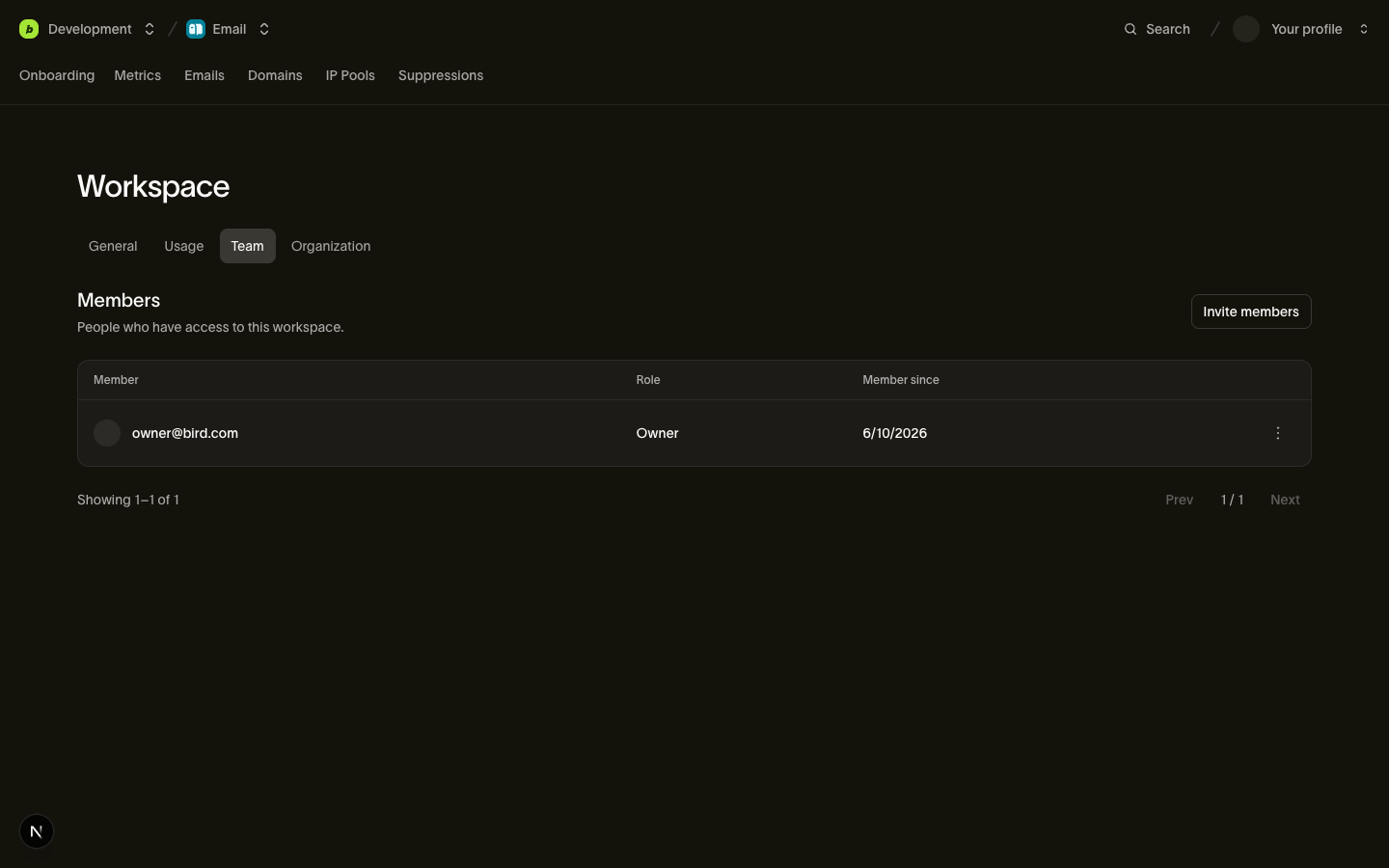
Retirer l'accès d'une personne à l'espace de travail supprime ce rôle sans modifier le rôle d'organisation qu'elle détient. Retirer une personne de l'organisation révoque tous ses accès au compte. Les clés API qu'elle a créées continuent de fonctionner, car chaque clé appartient à l'espace de travail indépendamment de son créateur.
Invitations
Depuis Settings > Team, invitez une adresse e-mail avec un rôle : Bird se charge du reste. Derrière le bouton se trouve une invitation intelligente : un seul flux gère aussi bien les collègues déjà présents dans votre organisation que les personnes qui n'ont jamais entendu parler de Bird.
- Déjà membre de l'organisation : la personne est ajoutée immédiatement à l'espace de travail avec le rôle indiqué. Pas d'e-mail, pas d'attente ; la réponse est un objet member.
- Pas encore membre : Bird crée une invitation, envoie par e-mail un lien d'inscription, et la réponse est un objet invitation avec un statut
pending. Le lien est valide pendant 7 jours ; passé ce délai, l'invitation expire et vous invitez la personne à nouveau.
Le champ type de la réponse (team_member ou invitation) vous indique ce qui s'est passé. Une seconde invitation en attente pour la même adresse e-mail renvoie 409 au lieu de créer un doublon, et vous pouvez retirer une invitation en attente à tout moment depuis la même page.
Un owner peut inviter un autre owner ou billing_admin. Cette invitation nécessite org:members:write, que seuls les owners détiennent.
Garde-fous
Deux invariants sont appliqués à chaque changement de rôle, quel que soit le demandeur :
- Le dernier owner est inamovible. Rétrograder ou supprimer le seul owner d'une organisation renvoie
409: une organisation ne peut jamais se retrouver sans owner. Promouvez d'abord un second owner. - Vous ne pouvez pas modifier votre propre accès. Changer votre propre rôle ou vous supprimer vous-même renvoie
403. Cela empêche à la fois le verrouillage accidentel de soi-même et l'auto-promotion discrète ; un autre admin ou owner doit effectuer le changement.
Comment le contexte est sélectionné
Les endpoints de membres et d'équipe existent à deux niveaux, et l'organisation ou l'espace de travail ciblé par une requête dépend de la façon dont elle s'authentifie :
- Authentification par session (le tableau de bord, ou les outils agissant en votre nom) fournit le contexte par requête :
X-Organization-Idsur les endpoints à portée organisation,X-Workspace-Idsur ceux à portée espace de travail. - Les clés API portent leur contexte implicitement. Une clé appartient à votre espace de travail, ce qui détermine aussi l'organisation ; aucun en-tête n'est nécessaire, et un en-tête de contexte qui contredit la clé est rejeté comme malformé (
400).
Consultez Espace de travail pour le modèle complet de résolution du contexte.
Étapes suivantes
- Authentification et clés API : les scopes pour les services, et qui peut gérer les clés
- Espace de travail : l'espace de travail auquel ces rôles sont rattachés
- Facturation et utilisation : ce que gèrent les rôles de facturation au niveau de l'organisation
Ressources associées
Poursuivez avec la documentation, les guides et les exemples sur ce sujet.