Journal des e-mails
Le journal des e-mails enregistre chaque message envoyé par votre espace de travail. Ouvrez Email > Emails pour afficher les messages les plus récents en premier. Utilisez-le pour confirmer qu'un message a été accepté, suivre le statut de livraison de chaque destinataire et inspecter le contenu stocké lorsque le stockage de contenu est activé.
Le journal des e-mails complète la page agrégée Métriques. Les métriques affichent les taux sur l'ensemble des envois, tandis que le journal affiche un seul message. Pour une vue d'ensemble du tableau de bord, consultez la visite guidée du tableau de bord.
L'onglet Receiving de la page est le même journal pour les e-mails reçus. Ce volet est traité dans Réception des e-mails.
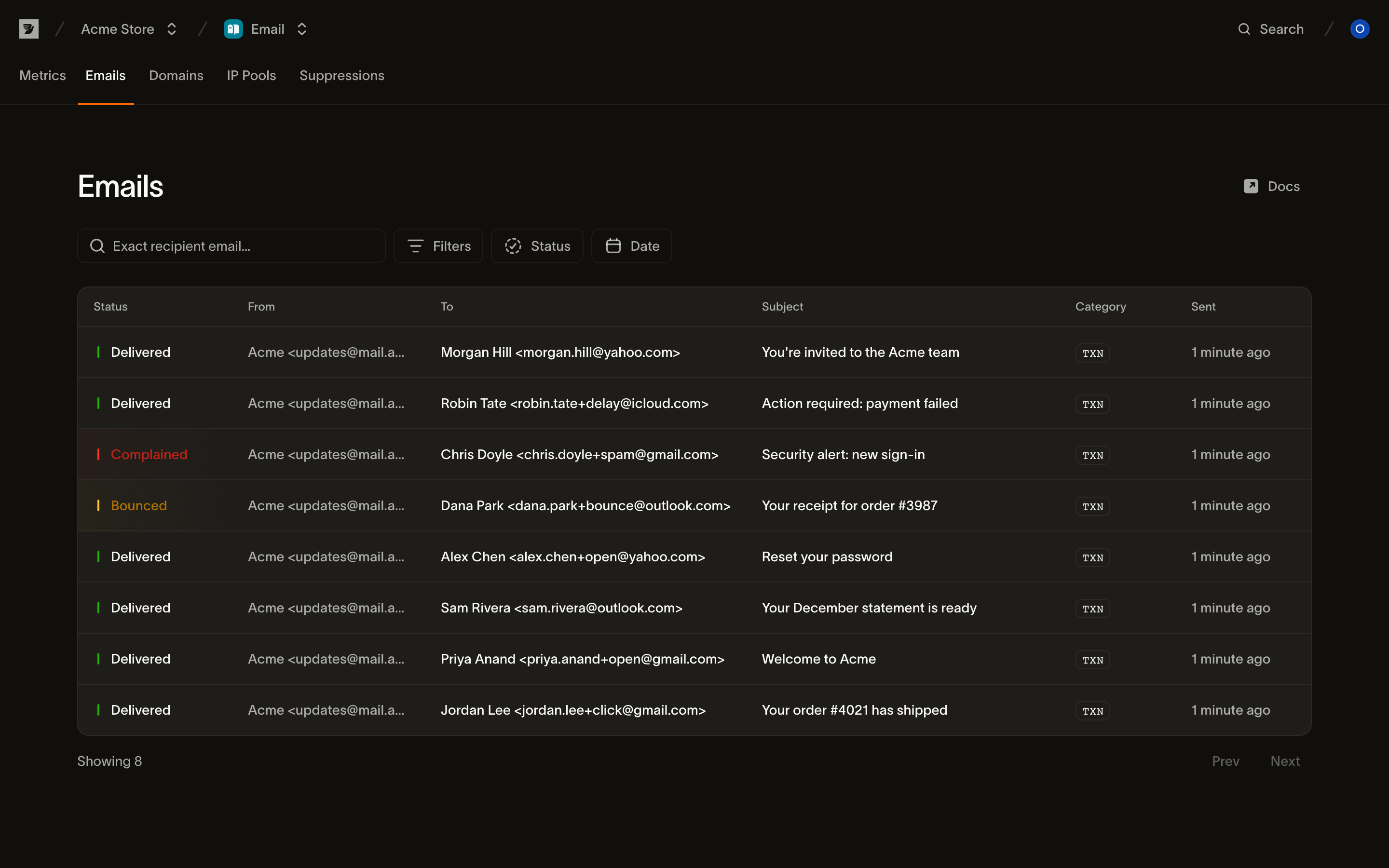
La liste des messages
Chaque ligne correspond à un message. Les colonnes sont :
| Colonne | Ce qu'elle affiche |
|---|---|
| Status | Le statut de livraison actuel du message (voir Statuts) |
| From | L'expéditeur : nom d'affichage et adresse, ou l'adresse seule |
| To | Le destinataire principal ; les envois à plusieurs destinataires affichent un compteur que vous pouvez survoler pour le développer |
| Subject | L'objet du message ; sélectionnez la ligne pour ouvrir le message |
| Category | La catégorie du message : TXN pour transactionnel, MKTG pour marketing |
| Sent | La date d'acceptation de l'envoi, en temps relatif (survolez pour voir l'horodatage exact) |
Consultez les résultats Bounced, Complained, Rejected et Partial failure. Deferred indique une nouvelle tentative automatique. La liste est paginée ; utilisez Prev et Next pour naviguer entre les pages.
Recherche et filtrage
Un journal de messages se remplit vite, c'est pourquoi la page commence par un champ de recherche et trois filtres. Ils se combinent : un filtre de statut associé à une plage de dates ne retient que les messages correspondant aux deux critères.
Recherche par destinataire. Le champ de recherche correspond à une adresse e-mail de destinataire exacte. Saisissez l'adresse complète à laquelle vous avez envoyé, par exemple jane@example.com. Les résultats incluent chaque message adressé à cette adresse via to, cc ou bcc. La correspondance exacte exclut les adresses partielles et les domaines.
Statut. Filtrez par un seul statut de livraison. Les options sont les statuts listés dans Statuts.
Catégorie. Filtrez les messages Transactional ou Marketing.
Date. Filtrez par date d'envoi du message : choisissez un préréglage (Last 3 days, Last 7 days, Last 30 days) ou sélectionnez une plage personnalisée dans le calendrier.
Lorsqu'une combinaison de filtres ne correspond à rien, la page affiche un état No emails match your filters avec une action Clear filters pour revenir à la liste complète.
Statuts
Le statut d'un message est la synthèse de la position de ses destinataires dans le cycle de vie de la livraison. Pour un message à destinataire unique, le statut reflète directement celui du destinataire. Pour un envoi à plusieurs destinataires, le statut reflète le message dans son ensemble : Partial failure signifie que certains destinataires ont réussi et d'autres non.
| Statut | Signification |
|---|---|
| Scheduled | L'envoi a une heure d'envoi future et n'a pas encore commencé. Voir envoi planifié. |
| Accepted | L'envoi a été accepté et la livraison est en cours de préparation. |
| Processed | Le message est construit et mis en file d'attente pour la livraison. |
| Delivered | Le serveur de messagerie du destinataire a accepté le message. |
| Deferred | Un échec temporaire. Nous réessayons automatiquement, et le statut évolue vers livré ou rejeté. |
| Bounced | Un échec permanent. Le serveur de messagerie du destinataire a refusé le message. |
| Complained | Le destinataire a signalé le message comme spam. |
| Rejected | L'envoi a été rejeté avant toute tentative de livraison. Le plus souvent parce que le destinataire est supprimé. |
| Partial failure | Un envoi à plusieurs destinataires dont le résultat diffère selon les destinataires. |
| Canceled | Un envoi planifié annulé avant son départ. |
Inspecter un message
Sélectionnez une ligne pour ouvrir le message dans un panneau latéral. Le panneau comporte les onglets Events, Details, HTML et Text. Utilisez les flèches pour passer d'un message à l'autre sans le fermer. Un message planifié affiche son heure d'envoi et une action d'annulation. L'envoi planifié couvre ce flux.
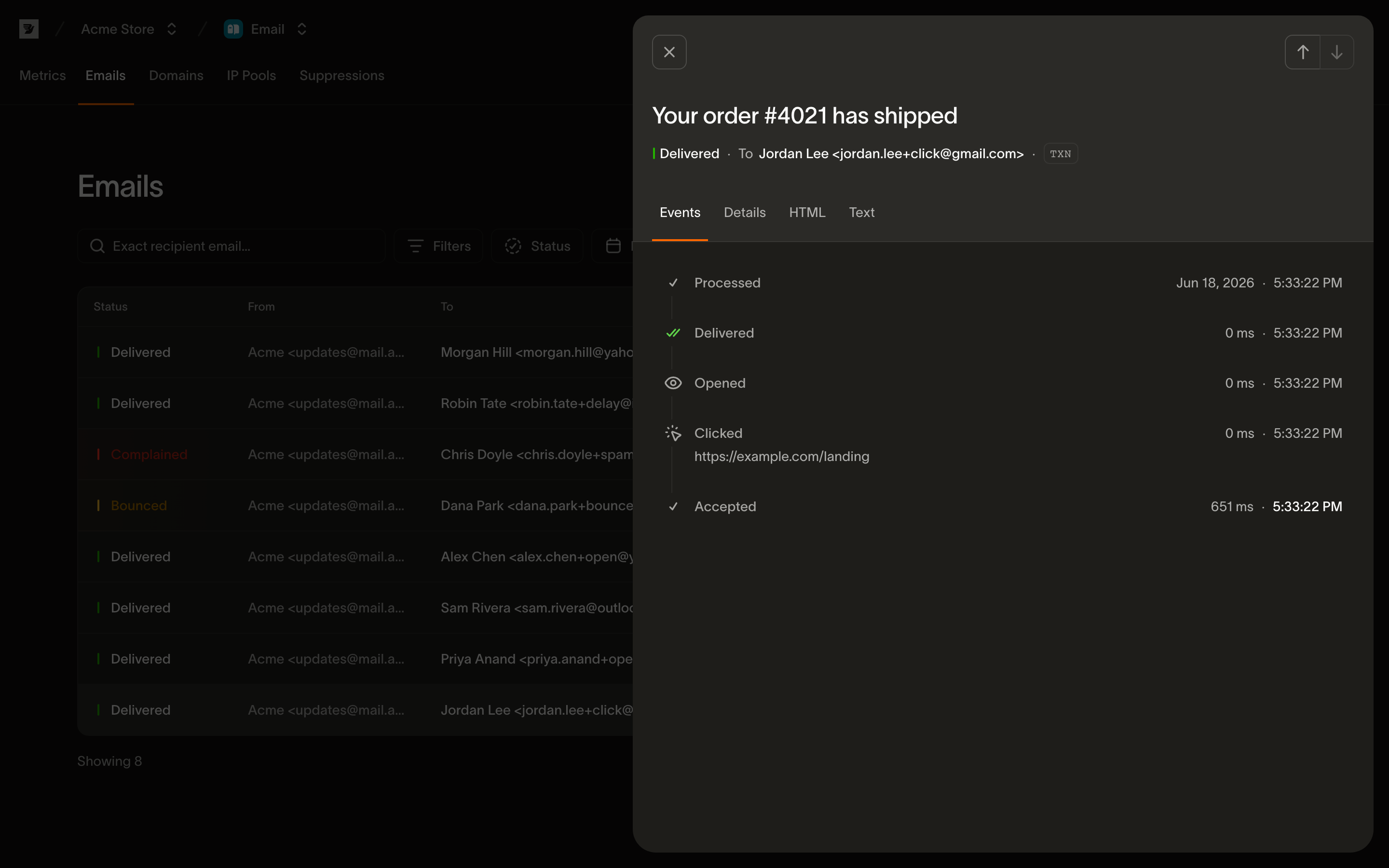
Événements
L'onglet par défaut est une chronologie par destinataire de tout ce qui est arrivé au message, dans l'ordre, chaque entrée avec son horodatage. Il s'agit du même flux d'événements décrit dans la référence des événements e-mail, rendu pour un seul message : Accepted → Processed → Delivered. Viennent ensuite les événements d'engagement comme Opened et Clicked, ou les événements d'échec comme Bounced, Deferred, Complained et Rejected.
- Pour un envoi à plusieurs destinataires, un sélecteur All recipients vous permet de consulter la chronologie fusionnée ou de filtrer le parcours d'un seul destinataire.
- Les événements d'échec affichent leur détail en ligne : un rebond affiche sa description et un rejet affiche sa raison.
- Un événement
Openedrécupéré automatiquement par un proxy de confidentialité de boîte de réception est signalé comme n'étant pas une vraie ouverture, conformément à la façon dont le suivi des ouvertures traite les prélectures. - Lorsqu'un événement ajoute automatiquement le destinataire à votre liste de suppression (rebond définitif ou plainte), la chronologie l'indique et renvoie vers la liste.
- Tant qu'un message est encore en cours d'acheminement, la chronologie se rafraîchit automatiquement toutes les quelques secondes jusqu'à ce que chaque destinataire atteigne un état final.
Si un message livré ne présente aucune ouverture ni aucun clic, la chronologie en explique la raison : le plus souvent, le suivi des ouvertures et des liens n'était pas activé pour le domaine ou n'avait pas été demandé sur l'envoi.
Détails
L'onglet Details affiche les métadonnées du message :
- Son Message ID.
- Les adresses From, To, et éventuellement CC, BCC ou Reply-To.
- Le Domain d'envoi.
- La Category.
- Si Open tracking et Link tracking étaient activés.
- Les horodatages Sent et Delivered.
Les tags et métadonnées que vous avez définis sur l'envoi sont également listés ici, et les pièces jointes apparaissent avec leur taille, leur type et une action de téléchargement. La plupart des champs peuvent être copiés en un clic.
HTML et Text
L'onglet HTML affiche le rendu du HTML stocké. Son sous-onglet Preview montre le message dans un cadre isolé, et Source affiche le HTML brut. L'onglet Text affiche le corps en texte brut stocké. Juste après un envoi, ces onglets peuvent indiquer que le contenu est encore en cours de stockage. Si le stockage de contenu était désactivé pour le message, aucun corps n'est disponible.
Le même journal via API
Tout ce qui figure sur cette page provient de GET /v1/email/messages et de ses sous-ressources. La liste accepte les mêmes filtres que ceux exposés par la page, et d'autres :
status.category.tag.- Une adresse
tooufromexacte (adresse brute, correspondance insensible à la casse). - Une fenêtre
created_after/created_before.
Le détail par message se trouve dans les sous-ressources recipients, events et content. La référence des événements explique comment lire une chronologie par programmation.
Étapes suivantes
- Métriques e-mail : statistiques agrégées sur tous vos envois, et fonctionnement du suivi des ouvertures et des clics
- Événements e-mail : le vocabulaire complet des événements par destinataire à partir duquel la chronologie est construite
- Suppressions : pourquoi un destinataire a été rejeté et comment gérer la liste de suppression
- Envoi d'e-mails : le contenu de l'envoi, y compris les tags, les catégories et les options de suivi
- Référence API : messages : lire les messages, les destinataires et les événements par programmation
Ressources associées
Poursuivez avec la documentation, les guides et les exemples sur ce sujet.