Templates WhatsApp
Les envois WhatsApp initiés par l'entreprise utilisent un template pré-approuvé. Un template contient du texte fixe et des variables : un envoi ne fournit donc que des valeurs telles qu'un code OTP ou un numéro de commande.
Bird fournit un catalogue géré, enregistre son contenu auprès de WhatsApp et l'envoie depuis les propres numéros de Bird ; ses slugs commencent par bird_. Un espace de travail qui a connecté un numéro à lui peut aussi créer des templates sur son propre WhatsApp Business Account. La page Templates affiche tous les templates que l'espace de travail peut envoyer et le rendu de chacun.
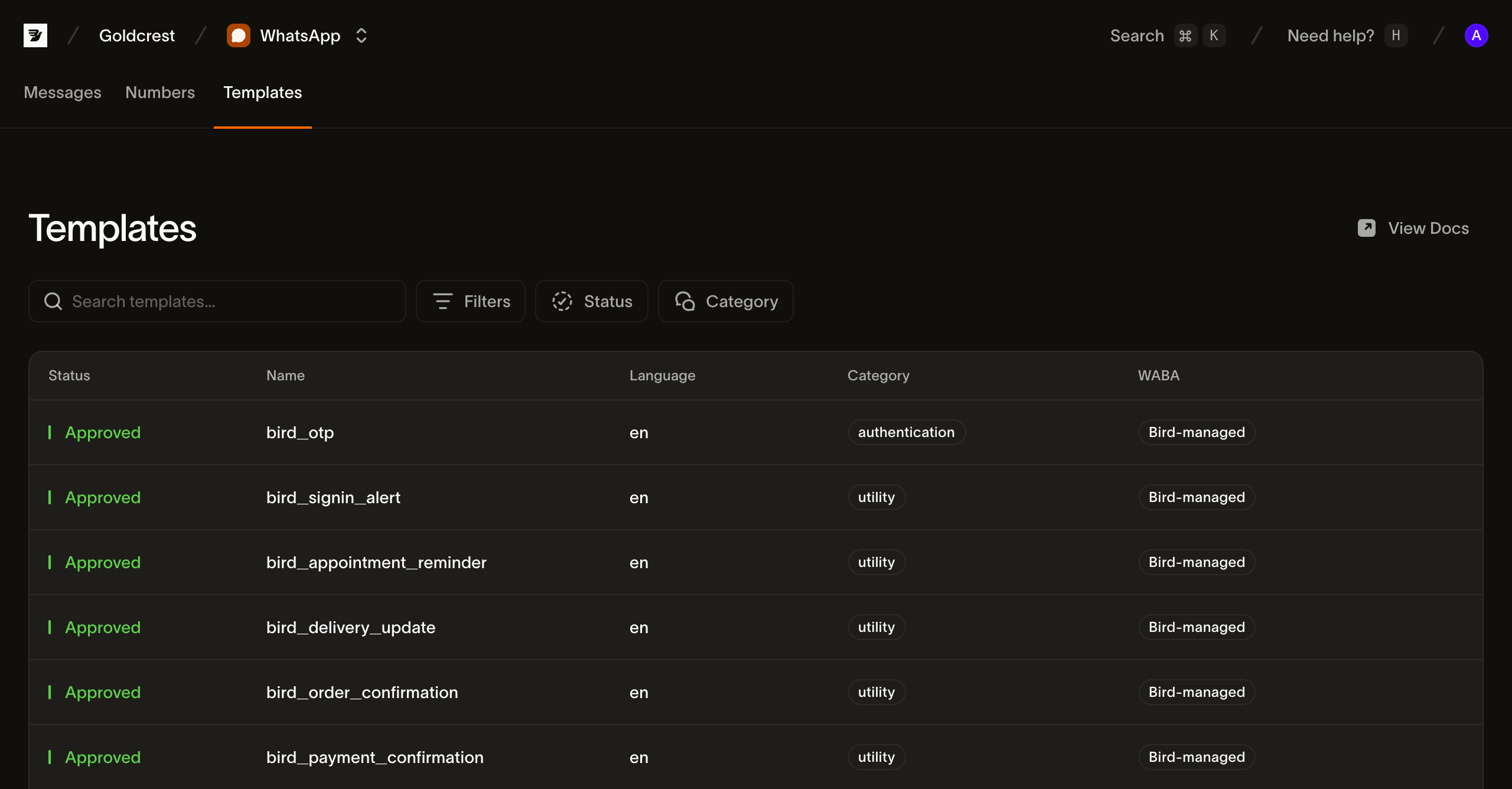
Parcourir les templates dans le tableau de bord
Ouvrez Templates dans WhatsApp > Templates. Your templates contient les templates créés par cet espace de travail ; All templates y ajoute le catalogue géré par Bird. Recherchez par nom ou filtrez par statut et catégorie, et basculez entre la grille de cartes et la vue liste avec le bouton à côté des filtres.
En vue liste, chaque ligne affiche les champs nécessaires pour choisir et envoyer un template :
- Status : indique si le template est globalement envoyable. Les templates du catalogue géré affichent
active; un template que vous avez créé indique l'état de sa propre approbation. Vérifiez la liste des langues pour confirmer que la langue requise est disponible. - Name : le libellé d'affichage, avec le
slugdu template en dessous. Envoyez avec leslug. - Languages : les langues dans lesquelles le template est enregistré, par exemple anglais et néerlandais.
- Category :
authentication,utilityoumarketing. La catégorie détermine comment WhatsApp traite le message, depuis quel numéro Bird un template géré est envoyé, et, combinée au pays de destination, le prix. - WABA : Bird-managed pour les templates du catalogue. Un template que vous avez créé affiche le WhatsApp Business Account qui le détient, et n'envoie que depuis un numéro rattaché à ce même compte.
- Updated : date de la dernière modification du template.
Cliquez sur une ligne pour ouvrir le détail du template.
Contenu d'un template
La vue détaillée affiche le corps du message, les variables et les boutons dans un aperçu au style WhatsApp.
Le détail fournit aussi un exemple cURL pour POST /v1/whatsapp/messages, utilisant l'hôte régional et les valeurs d'exemple du template. Remplacez la clé API, le destinataire et les valeurs des variables avant d'envoyer.
L'exemple est le moyen le plus rapide de voir la structure qu'un envoi doit respecter. Via l'API, le même contenu provient de la version du template (Lire le contenu d'un template).
Lister les templates depuis l'API
GET /v1/whatsapp/templates renvoie un catalogue paginé par curseur. La requête nécessite un accès en lecture whatsapp_management. Utilisez HTTP ou une méthode de requête brute SDK.
type Templates = { data: Array<{ slug: string; status: string }> };

const templates = await bird.request<Templates>({
  method: "GET",
  path: "/v1/whatsapp/templates",
});
templates = client.get("/v1/whatsapp/templates")var out struct {
Data []struct {
Slug string `json:"slug"`
Status string `json:"status"`
} `json:"data"`
}
if err := client.Get(context.Background(), "/v1/whatsapp/templates", &out); err != nil {
log.Fatal(err)
}$templates = $bird->get('/v1/whatsapp/templates');curl https://us1.platform.bird.com/v1/whatsapp/templates \
-H "Authorization: Bearer $BIRD_API_KEY"Chaque entrée identifie le template, sa catégorie et ses langues disponibles. Lisez la version active séparément pour obtenir le contenu du message.
{
  "available_languages": ["en", "es", "pt-BR", "..."],
  "category": "authentication",
  "default_language": "en",
  "description": "One-time passcode",
  "id": "wat_01ky4x8e4genzb7way45txfkm1",
  "languages": {
    "en": { "status": "approved" },
    "es": { "status": "approved" },
    "pt-BR": { "status": "approved" },
    "...": "..."
  },
  "name": "bird_otp",
  "on_missing_language": "fail",
  "scope": "system",
  "slug": "bird_otp",
  "status": "active"
}
La réponse d'exemple abrège les listes de langues bird_otp.
Les champs dont dépend un envoi :
slug: l'identifiant utilisé lors d'un envoi. Les slugs des templates gérés commencent parbird_, un préfixe qui leur est réservé.waba: le WhatsApp Business Account qui détient les langues du template chez Meta, et le compte auquel un numéro expéditeur doit appartenir. Absent sur un template géré, car Bird gère son compte.available_languages: les langues qui peuvent être envoyées. Une langue en pause, désactivée, archivée ou restreinte quitte cette liste.on_missing_language: ce qui se passe lorsque la langue demandée n'est pas disponible. Les templates WhatsApp gérés par Bird utilisentfail, qui rejette l'envoi au lieu de substituer une autre langue.
Statut et statut de langue
Les templates gérés par Bird affichent status: active. languages.<tag>.status indique l'état WhatsApp pour une langue, par exemple approved, paused ou disabled.
Un template actif peut tout de même avoir une langue indisponible. Utilisez available_languages pour déterminer si une langue est envoyable.
Lire le contenu d'un template
Le contenu du message appartient à une langue dans la version active. Lisez live_version_id depuis le template, puis demandez la langue requise :
const language = await bird.request({
  method: "GET",
  path: "/v1/whatsapp/templates/bird_order_confirmation/versions/{version_id}/languages/en",
});
language = client.get(
"/v1/whatsapp/templates/bird_order_confirmation/versions/{version_id}/languages/en"
)var language map[string]any
if err := client.Get(context.Background(),
"/v1/whatsapp/templates/bird_order_confirmation/versions/{version_id}/languages/en",
&language); err != nil {
log.Fatal(err)
}$language = $bird->get('/v1/whatsapp/templates/bird_order_confirmation/versions/{version_id}/languages/en');curl https://us1.platform.bird.com/v1/whatsapp/templates/bird_order_confirmation/versions/{version_id}/languages/en \
-H "Authorization: Bearer $BIRD_API_KEY"La référence du template accepte un slug ou un ID wat_. GET …/versions/{version_id}/languages liste les langues de la version sans leur contenu.
{
  "category": "utility",
  "components": [
    {
      "example_parameters": [
        { "name": "ref", "text": "A1B2C3D4", "type": "text" },
        { "name": "amount", "text": "USD 49.99", "type": "text" }
      ],
      "text": "Your order {{ref}} has been confirmed for a total of {{amount}}. Thanks for shopping with us.",
      "type": "body"
    }
  ],
  "language": "en",
  "status": "approved"
}
Le components de l'envoi doit correspondre au template. example_parameters identifie chaque espace réservé. Dans cet exemple, les paramètres du corps utilisent name: "ref" et name: "amount". Un template positionnel omet name et prend les valeurs dans l'ordre {{n}}. Les boutons paramétrés ont leur propre example_parameters.
Le category de la langue est la catégorie Meta utilisée pour la tarification. Il peut différer de la catégorie enregistrée du template si Meta reclasse la langue.
La liste variables de la version résume chaque espace réservé avec sa clé, son type, son indicateur obligatoire et sa contrainte. Les espaces réservés nommés utilisent leurs noms comme clés. Les espaces réservés positionnels utilisent leur numéro.
Envoyer avec un template
Nommez le template dans l'objet template de l'envoi et remplissez ses variables via components ; consultez Envoyer des messages WhatsApp pour le payload complet :
const msg = await bird.whatsapp.send({
  to: "+15551234567",
  template: {
    slug: "bird_otp",
    components: [{ type: "body", parameters: [{ type: "text", text: "123456" }] }],
  },
});
console.log(msg.id, msg.status);
msg = client.whatsapp.send(
to="+31612345678",
template="bird_otp",
language="en",
components=[{"type": "body", "parameters": [{"type": "text", "text": "123456"}]}],
)
print(msg.id, msg.status)code := "123456"
msg, err := client.Whatsapp.Send(context.Background(), bird.WhatsappSendParams{
To: "+15551234567",
Template: "bird_otp",
Language: "en",
Components: []bird.WhatsAppMessageTemplateComponent{{
Type: "body",
Parameters: &[]bird.WhatsAppMessageTemplateComponentParameter{{Type: "text", Text: &code}},
}},
})
if err != nil {
log.Fatal(err)
}
fmt.Println(msg.Id, *msg.Status)$message = $bird->whatsapp->send(
to: '+15551234567',
template: 'bird_otp',
language: 'en',
components: [
(new WhatsAppMessageTemplateComponent())
->setType('body')
->setParameters([
(new WhatsAppMessageTemplateComponentParameter())->setType('text')->setText('123456'),
]),
],
);
echo $message->getId(), ' ', $message->getStatus();bird whatsapp send \
--components '[{"parameters":[{"text":"1234","type":"text"}],"type":"body"},{"parameters":[{"text":"1234","type":"text"}],"type":"button"}]' \
--language en \
--template bird_otp \
--to +31612345678curl -X POST https://us1.platform.bird.com/v1/whatsapp/messages \
-H "Authorization: Bearer $BIRD_API_KEY" \
-H "Content-Type: application/json" \
-d '{
"to": "+14155550100",
"template": {
"slug": "bird_otp",
"language": "en",
"components": [
{ "type": "body", "parameters": [{ "type": "text", "text": "481920" }] },
{ "type": "button", "parameters": [{ "type": "text", "text": "481920" }] }
]
}
}'Envoyer par catégorie
Chaque template porte l'une des trois catégories de Meta, et la catégorie modifie ce que vous devez faire avant qu'un envoi aboutisse ainsi que son coût. Créer ou copier un template d'authentification nécessite une entreprise vérifiée, mais l'envoyer ne le nécessite pas : le bird_otp géré par Bird se trouve sur le propre WhatsApp Business Account de Bird et s'envoie sans vérification de votre part. Les templates marketing s'envoient toujours depuis un WhatsApp Business Account qui vous appartient, via un second API Meta vers lequel Bird route automatiquement. Les templates utilitaires ont le moins de prérequis des trois.
- Templates d'authentification : codes à usage unique, bouton de copie du code et exigence de vérification pour en créer un
- Templates utilitaires : mises à jour de commande, rappels de rendez-vous et notifications de compte
- Templates marketing : envois promotionnels, le compte Business nécessaire et les attentes de désinscription
Étapes suivantes
- Envoyer des messages WhatsApp : le payload d'envoi complet dans lequel s'insère l'objet
template - Règles relatives aux templates WhatsApp : les règles que Meta vérifie lors de l'examen d'un template
- Templates d'authentification : codes à usage unique et exigence de vérification d'entreprise pour en créer un
- Tarification WhatsApp : comment la catégorie et la destination déterminent le prix
Ressources associées
Poursuivez avec la documentation, les guides et les exemples sur ce sujet.