Set up a WhatsApp agent
Use Agent to prepare a Meta Business Agent for a connected WhatsApp number. Give it your business information and instructions, try customer questions, then choose who it can answer. Your team can continue the exchange in Conversations when a person needs to help.
Before you start
You need a connected WhatsApp number, permission to manage WhatsApp, and someone on your team to handle conversations the agent hands over.
Meta decides which numbers qualify, based on the business category, country, account standing, and other requirements. Finance is among the unsupported categories. Check the current requirements in Meta's Business Agent overview.
The owner of the WhatsApp Business account must accept Meta's Business Agent terms in WhatsApp Manager. A payment method is needed before the agent can answer Everyone. You can test with an allowlist before setting up billing. Meta's setup guide explains the terms and billing steps.
Set up the agent on your number
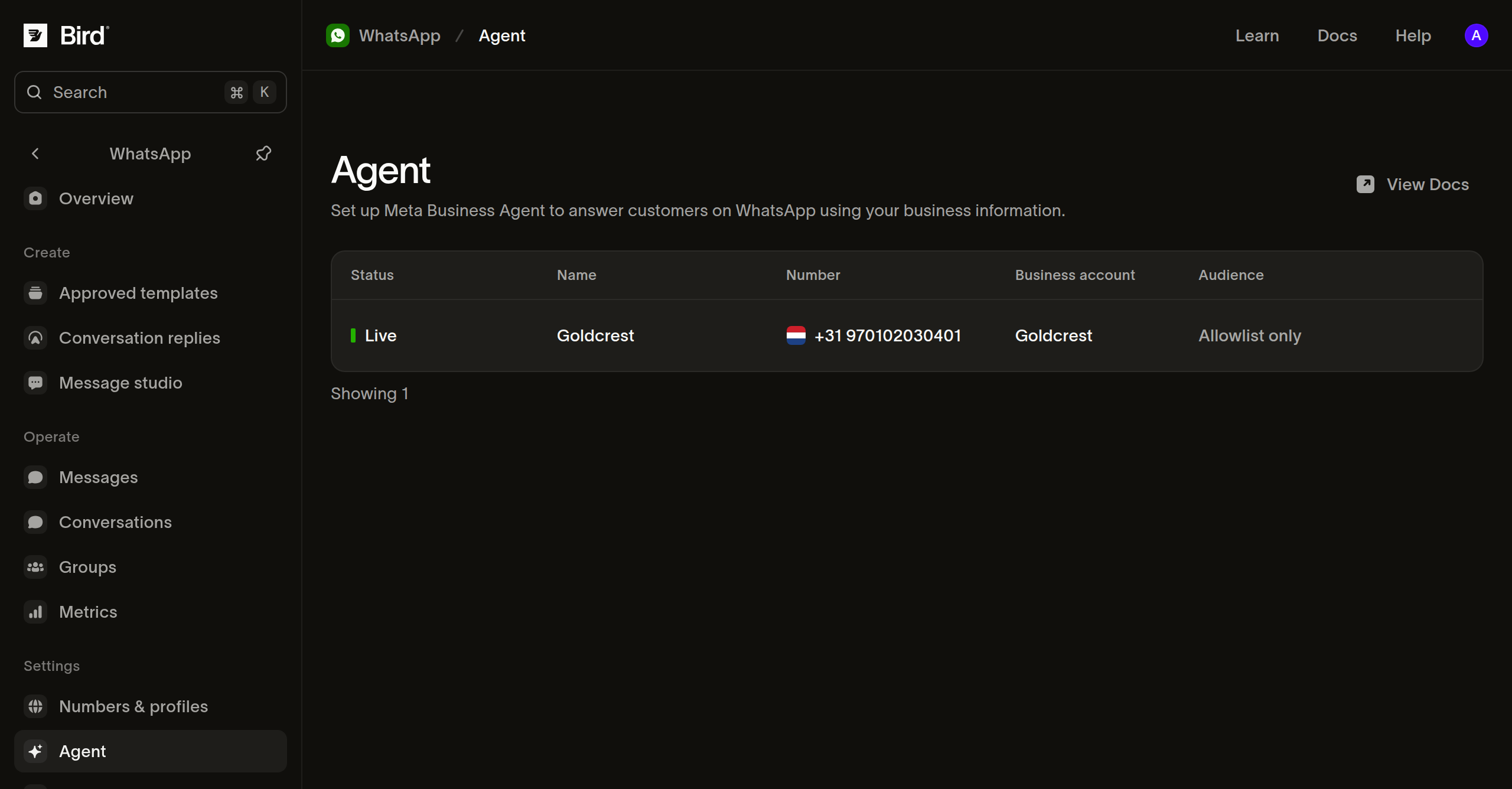
- Open WhatsApp > Agent.
- If the number shows Terms not accepted, select Accept terms and have the account owner complete the steps in WhatsApp Manager. Return to Bird and refresh the page.
- For an eligible number, select Turn on. Bird opens the agent page while WhatsApp prepares it.
- Wait for Preparing to finish before editing. Open Settings. If Enable agent is on, turn it off and select Save while you prepare its knowledge.
Each number has its own agent configuration. Live means the agent is enabled; check the Audience column to see whether it answers everyone or the allowlist.
Add the information customers need
Open Knowledge and start with the questions your team answers most often:
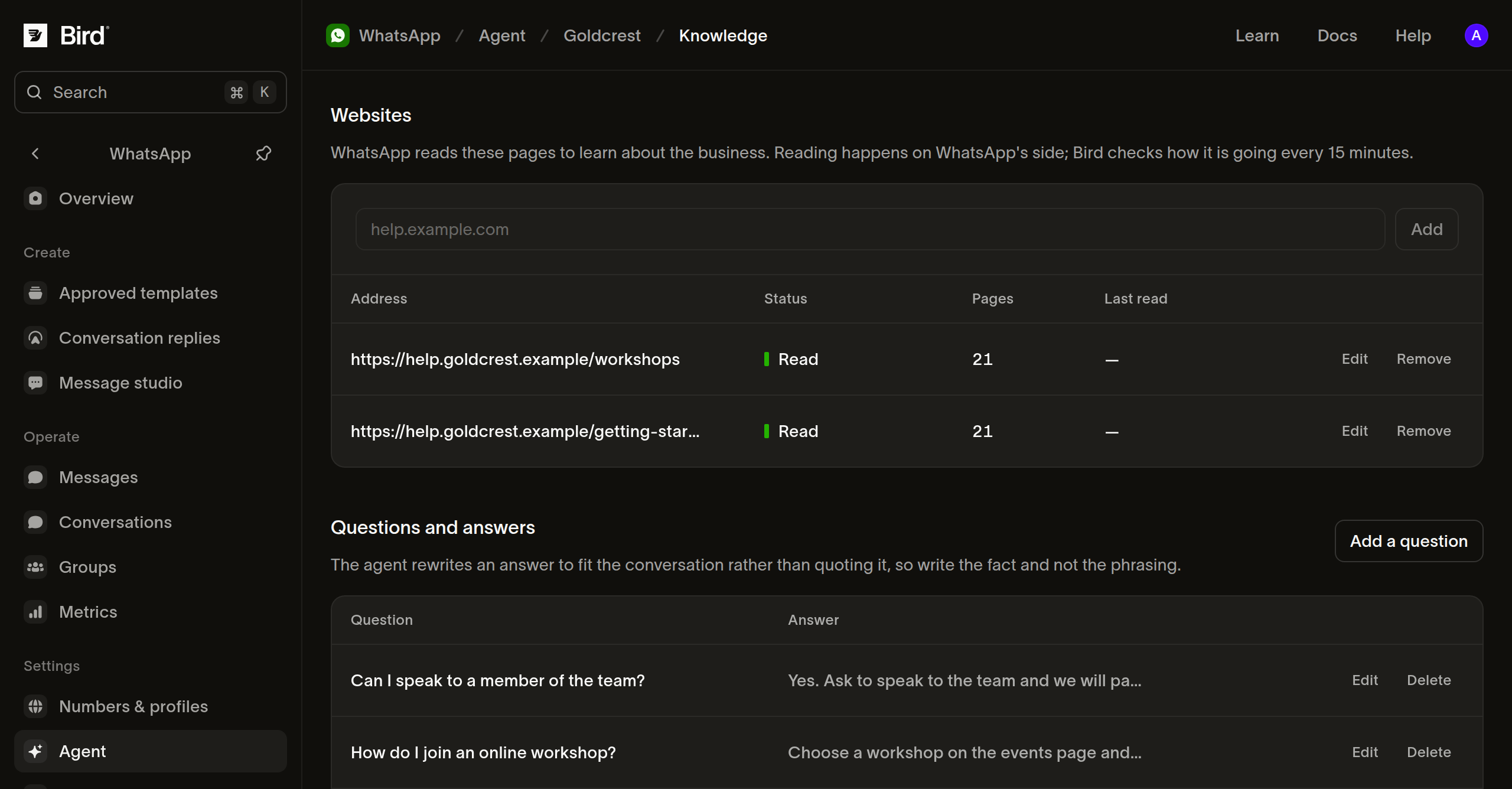
- Under Websites, enter a website address and select Add. Wait for Read before relying on that source in a test. Queued and Reading mean processing is still underway.
- Under Questions and answers, select Add a question. Write the question as a customer would ask it, add the answer you want the agent to use, and select Add.
- Under Files, use Upload a file for supporting documents that are not available on your website.
Use current, consistent sources. For a workshop business, useful starting questions include what to bring, how to change a booking, and whether a venue has step-free access.
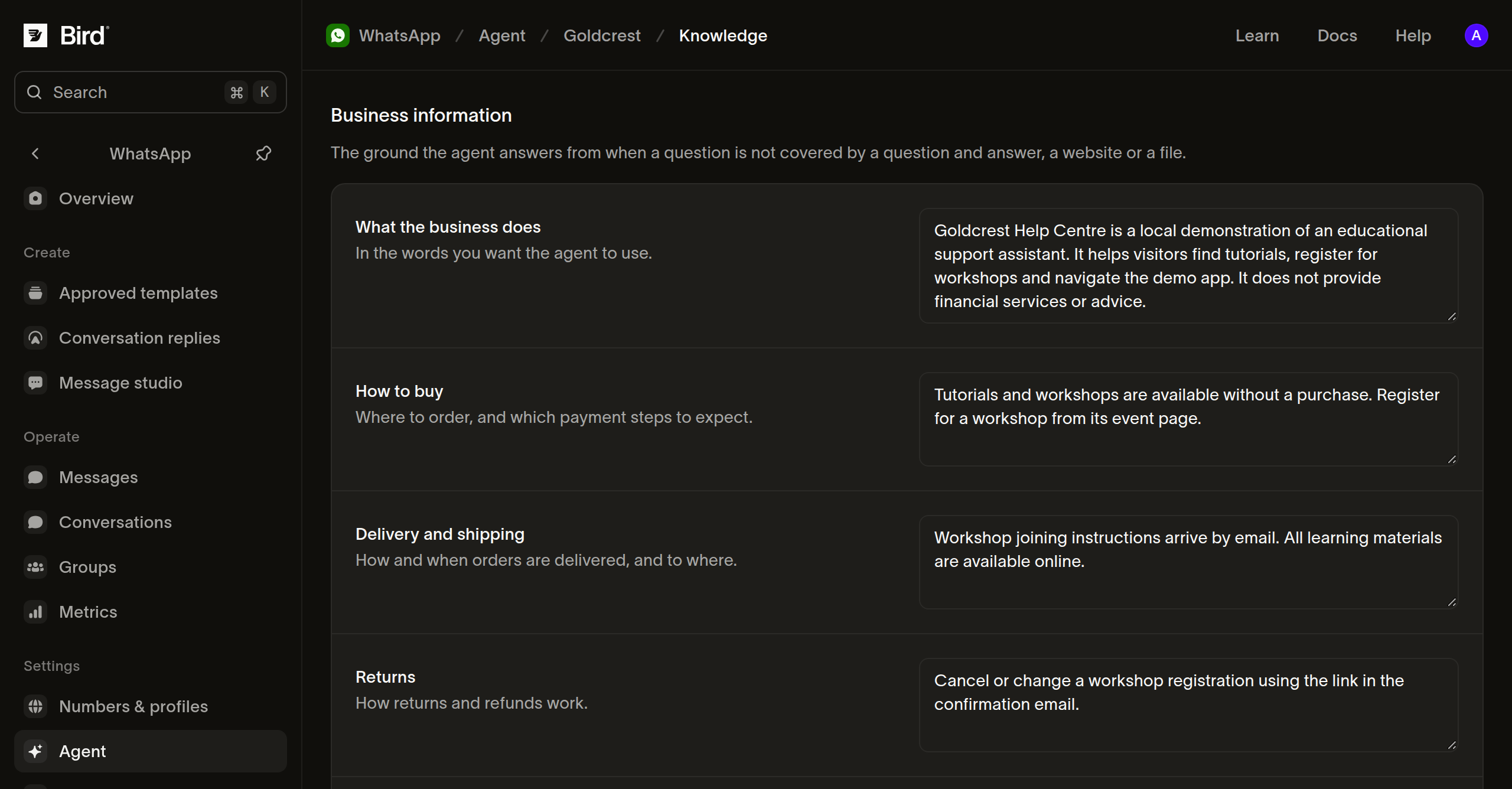
Complete Business information and Contact info with a description of the business, relevant policies, and ways to reach your team. Select Save. Review this information when your opening hours or policies change.
Explain how the agent should respond
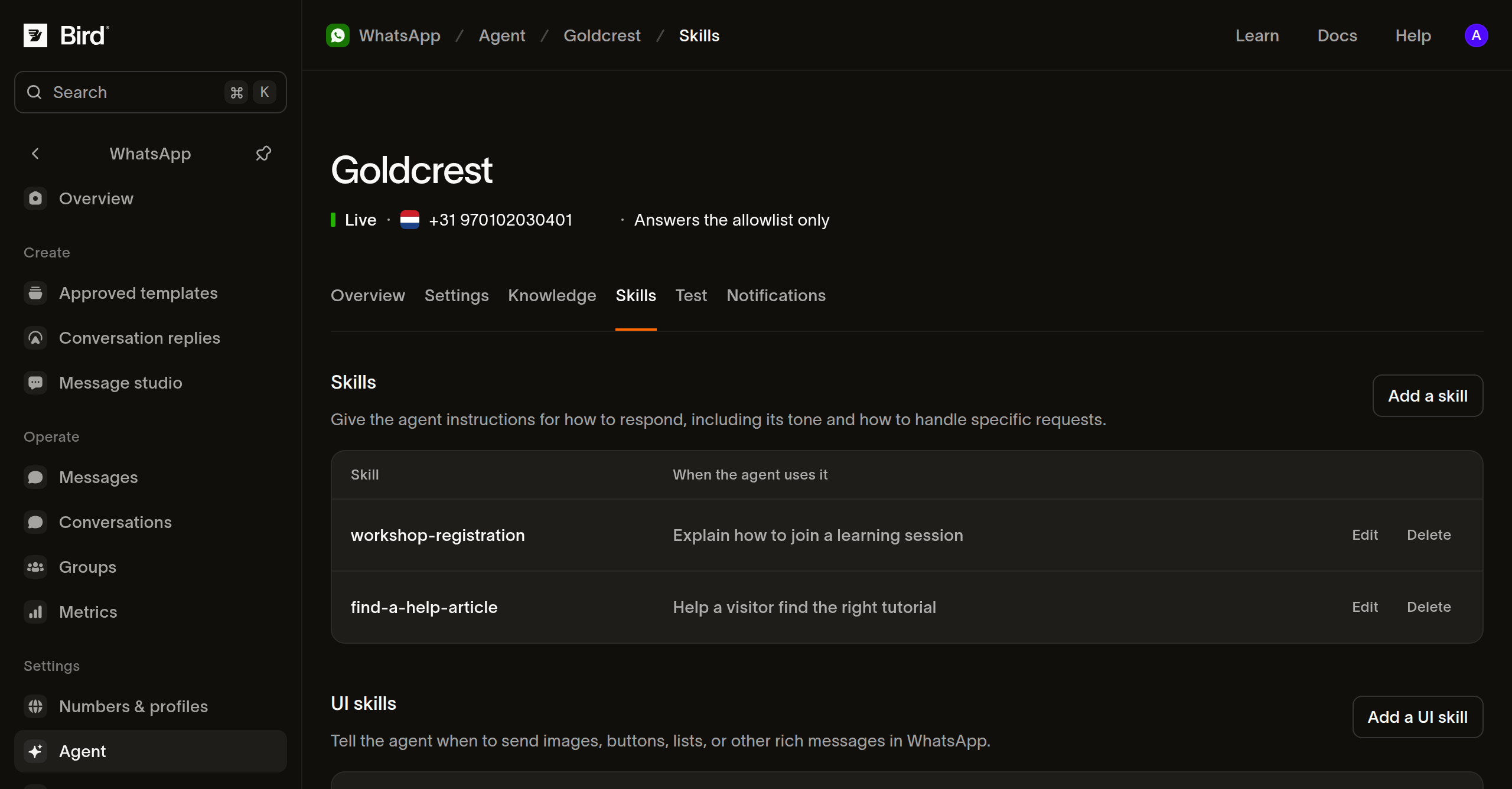
Open Skills and select Add a skill. Give it a short Handle, describe When to use it, and write the instructions under What to do. Select Add to save.
For example, a skill for workshop enquiries can tell the agent to ask which session interests the customer and answer from the published workshop information. Keep instructions specific, and avoid promising actions your business has not connected or authorized.
Test a complete exchange
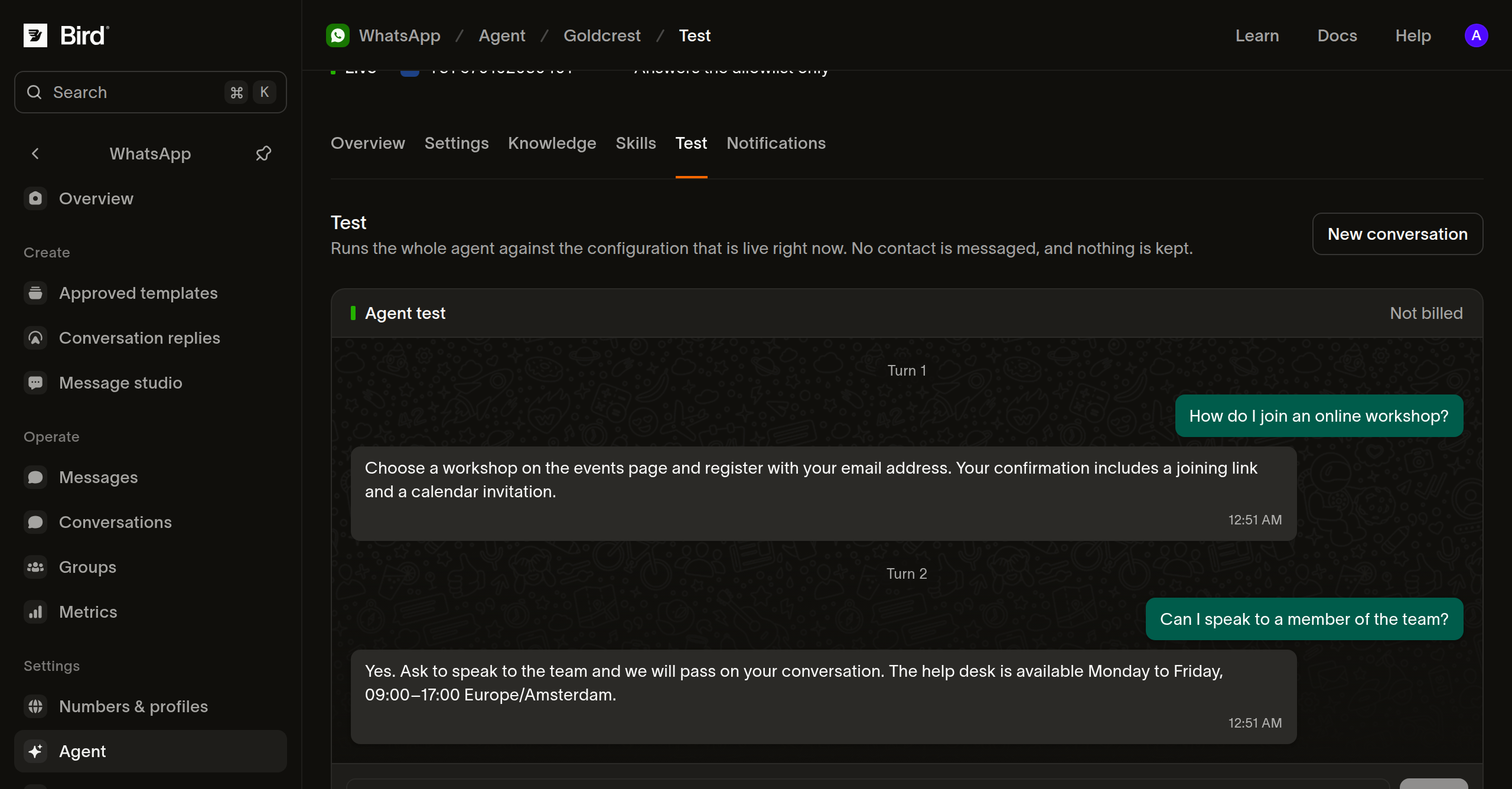
Open Test, enter a customer question, and select Send. Continue with a follow-up to check that the agent uses the earlier context. Select New conversation to try another scenario from the beginning.
Test a familiar question, a question your sources do not answer, and a request to speak to a person. Compare the answers with your policies, correct the source or skill, and test again. The test uses your saved configuration, works while the agent is off, and does not message a real customer. Test messages are not billed.
Try the agent with your team, then customers
- Open Settings. Under Availability, set Audience to Allowlist only.
- Under Handoff, turn on Enable handoffs so the agent can return control when a person needs to help. Choose the wording customers hear, then select Save.
- Under Allowlist, enter each test contact's WhatsApp phone number with its country code and select Add.
- Turn on Enable agent and select Save. Ask those contacts to message your business number in WhatsApp, and follow their exchanges in Conversations.
- When the replies and handoff work as expected, complete Meta's billing setup, change Audience to Everyone, and select Save.
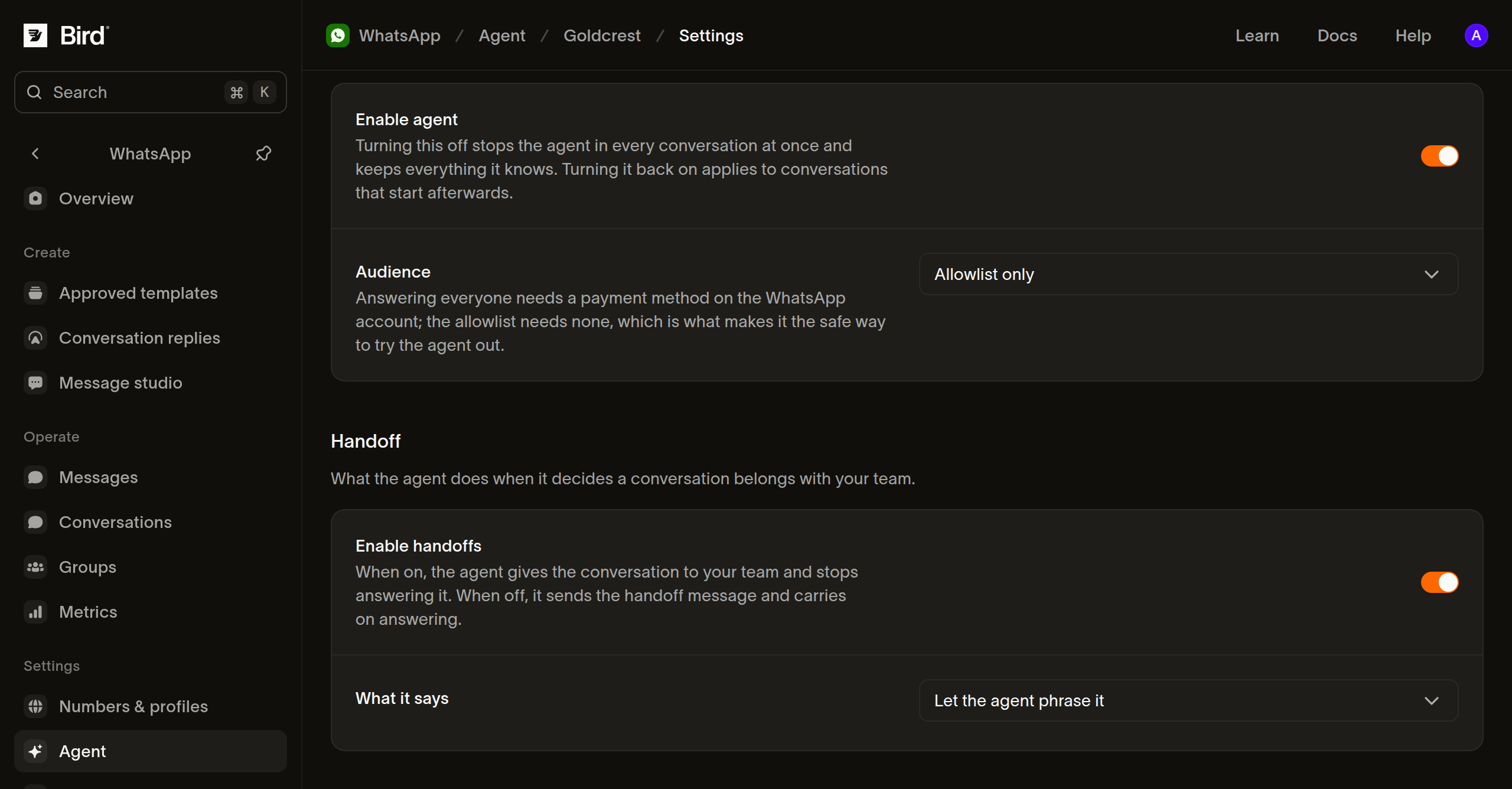
In Conversations, a teammate can select You under Assignee to take over, then select AI agent to return control. Keep someone responsible for checking handoffs after launch.
To pause replies, turn off Enable agent and save. The agent keeps its knowledge. Enabling it again applies to conversations that start afterwards.
Troubleshoot setup
- If a number is Not eligible, check Meta's current requirements. If Accept terms opens Meta's Sorry, this content isn't available right now page, the number may not be eligible.
- If a website shows Could not read or Nothing to read, check that the address opens and contains accessible business information.
- If Everyone cannot be enabled, check the payment method on the WhatsApp account.
- For an unexpected test answer, review the saved knowledge and skills, then start a New conversation.
Next steps
- Manage WhatsApp conversations and handoffs.
- Plan a WhatsApp AI agent and its responsibilities.
- Read Meta Business Agent capabilities.
Related resources
Continue with the documentation, guides and examples for this topic. Resources are in English.
Watch the guideConnecting WhatsApp to Bird: from buying a number to a live channelUnderstand the conceptWhat is the 24-hour customer service window on WhatsApp?Use the toolWhatsApp message builderExplore the capabilityWhatsApp
Try the practice and get an implementation brief