Map the source carefully.
Use contact properties for personalization and an audience for membership. Neither audience membership nor an imported email address proves permission for a particular campaign.
Manage contact identity ↗
Keep contact properties and audience membership ready for the next campaign. Give the team useful context while keeping permission and sending eligibility explicit.
Bring contact details and audience membership together so your next campaign reaches the right people. Explore how a customer profile changes as your application learns more.
Rejected: this value is not a number. Correct it and retry the same contact identity. Importing does not grant permission.
The numeric property is updated on the same fictional contact. Audience membership and permission have not changed.
This contact is outside the Studio audience.
Audience member, but missing marketing permission. Exclude from this sample campaign.
Included in this sample. Other preferences, suppressions and account policy can still exclude the address.
Source revision 12: membership true
Duplicate revision 12: unchanged
Late revision 11: ignored
Contact: con_alex_example
This application-owned revision policy avoids duplicate contacts and late membership reversal. It is an illustrative synchronization design, not a Bird guarantee of source-version enforcement.
Companies that trust Bird across their communications.
Read Bird customer storiesUse contact properties for personalization and an audience for membership. Neither audience membership nor an imported email address proves permission for a particular campaign.
Manage contact identity ↗Decide which system owns additions and removals. Reconcile the complete membership snapshot and preserve restrictions before a broadcast uses that audience.
Synchronize audience membership ↗A contact holds a person’s email address, phone number and properties. An audience groups those contacts for a campaign. Add someone to multiple audiences and their details stay together in one record. It is all part of the Bird Email platform.
The data model does the bookkeeping, so your lists don't rot.
A workspace contact can hold an email address, a phone number or both, plus names, an external ID and custom data.
An audience is a set of contacts you add and remove freely. Attributes always live on the contact, never copied onto the list.
Define your custom fields up front: string, number, boolean, or datetime, with optional fallbacks. Unknown keys and wrong-typed values are rejected at write time.
Upsert up to 1,000 contacts in a single call, and join them to an audience in the same request.
Find a contact by exact email match, so your own systems can sync without scanning every record.
Batch imports match the identifiers each entry carries and report per-entry outcomes. Upsert up to 1,000 contacts and join them to an audience in one request. When identifiers point to different contacts, review the conflicting entry before retrying. Reconcile completed and failed entries when resuming an interrupted import.
// Upsert up to 1,000 contacts and add them to an audience at once.
const result = await bird.contacts.batch({
  audience_ids: ["adn_01krdgeqcxet5s7t44vh8rt9mg"],
  contacts: [
    { email: "ada@example.com",   first_name: "Ada",   data: { plan: "growth" } },
    { email: "grace@example.com", first_name: "Grace", data: { plan: "free" } },
  ],
});

// Per-contact results come back in submission order.
for (const item of result.data) {
  console.log(item.entry.email, item.status);
}
Synchronize audience membership with CLI or MCP, then list its contacts to check the result. Keep subscription and consent decisions with your contact records.
Import a spreadsheet, review its field mapping and organize contacts into reusable groups. Names and typed properties stay on the contact; membership determines which audience they belong to.
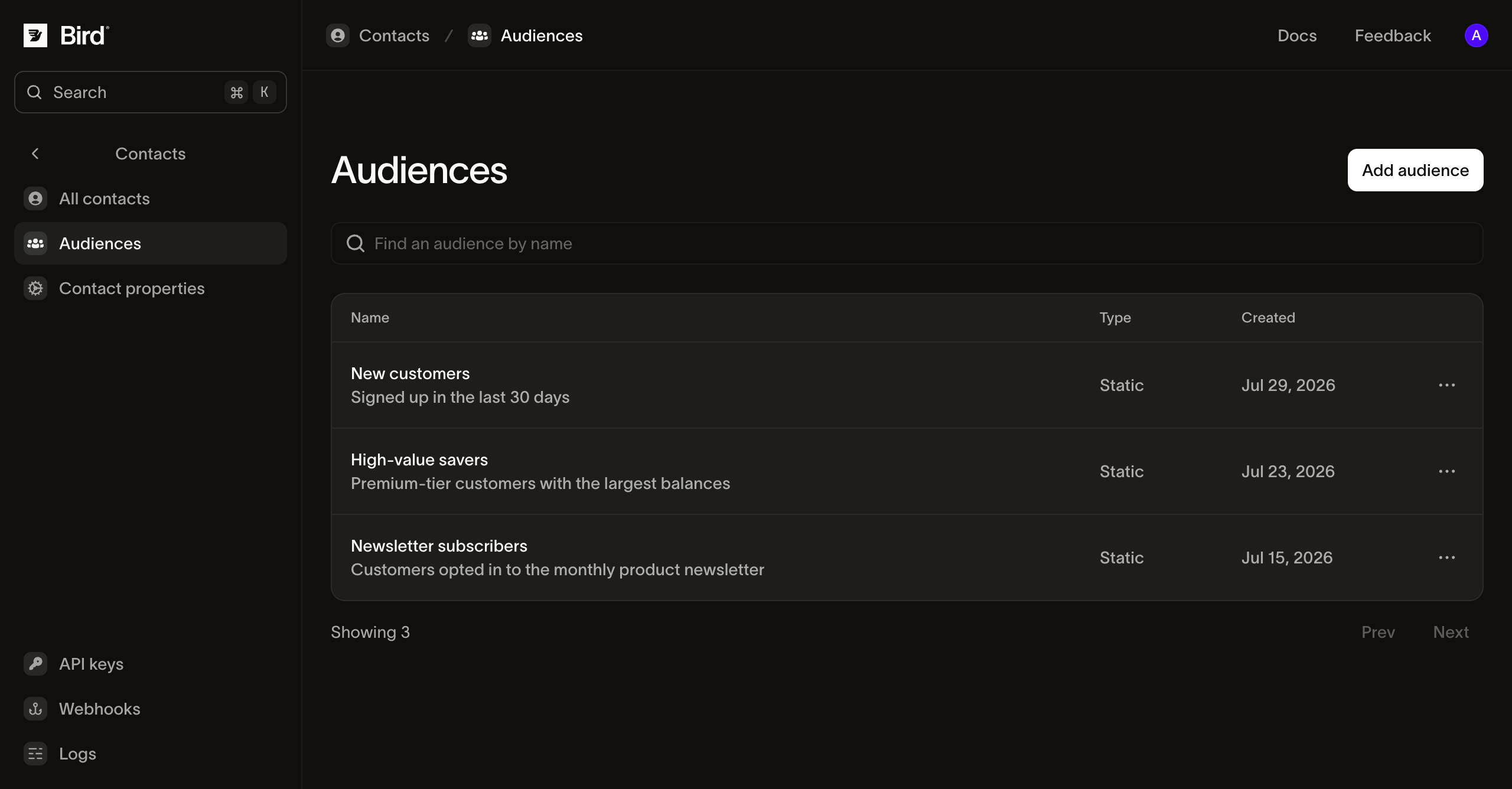
Product screenshot with example records. Review audience membership and deliverability before sending.
Use the same contact foundation across your messaging workflow.
Work through additions, removals and an incomplete refresh before launching a campaign.
Inspect identifiers, matching rules and the customer record behind a recipient.
Connect source rules, explicit membership and channel eligibility.
Apply additions and removals from the source system that evaluates your selection.
Choose the product or guide that matches the next job.
Upload CSV, TSV or Excel, review field mapping and assign an audience.
Add or remove contacts from a reusable list and inspect its deliverable count.
Use the audience in a broadcast when its content and sender are ready.
Learn the contact model or find help with the next workflow.
Continue with the documentation, guides and examples for this topic. Resources are in English.
Marketing campaigns: draft, target an audience, schedule, and send.
Stored, versioned email templates, personalized per recipient at send.
Recipient suppressions and opt-out preferences checked before delivery.
The full Email API: sending, deliverability, IPs, suppression, analytics, and broadcasts.
Talk to our email team
Bring your contact sources, segmentation needs and consent requirements. We’ll help you connect them to your email campaigns.
Create your account, then add contacts and build your first audience.
A test API key is yours immediately. Production unlocks when you add a payment method and verify a sender.
Read docs