Numéros de téléphone WhatsApp
Un message WhatsApp part depuis l'un des deux types de numéro : un numéro que Bird exploite pour vous, ou un numéro que votre propre espace de travail possède. Celui que vous avez détermine ce que vous pouvez envoyer et si un envoi identifie ou non son expéditeur.
La page Numbers liste les deux. Le champ from dans la réponse d'envoi et le journal des messages identifie le numéro utilisé par un message donné.
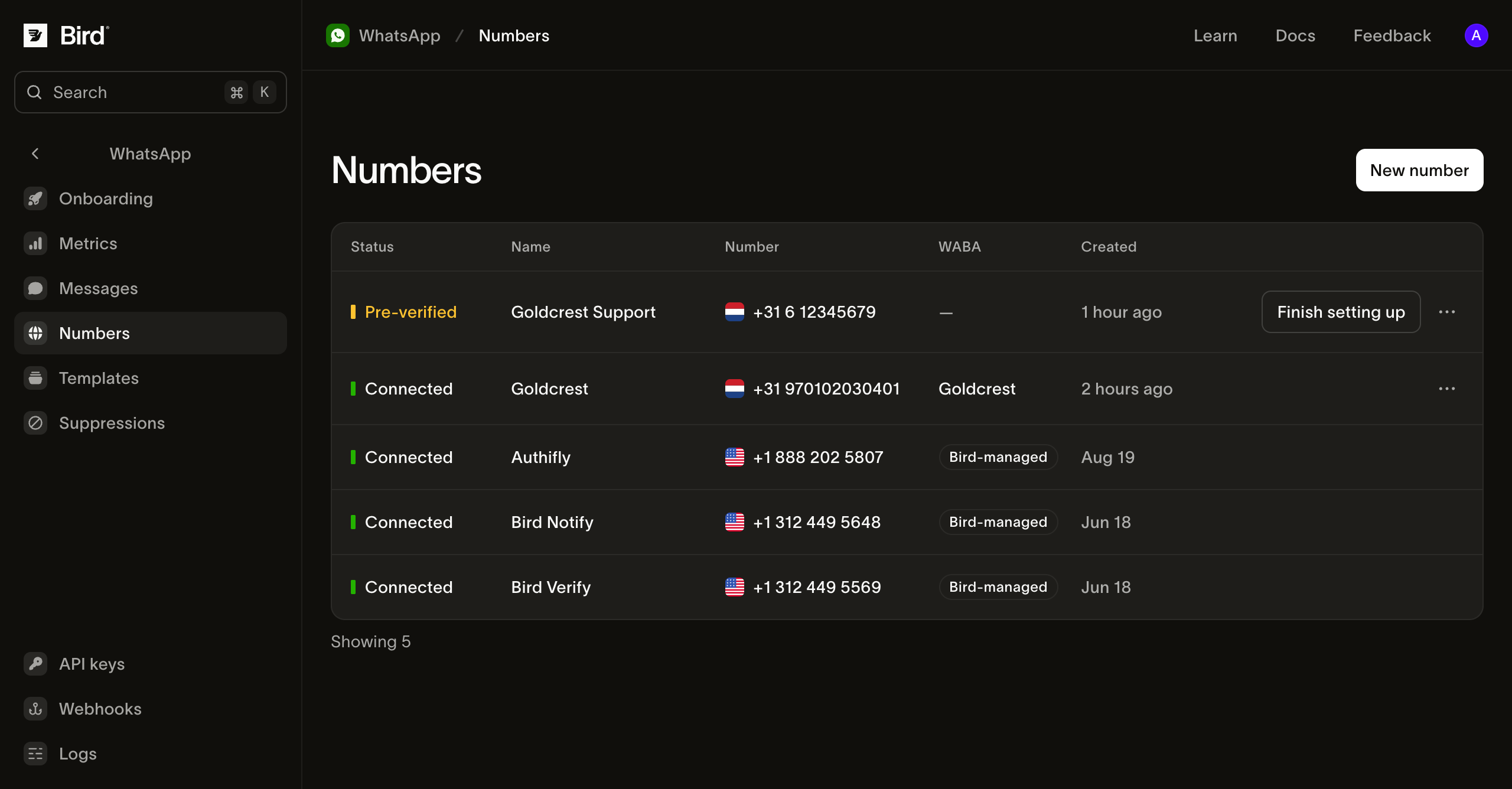
Numéros gérés par Bird
Les propres numéros de Bird ne nécessitent aucune configuration et portent les templates pré-approuvés dont les slugs commencent par bird_. Bird en sélectionne un selon la catégorie du template et votre région : les templates authentication utilisent un numéro d'authentification dédié, les templates utility un numéro de notification. Un envoi de template géré n'a donc pas de champ from, et en définir un est rejeté.
Ces numéros utilisent l'infrastructure d'envoi gérée par Bird, donc l'expéditeur que votre destinataire voit est celui de Bird et non le vôtre, et le contenu libre ne peut pas être envoyé depuis ceux-ci. Ils sont marqués Bird-managed dans la colonne WABA.
Votre propre numéro
Connecter un numéro à vous est ce qui permet d'envoyer sous votre propre marque : vos propres templates, et du contenu libre dans une fenêtre de service client ouverte. Chaque envoi depuis ce numéro l'identifie dans from.
Vous le connectez depuis la page Numbers, dans le popup Embedded Signup de Meta. Il y a deux méthodes, et elles diffèrent par la personne qui lit le code de vérification que Meta envoie au numéro :
- J'ai mon propre numéro. Vous recevez le code de Meta par SMS ou appel vocal et vous le saisissez vous-même dans la fenêtre Embedded Signup. Choisissez le chemin de migration pris en charge ou de coexistence Business app éligible avant de modifier une inscription existante, et définissez un Phone registration PIN uniquement si le numéro en porte déjà un sur WhatsApp.
- Un numéro que votre espace de travail détient chez Bird. Choisissez-le dans la liste Number à la place. Bird reçoit le code et effectue la vérification de Meta pour vous, de sorte que le numéro arrive pré-vérifié et vous n'avez qu'à le sélectionner dans la fenêtre Embedded Signup.
Vérification d'un numéro détenu par Bird
Choisir un numéro détenu lance la vérification avant l'ouverture du popup Embedded Signup. Bird demande à Meta d'envoyer un SMS au numéro, puis lit le code en retour pour vous.
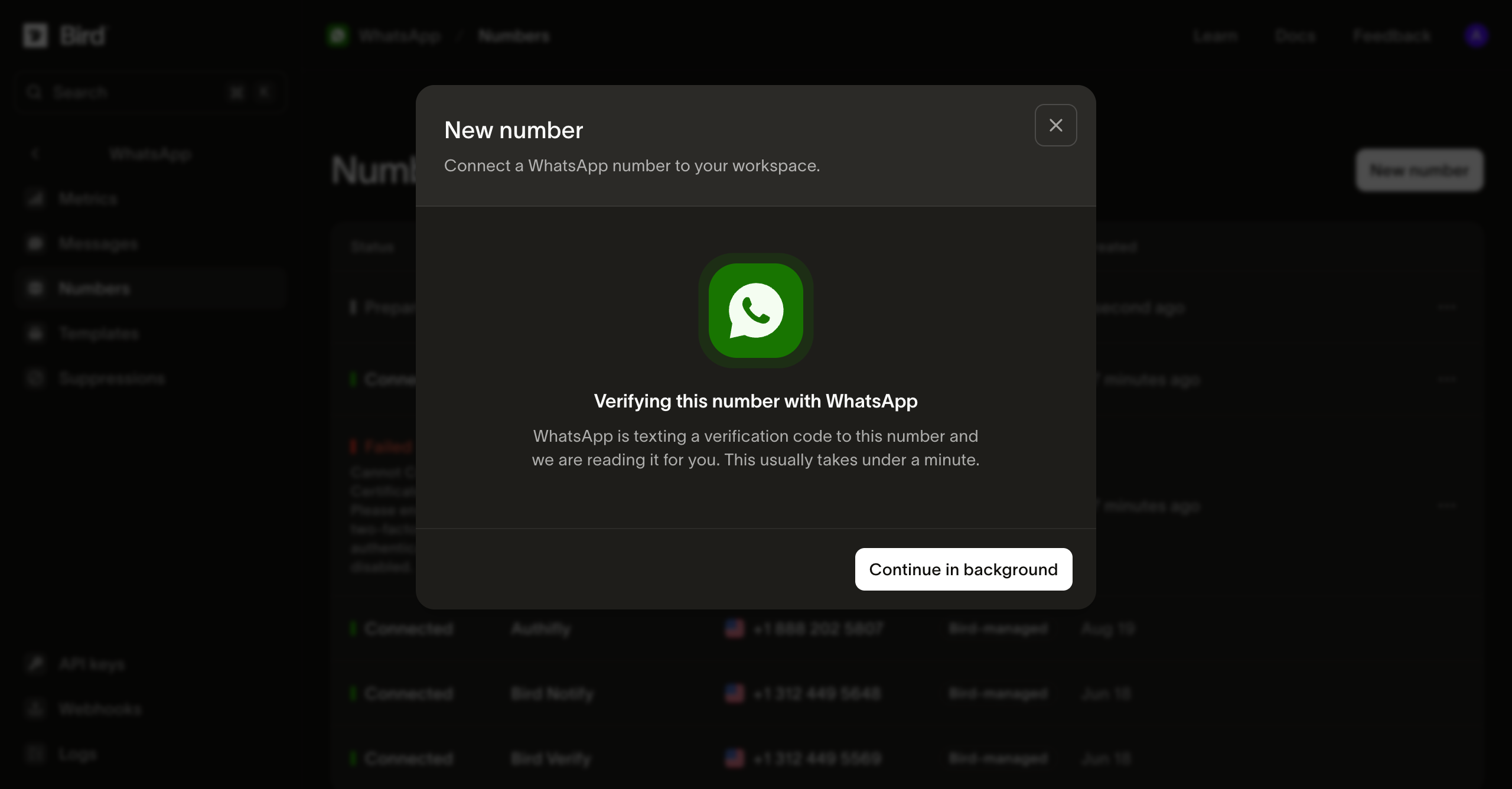
Cela prend généralement moins d'une minute. Vous n'avez pas besoin d'attendre dans la boîte de dialogue : Continue in background la ferme et la ligne sur la page Numbers suit la même progression.
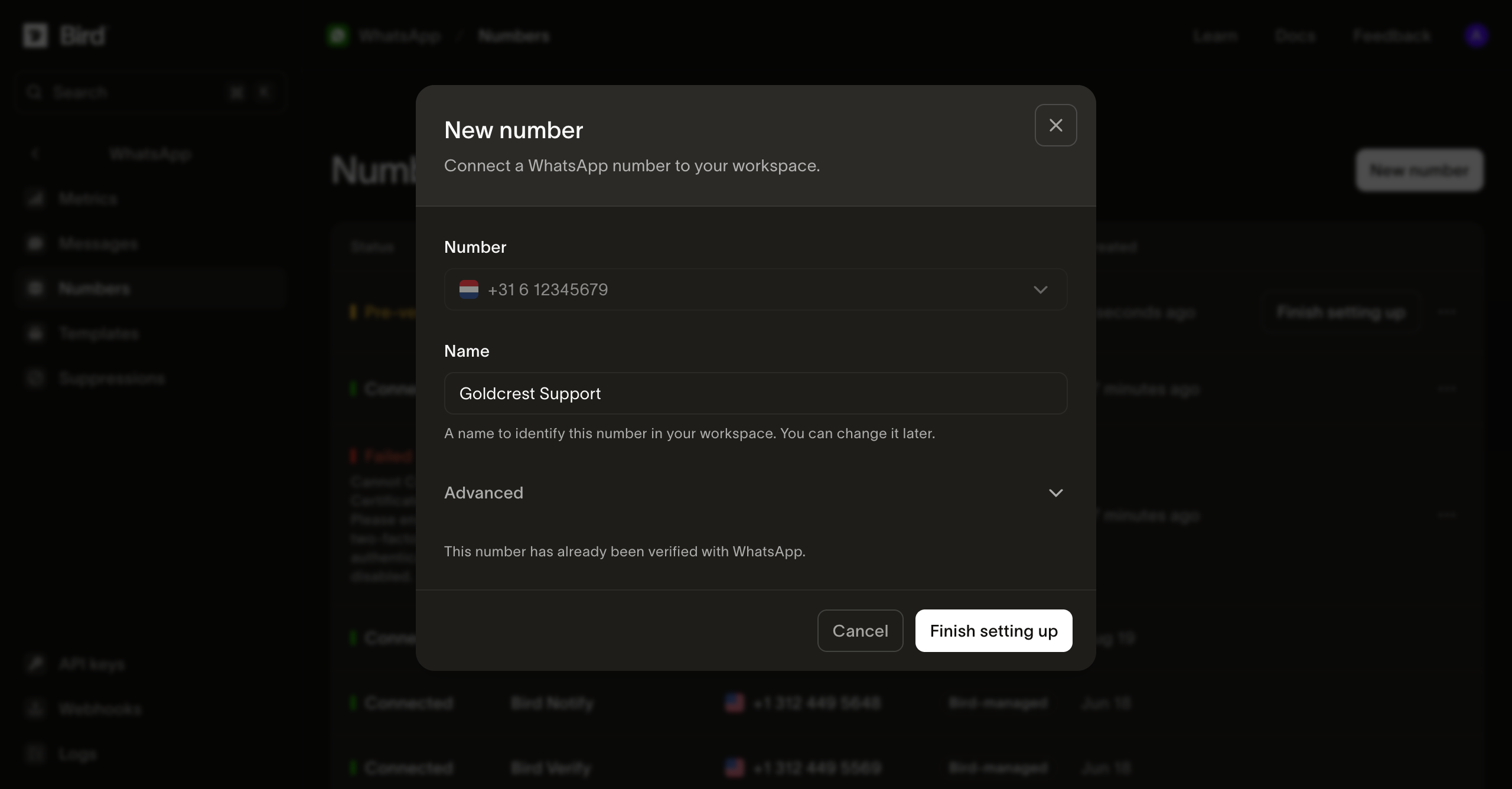
Une fois le code lu, le numéro est vérifié auprès de Meta et attend que vous terminiez dans Embedded Signup. Finish setting up ouvre le popup de Meta, où vous sélectionnez le numéro et le compte business auquel il doit être rattaché.
Ce que signifie le statut d'un numéro
Un numéro passe par plusieurs états avant de pouvoir envoyer, et la colonne Status indique celui dans lequel il se trouve :
| Statut | Ce que cela signifie |
|---|---|
| Preparing | Bird effectue la vérification de Meta pour un numéro que votre espace de travail détient. |
| Pre-verified | Bird a effectué la vérification de Meta. Terminez la configuration du numéro dans Embedded Signup. |
| Pending | Embedded Signup est terminé et Bird enregistre le numéro auprès de Meta. |
| Connected | Le numéro peut envoyer. |
| Failed | La configuration a échoué. La ligne indique la raison. |
Les deux méthodes peuvent échouer en cours de route, lors de la vérification de Meta ou dans le popup. La façon de résoudre le problème dépend de la raison indiquée sur la ligne.
Si la ligne affiche verification_code_not_received ou verification_rate_limited, ouvrez le numéro et sélectionnez Try again plutôt que de le déconnecter. Pourquoi la pré-vérification échoue, et quand réessayer explique quand le bouton devient disponible et quoi faire si la nouvelle tentative échoue aussi.
Pour toute autre raison, déconnectez ce numéro depuis les actions de sa ligne puis reconnectez-le : la ligne en échec conserve le numéro réservé, donc une seconde tentative sans le supprimer est rejetée.
Puis-je envoyer des messages WhatsApp sans acheter un numéro de téléphone ? détaille ce choix.
Ce qu'affiche un numéro connecté
La page d'un numéro montre ce que WhatsApp l'autorise à faire, plus une section Activity couvrant son historique d'envoi.
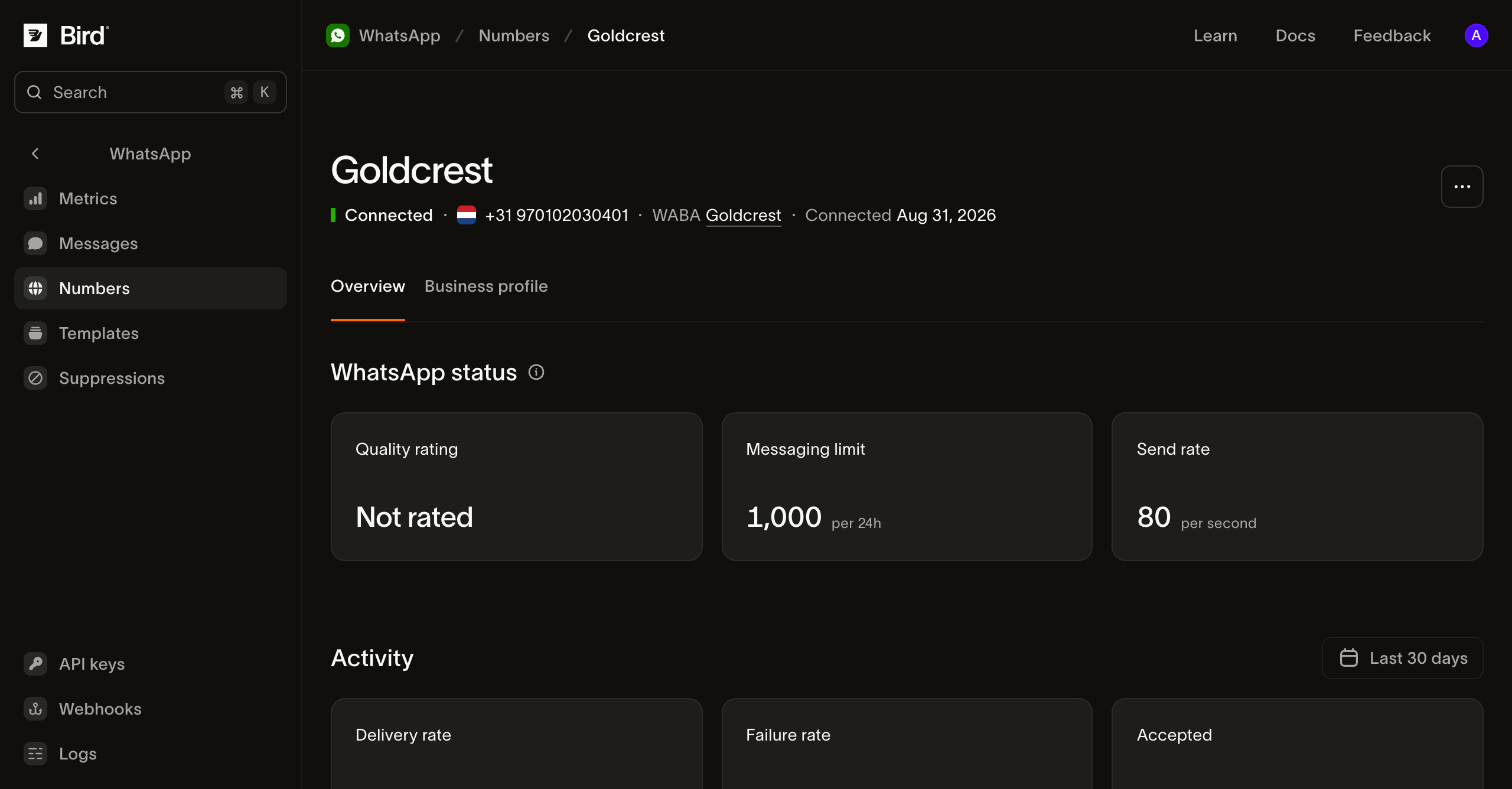
Quality rating, Messaging limit et Send rate sont les valeurs de WhatsApp, pas celles de Bird. La limite de messages est le nombre de conversations initiées par l'entreprise que WhatsApp autorise en 24 heures, et elle augmente à mesure que le numéro envoie correctement. Quality rating affiche Not rated tant que WhatsApp n'a pas assez d'historique de livraison pour l'évaluer.
L'onglet Business profile contient ce que les destinataires voient à votre sujet dans WhatsApp : le nom d'affichage, la description, l'adresse et la photo de profil.
Le compte business derrière un numéro
Chaque numéro connecté appartient à un WhatsApp Business Account, et la colonne WABA renvoie vers celui-ci. Sa fiche rapporte les examens de Meta sur l'entreprise elle-même, pas sur le numéro.
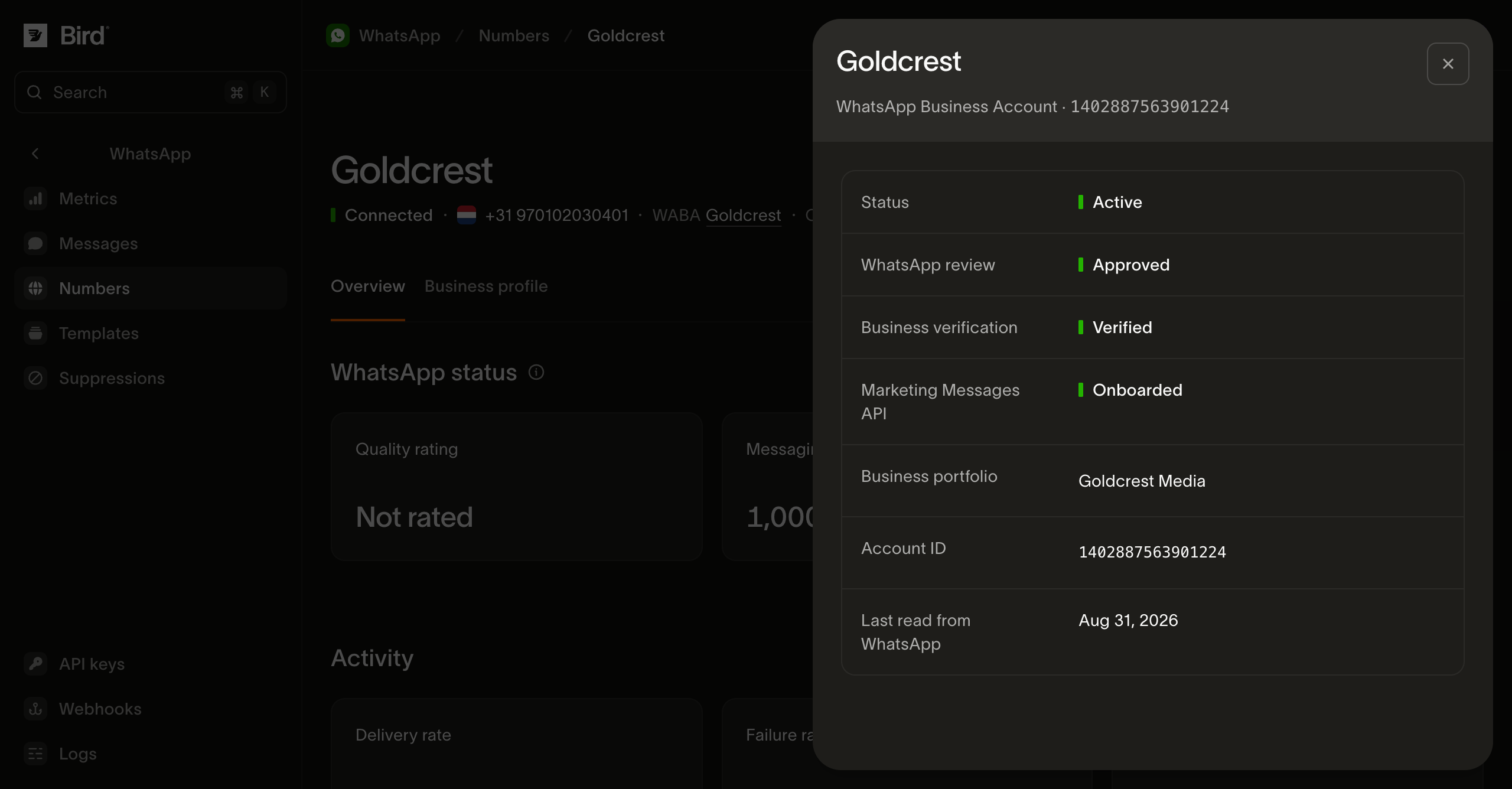
Ces états conditionnent ce que le compte peut faire. Business verification en particulier conditionne les templates d'authentification : une entreprise non vérifiée ne peut pas en créer. Marketing Messages API affiche Onboarded une fois que Meta a accepté le compte. Les envois marketing ne l'attendent pas. L'onboarding conditionne les optimisations de livraison de Meta, ainsi qu'un en-tête gif, qui échoue avec WhatsApp sur un compte non onboardé. Un espace de travail peut contenir plusieurs comptes business, chacun avec plusieurs numéros. Consultez les verdicts du compte qui possède l'expéditeur visé ; un compte connecté a un espace de travail et un propriétaire régional spécifiques.
Bird lit ces informations depuis Meta selon un calendrier plutôt qu'en continu, donc Last read from WhatsApp date les verdicts au-dessus.
Lire vos numéros depuis l'API
Tout ce que le tableau de bord affiche ci-dessus est lisible via l'API et depuis les SDK. Les lectures nécessitent une clé API avec un accès en lecture whatsapp_management.
GET /v1/whatsapp/numbers renvoie vos expéditeurs sous forme de page paginée par curseur. Chacun porte l'état que WhatsApp rapporte pour lui, c'est donc l'appel qui vous indique quelles valeurs from un envoi peut utiliser.
GET /v1/whatsapp/numbers/{id} lit un seul numéro, avec les mêmes quality rating, messaging limit et niveau de débit que la page de détail affiche. GET /v1/whatsapp/numbers/{id}/profile lit le profil business derrière l'onglet Business profile, y compris description, address et websites.
GET /v1/whatsapp/numbers/{id}/events renvoie comment un numéro a atteint son état actuel, du plus récent au plus ancien : quand il a été ajouté, chaque changement de statut, et chaque décision de messaging-limit, quality-rating et display-name. Chaque événement porte type, summary et created_at. type est un enum ouvert, donc traitez une valeur que vous ne reconnaissez pas comme un futur type d'événement plutôt que comme une erreur.
GET /v1/whatsapp/business-accounts et GET /v1/whatsapp/business-accounts/{id} lisent les états de compte décrits plus haut sur cette page : account_review_status, business_verification_status et marketing_messages_onboarding_status. Un numéro rapporte son compte dans son propre champ waba, qui contient l'identifiant de compte Meta plutôt qu'un identifiant Bird.
Deux détails à connaître avant de construire sur ces lectures. meta_synced_at date les champs rapportés par WhatsApp, correspondant à Last read from WhatsApp dans le tableau de bord, et il est absent sur un numéro que Bird exploite pour vous. Un numéro en cours d'inscription est lisible : status rapporte preparing et awaiting_signup, next indique quoi faire de cet état, et finish_setup_url contient le lien qui termine la configuration, de sorte que vous pouvez interroger l'avancement et fournir à une personne la dernière étape. Le seul champ non exposé est meta_preverified_id, l'identifiant propre à WhatsApp pour un numéro en cours de préparation, qui reste dans le tableau de bord.
Connecter, renommer et déconnecter un numéro ne font pas partie de l'API publique ni des SDK. Ces opérations sont disponibles dans le tableau de bord et via l'interface CLI (bird whatsapp numbers create|update|delete et bird whatsapp numbers profile update). Une seule étape nécessite un navigateur : une nouvelle connexion se termine sur l'écran de consentement de Meta, c'est pourquoi create vous fournit un finish_setup_url plutôt que de terminer de façon autonome.
Messages entrants
Les messages entrants arrivent dans votre espace de travail uniquement sur vos propres numéros. Bird les enregistre dans le journal WhatsApp, et l'onglet Inbound sur la page Metrics rapporte le volume reçu par numéro. Chaque message ouvre aussi la fenêtre de 24 heures nécessaire au contenu libre. Les numéros gérés par Bird ne reçoivent pas de messages pour votre espace de travail.
Étapes suivantes
- Envoyer des messages WhatsApp : l'appel d'envoi que ces numéros portent, et quand from est requis
- Templates WhatsApp : le catalogue géré et vos propres templates
- La fenêtre de service client WhatsApp : quand le contenu libre peut être livré
- Journal WhatsApp : voir quel numéro a envoyé un message
- Connecter WhatsApp à Bird : de l'achat d'un numéro à un canal opérationnel : une vidéo qui parcourt le même chemin dans le tableau de bord
for await (const number of bird.whatsapp.numbers.list({ limit: 25 })) {
  console.log(number.id, number.phone_number, number.status);
}
for number in client.whatsapp.numbers.list(limit=25):
print(number.id, number.phone_number, number.status)for number, err := range client.Whatsapp.Numbers.List(ctx, bird.WhatsappNumbersListParams{Limit: 25}) {
if err != nil {
log.Fatal(err)
}
fmt.Println(number.Id, number.PhoneNumber, number.Status)
}foreach ($bird->whatsapp->numbers->list() as $number) {
echo $number->getId(), ' ', $number->getPhoneNumber(), ' ', $number->getStatus(), PHP_EOL;
}curl -sS "https://us1.platform.bird.com/v1/whatsapp/numbers?limit=25" \
-H "Authorization: Bearer $BIRD_API_KEY"Ressources associées
Poursuivez avec la documentation, les guides et les exemples sur ce sujet. Les ressources sont en anglais.
Explorer la fonctionnalitéConnect WhatsAppSuivre le parcours d'apprentissageBuild your first integration
Essayez la pratique et obtenez un guide d'implémentation